
Appearance
22. See what samples are due and record one
When you need this: once a month, to be sure nothing is late. This page is your state's sample plan in one list: what to test for, where, how often, and what you have turned in so far. The second half of the page shows how to write down a result you got back.
Steps
On the left side of the screen, click Compliance, then click Monitoring Schedule.
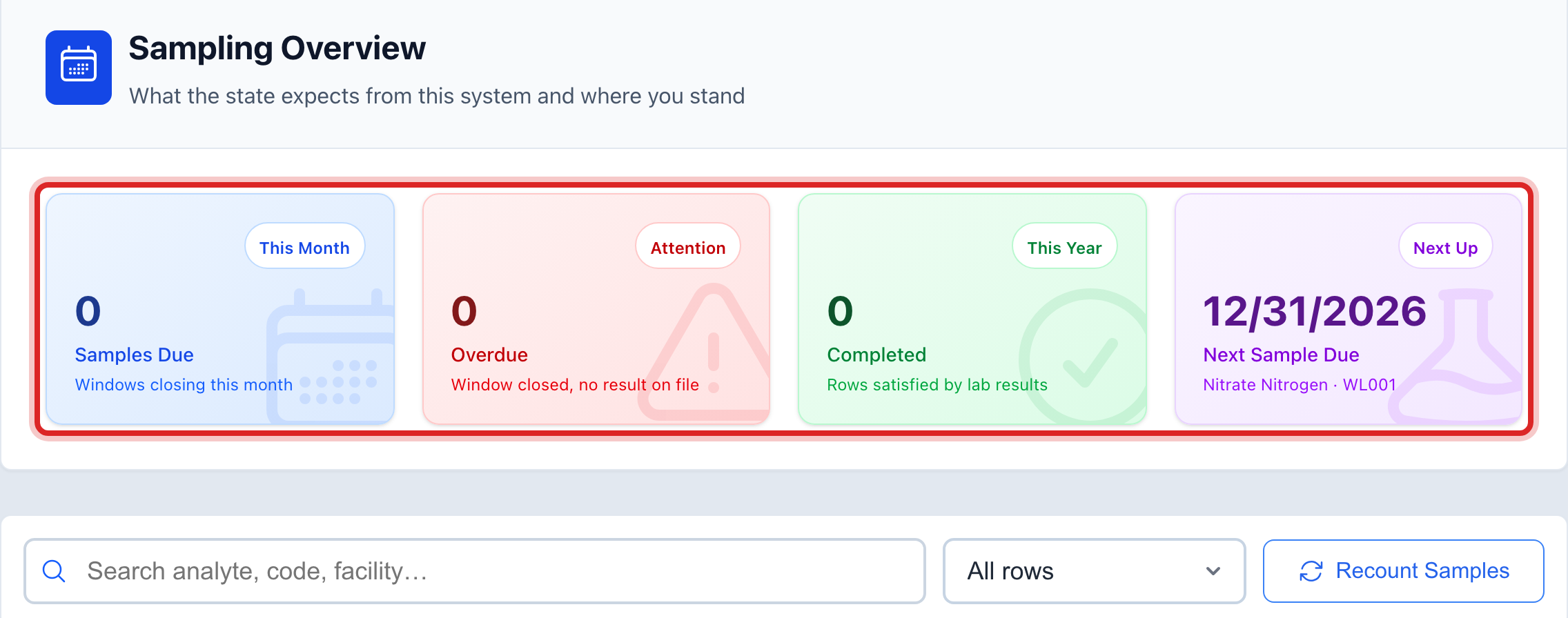
Read the four boxes at the top. Samples Due is this month's work. Overdue is late work. Completed is what you have done this year. Next Sample Due is the one coming up.
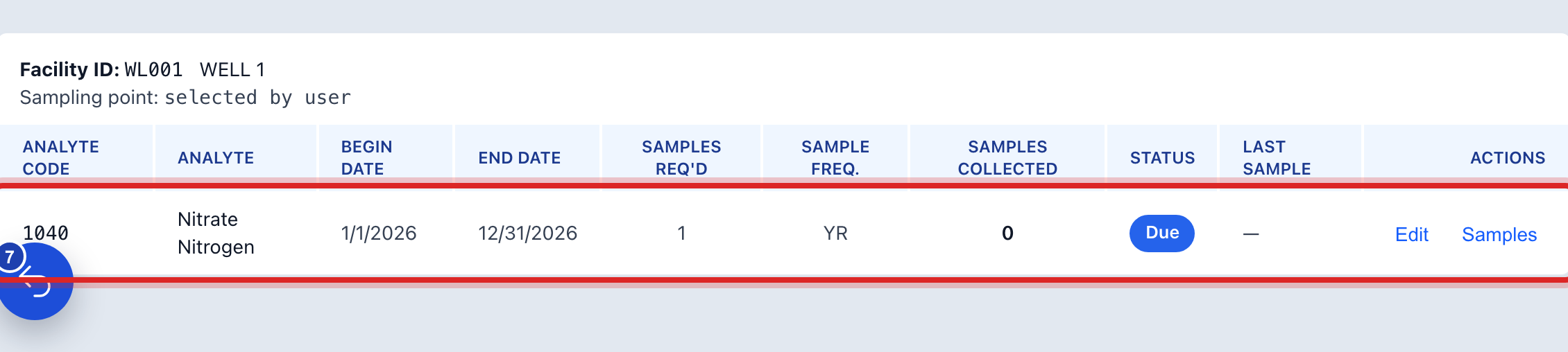
Look down the list below. The Status of each line says Due, Overdue, Complete or Inactive. Click the line you want to work on.
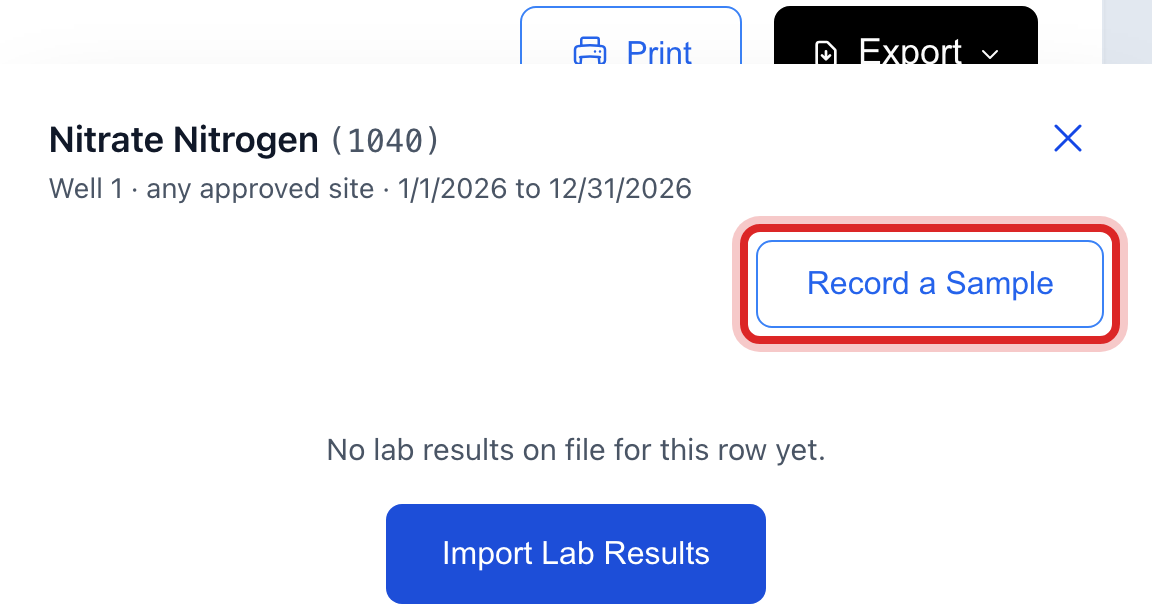
A panel slides in from the right with the results on file for that line. If there are none yet, click Record a Sample.
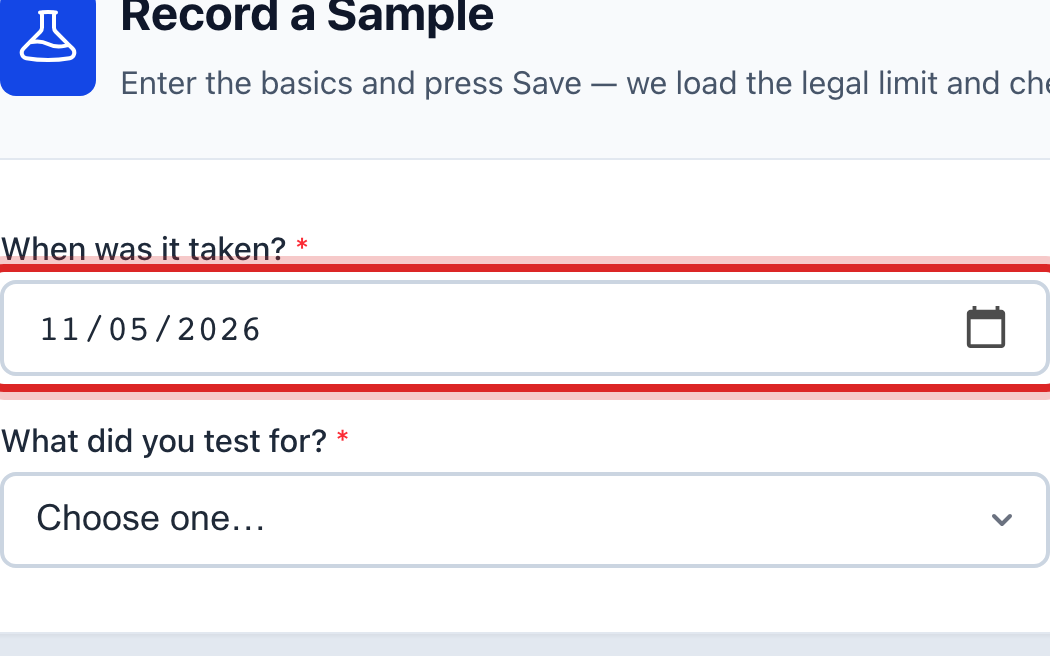
The Record a Sample page opens. Set When was it taken? to the day you took it, not today.
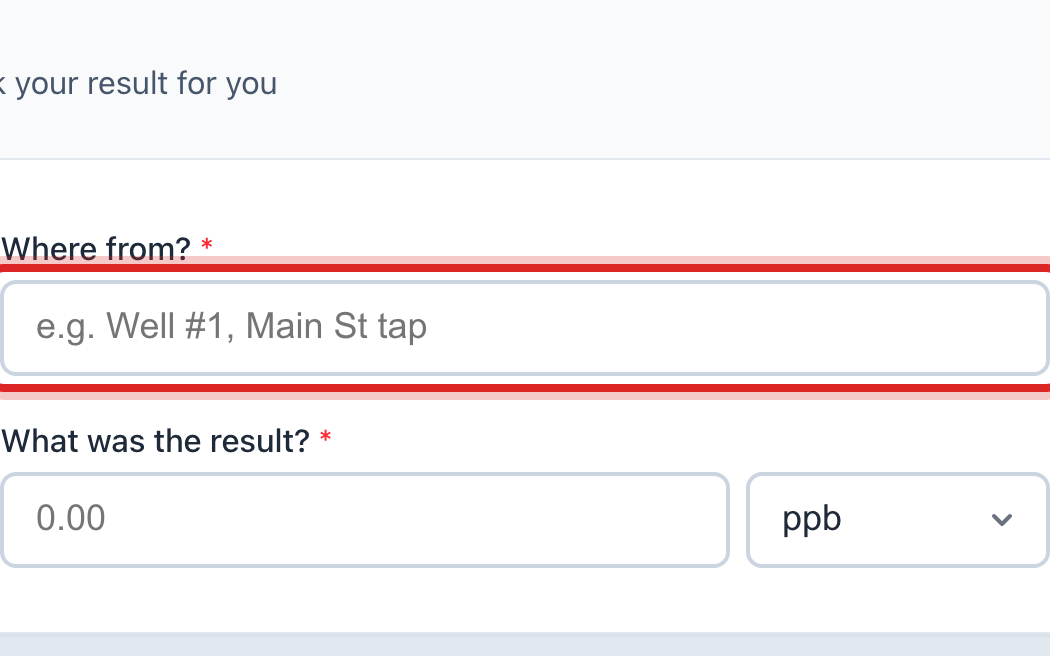
In Where from?, type the spot, like Well #1 or Main St tap. If you have used the spot before, it comes up as you type.
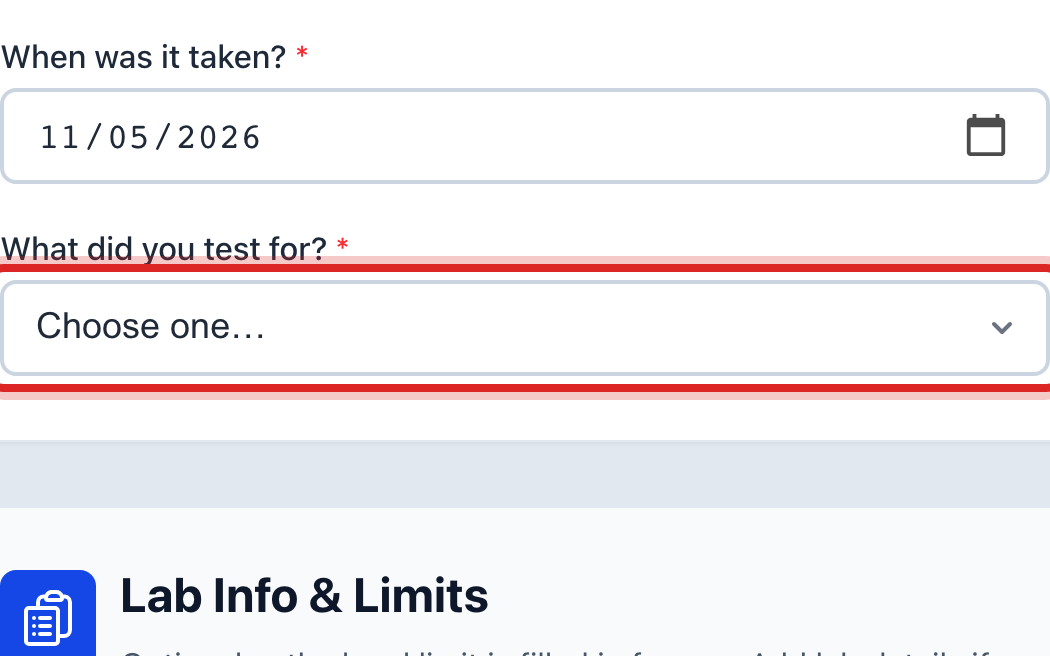
In What did you test for?, pick the thing off the list. The list is grouped, so look under the heading it belongs to.
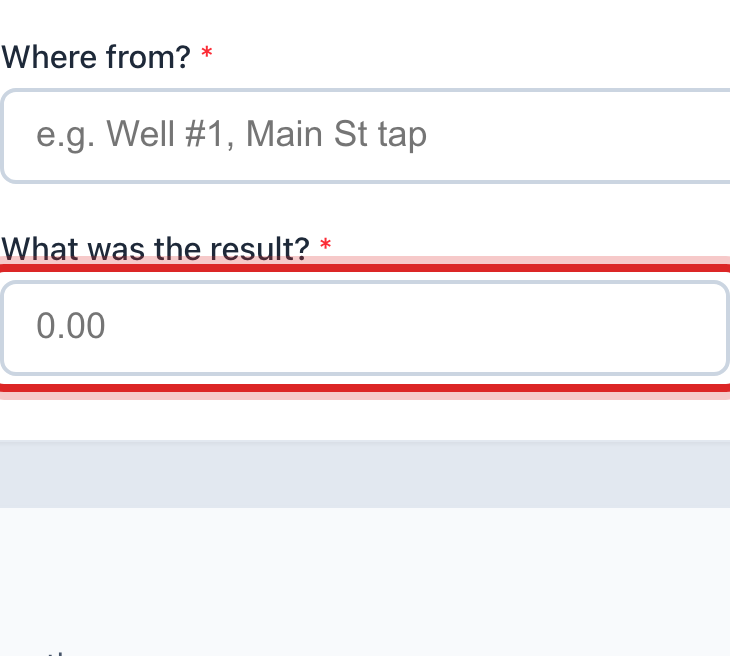
Type the number from the lab in What was the result? and pick the unit next to it, like mg/L or ppb. Utilops looks up the legal limit and tells you right away if you are over it.
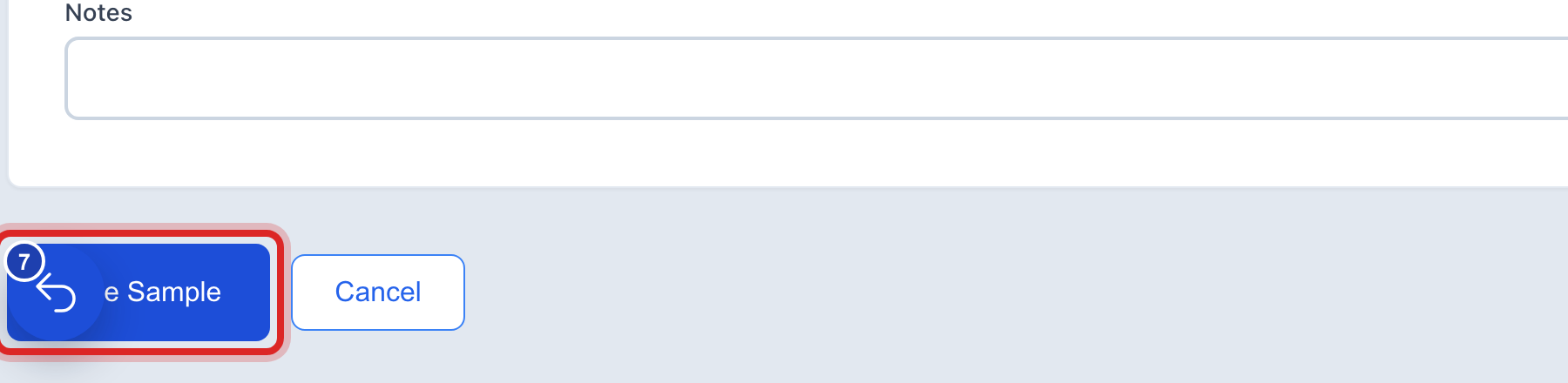
Click the blue Save Sample button.
Made a mistake? Click Undo on the green message that appears, or open Show me how at the top and pick Undo a mistake.
You are done when
A green message says Sample saved successfully. If the result was over the limit, it also tells you a violation record was made for you. Back on Monitoring Schedule, the Samples collected count on that line goes up by one. If the Status has not caught up, click Recount Samples at the top.
If something looks different
The panel shows a table instead of buttons. That means results are already on file for that line. To add one more, click Compliance on the left, then Record Sample, and fill in the same boxes.
The lab sent a whole report. Do not type each line. Click Compliance, then Lab Results, then Import Lab Report. One report can bring in many results at once.
The list is empty. Your facilities need their state ID first, and the plan has to be brought in. The page tells you so at the top. Ask the person who set up Utilops.
There is a Lab Info and Limits box further down. All of it is extra. Fill in the lab name and the sample ID if you have them. You can save without them.