
Appearance
8. Start or stop service
When you need this: someone bought the house on Main Street and wants the water on. Or a renter is moving out Friday and wants a final bill. Both jobs are on this page. Starting is a short form. Stopping asks you seven questions, one screen at a time.
Steps: start service for someone new
On the left side of the screen, click Customer Management, then click New Customer.
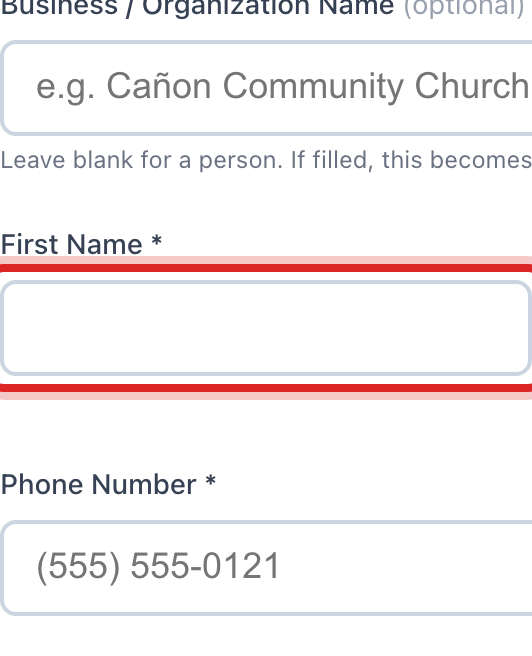
Type their first name in the First Name box. Type their last name in the box beside it.
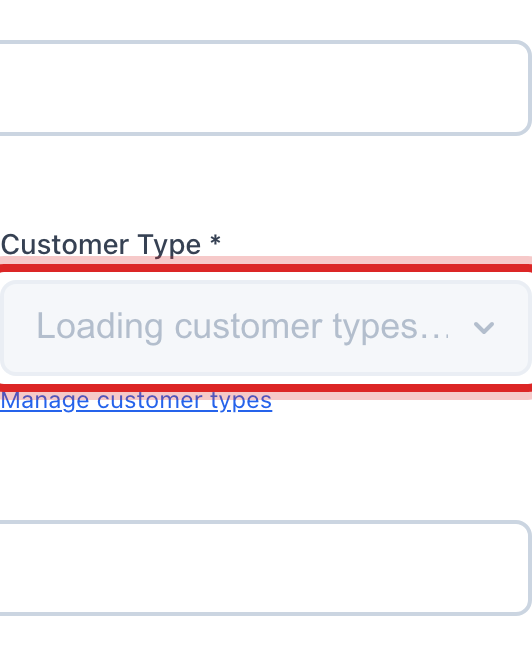
Click the Customer Type list. Pick the kind of account. For a house, pick the one your office uses for homes.
Type a phone number in the Phone Number box.
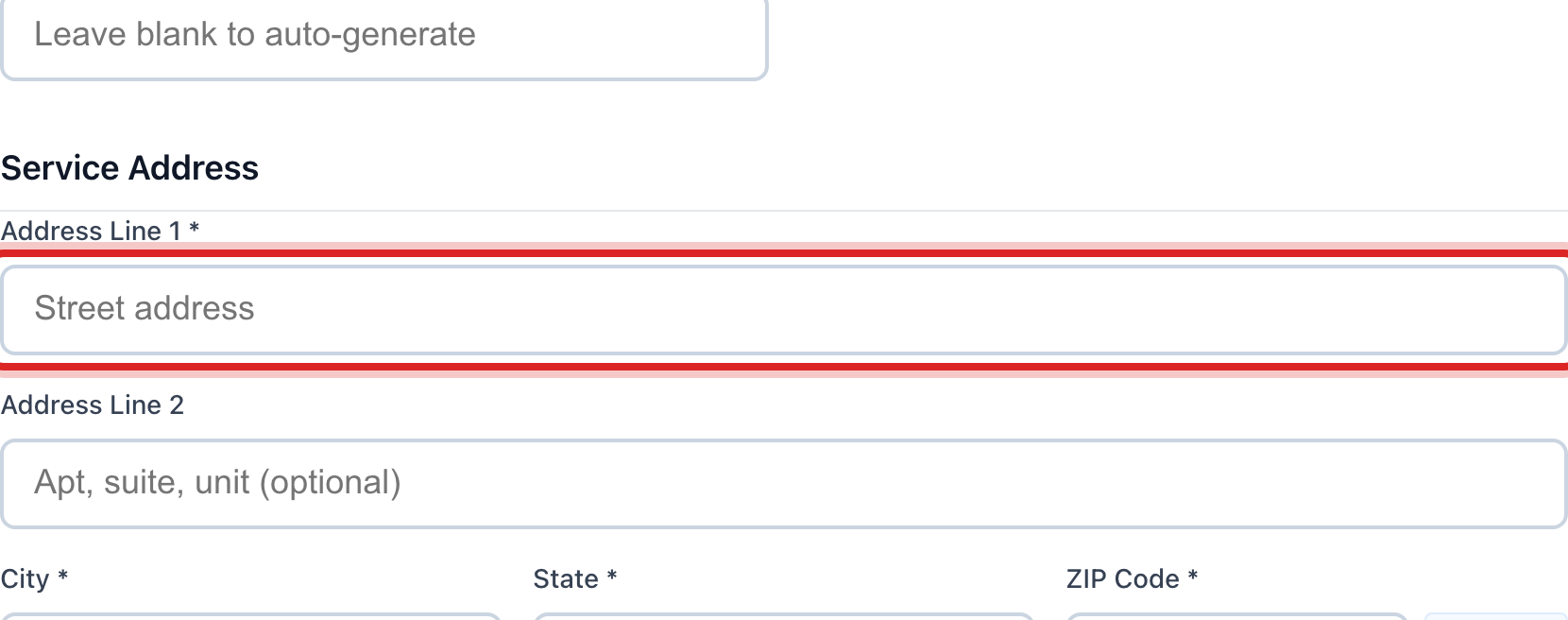
Type the service address in Address Line 1. Then fill in the city, the state and the ZIP code.
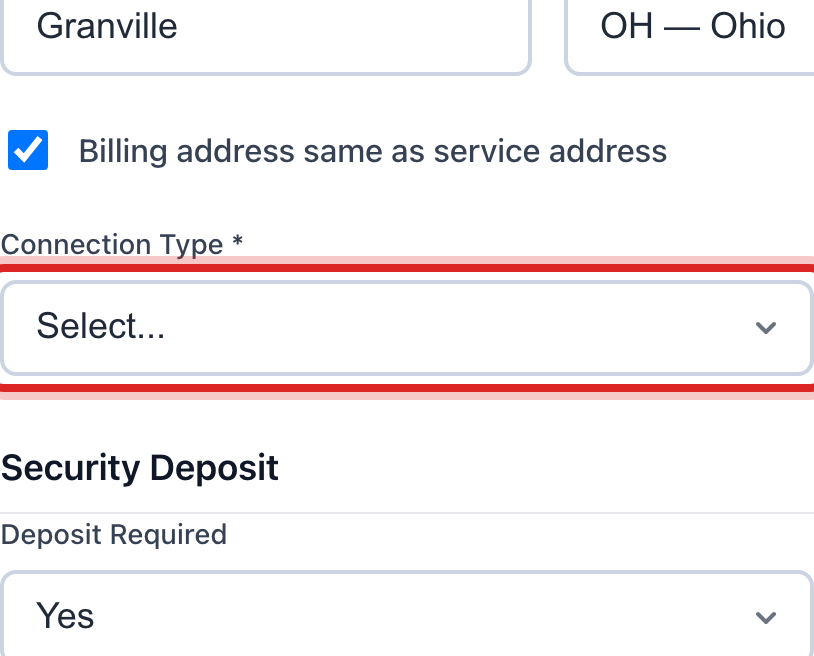
Click the Connection Type list. Pick New Service.
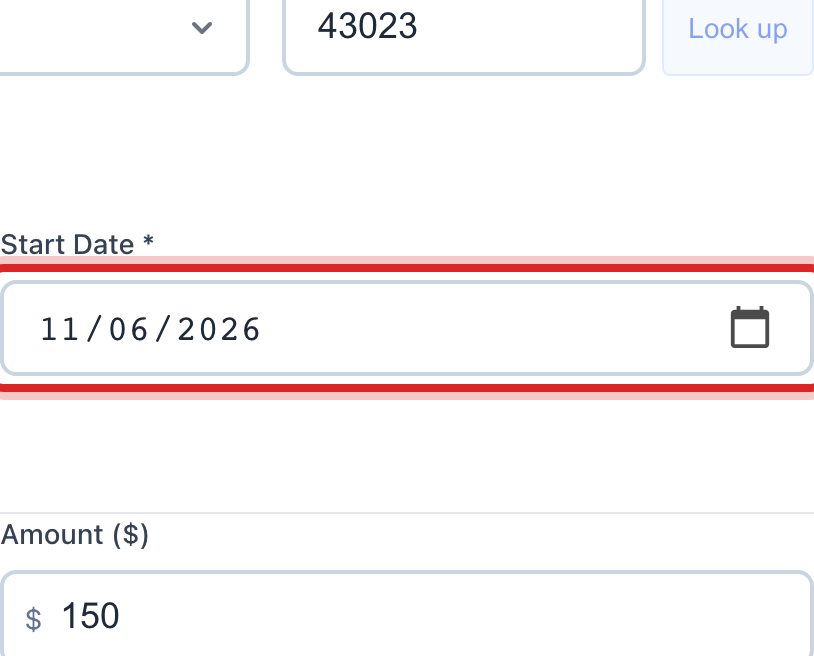
Click the Start Date box. Pick the day the water goes on.
Answer the deposit question. Pick Yes and type the amount, or pick the waive choice.
Click the blue Create Customer button at the bottom.
Steps: stop service when someone moves out
On the left side of the screen, click Customer Management, then click Move Out / Move In.
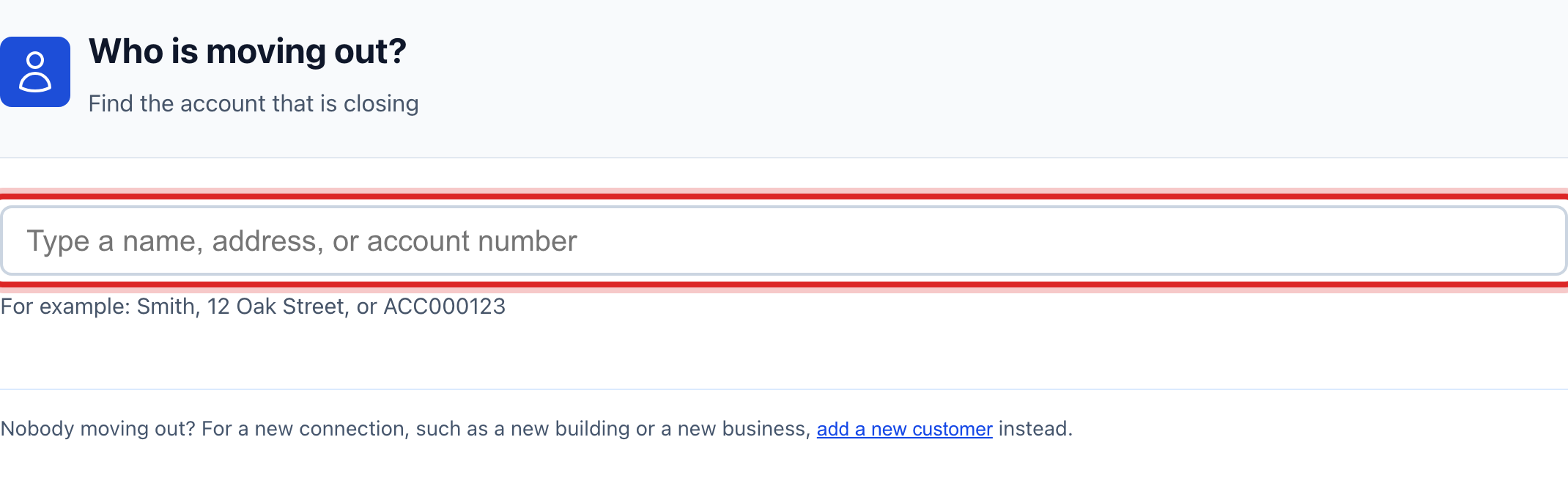
Type the name, the address or the account number. Click the right person in the list. Then click This is the right account.
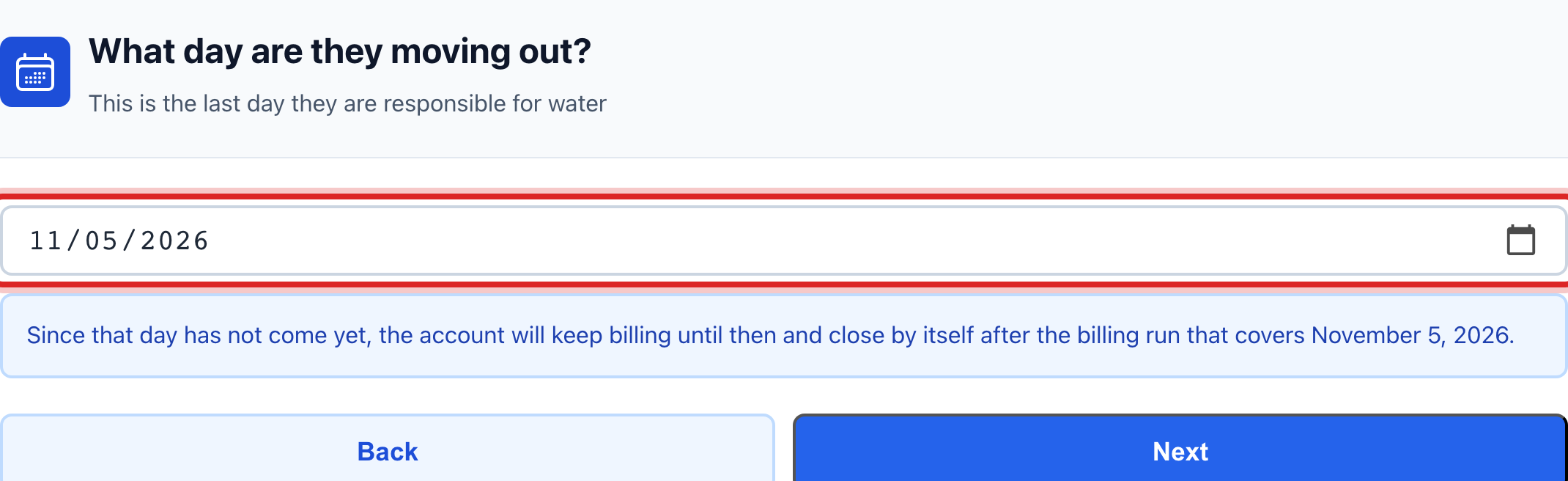
Pick the day they move out. Then click Next.
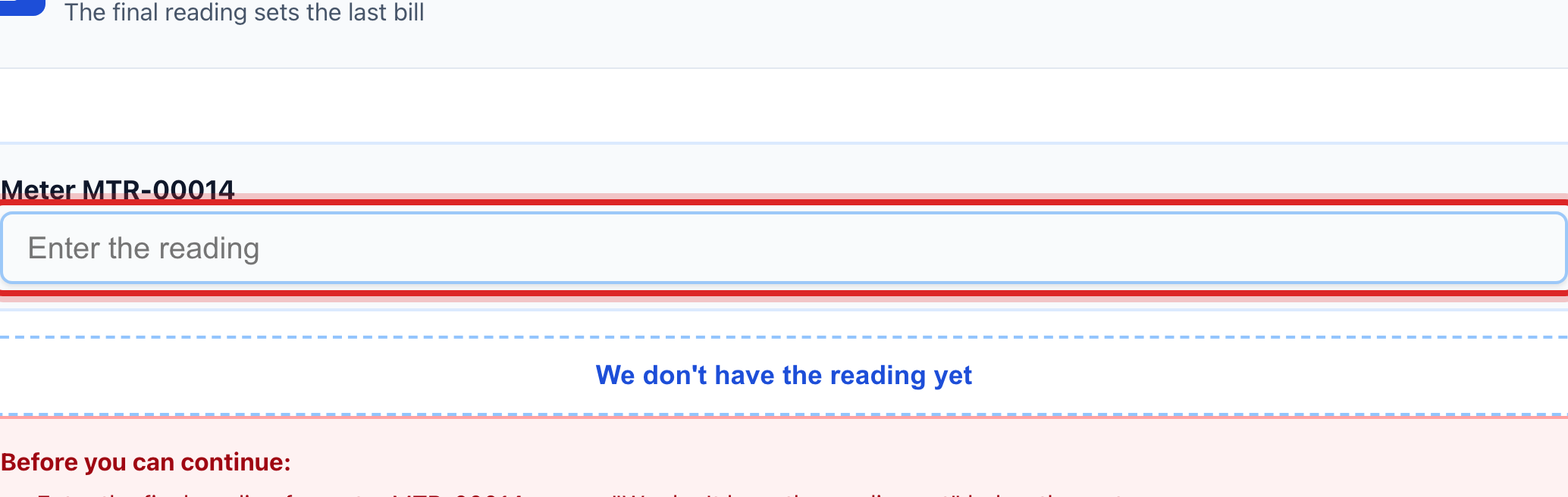
Type what the meter reads today. One box shows for each meter. Then click Next.
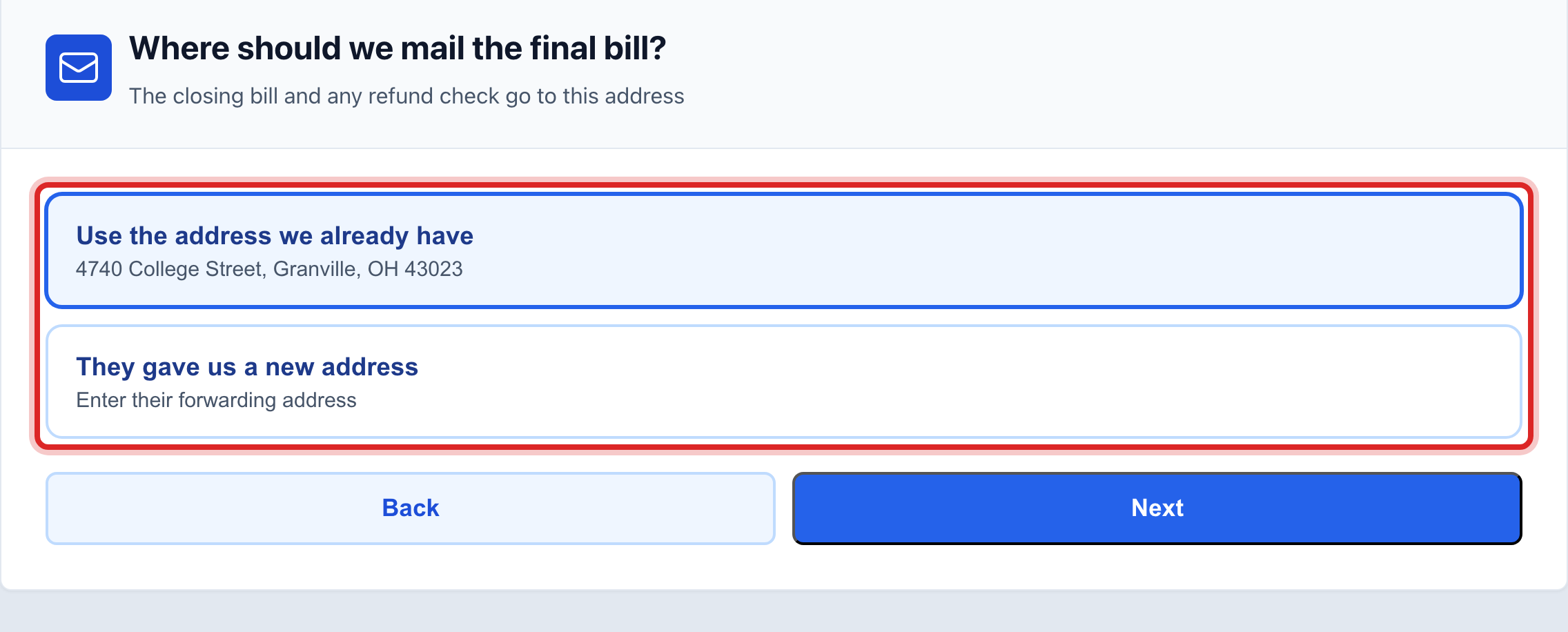
Say where to mail the last bill. Keep the address you have, or type the new one. Then click Next.
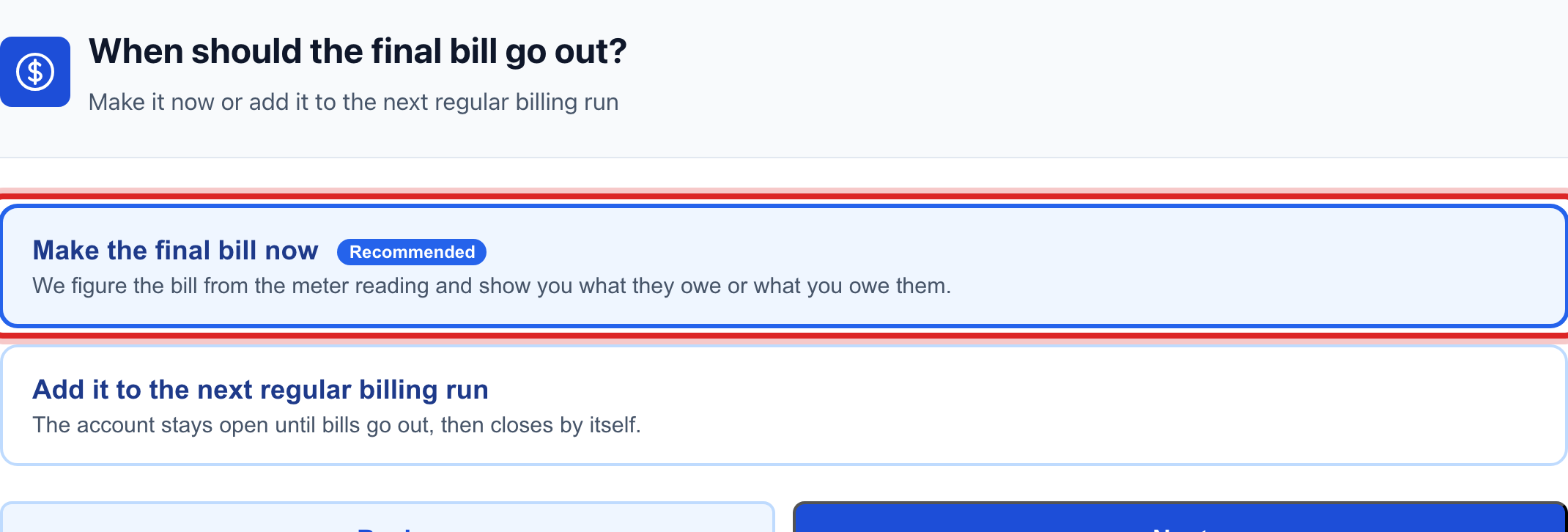
Say when the last bill goes out. Make the final bill now is the one most offices pick. Then click Next.
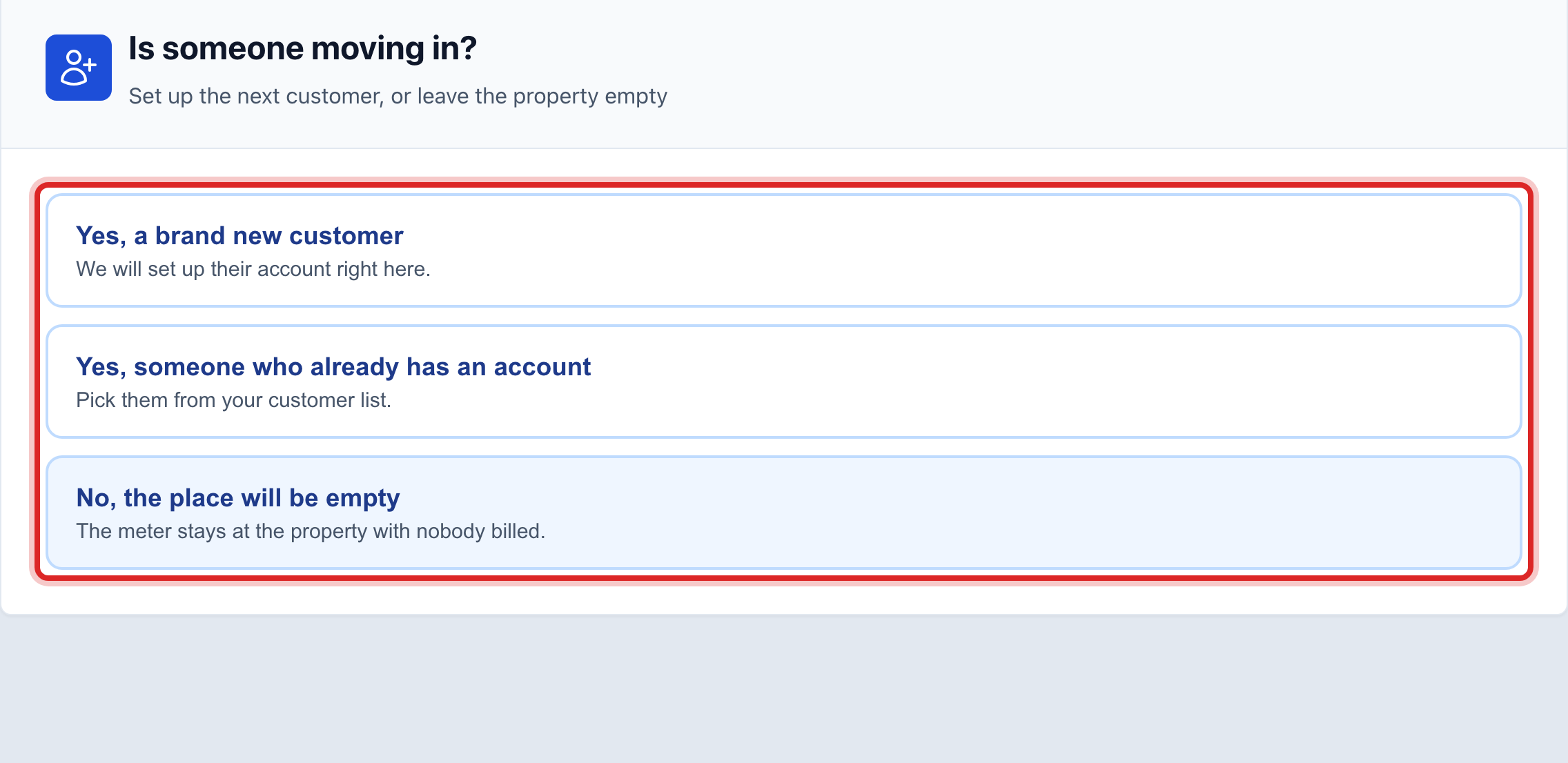
Say if someone is moving in. Pick the new customer, the one who already has an account, or nobody. Then click Next.
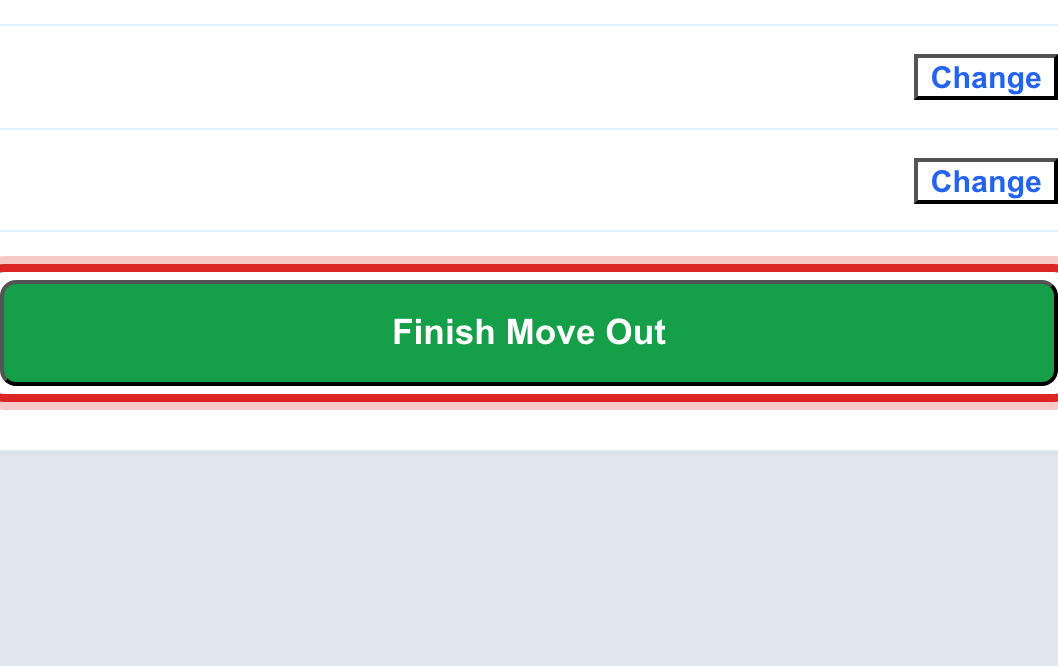
Read the last screen. It lists every change. Nothing happens until you press the button. Click Finish Move Out.
Made a mistake? Click Undo on the green message that appears, or open Show me how at the top and pick Undo a mistake.
You are done when
Started service. The screen opens the new account. Their name is at the top.
Stopped service. The last screen says All done. It shows the final bill, any refund you owe them, the deposit you held, and the closing balance.
If something looks different
It is a business, a church or a school. Type the business name in the business box near the top. That name goes on the bill instead of a first and last name.
They are moving within town. On the Connection Type list, pick Transfer instead of New Service.
The water was shut off and they paid. On the Connection Type list, pick Reconnect.
Nobody is moving out, you only need a new account. Click the Nobody moving out? link on the first move out screen. It takes you to the new customer form.
You do not have the meter reading yet. On the reading screen, click We don't have the reading yet. Then pick an estimate from their normal use, or send a work order to get the read.
They move out next month, not today. Pick that day anyway. Billing keeps running until then. The account closes itself on the day you picked.
There is a meter at the address that is not on the account. The screen flags it. That meter is not read and not billed here. Tell your operator.