
Appearance
14. Help a customer sign up on the portal
When you need this: a customer wants to see their bill and pay it online. You send them an invite from their own page. They pick their own password from the email. You never type a password for them. The second job on this page is AutoPay, so their bill pays itself each month.
Steps: send the sign up invite
Look the customer up first. Page 2 shows you how. Click their name to open their page.
Stay on the Overview tab. Scroll down to the part named Online account.
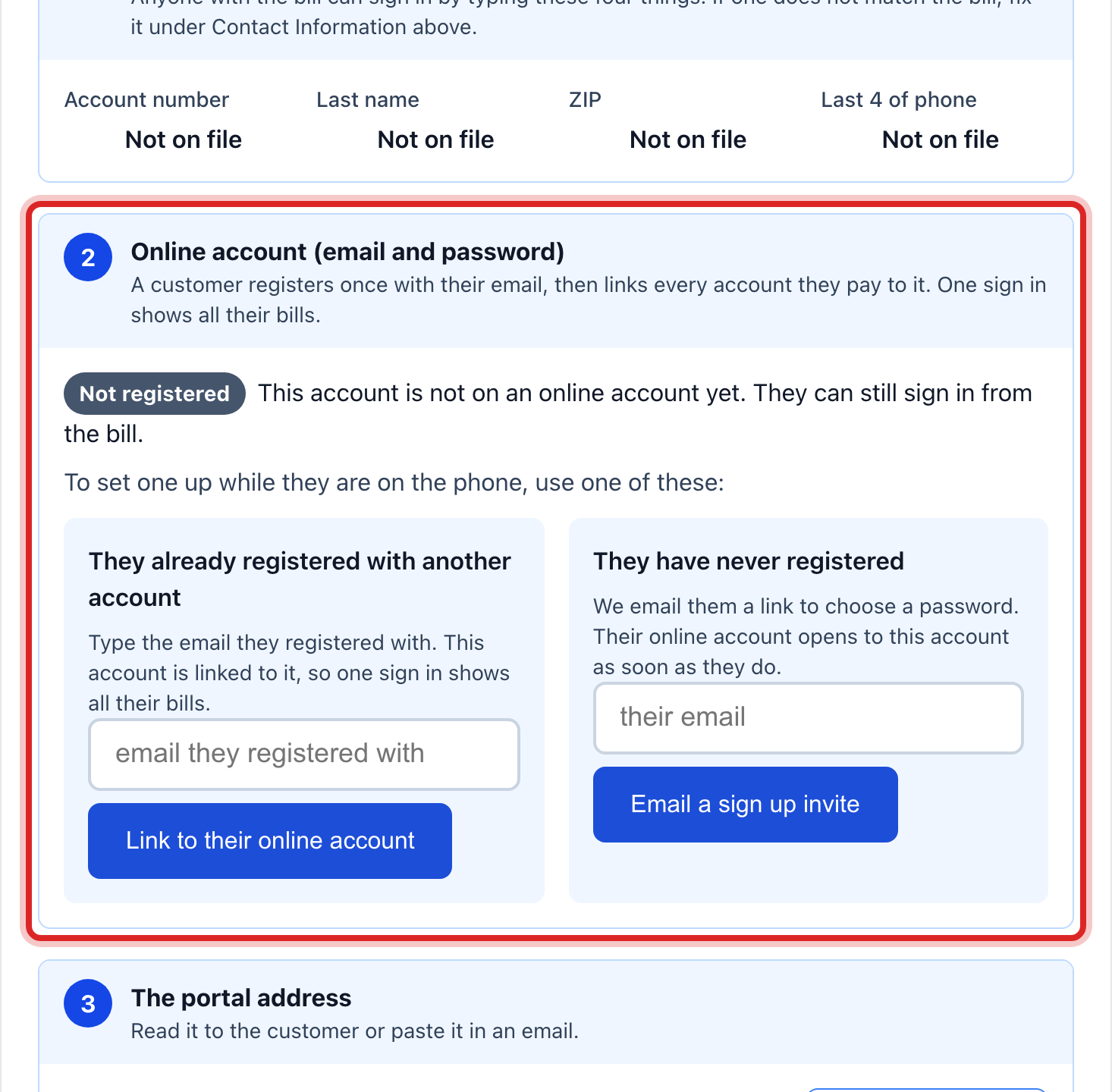
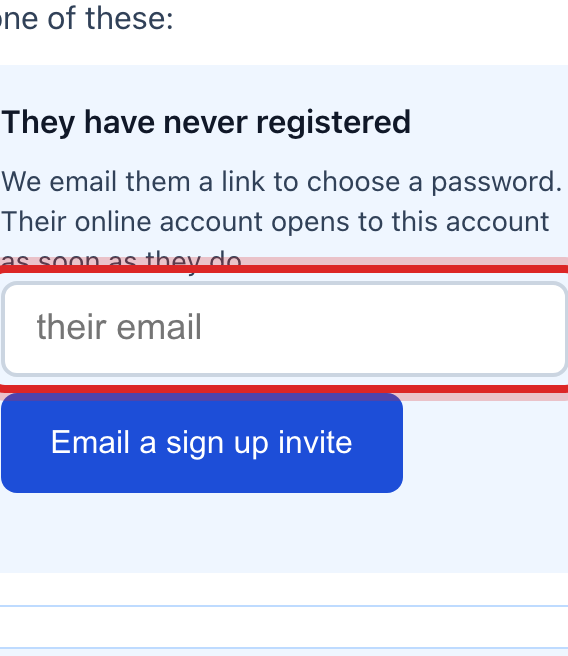
Type their email address in the email box.
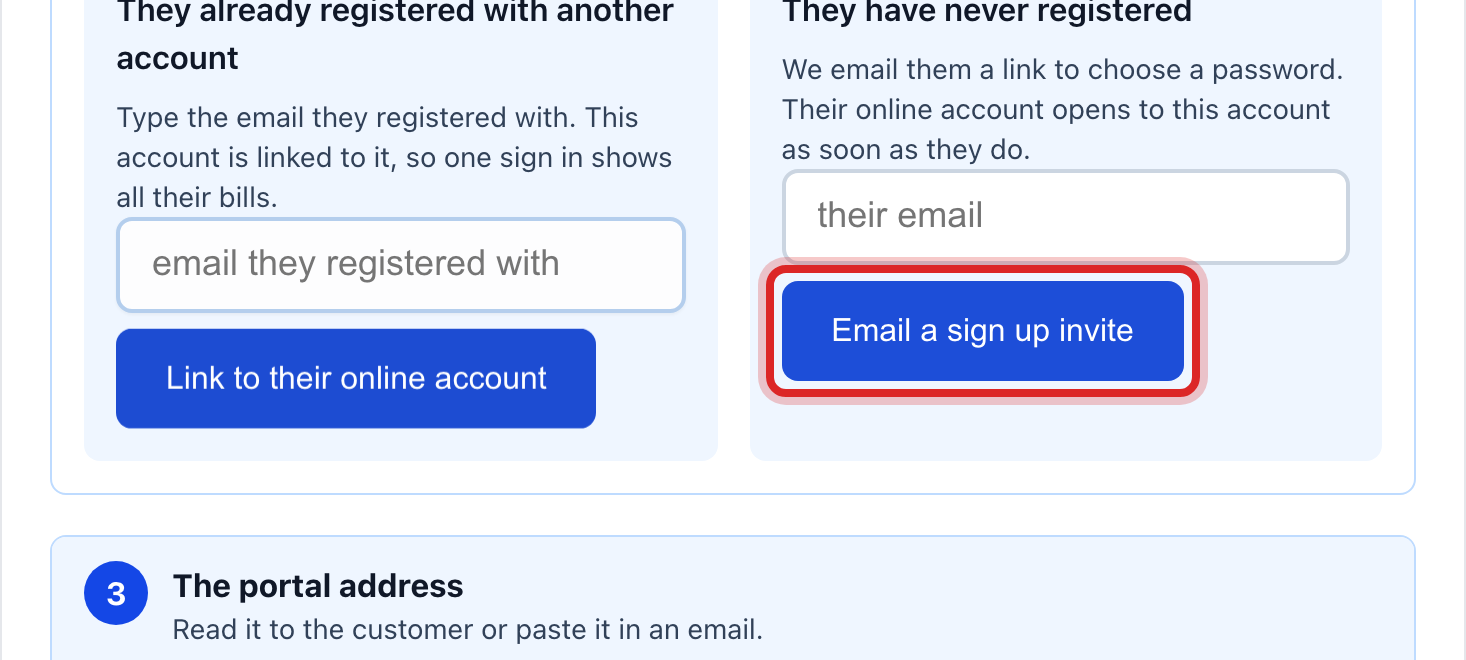
Click the blue Email a sign up invite button.
Tell them to watch for the email. They click the link in it and pick a password.
Steps: turn on AutoPay
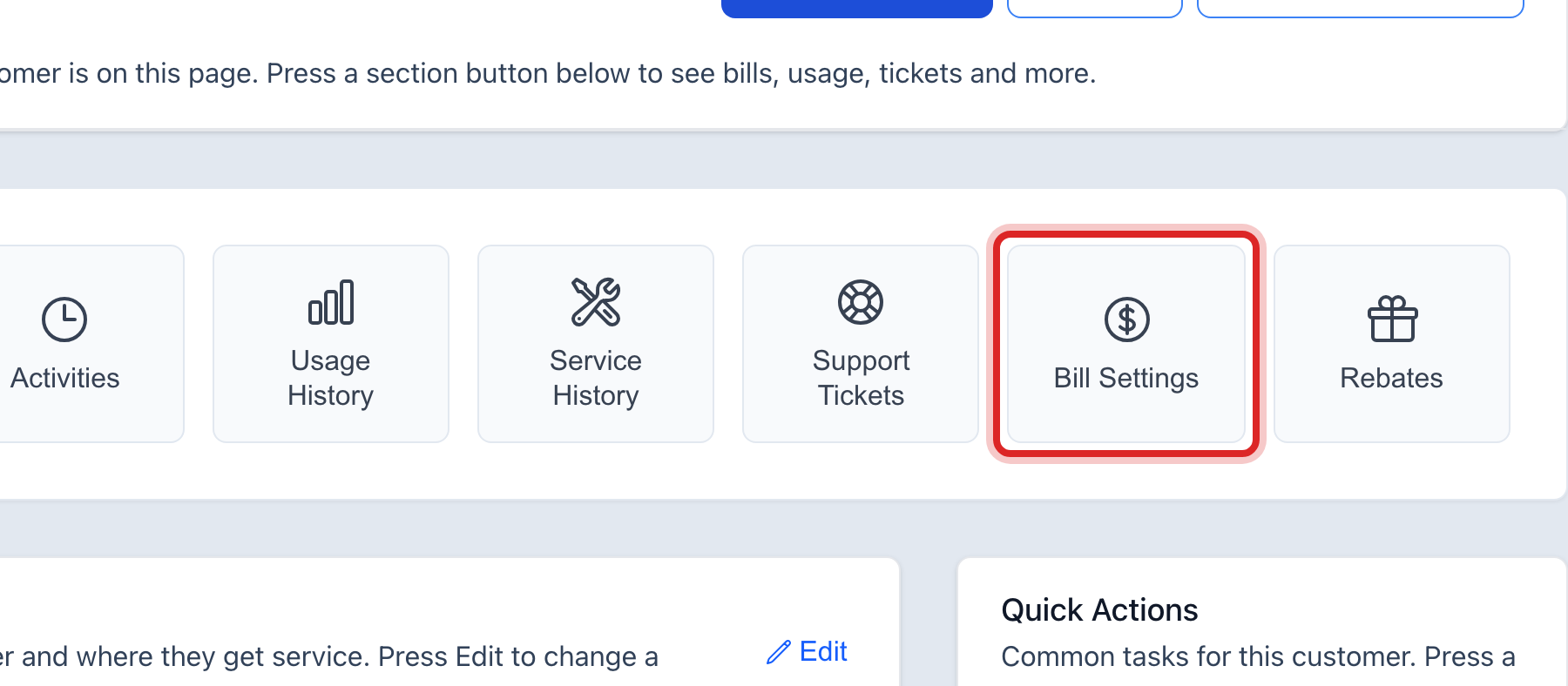
On the same customer page, click the Bill Settings tab at the top.
Scroll down to Saved payment methods and AutoPay.
Click the Pay with list. Pick the card or bank account to use.

Click the blue Enroll in AutoPay button.
Made a mistake? Click Undo on the green message that appears, or open Show me how at the top and pick Undo a mistake.
You are done when
The invite. A green message says the invite went to that address. The status near the top reads Invite sent. Once they pick a password it reads Registered.
AutoPay. The line on the page says AutoPay is on, and which card or bank account pays it.
If something looks different
They already have a login from another account. Type the email they signed up with and click Link to their online account instead. One login can cover several accounts.
The invite never came. Click Send the invite again. Ask them to look in their junk mail.
You linked the wrong person. Click Unlink this account and start over.
There is no card or bank account to pick. AutoPay needs one saved first. It gets saved when you take a card payment at the counter and tick the box to keep it on file. Or the customer saves it in the portal.
A saved card says it needs to be entered again. It expired or the bank changed it. The customer has to put it in again. AutoPay cannot use it until they do.
You cannot see the invite buttons. Only staff who may edit customers can invite or link. Ask your administrator.
You want pay by text or pay by phone. These are switched on by your utility, in Payment Portal, then Portal Features, then the Billing & Payments tab. Flip the switch on Text to Pay or Call to Pay and click Save Changes. They stay locked until the Utilops team has set up your phone and text line. The screen tells you when that is the case. Once they are on, pay by text means the customer texts the word PAY to your number and gets a link back to pay. Pay by phone means they call your number, press 2, and the link is texted to them.