
Appearance
19. Fill in the daily log
When you need this: you made your rounds and you have the numbers on a clipboard. This is where they go. The log is your record of the day, and the state can ask for it. It also feeds your monthly report, so a log you fill in today saves you work at the end of the month.
Steps
On the left side of the screen, click Operations Logs, then click Create Log.
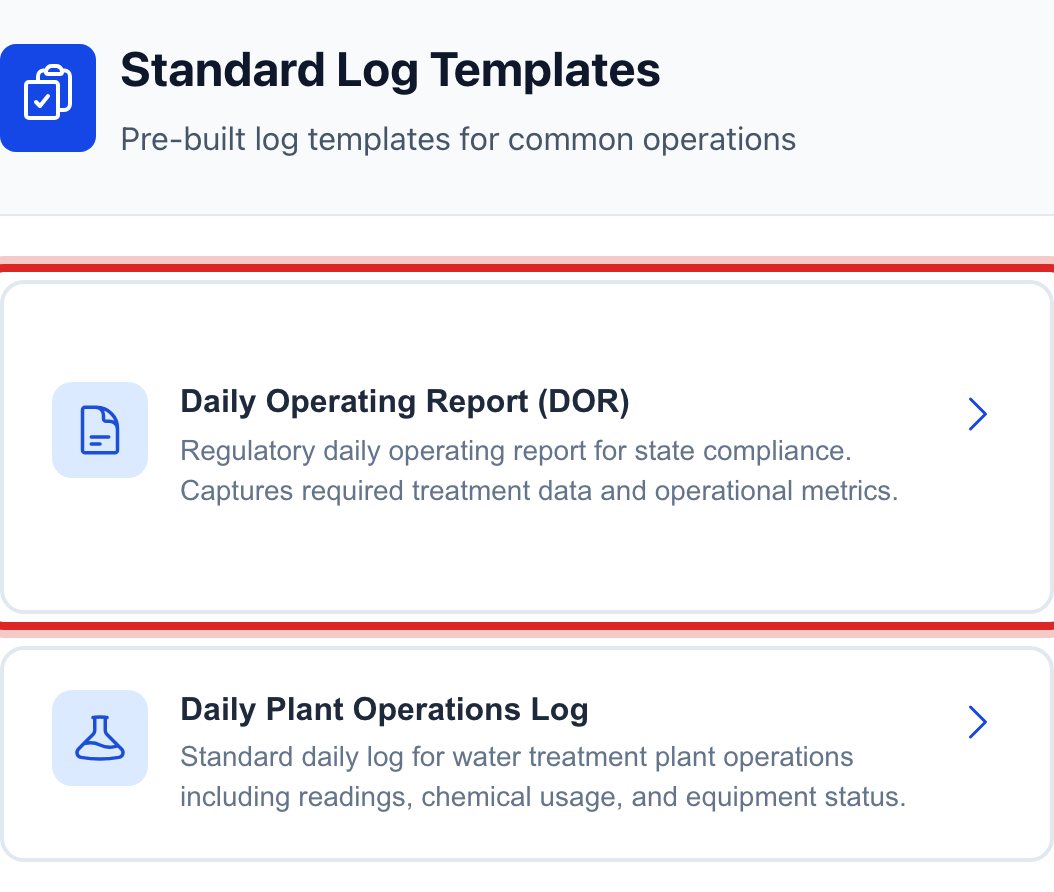
Under Standard Log Templates, click the card for the round you did. A well round is Well System Visit. A chlorine check out in town is Distribution Residual Check.
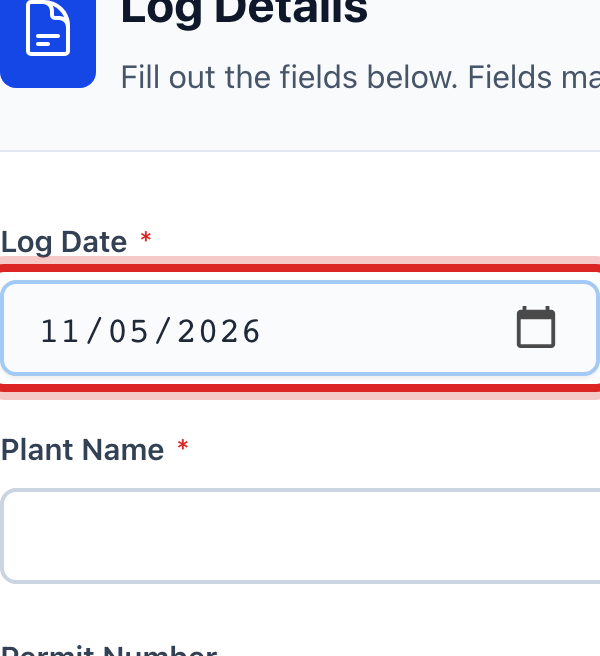
The form opens. Log Date is already set to today. Change it only if you are writing up an earlier day.
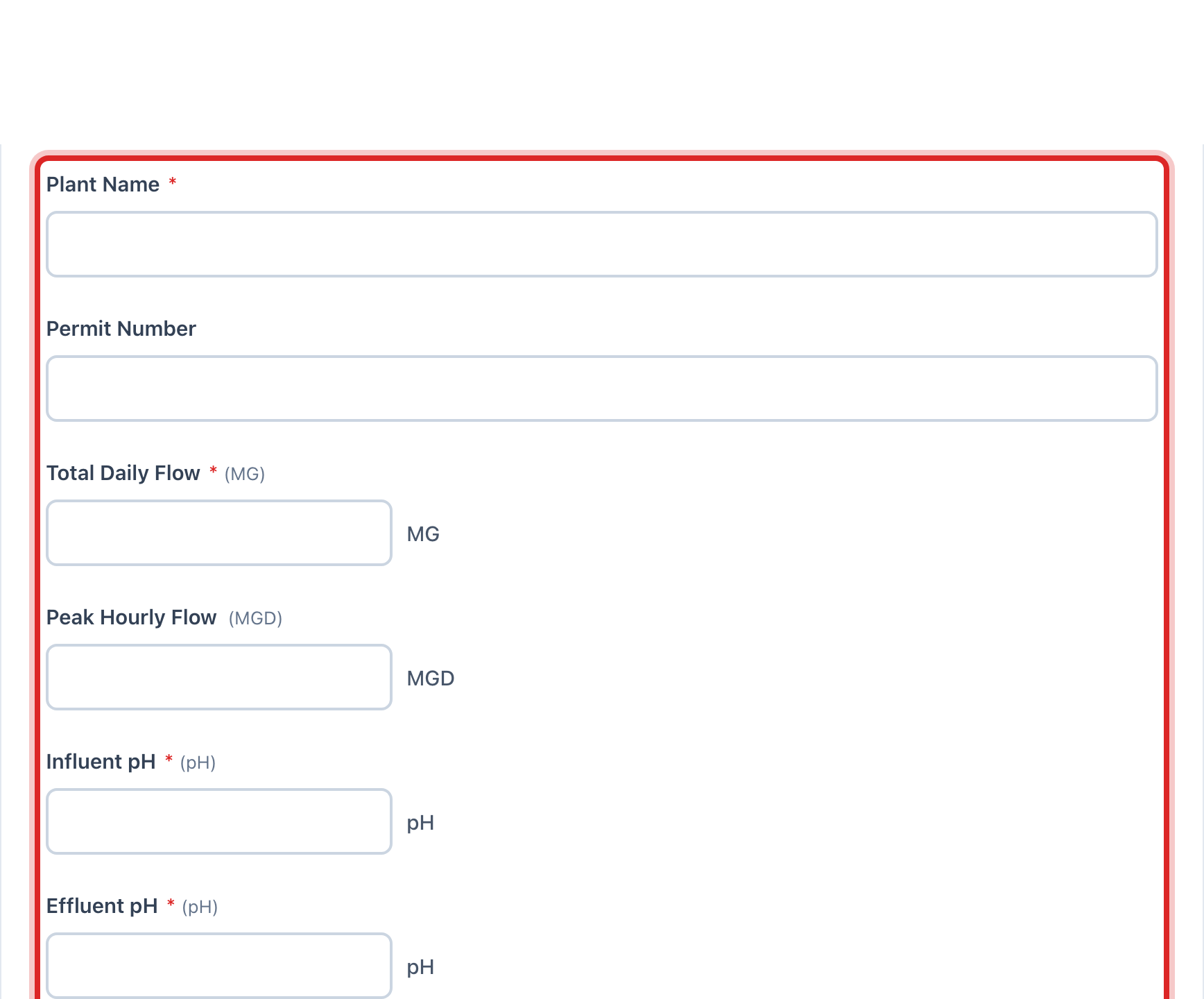
Type your numbers in the boxes under the date. Each box is named for the thing you read. A red star means it has to be filled in.
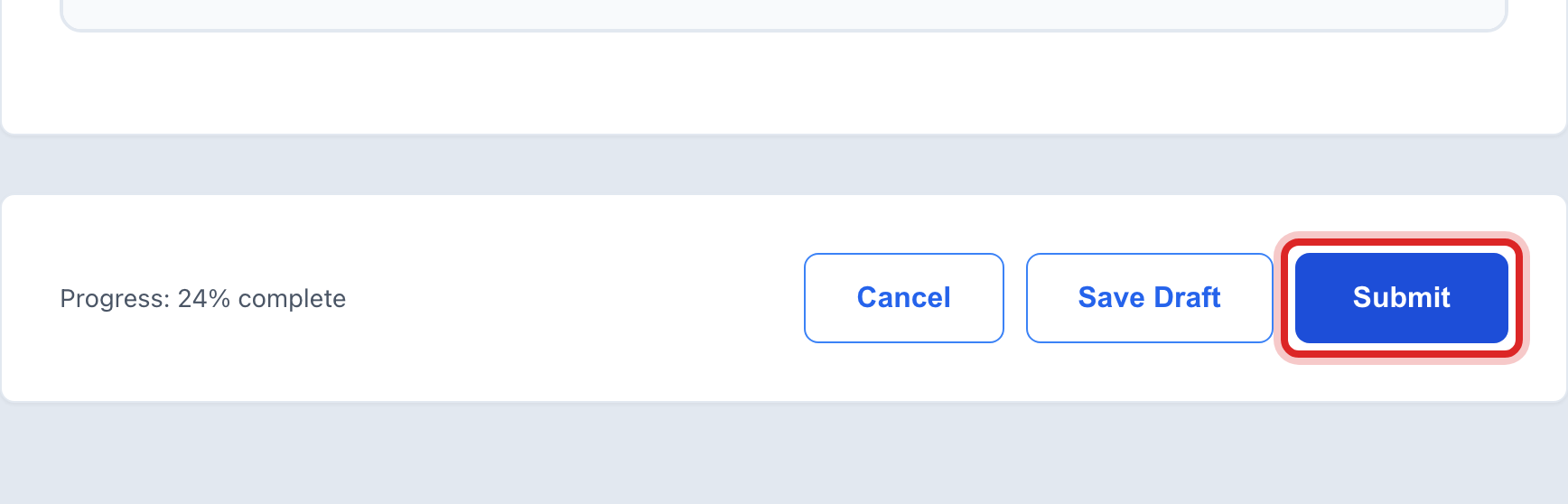
Click the blue Submit button at the bottom.
Made a mistake? Click Undo on the green message that appears, or open Show me how at the top and pick Undo a mistake.
You are done when
A green message says Log submitted successfully and you land back on the Operations Logs home page. Your log is now in the Recent Submissions list, and it is gone from My Pending Logs.
If something looks different
There is a Facility box above your readings. Pick the well or the plant the round was for. It only shows if your utility lists its facilities.
You are not done reading yet. Click Save Draft instead of Submit. Your work is kept and the log waits for you under My Logs. The form also saves itself as you type.
The card you need is not there. Your log cards are the ones set up for your utility, and they match what you sell. If a card is missing, ask the person who set up Utilops to add it under Operations Logs, Log Types.
The blue button says Resubmit. Someone sent this log back for a fix. Make the fix and click it.
You do not see Create Log on the left. Your account may not have permission to fill in logs. Ask your administrator.