
Appearance
21. Record a meter change
When you need this: you pulled a meter and put a new one in. Write it down the same day. Utilops closes out the old meter, opens the new one, and keeps the old reads where they belong, so the next bill is right.
Steps
On the left side of the screen, click Metering, then click Meters.
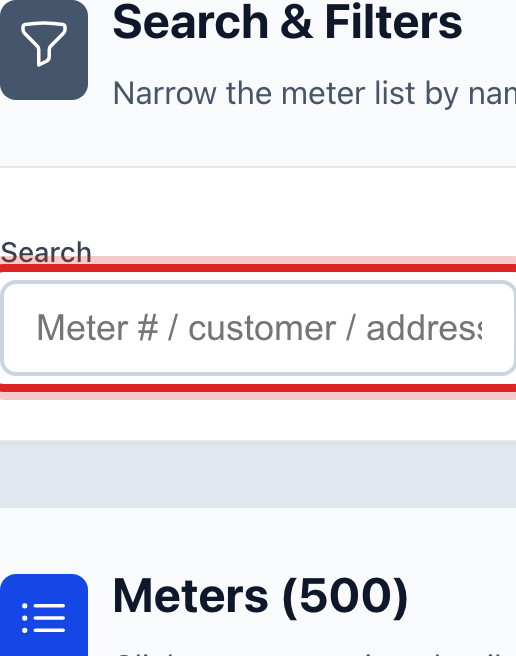
Click in the Search box and type the meter number. The customer name or the street works too.
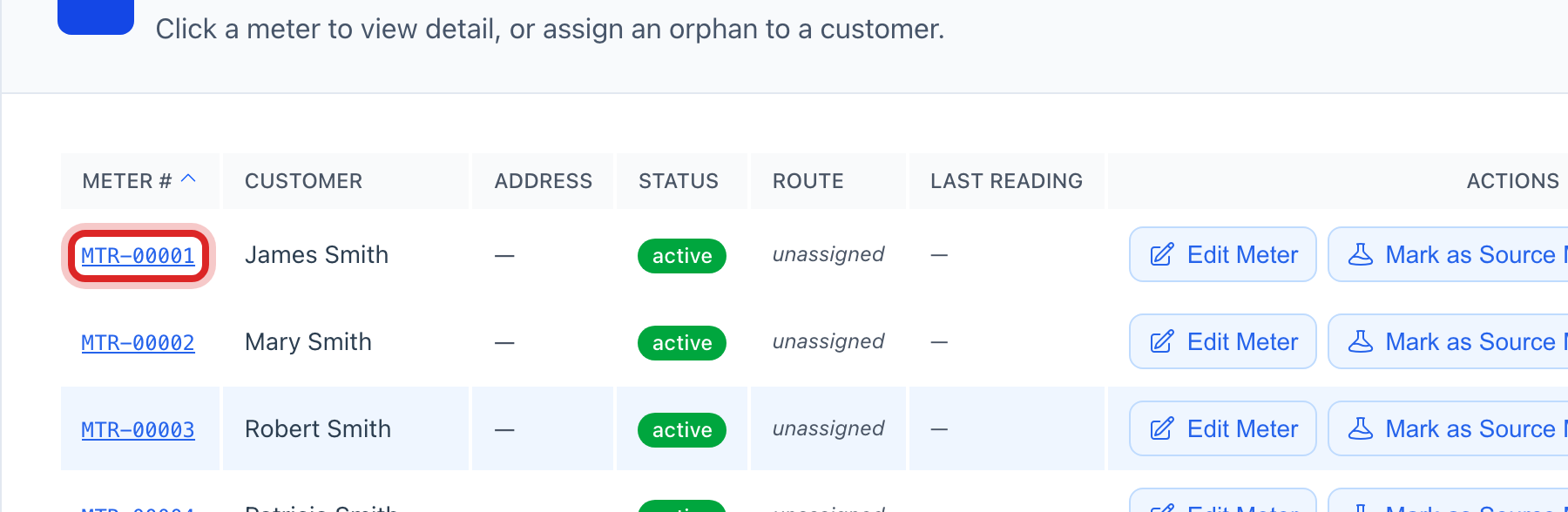
In the list below, click the blue meter number.
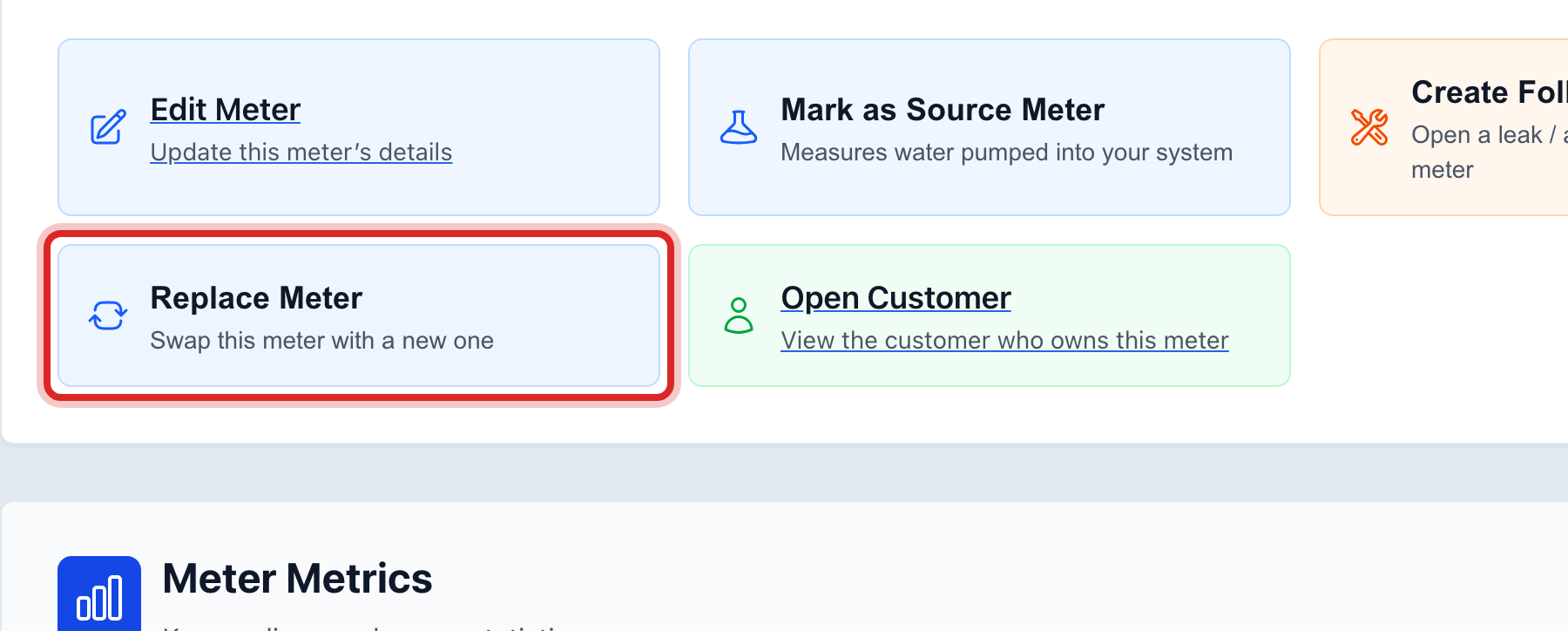
Under Quick Actions, click Replace Meter.
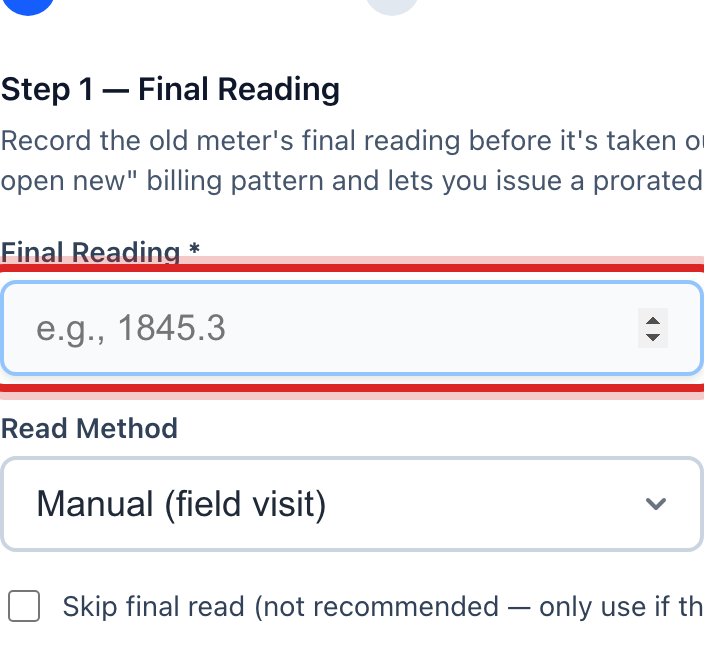
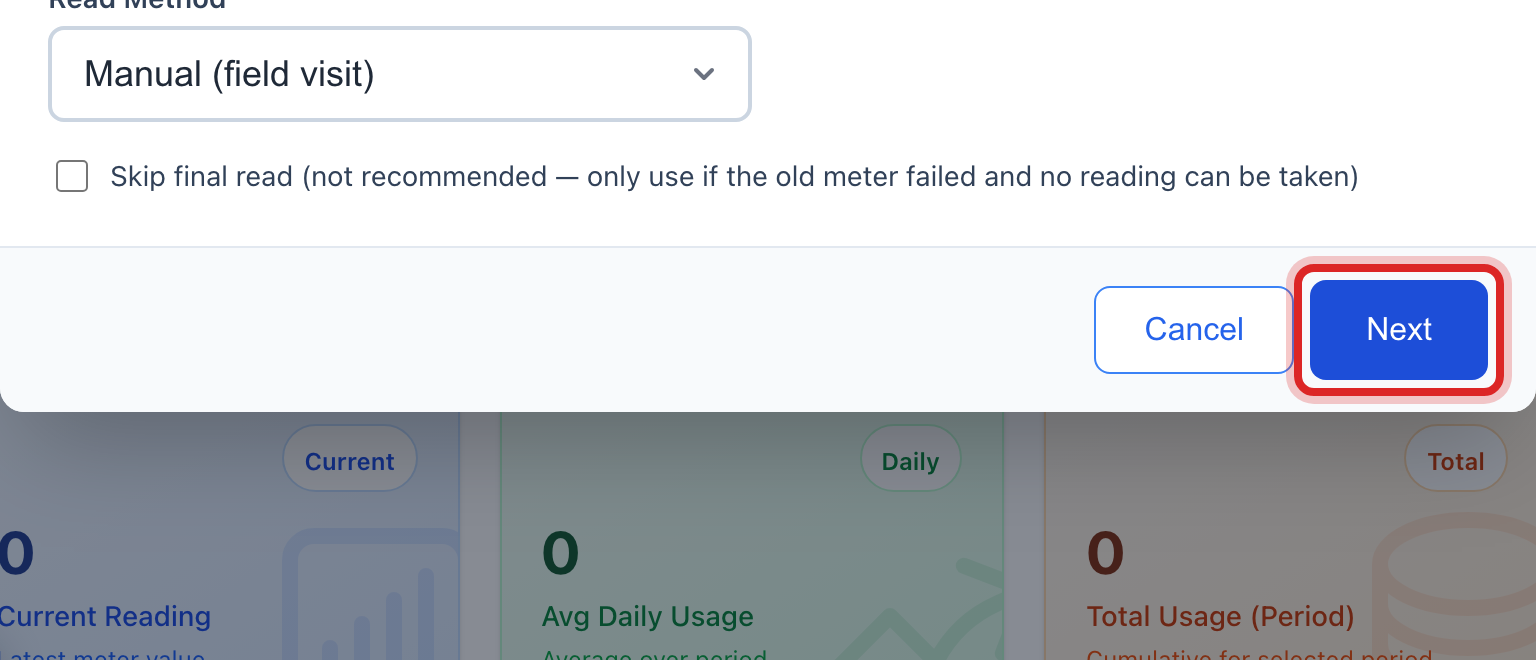
Step 1 of 4. Type the Final Reading you took off the old meter, then set the Read Date to the day you pulled it.
Click the blue Next button.
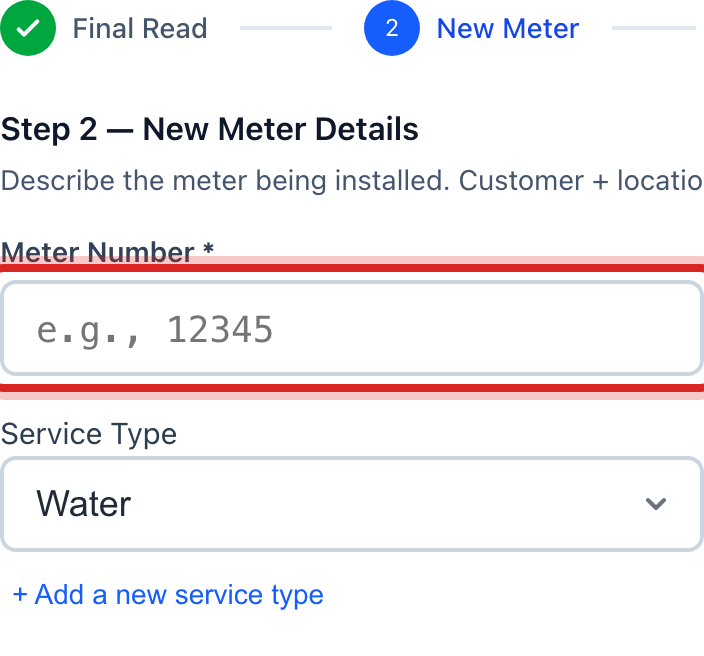
Step 2 of 4. Type the Meter Number stamped on the new meter.
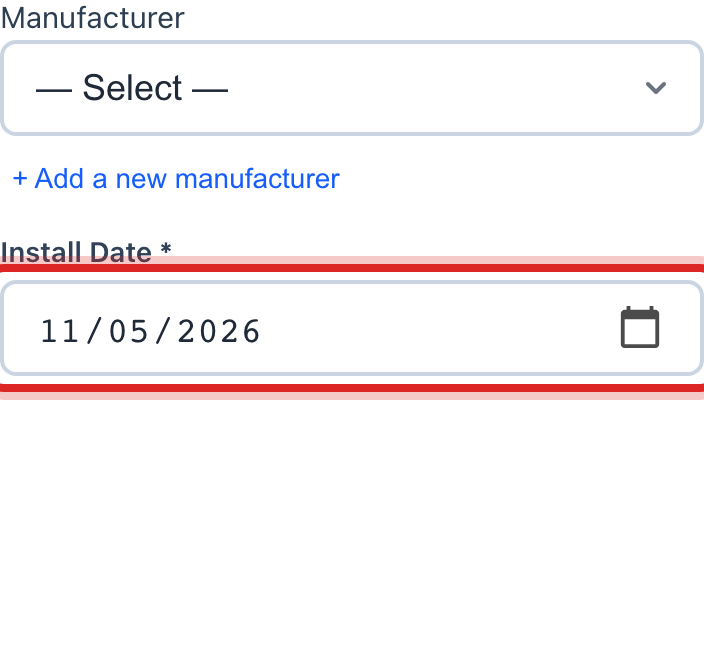
Set the Install Date to the day you put it in. Leave Starting Read at 0 unless the new meter already shows a number.
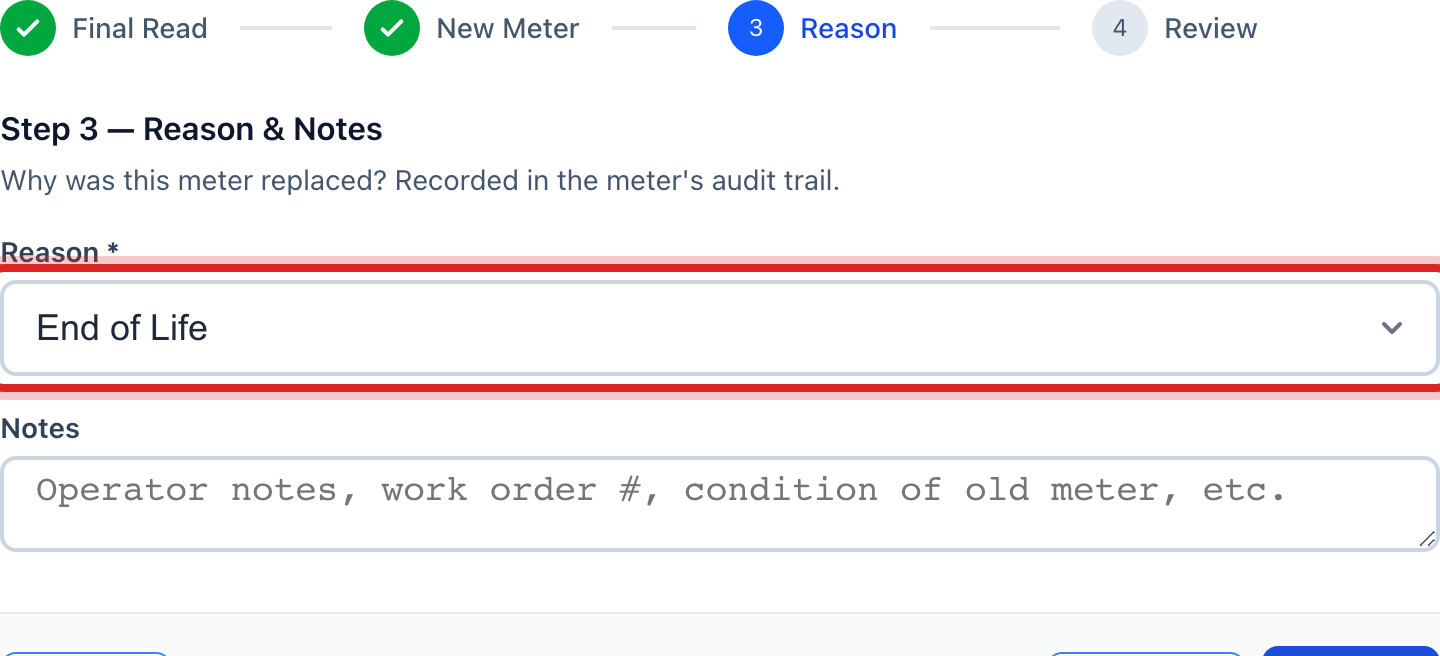
Click Next. On Step 3 of 4, pick the Reason you changed it, like End of Life or Broken / Malfunctioning.
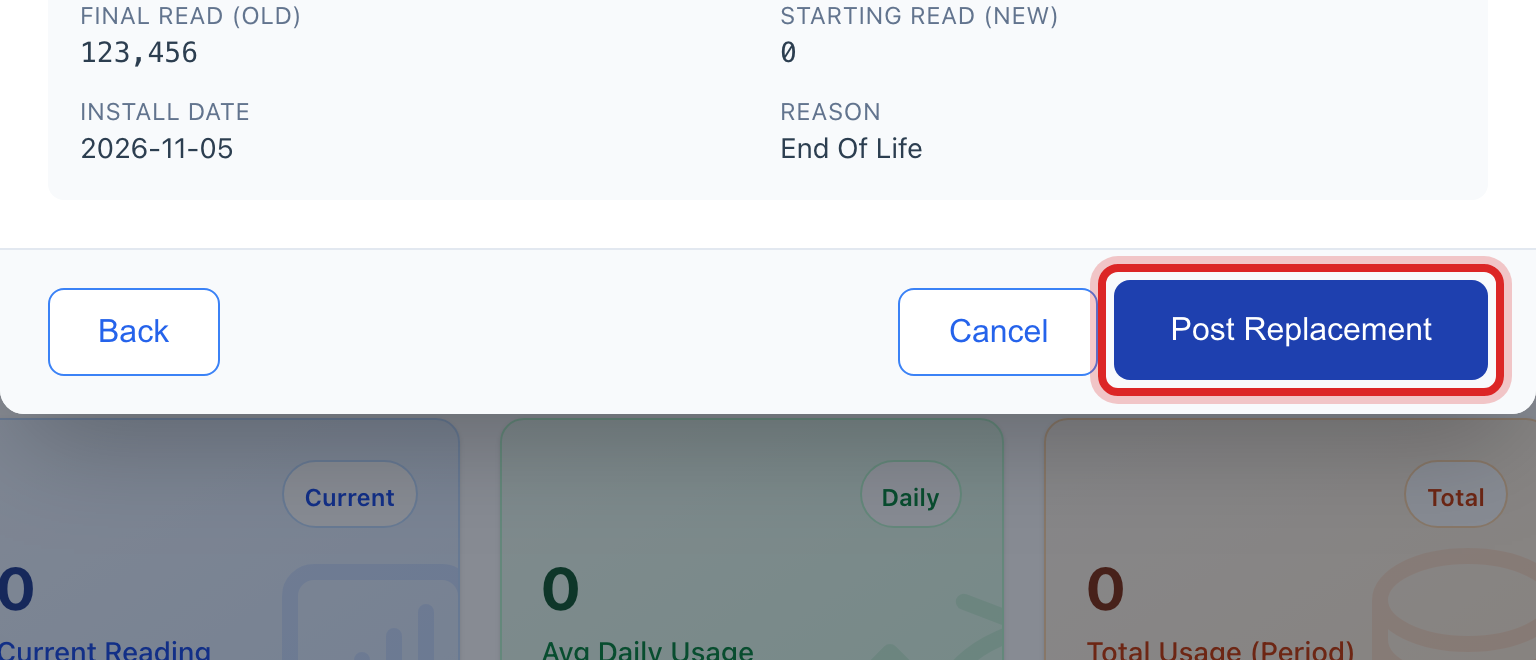
Click Next one more time. Step 4 of 4 shows you everything you typed. Read it, then click the blue Post Replacement button.
Made a mistake? Click Undo on the green message that appears, or open Show me how at the top and pick Undo a mistake.
You are done when
The old meter's page shows a yellow band across the top that says Retired on that date, with a link to the new meter. The Meter Lineage box below shows the old meter and the new one in order. The old reads stay with the old meter and the new bills come off the new one.
If something looks different
It is a leak, not a change out. Open the meter the same way, step 1 to 3 above. Then click Create Follow-Up WO. That opens a work order for this meter, already marked urgent, with the customer and the address filled in.
It is a main break. On the left, click Work Orders, then Emergency Orders. Click the red Emergency Dispatch button, then click the red Water Main Break tile. Type the address, say about how many homes are out, and click Create Work Order. Work the row with Update Status until it reads Completed.
It is a repair, not a break. Make a work order the usual way and pick Maintenance as the type. See page 20.
It says the meter number is already in use. A red note shows under the box. Every meter number is used once. Check the stamp on the new meter and type it again.
The old meter failed and you could not read it. On Step 1, tick the box that says skip the final read. Only do that when there is truly no number to take.
You do not see Replace Meter. Your account may not have permission to change meters. Ask your administrator.