
Appearance
3. Take a payment at the counter
When you need this: someone is at the window with cash. This page takes the money, puts it on their bill, and gives you a confirmation code for the receipt. A check or a card works the same way, with one or two more boxes.
Steps
On the left side of the screen, click Billing & Payments, then click Process Payment.
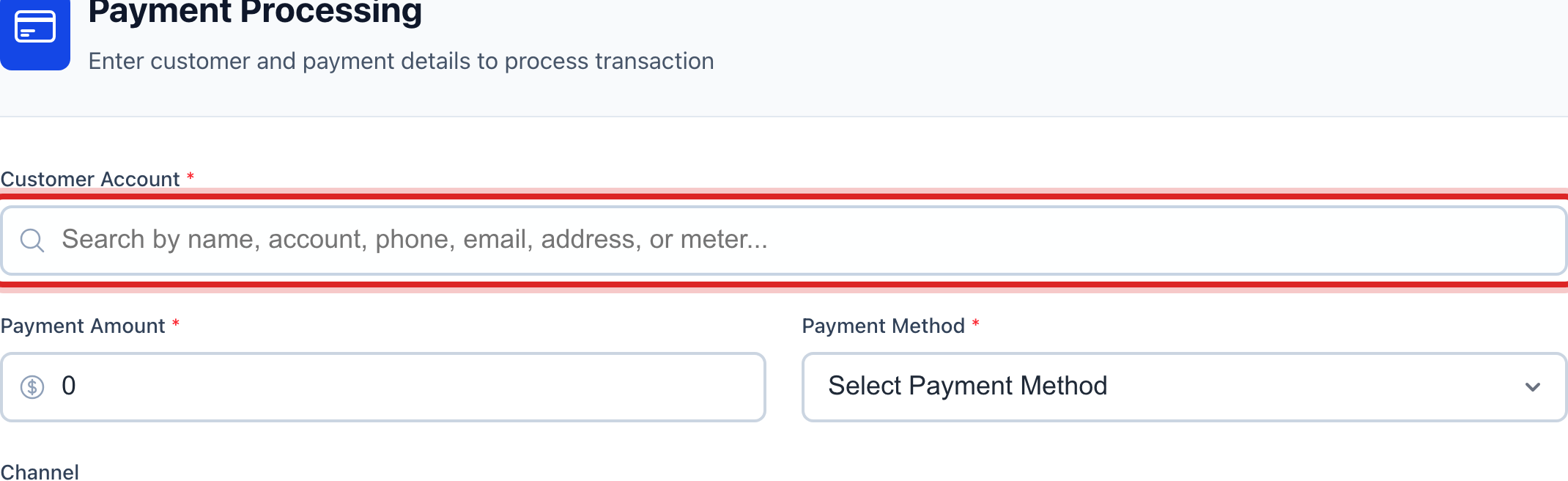
Click in the Customer Account box. Type the last name.
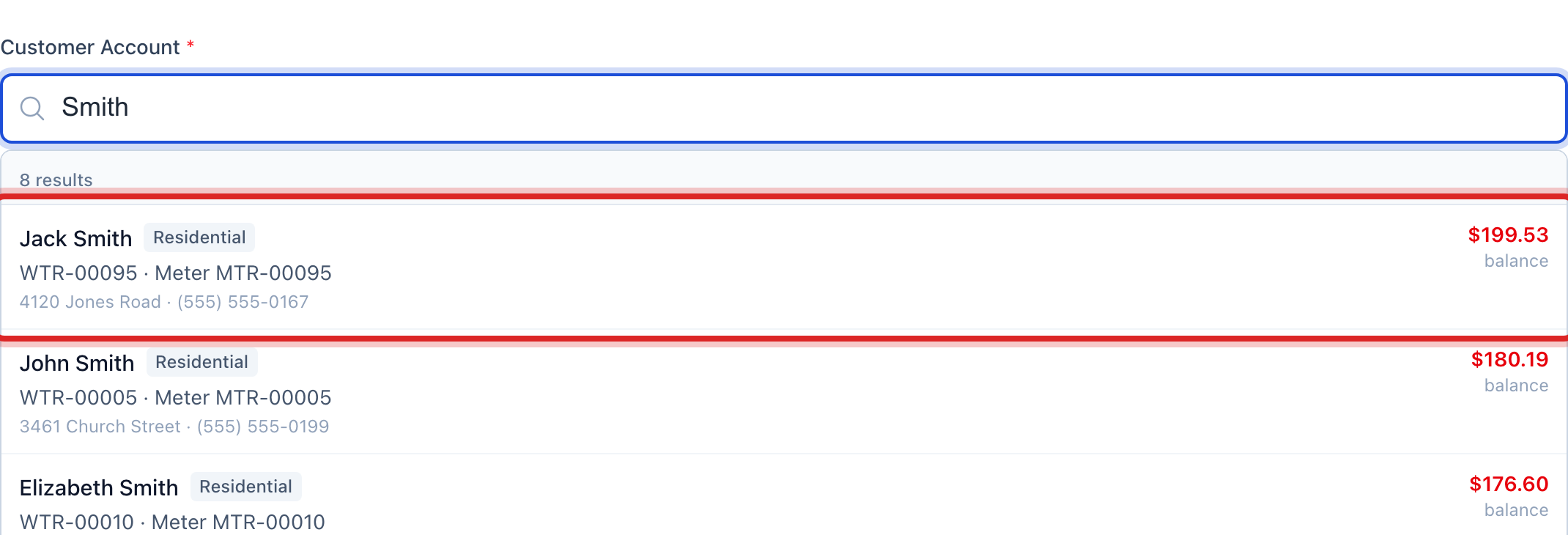
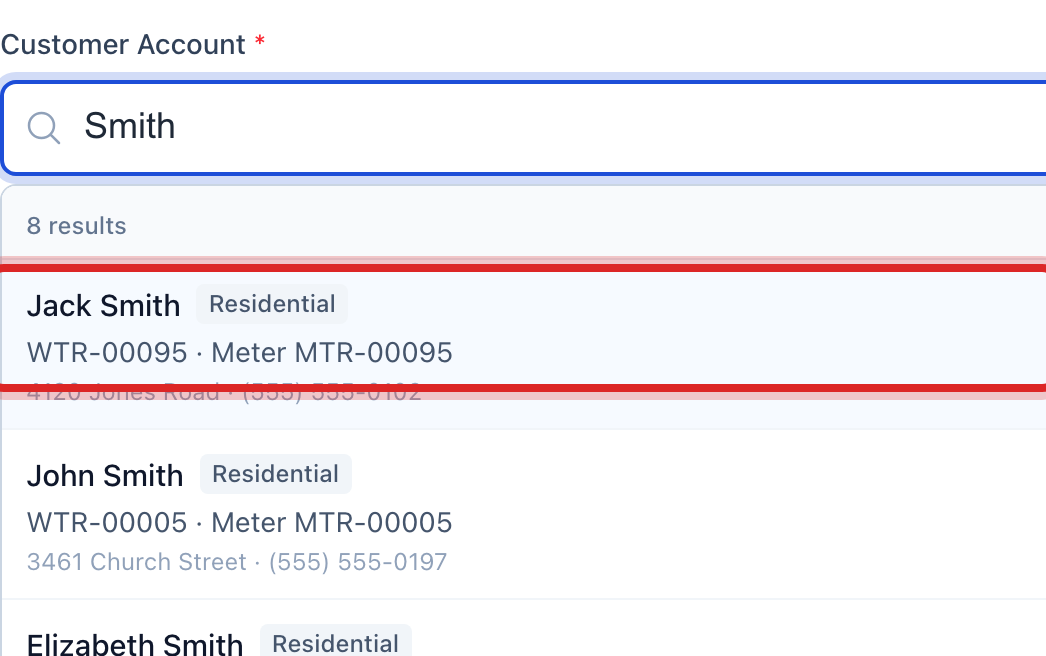
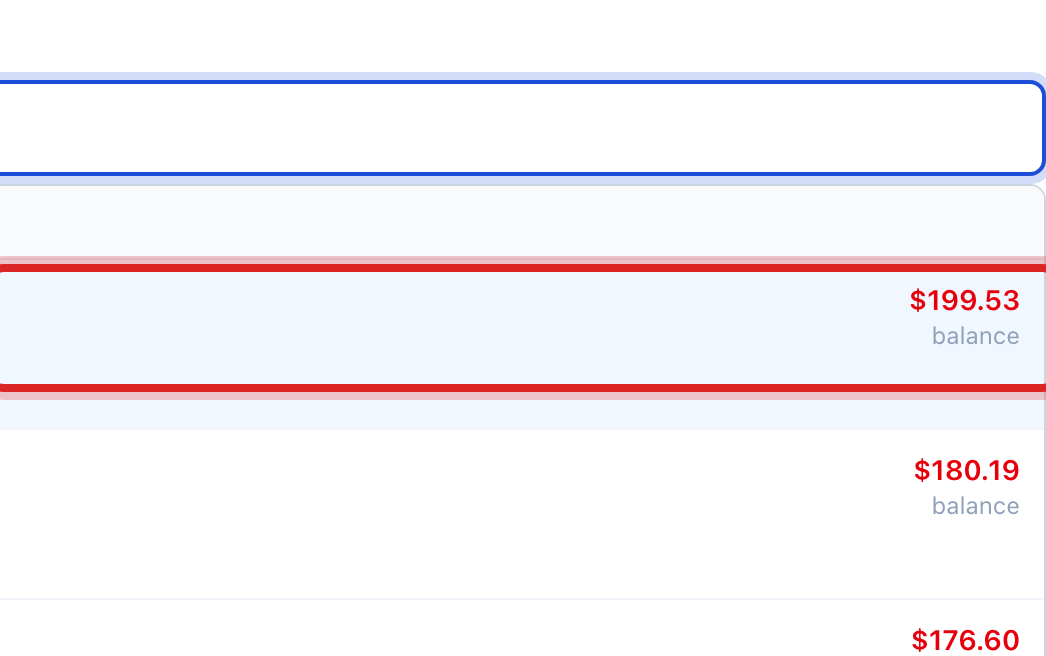
Click the right person in the list under the box. Their balance shows in a blue box.
Click in the Payment Amount box. Type what they handed you, like 42.50.
In the Payment Method list, pick Cash.
Two name boxes appear. They are filled in from the account. Change them only if someone else is paying.
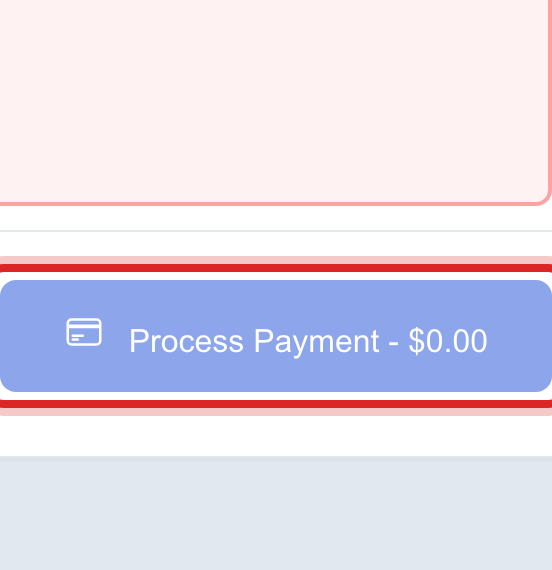
Click the blue Process Payment button. The amount is printed on the button, so read it once before you click.
Made a mistake? Click Undo on the green message that appears, or open Show me how at the top and pick Undo a mistake.
You are done when
A green message says the payment was recorded and gives you a confirmation code. Write that code on the receipt. The payment also shows in the Recent Transactions card at the bottom, under "Payments taken today".
Cash and checks can be undone the same day. A card payment cannot: the bank has already moved the money. To give card money back, click Accounting, then Accounts Receivable, and issue a refund.
If something looks different
They are paying by check. Pick Check in the Payment Method list. Two more boxes appear. Type the Check Number and the Check Date, then click Process Payment.
They are paying by card. Pick Credit/Debit Card. Type the name on the card and the billing ZIP code. The card number boxes come from your card company. Type the card in those, then click Process Payment.
The card boxes never appear. Your card account is not hooked up yet. Take cash or a check today and tell your administrator.
They want to pay the whole balance. Click Pay Full Balance under the balance in the blue box. It fills in the amount for you.
The Process Payment button is faded. Just above it is a short list of what is missing. Fix those and the button turns blue.