
Appearance
7. Daily close and deposit
When you need this: the last half hour of the day. You settle the online payments, count the drawer, make one deposit, and print the slip. Do it every day and the books stay right all month.
Steps
Count the cash in the drawer. Add up the checks. Write both totals on a slip of paper.
On the left side of the screen, click Accounting, then click Payments in Progress. These are the card and online payments that have not landed in your books yet.

Check each row against your bank's list for today. Then click the green check button at the right end of the row. Rest your mouse on it and it says Commit payment.
Do step 3 for every row you recognize. The table is empty when you are done.
Now the money in the drawer. On the left, click Accounting, then Batch Deposits, then New Deposit Batch.
Fill in the date, the bank account and the Accounts Receivable account. Add one row for each check. Page 4 walks through every box.
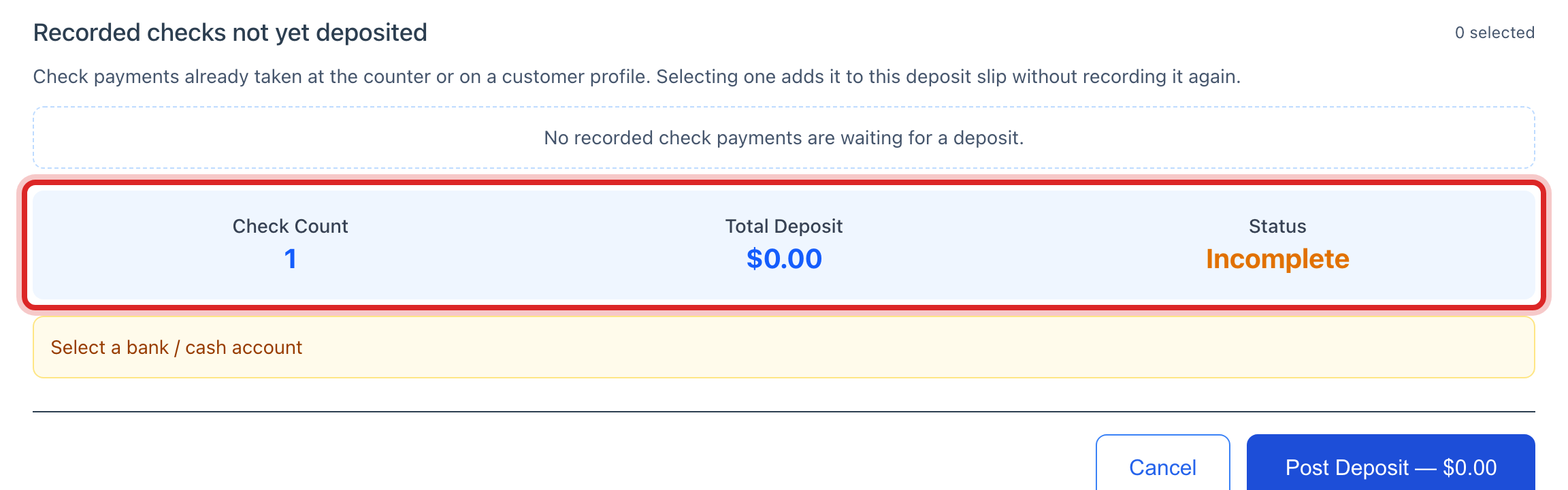
Read the Total Deposit in the blue panel. It must match the totals you wrote down in step 1. If it does not, find the difference now, not tomorrow.
Click Post Deposit.
Click Print Deposit Slip. Put the slip and the money in the bank bag. File your own slip of paper with it.
Made a mistake? Click Undo on the green message that appears, or open Show me how at the top and pick Undo a mistake.
You are done when
Payments in Progress has no rows left for today. The new batch shows as Posted in the Deposit Batches table. The slip is printed and the totals match.
A posted deposit cannot be undone. It has already written a line in your books. If it is wrong, open the batch, click Void, and type why. Then build it again.
If something looks different
A row you do not recognize. Leave it for now and ask. If it is truly not yours, click the red button next to the green one and type why. That is Discard.
It is the end of the month. Closing the month is a separate job, done once a month, not every day. On the left, click Accounting, then Month Close. See page 17 for the reports your board wants.
There is no money in the drawer today. Then there is nothing to deposit. Do steps 1 to 4 and stop.
A card payment was wrong. You cannot undo it. The bank has the money. Click Accounting, then Accounts Receivable, and issue a refund.