
Appearance
9. Enter meter readings and fix a bad one
When you need this: the reader hands you a paper sheet of readings and you type them in. This is the page for that. It walks you through five screens and saves them all at once. Bills come off these numbers, so a bad read is worth fixing before you bill.
Steps
On the left side of the screen, click Metering, then click Import Readings.
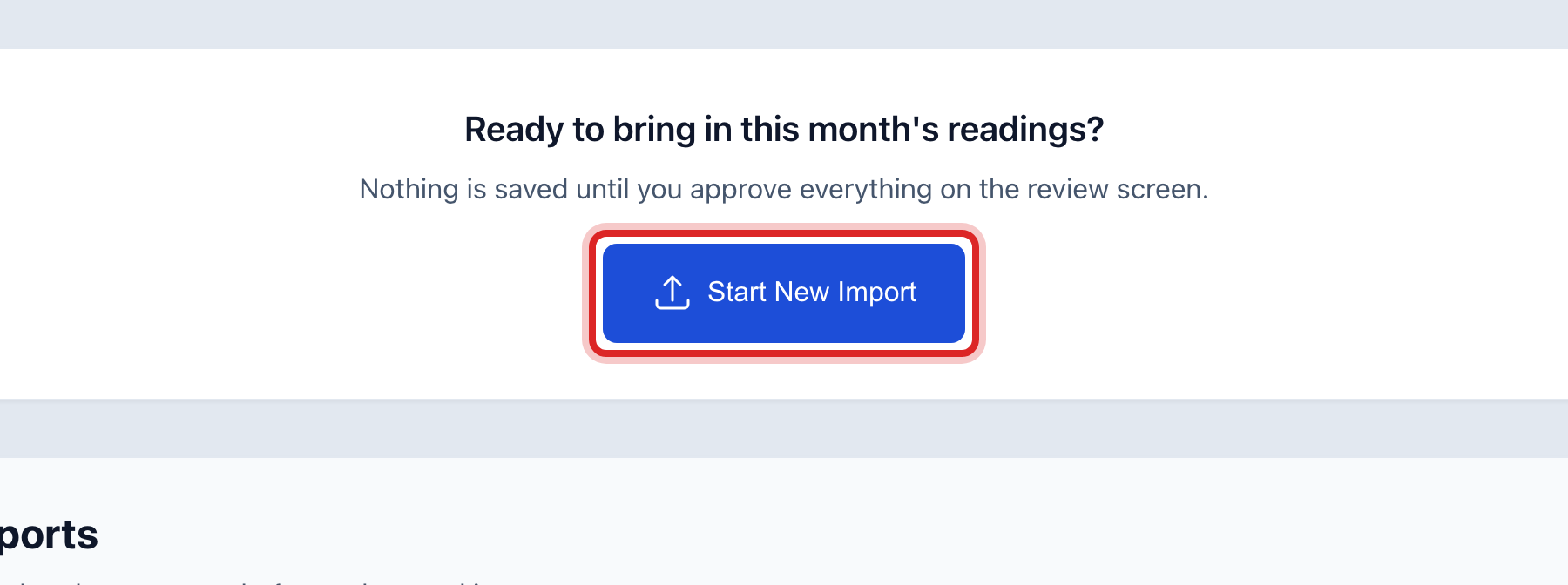
Click the blue Start New Import button.
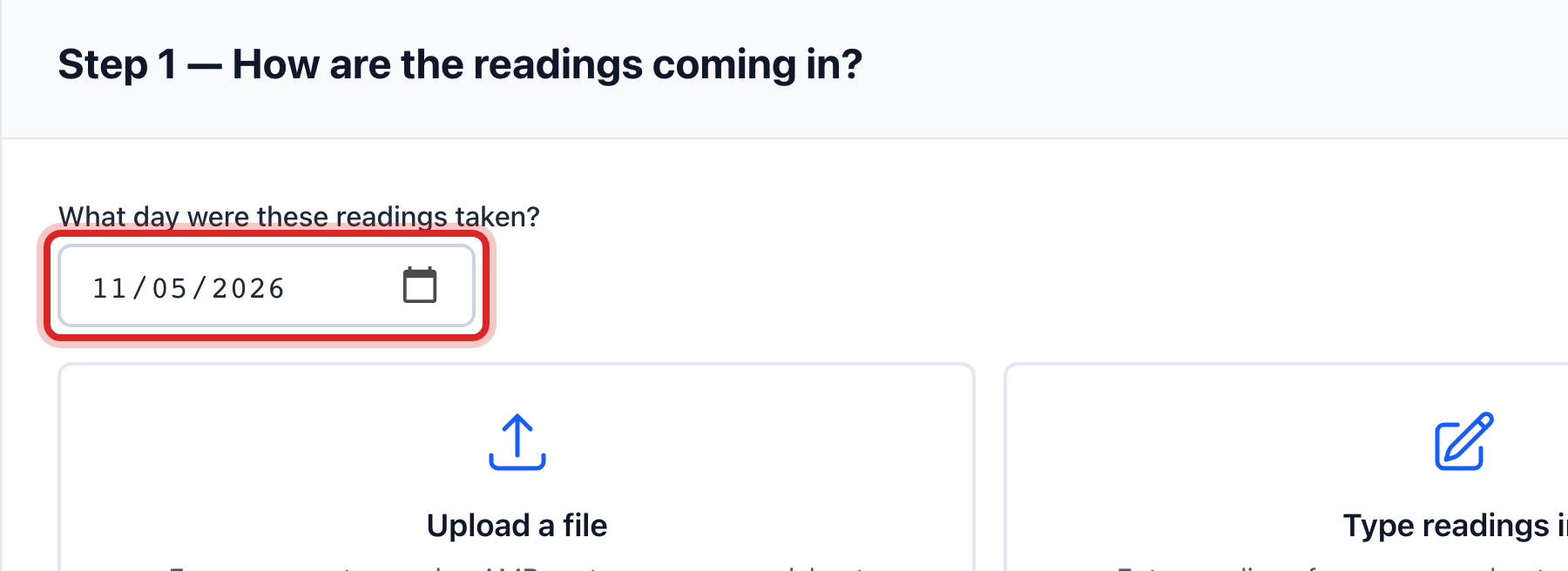
Click the date box. Pick the day the readings were taken. That is the day on the sheet, not today.
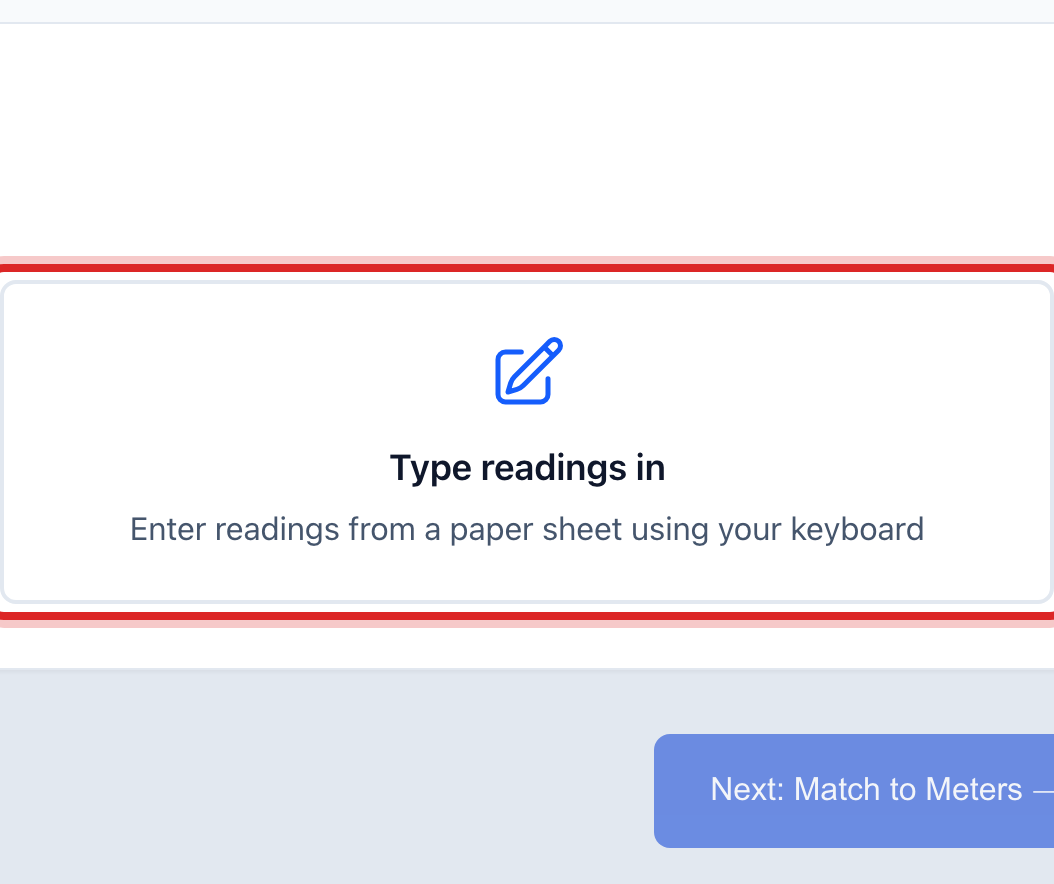
Click the Type readings in tile. The other tile is for a file from a hand held reader.
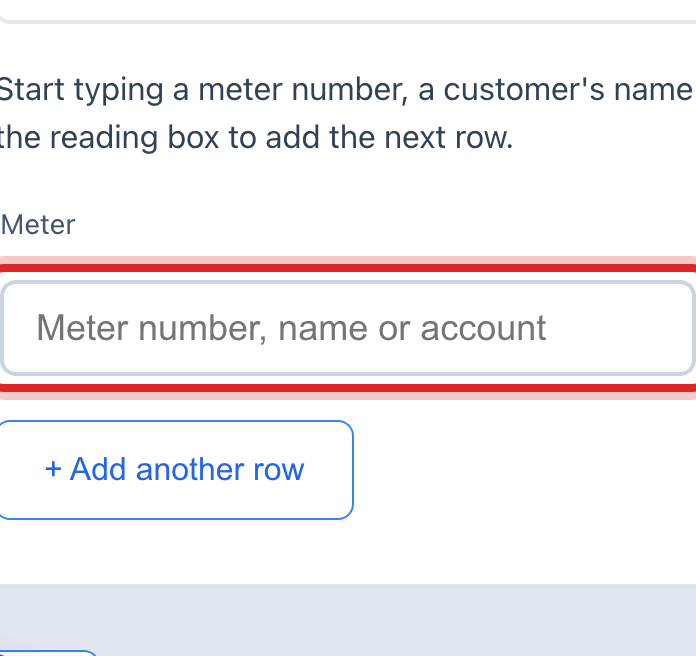
Click the first Meter box. Type the meter number, the name or the account. Then click the right one in the list.
Click the Reading box beside it. Type the number off the sheet.
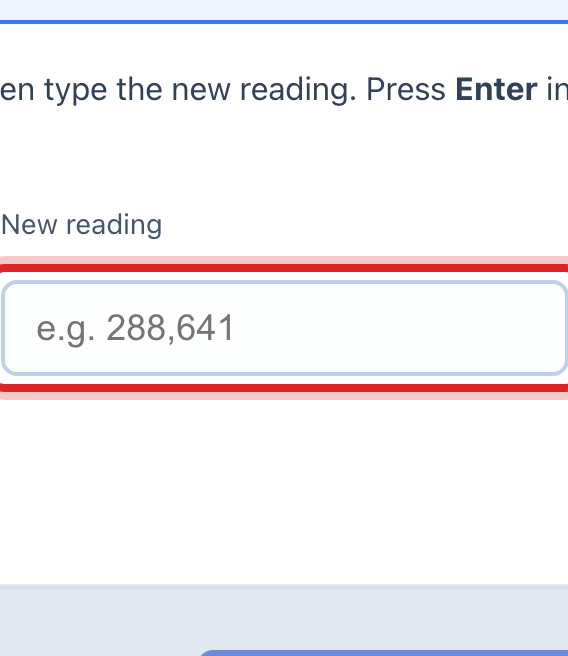
Press Enter on your keyboard. A fresh row opens. Do the next meter the same way, until the sheet is done.
Click Next: Match to Meters.
Read the match screen. It says which rows found a meter. Click Next.
Read the review screen. If it warns you about a month that is already read, tick the box to say you meant it. Click Next: Save Readings.
Click the blue Save Readings button.
Made a mistake? Click Undo on the green message that appears, or open Show me how at the top and pick Undo a mistake.
You are done when
The last screen says Readings saved and counts them for you. A Run Billing button shows under it. That is the next job, and it is page 10.
If something looks different
The whole import was wrong. On that last screen, click Undo this import. It takes every reading back out. You can also undo it later from the list of past imports.
A reading looks odd and the screen flagged it. On the left, click Metering, then Exception Handling. Find the row and click the eye button at its right end. Read what it says. Then click Resolve Exception if the number is fine, or Create Work Order to send someone out.
The number itself is wrong. The Exception Handling page cannot change a number. It only clears the flag. To take a bad reading out: click Metering, then Meters, then open that meter. Scroll to Reading History. Click the trash button on the wrong row. Then type the reading again through Import Readings.
The readings came as a file. Click the Upload a file tile in step 4 instead, then Choose a file. The page asks which column is which.
The reader is walking the route with a phone. They use Mobile Reading instead. You do not type anything.
You cannot click Start New Session on Mobile Reading. Your account may not have permission to read meters. Ask your administrator.