
Appearance
10. Run the billing cycle and send the bills
When you need this: the readings are in and it is time to bill the whole town. This is the big monthly job. It is five screens. You make the bills, look them over, lock them in, then send them. Do page 9 first. No readings means no bills.
Steps
On the left side of the screen, click Billing & Payments, then click Run Billing.
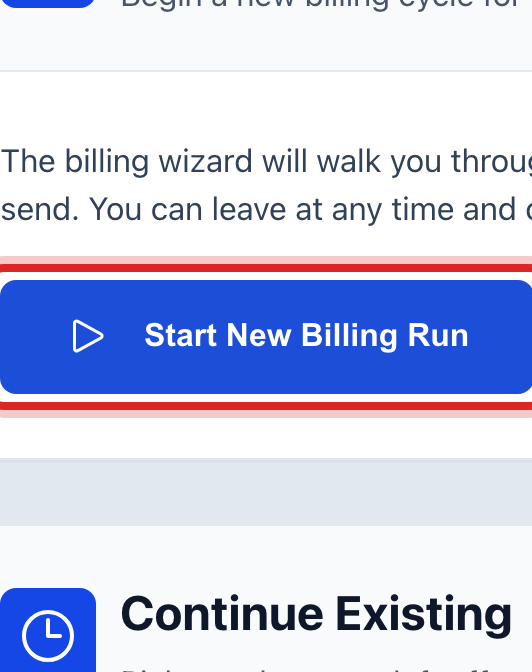
Click the blue Start New Billing Run button.
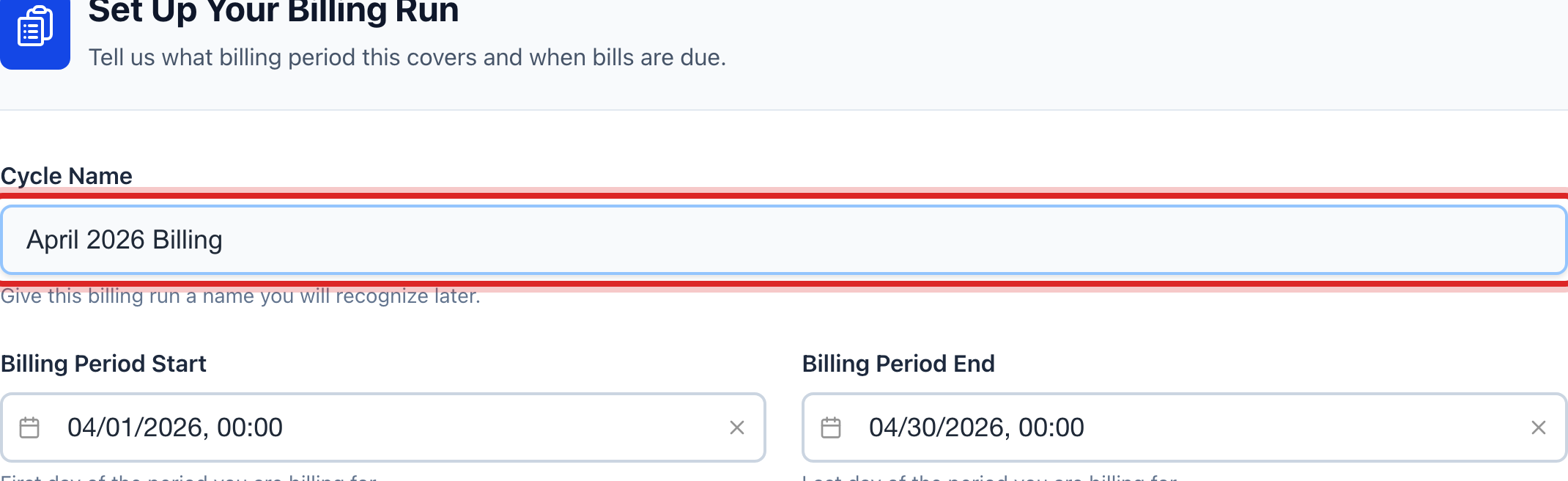
Type a name for the run in Cycle Name. Use the month, like April 2026 Billing.
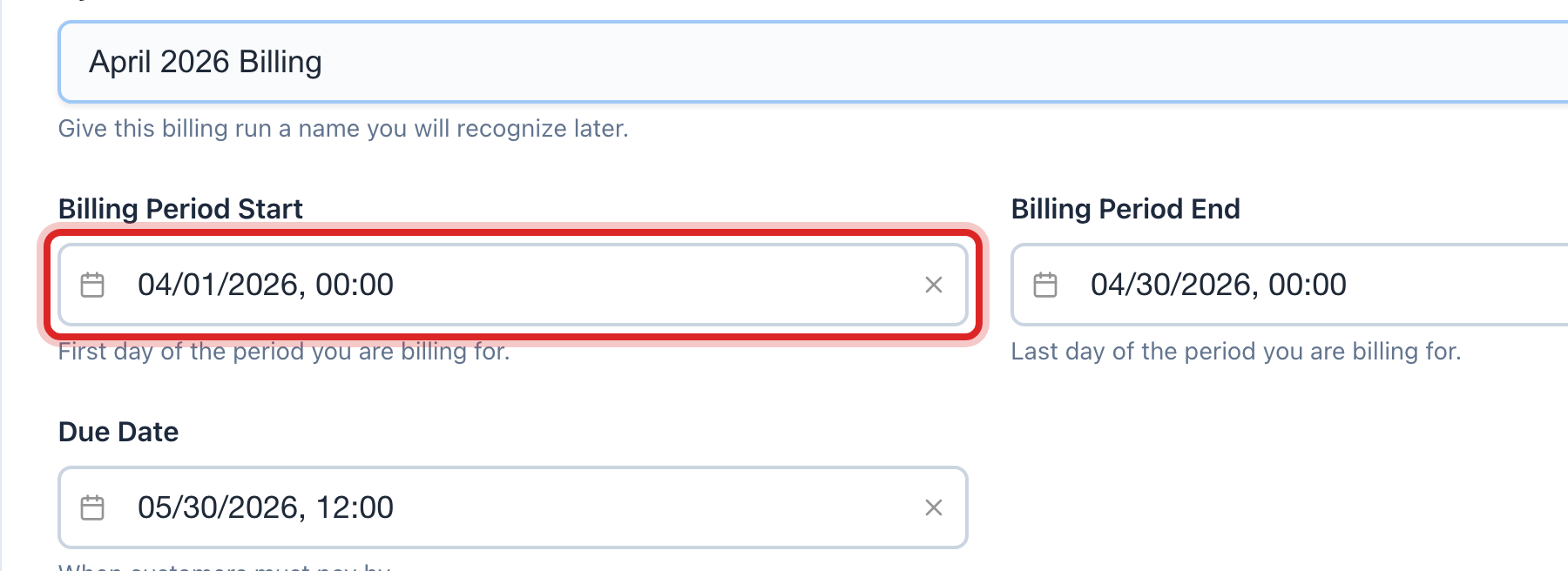
Click the Billing Period Start box and pick the first day. Then do the same in Billing Period End.
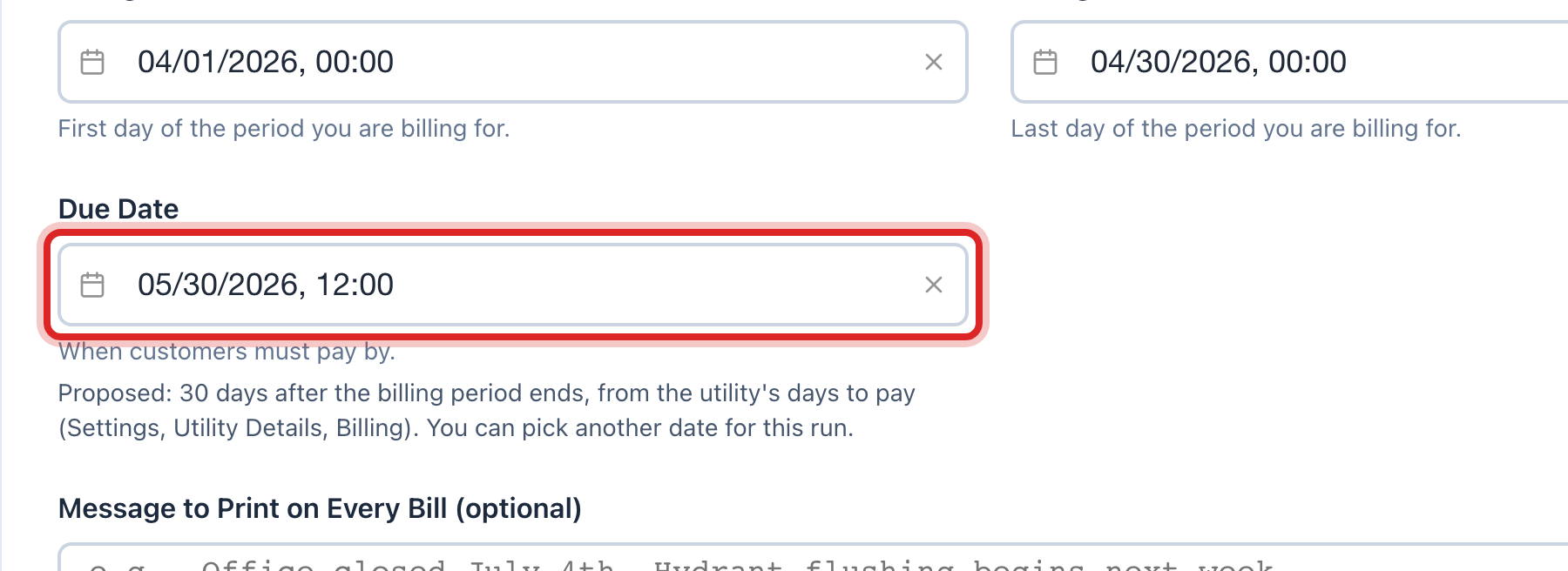
Click the Due Date box. Pick the day the money is due.
Type a line in the message box if you want it on every bill. You can leave it empty. Then click Next Step.
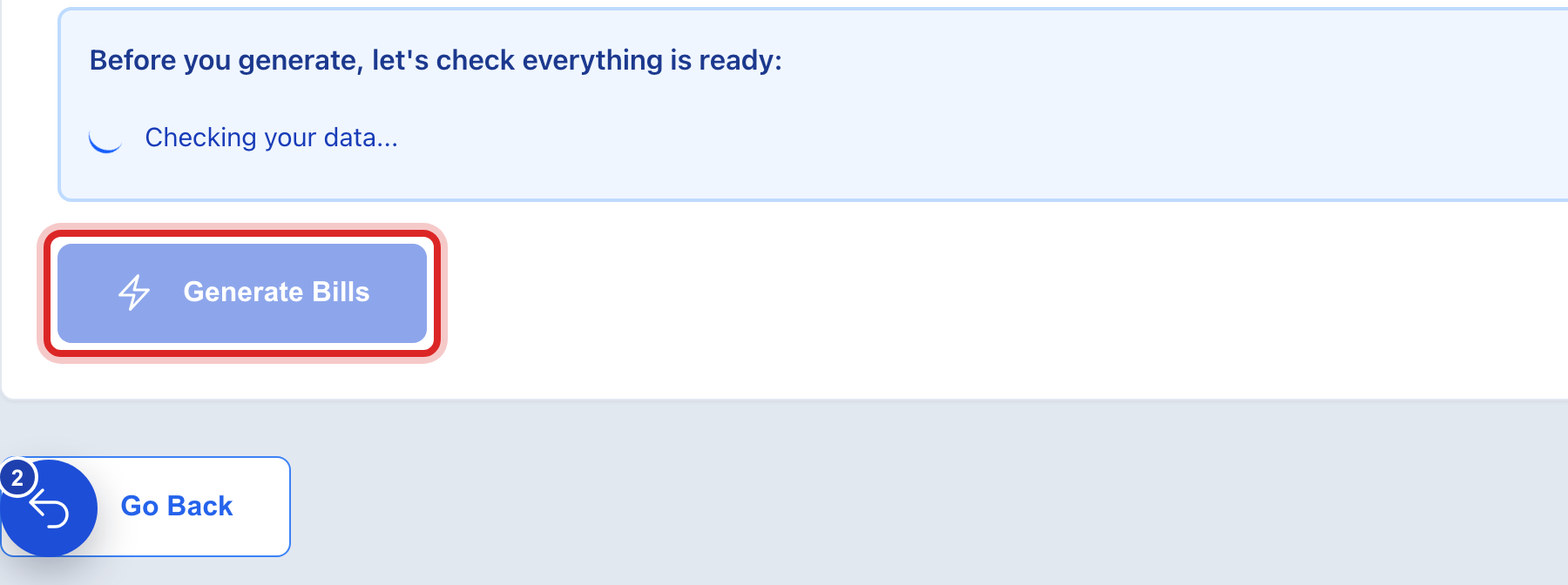
Click the blue Generate Bills button. It counts the customers as it goes. Wait for it to finish.
Click Next Step.
Look over the bills on the review screen. Watch for a bill that is much larger than last month. Then click Next Step.
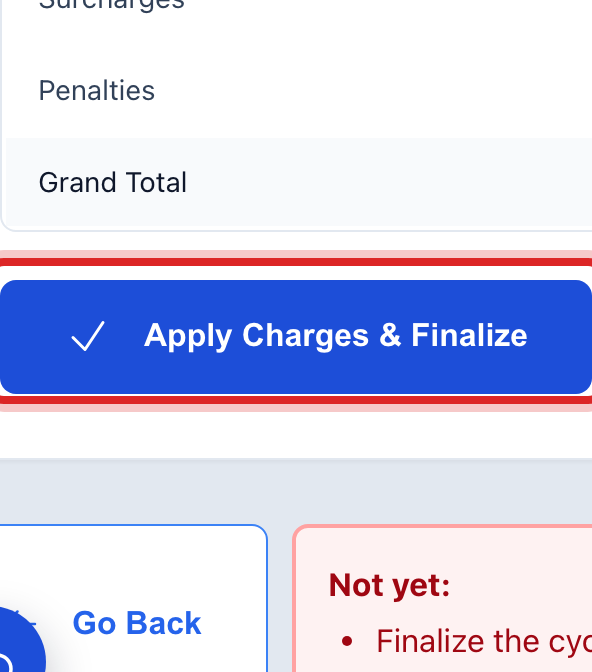
Click Apply Charges & Finalize. This locks the run and puts the charges on the accounts.
Click Next Step.
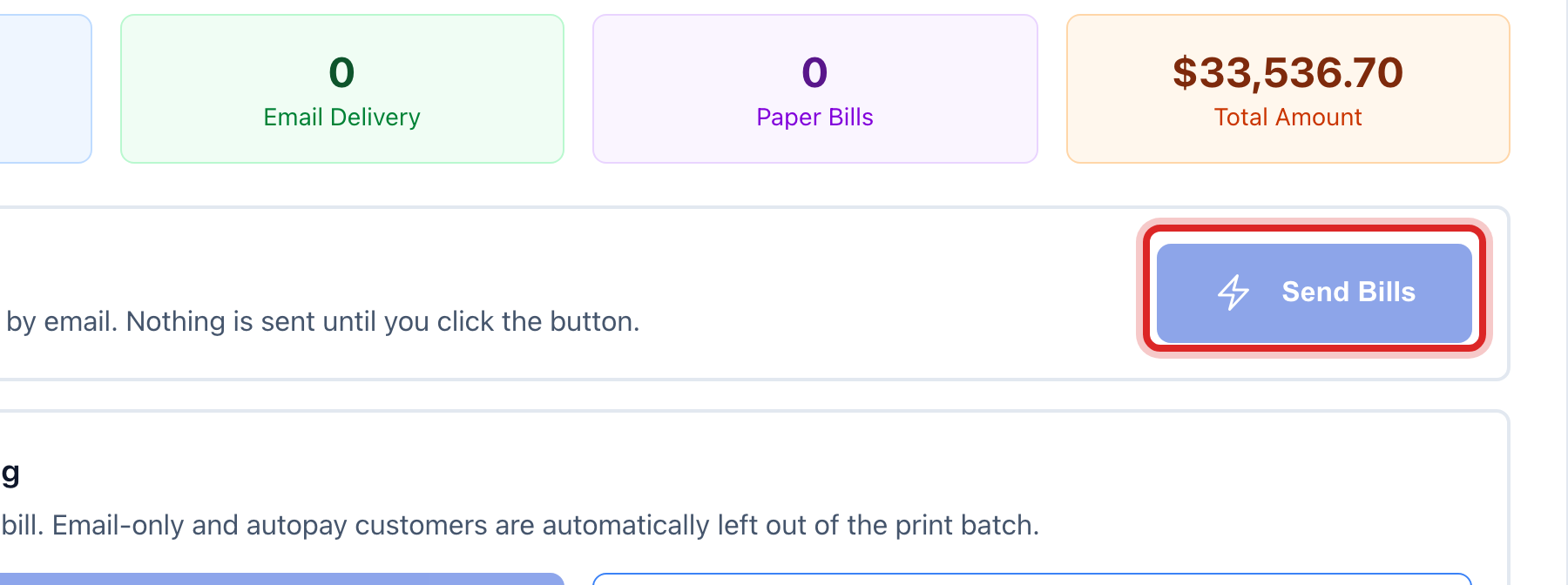
Click the blue Send Bills button. Say yes when it asks. This emails and texts the bills.
Click Create Print Batch for the people who get paper. Then print them, or have them mailed.
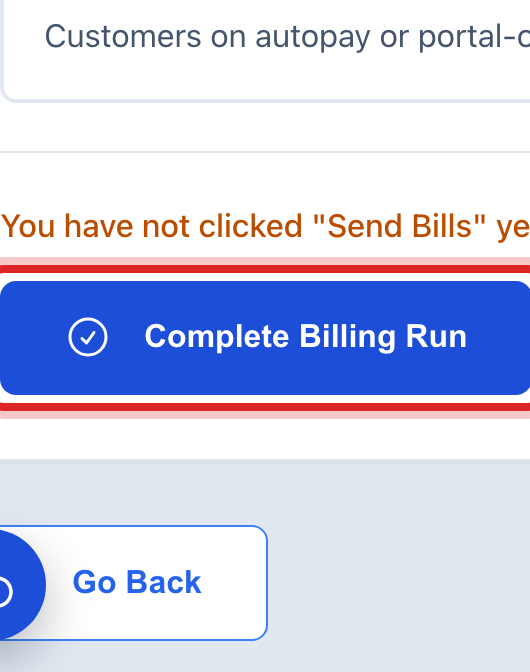
Click Complete Billing Run.
Made a mistake? Click Undo on the green message that appears, or open Show me how at the top and pick Undo a mistake.
You are done when
A green Billing Run Complete panel shows at the end. It says all the bills were processed.
Sent bills cannot be pulled back. Once you click Send Bills, the emails and texts are gone. So look the bills over in step 9. If one bill was wrong after that, fix that bill on its own page and send the customer a new copy. For a mistake that hit the whole town, call us before you do anything else.
If something looks different
You do not see Run Billing on the left. Only some roles may start a billing run. Ask your administrator.
Generate Bills is faded. Something is missing. The screen says what and gives you a link to it. It is almost always missing readings or a missing rate.
There is no list of services to tick. That list only shows when your utility bills more than water. Nothing is wrong.
It says a run is already open. A window asks what you want to do with the open one. Finish it or throw it out before you start a new one.
You stopped after step 11. The screen warns you that nobody has their bill yet. Come back and click Send Bills.
Someone pays by bank draft or only wants email. They are left out of the paper batch for you. You do not have to pick them out.