
Appearance
20. Create, do and close a work order
When you need this: a job needs doing and you want a record of it. Who asked, where it is, who did it, and when it was done. One page makes the work order, starts it and closes it.
Steps
On the left side of the screen, click Work Orders, then click Active Orders.
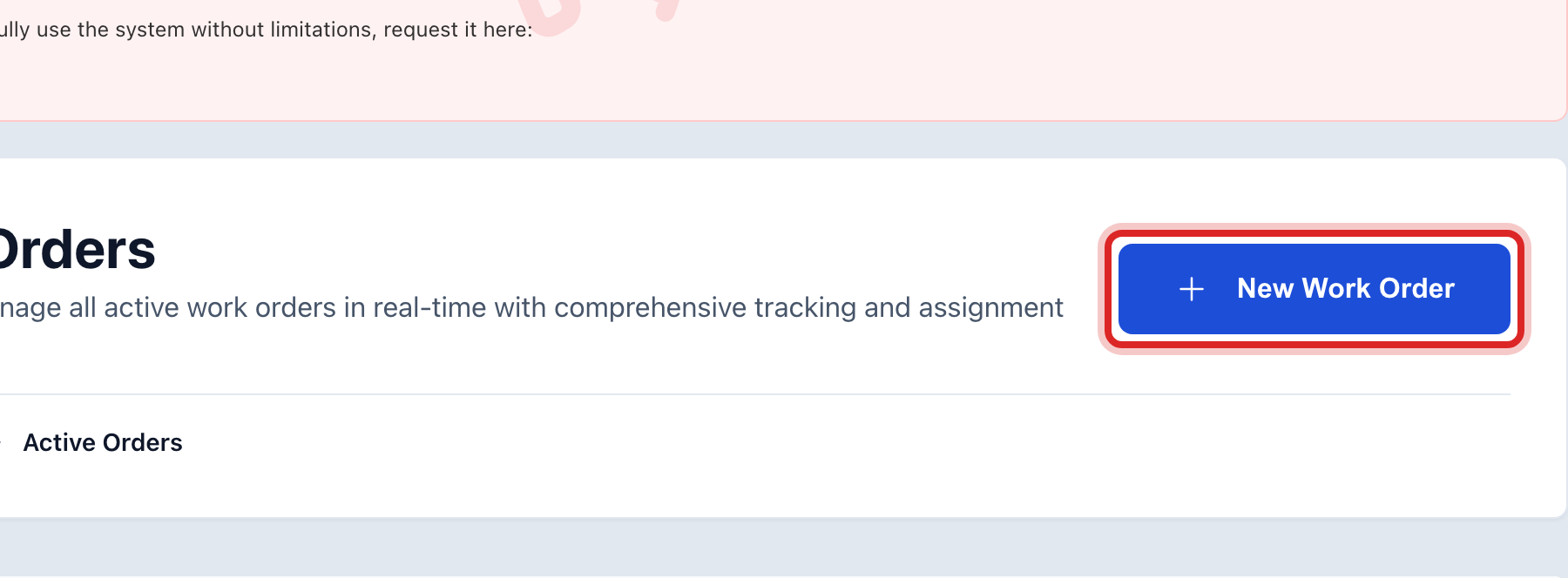
Click the blue New Work Order button at the top right.
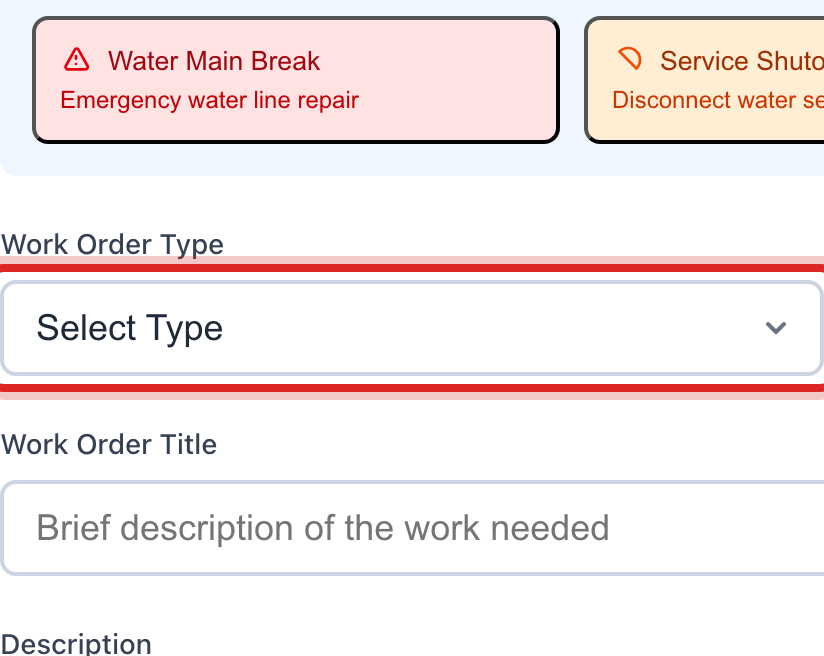
Pick the Work Order Type. The choices are Emergency, Maintenance, Service Request, Meter Work, Inspection and Customer Request. A repair is Maintenance.
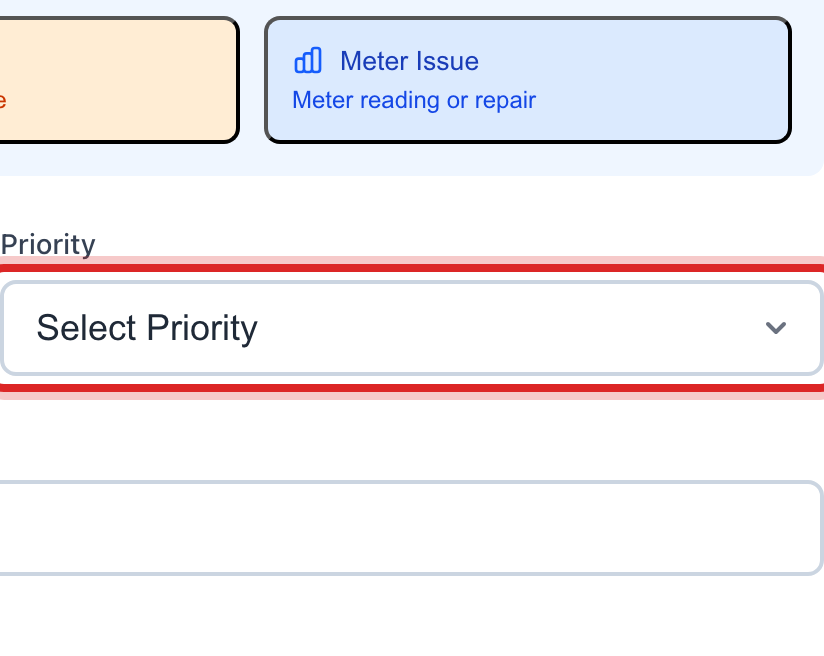
Pick the Priority. Normal is right for most jobs. Use Emergency only for water in the street or a home with no water.
Type a short Work Order Title. One line, like "Replace the broken meter lid".
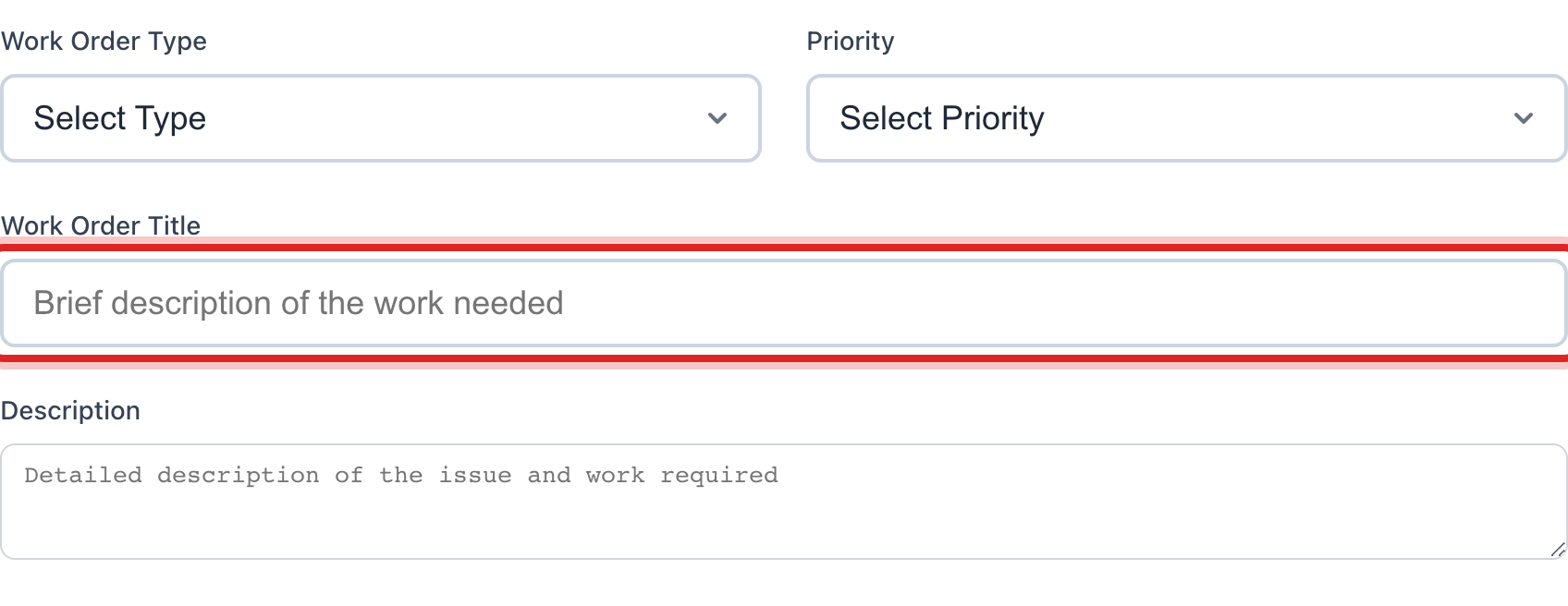
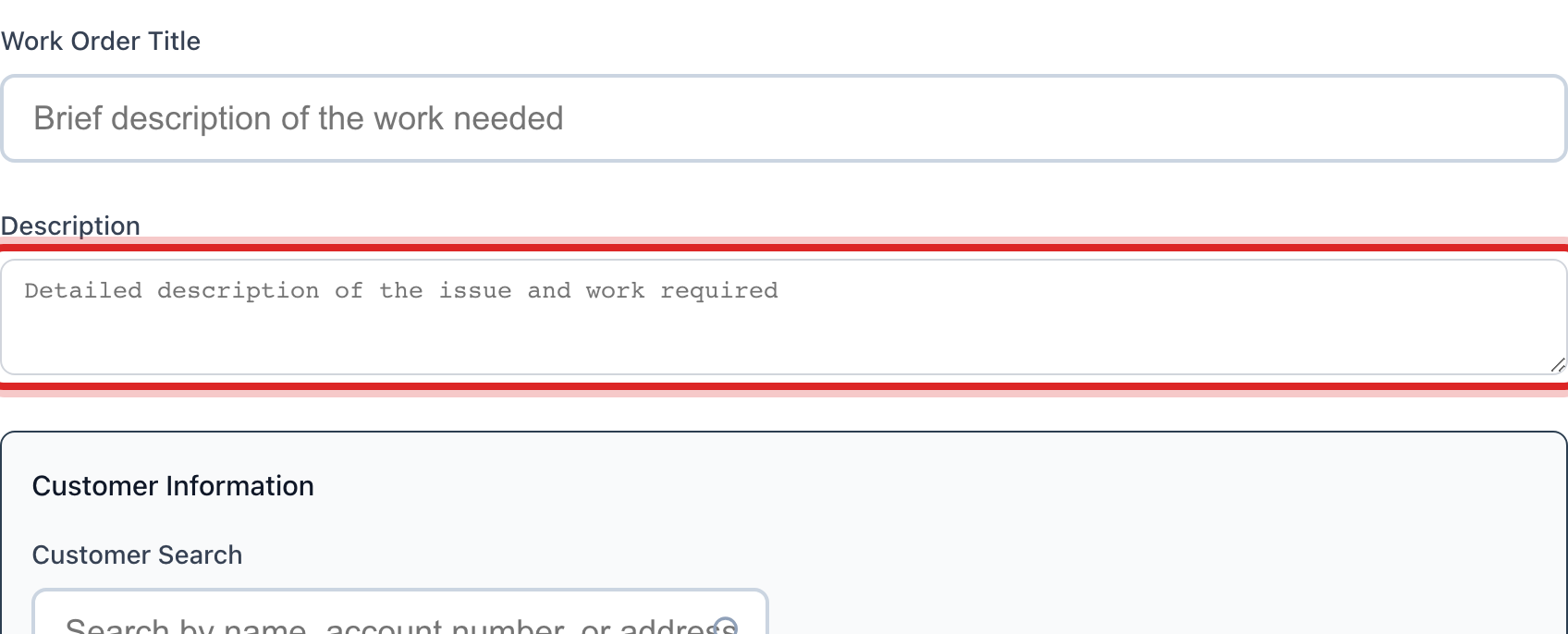
Type the Description. Say what is wrong and what needs doing. Write it so the next person understands it.
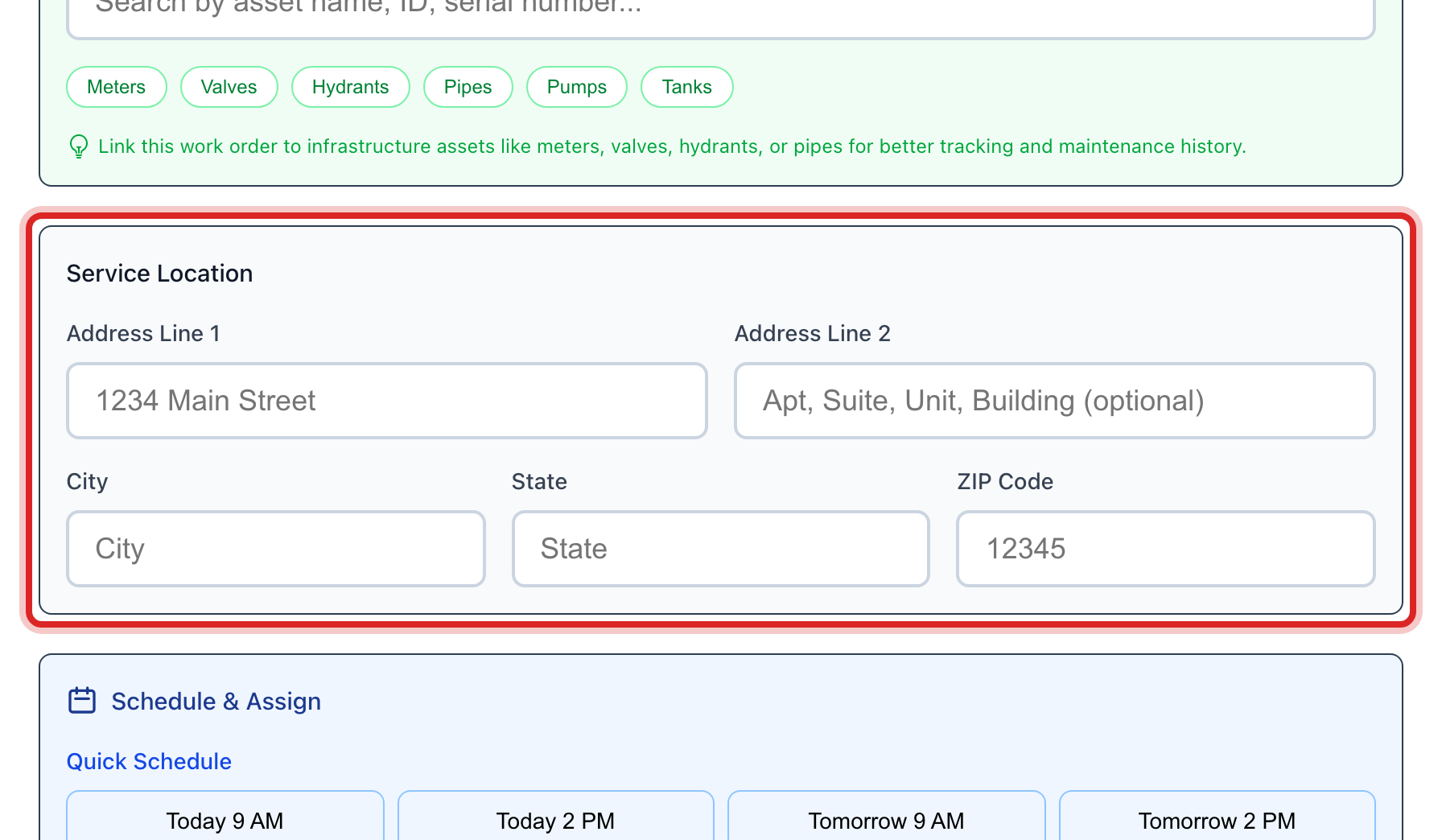
Under Service Location, type the address: Address Line 1, City, State and ZIP Code.
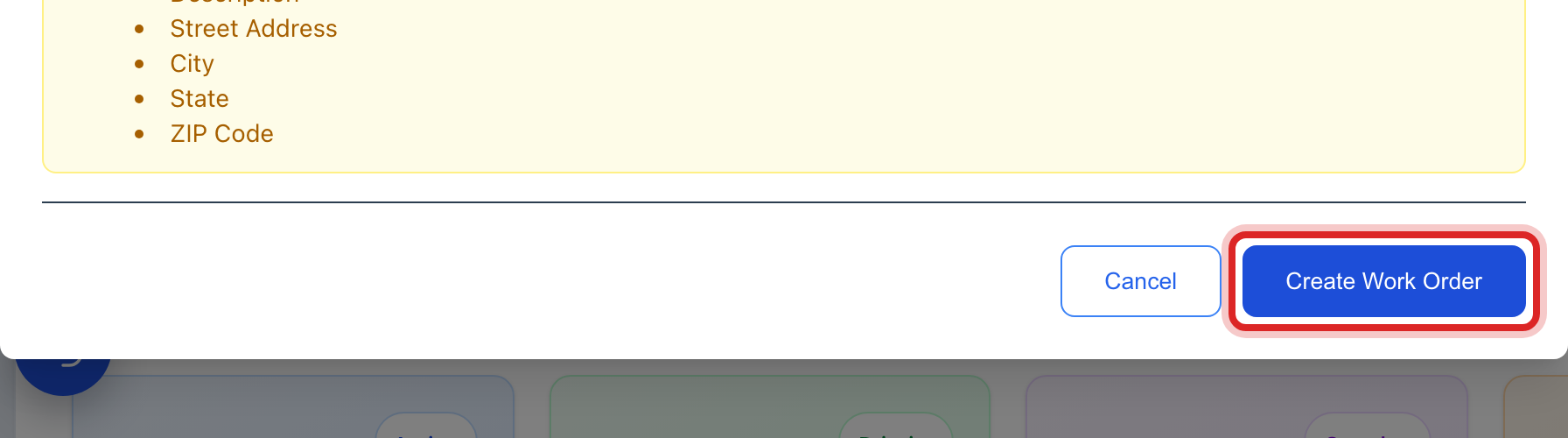
Click the blue Create Work Order button at the bottom.
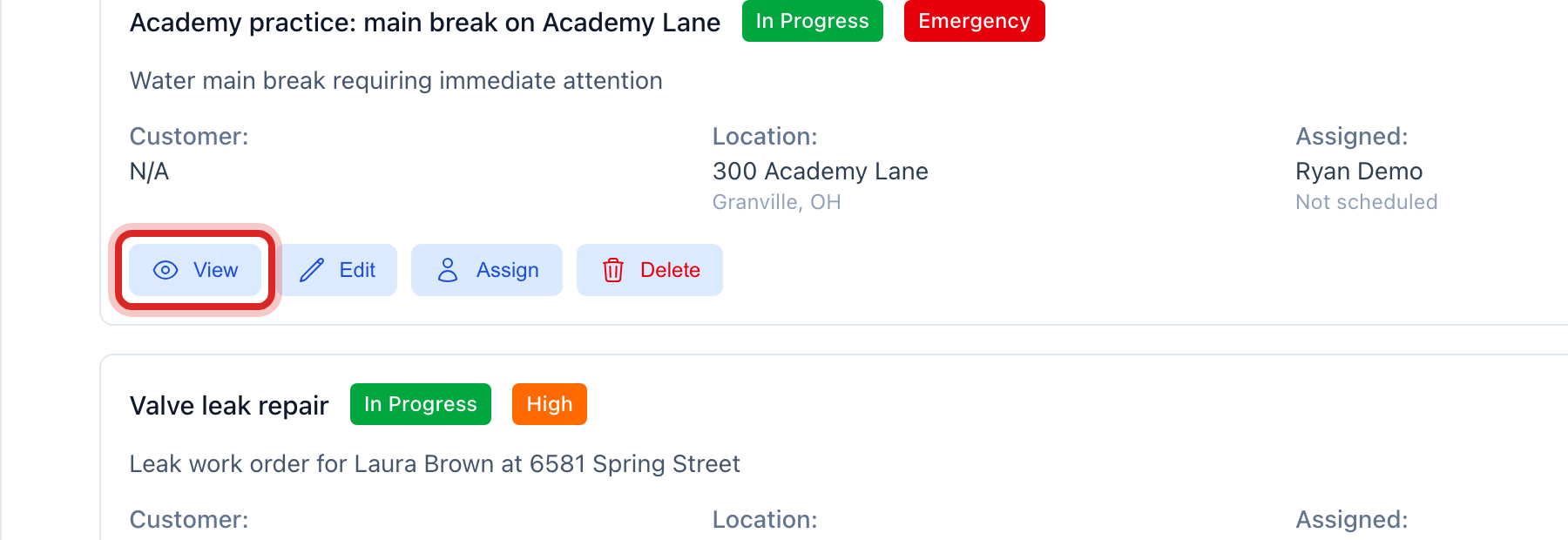
Your new order is now in the list. Find its row and click View.
When you head out to do the job, click Start Work Order.
When the job is done, open the order again and click the same button. It now says Complete Work Order.
Made a mistake? Click Undo on the green message that appears, or open Show me how at the top and pick Undo a mistake.
You are done when
The order shows Completed at the top, and it drops off the Active Orders list. That list only holds open work, so a finished order leaving it is the proof it closed.
If something looks different
A yellow box appears instead of your new order. It lists what is still blank. Fill in each thing it names and click Create Work Order again.
It is one of the usual jobs. At the top of the new order window there are tiles for Water Main Break, Service Shutoff and Meter Issue. One click fills in the type, how urgent it is, and most of the words for you. You still type the address.
The job is already underway and you only need to close it. On the row, click Edit instead of View. Set Status to Completed and click Update Work Order.
The Start Work Order button is not there. Your account may not have permission to change work orders. Ask your administrator.