
Appearance
13. Send a notice to one customer or everyone
When you need this: hydrant flushing next week, a planned shutoff on one street, a reminder to one customer, or a note to every household. One page does all of it. The message can go out as a text, an email, a phone call, or all three.
Steps
On the left side of the screen, click Customer Messaging, then click Send Message.
Decide who gets it. For one person, click Select Individuals. A search box appears. Type their name and click them in the list.
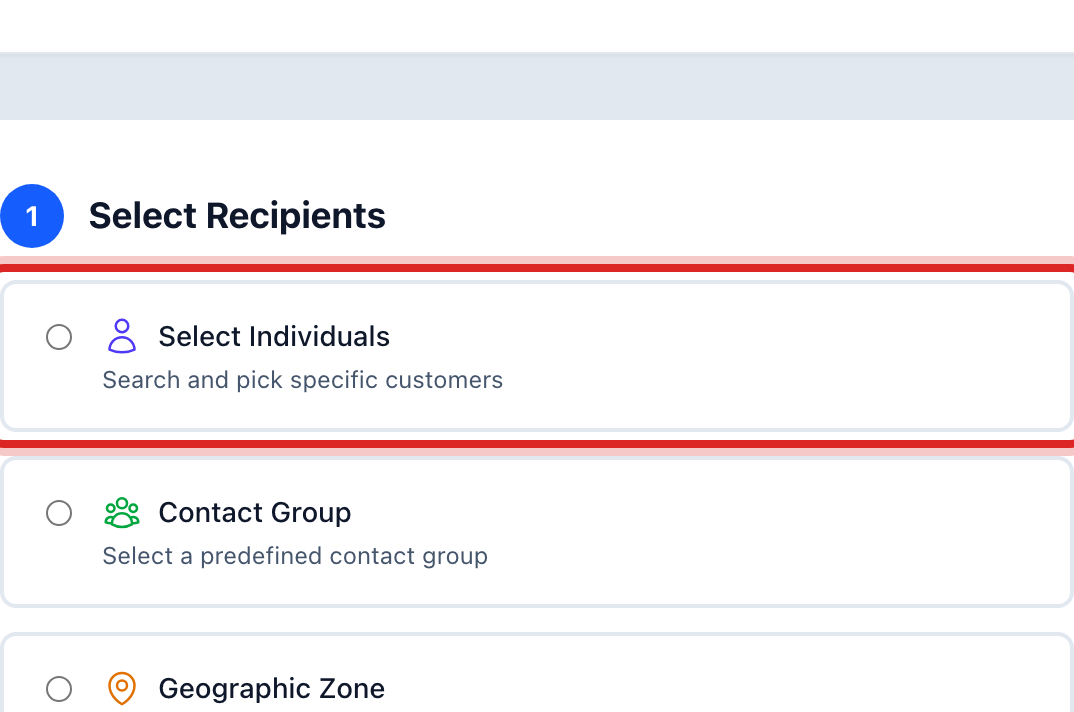
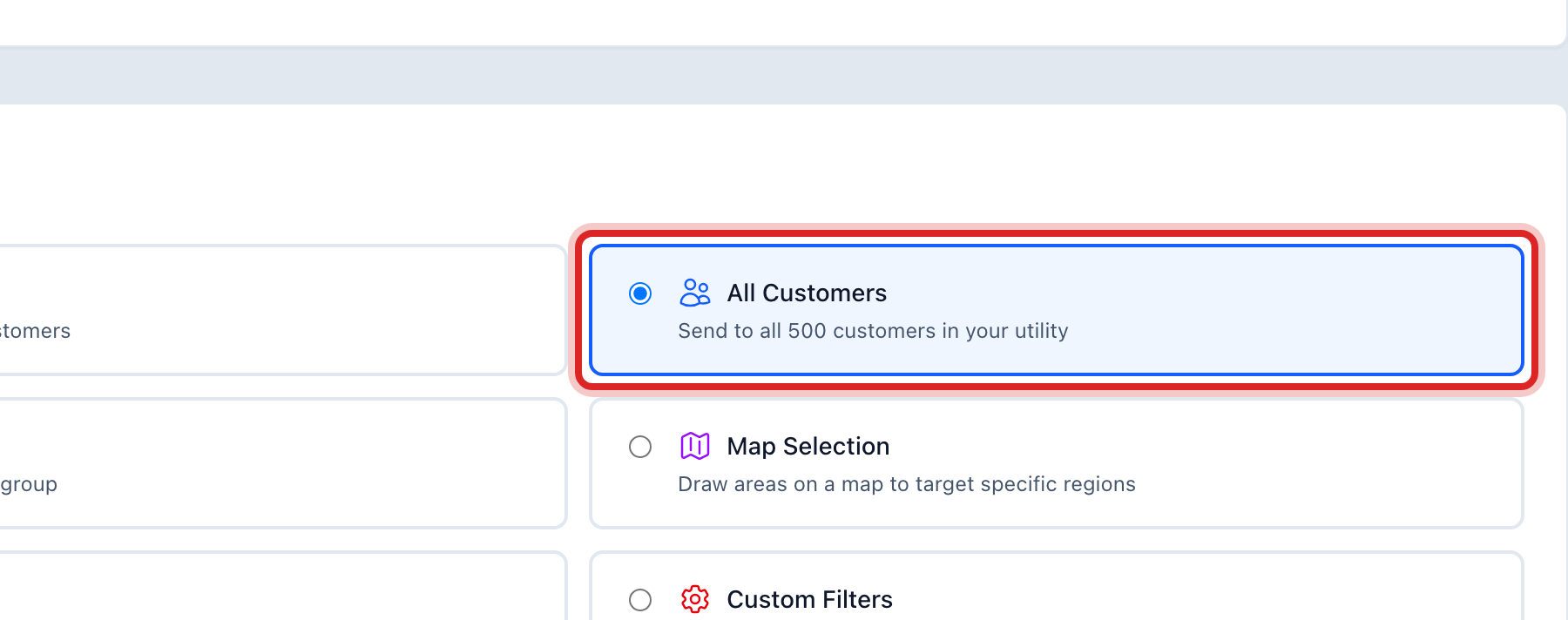
For every customer at once, click All Customers instead.
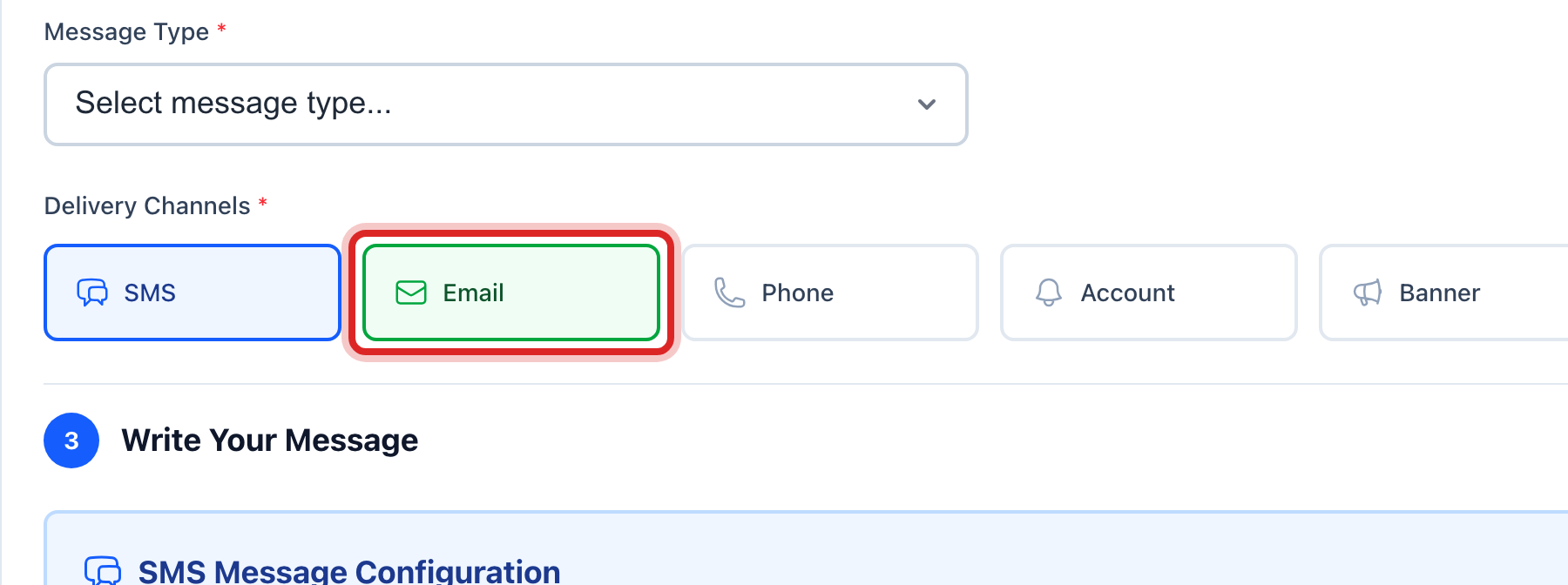
Pick how it goes out. Click SMS for a text message. Click Email to send an email too. You can pick both.
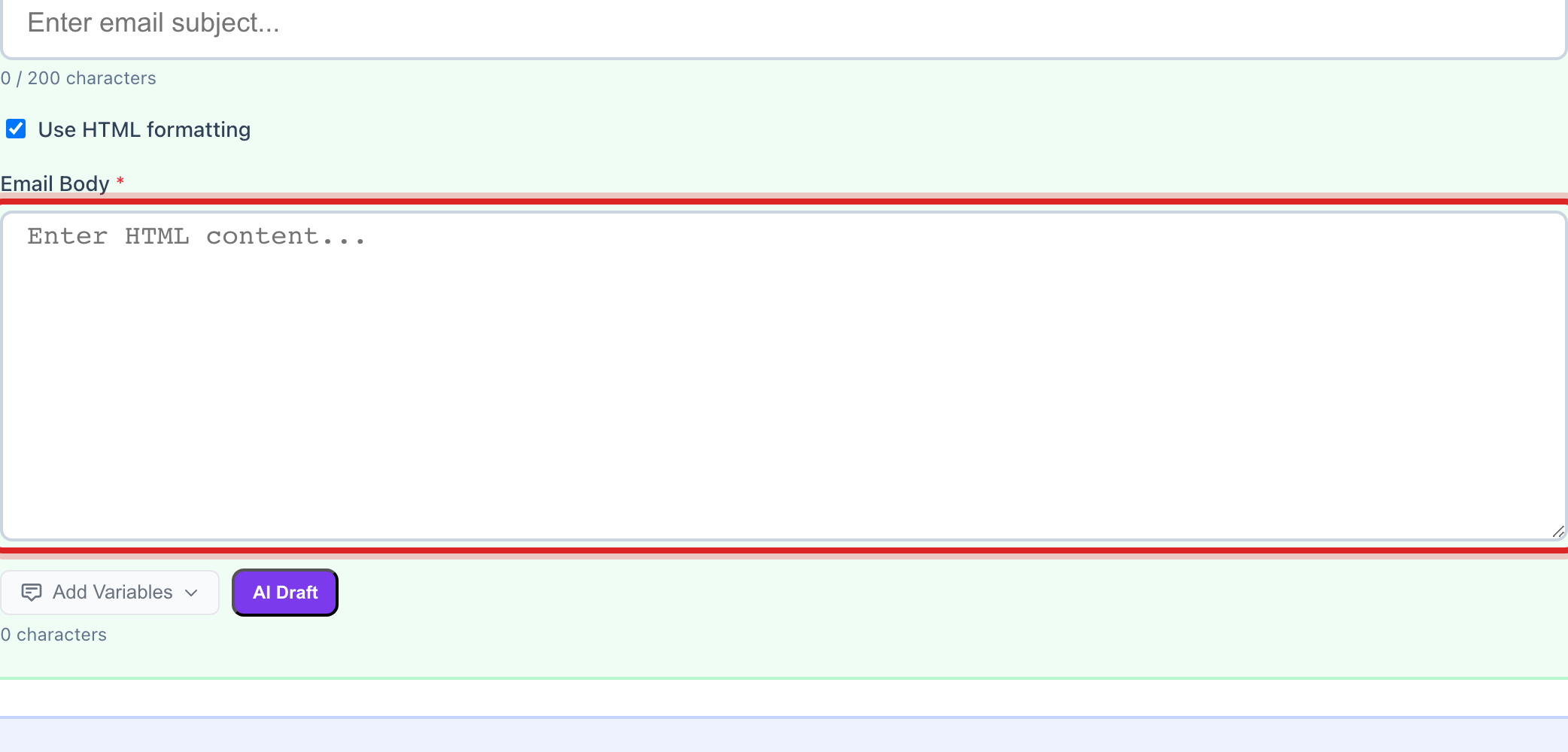
Type the message in the box. Keep it short and plain. Say what is happening, when, and what they should do. An email gets a subject line too.
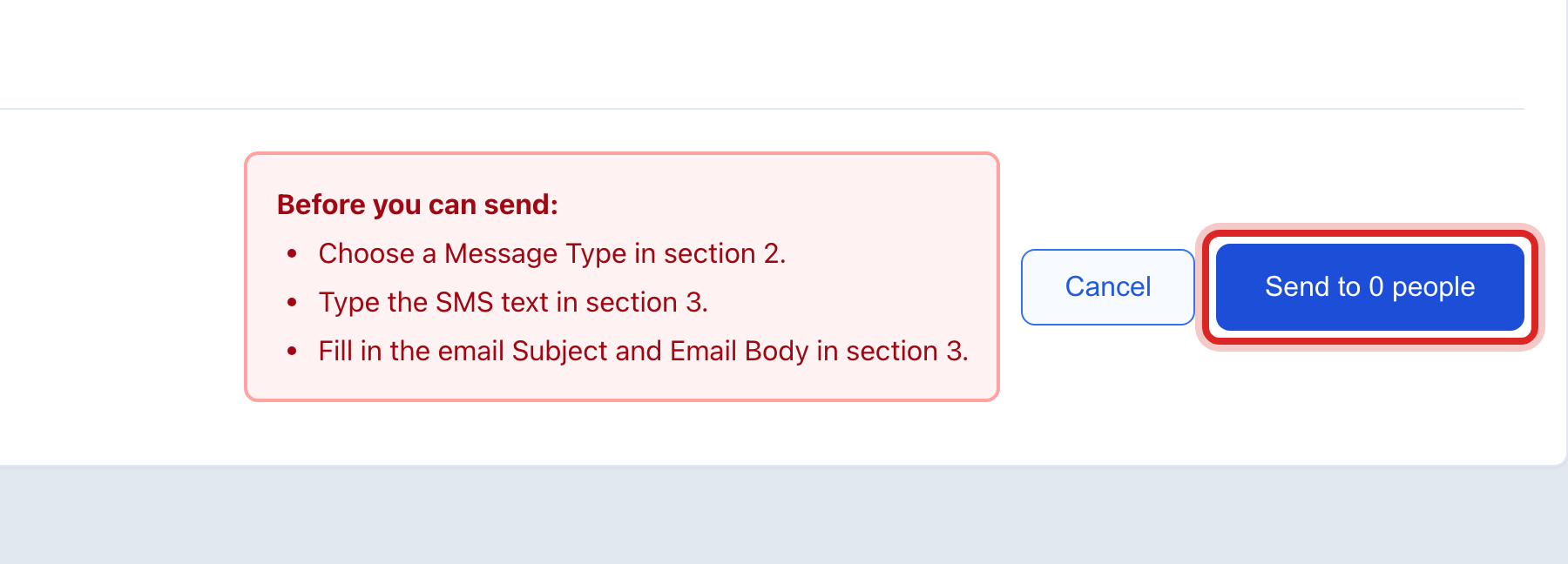
Scroll down to Review & Send. It shows how many people will get it and how. If anything is missing, it tells you here.
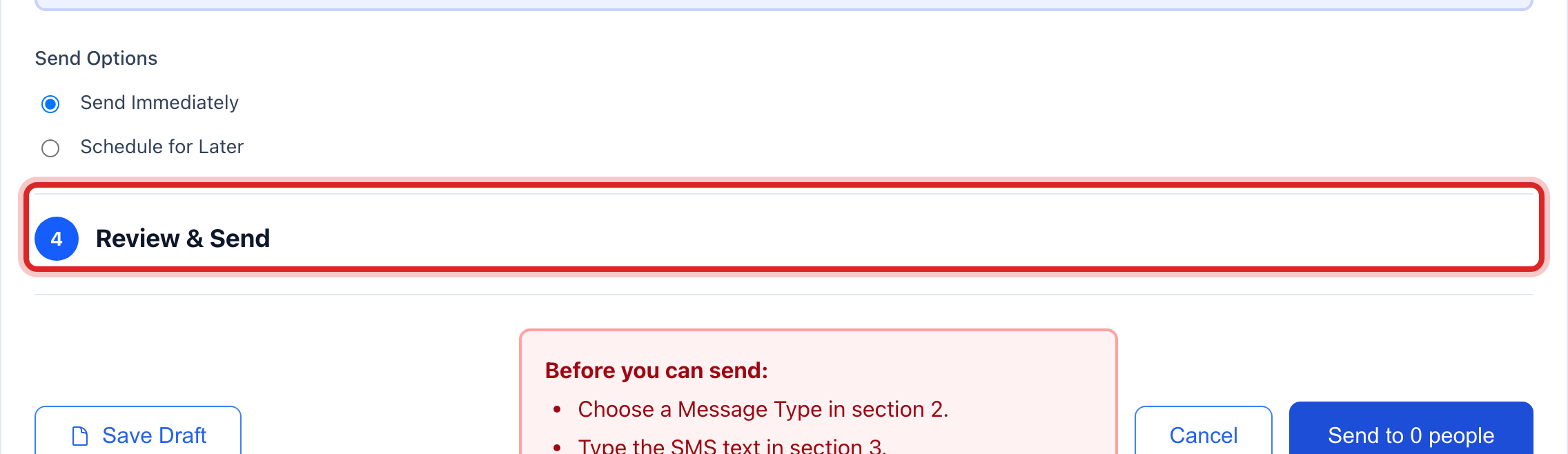
Click the blue Send button.
You are done when
The next page is the Delivery Report. It shows each message going out and whether it was delivered. You can leave the page; the sending keeps going.
If something looks different
You do not see Select Individuals. Your account may not have permission to send messages. Ask your administrator.
The Send button is faded. Something is missing. Look just above it for the list that says what to fix, usually a blank message or no one picked.
You want to send it later. Above the Send button, pick Schedule for Later and choose the day and time.