
Appearance
1. Sign in and find your way around
When you need this: your first morning, and every morning after. You sign in, you land on your own home page, and you learn where things are. Ten minutes here saves you hours of hunting later.
Steps
Open your web browser. Go to admin.utilops.com. The sign in page opens.
Click in the Email Address box. Type your work email.
Click in the Password box. Type your password.
Click the blue Sign In button.
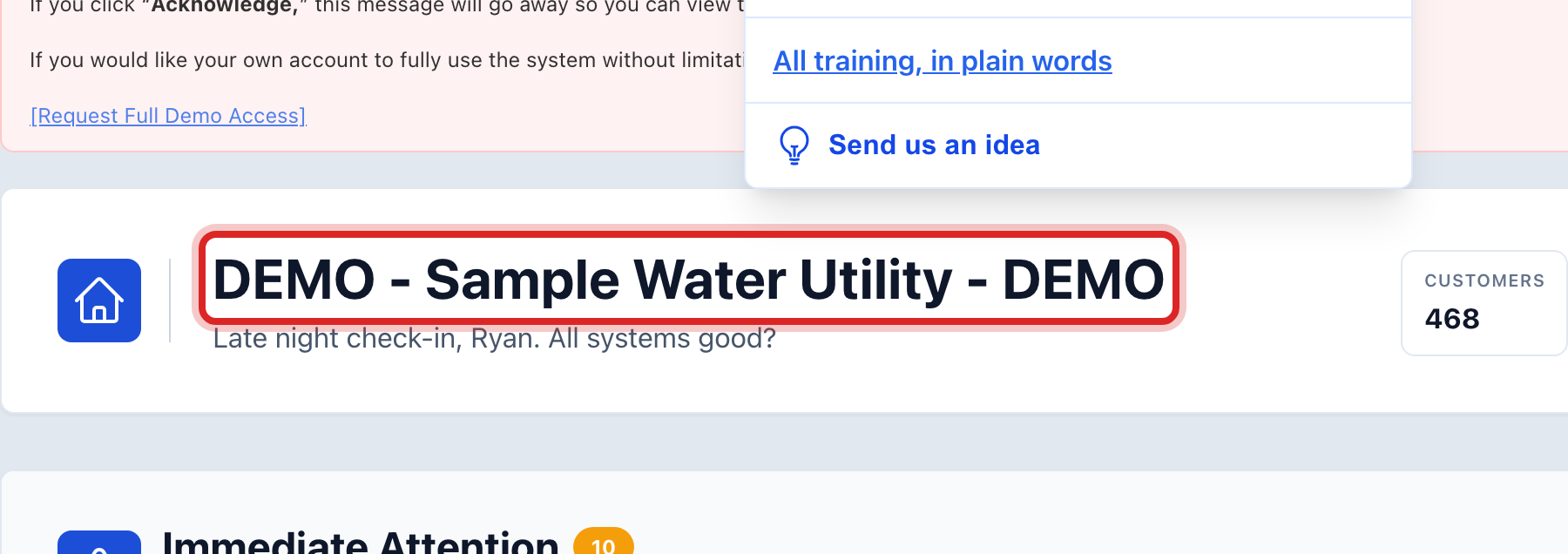
Your utility's name is at the top of the page. This is your home page. It shows what needs you today.
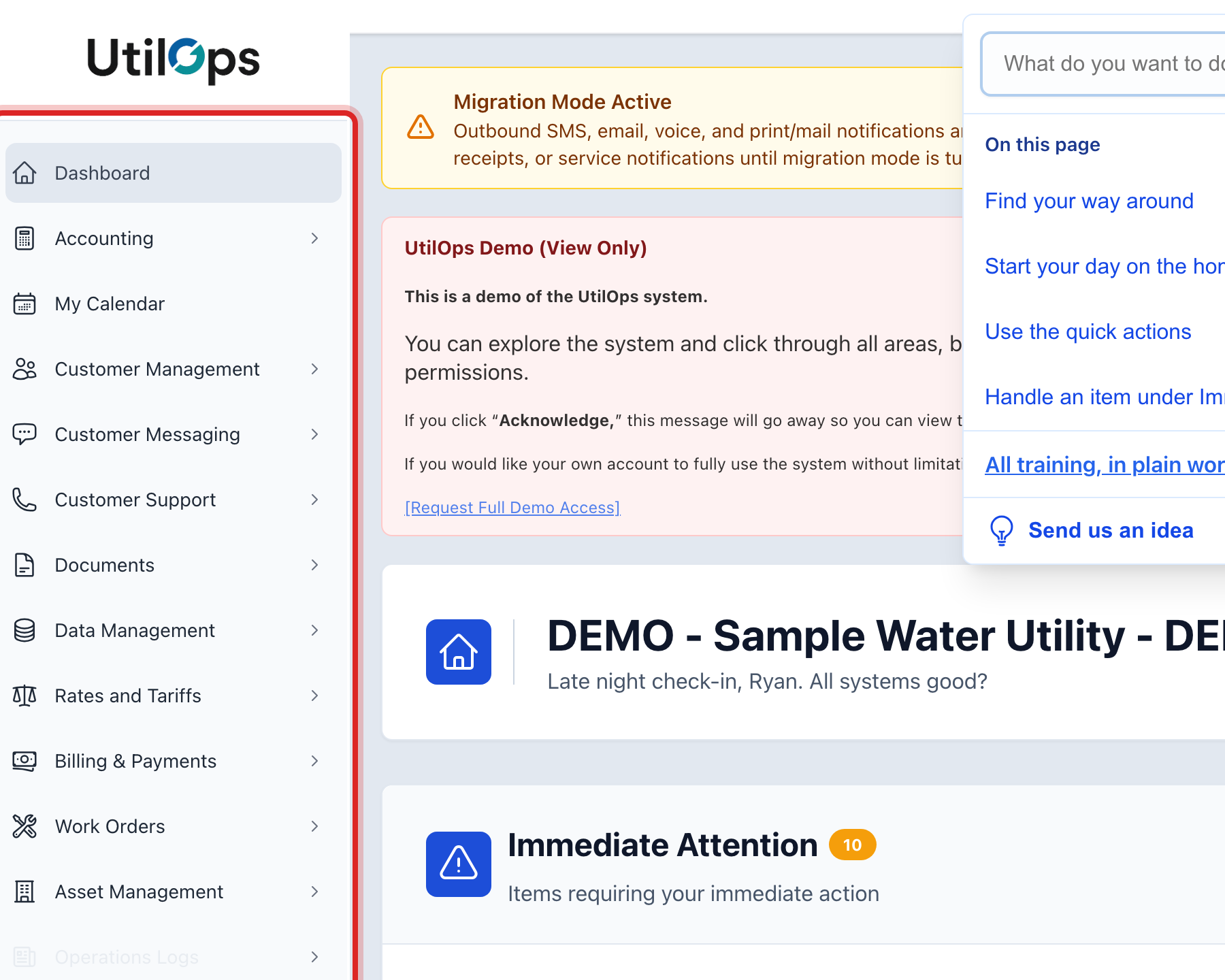
The list down the left side is your menu. Each line opens one part of your work. Click a line to open it.
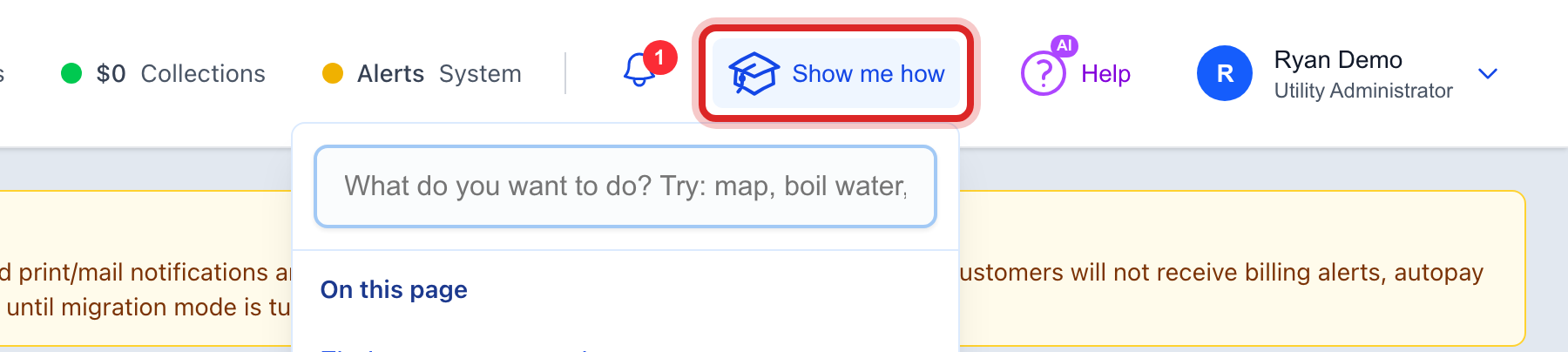
At the top right, click Show me how whenever you are stuck. Type what you want to do, like "payment" or "boil water". Pick one and it points at each thing to click.
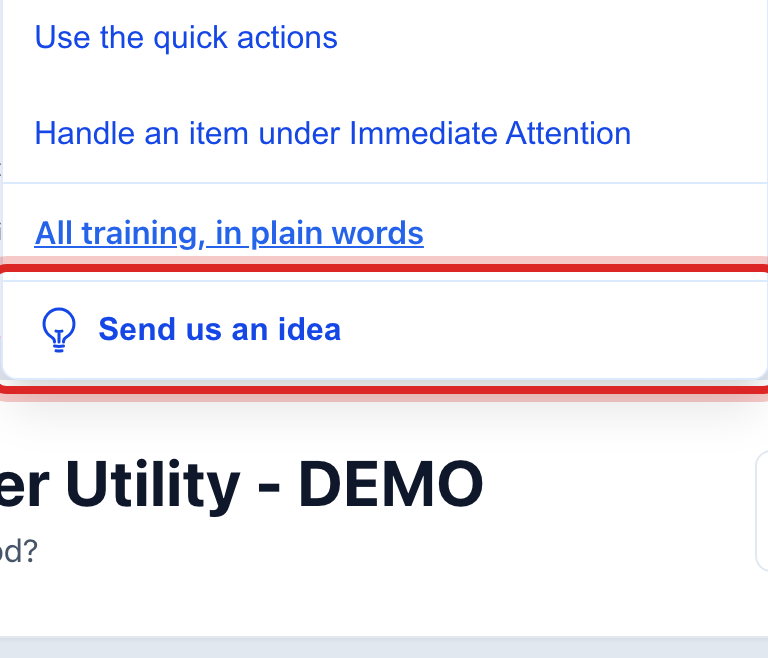
At the bottom of that same list is Send us an idea. Click it and tell us what would make your day easier. A real person reads every one.
Made a mistake? Click Undo on the green message that appears, or open Show me how at the top and pick Undo a mistake.
You are done when
You see your utility's name at the top, the menu down the left, and your own name at the top right.
If something looks different
It asks you to pick a new password. The first password was for one use only. Pick your own and sign in again.
It asks for a code. Your utility uses two step sign in. The code comes to your phone. Type it in.
You forgot your password. Click Forgot password? under the Sign In button. A reset email comes to you.
Your menu is shorter than a coworker's. You see only the parts your job needs. Ask your administrator if something is missing.