
Appearance
5. Print a bill copy
When you need this: a customer says the bill never came, or wants another copy for their records. You print the same bill they would have got in the mail, word for word.
Steps
On the left side of the screen, click Billing & Payments, then click Bill Lookup.
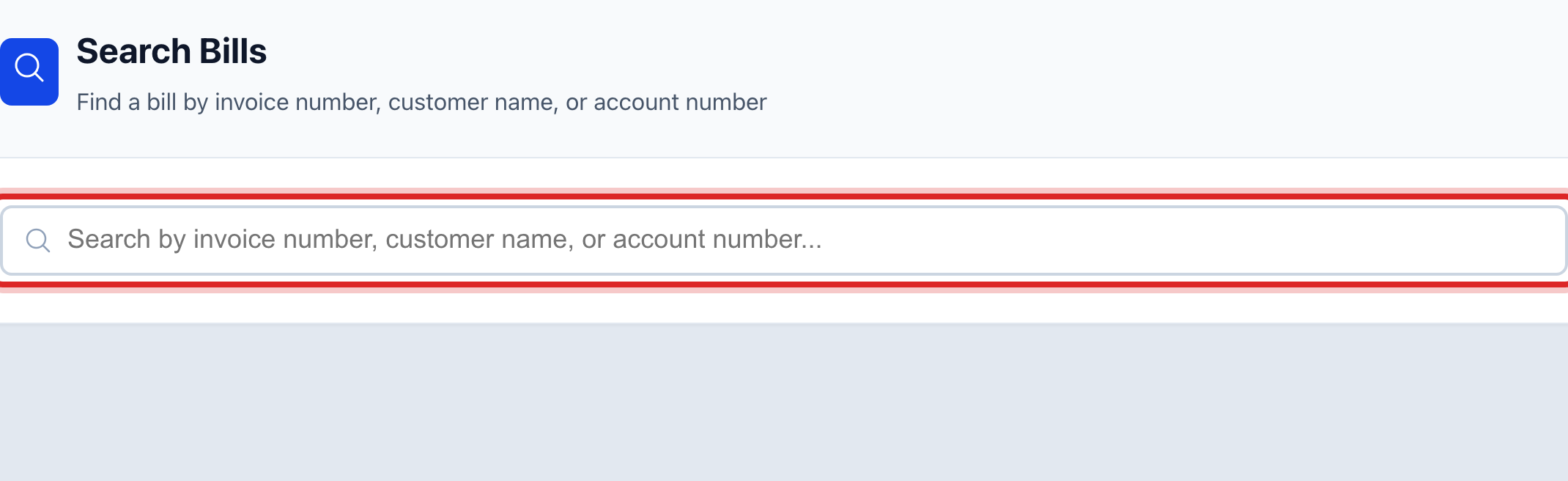
Click in the Search Bills box. Type the last name. The invoice number or the account number works too.
Click the bill you want in the list under the box. The whole bill opens.
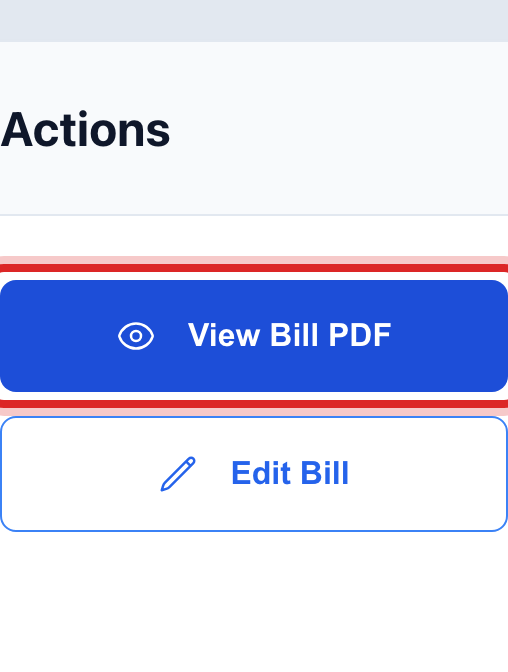
Look on the right for the Actions panel. Click View Bill PDF. The bill opens on the page, just as the customer sees it.
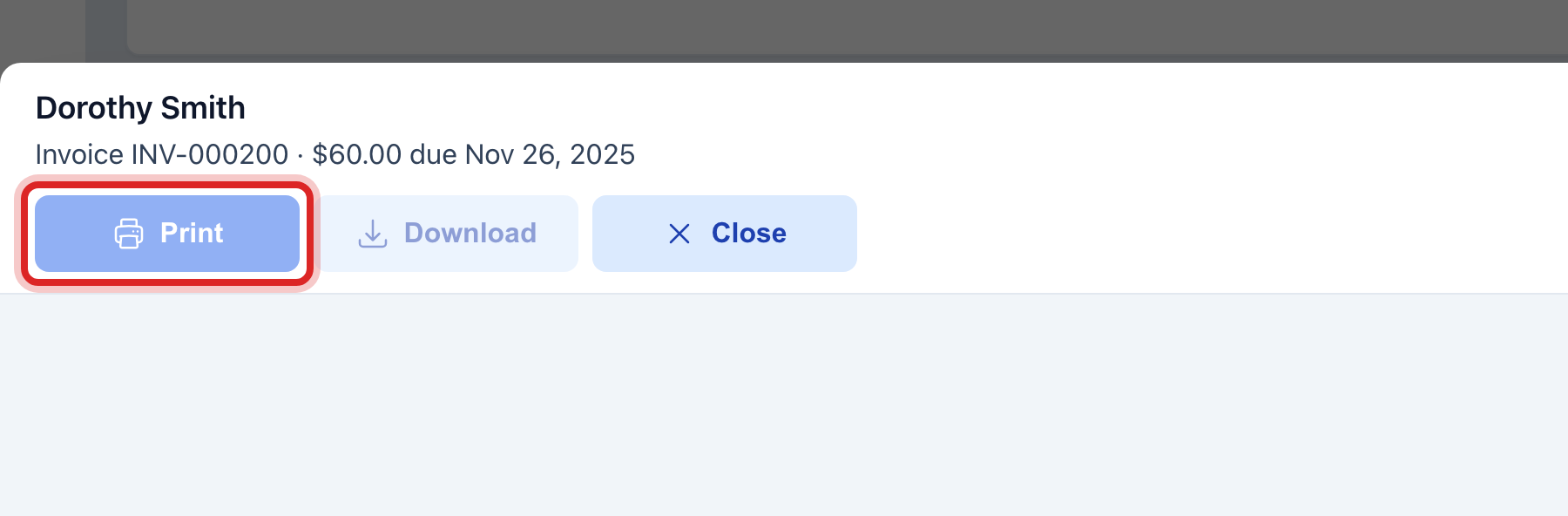
Click Print at the top of the bill. Your printer window opens. Click Print there too.
Made a mistake? Click Undo on the green message that appears, or open Show me how at the top and pick Undo a mistake.
You are done when
The paper in your hand matches the screen: same amount, same due date, same account number.
If something looks different
They want every charge and payment over several months. That is a statement, not a bill copy. On the left, click Billing & Payments, then Send Notices. Click Start, pick Account Statement, pick the customer, and set the start and end dates. Click Generate, then Download Print Batch.
They would rather have it by email. In the same Actions panel, click Email Bill to Customer.
Nothing comes up when you search. Try fewer letters, or search the account number instead.
You want it mailed for you. Click Print / Mail Bill. This works only if your utility has a print and mail company set up. Mailing is not part of your monthly price.