
Appearance
11. Run the financial reports
When you need this: the board meeting is Tuesday. The auditor wants year end statements. A lender asks for a balance sheet. The four reports every utility needs are one click each here, and they read straight from your books.
Steps
On the left side of the screen, click Accounting, then click Financial Reports.
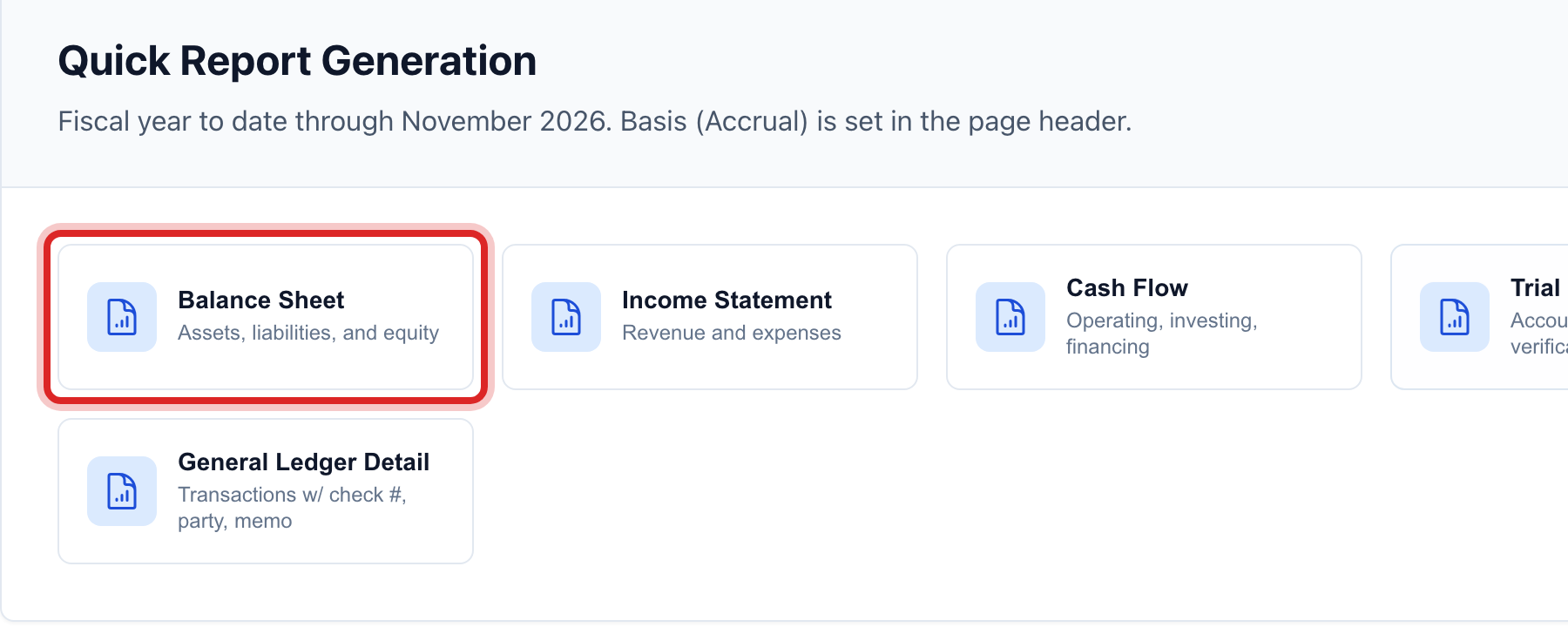
Under Financial Reports, four cards sit at the top. Click Balance Sheet for what you own and owe today.
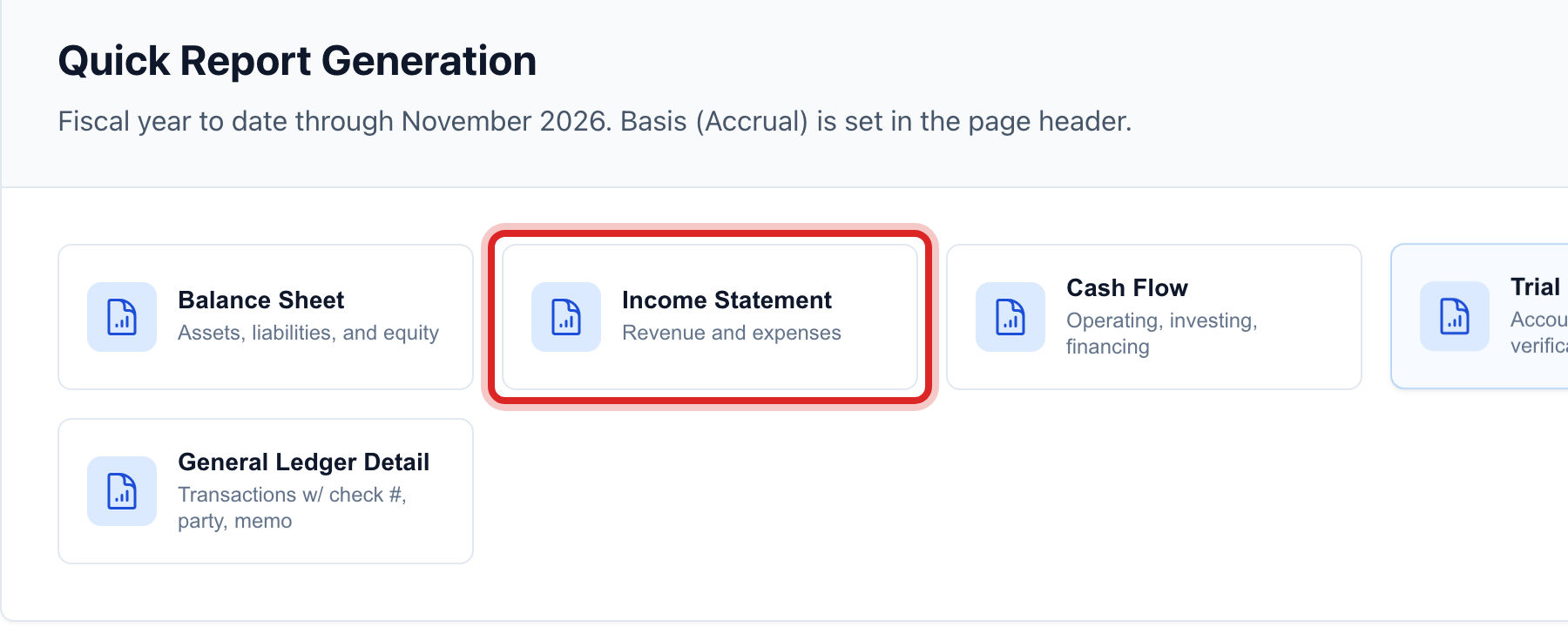
Click Income Statement for revenue and expenses over a period.
The report opens in a window. Every account name is a link. Click one to see the lines behind the number.
Click Export PDF to save or print it, or Export Excel for a spreadsheet.
For a report with your own dates, a fund, or budget next to actual, click the button at the top of the Financial Reports card instead. Pick the Report Type, the Period Start and Period End, and run it.
You are done when
The report is open on the screen with today's numbers, and you have a PDF of it.
If something looks different
You run the same report every month. In the report window, type a Memorized Report Name and save it. It waits under memorized reports, and you can set it to email itself on a schedule.
The board wants a packet, not single reports. That is Board Reporting. Quick start page 17 walks through it.
The trial balance is out of balance. A message says so when you export. Open Journal Entries and look for a draft or an entry with unequal lines.
Cash or accrual. The switch at the top right changes the basis for every report on the page. Use the one your auditor asks for.