
Appearance
4. Set up an entry that repeats every month
When you need this: the pest control bill is the same every month. So is the loan payment, the office rent and the depreciation entry. Set it up once as a template. Utilops makes the bill or the entry on the day you pick, every time.
Steps
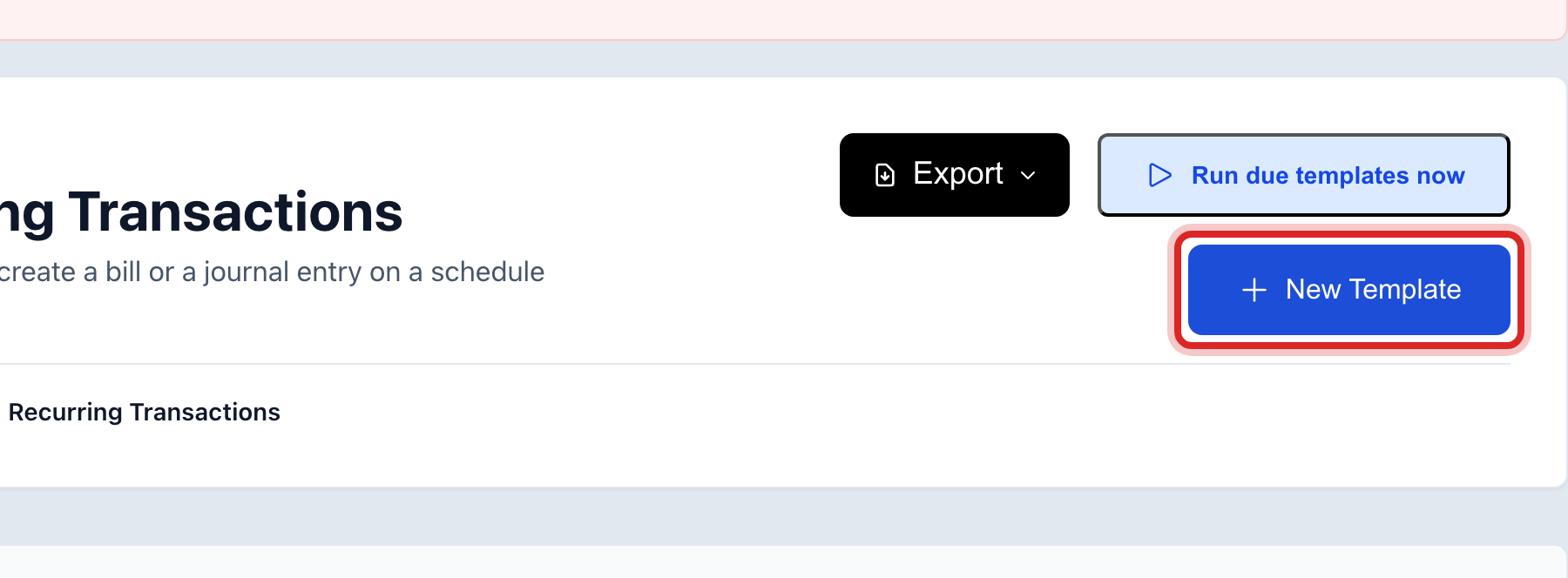
On the left side of the screen, click Accounting, then click Recurring Transactions.
Click New Template at the top right.
Under What does this template create?, click Bill for a vendor bill or Journal entry for a book entry.
Type a Name, like Monthly pest control.
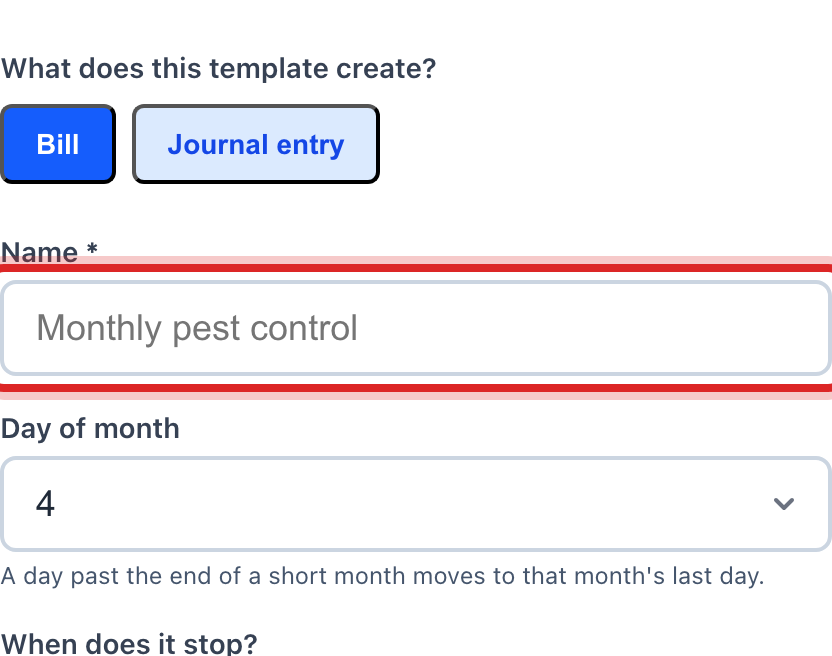
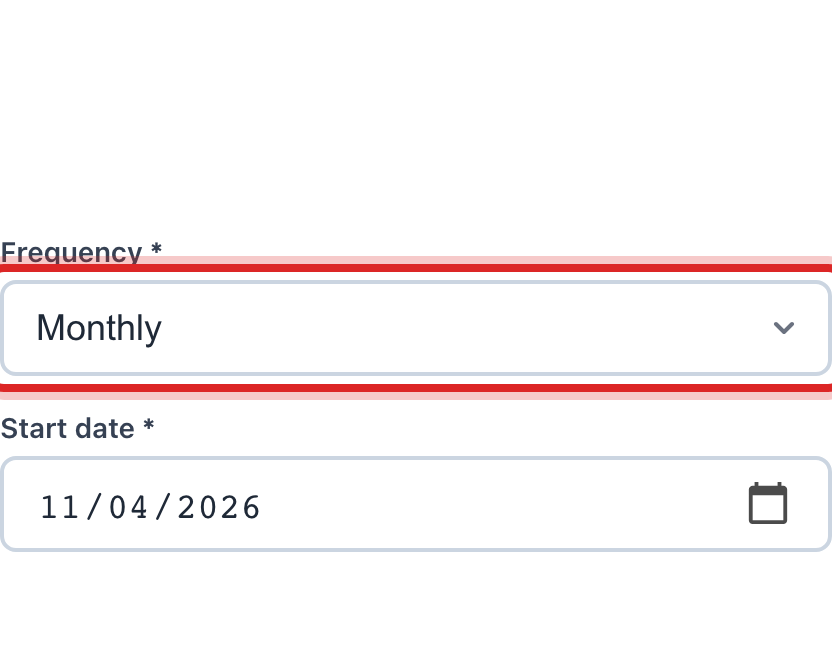
Pick the Frequency and the Day of month. Set the Start date.
Under When does it stop?, pick never, an end date, or a number of times.
For a bill, pick the Vendor and add the Lines: the account and the amount. For a journal entry, add the debit and credit lines.
Tick Auto post if it should go into the books on its own. Leave it off if you want to check each one first. Click Create Template.
Made a mistake? Click Undo on the green message that appears, or open Show me how at the top and pick Undo a mistake.
You are done when
The template shows under Recurring Templates with the next date it runs.
If something looks different
The price changed. Click the pencil on the template and change the amount. Bills already made keep the old amount.
You want to stop it for a while. Click the on and off button on its row. Click it again to start it back up.
It is the first of the month and nothing was made yet. Click Run Now at the top. Utilops makes everything that is due today.
A closed month. Auto post still obeys period locks. An entry due in a closed month waits as a draft until the month is open.