
Appearance
2. Add an account to the chart of accounts
When you need this: the chart of accounts is the list of buckets your money goes into. Cash. Water sales. Chemicals. Truck repairs. You add a bucket when you start tracking something new, like a grant or a new tank project.
Steps
On the left side of the screen, click Accounting, then click Chart of Accounts.
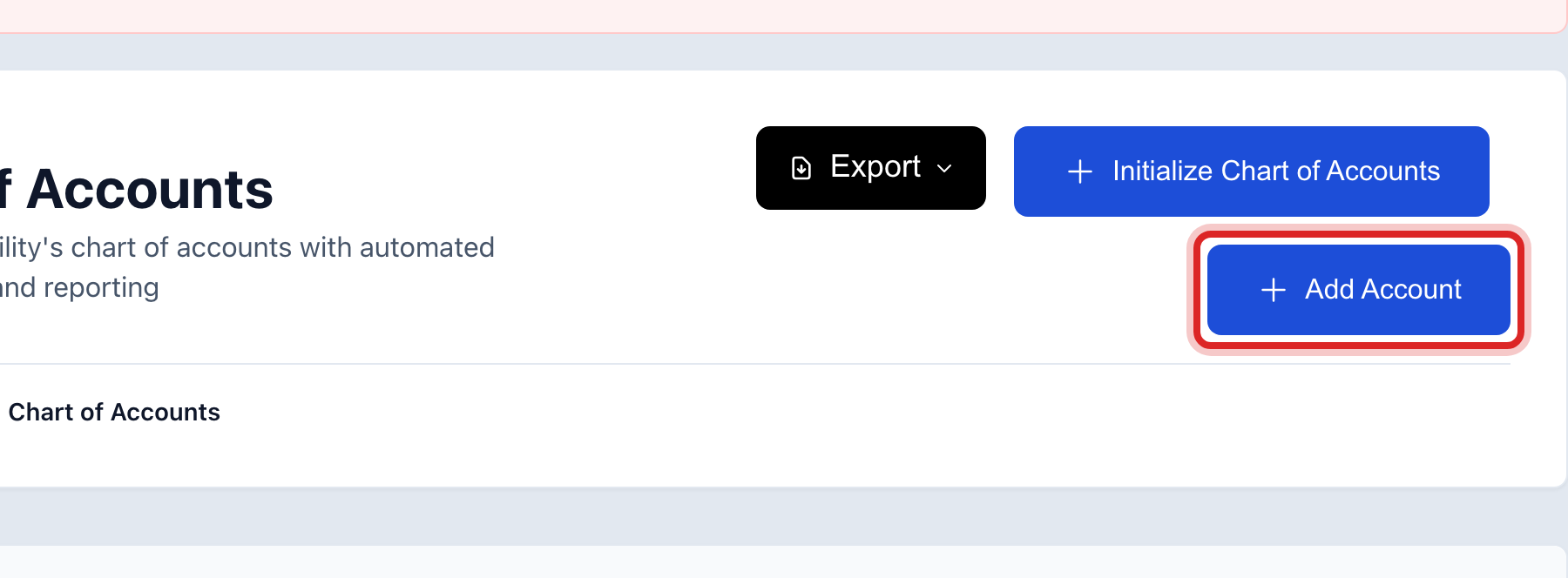
Click Add Account at the top right.
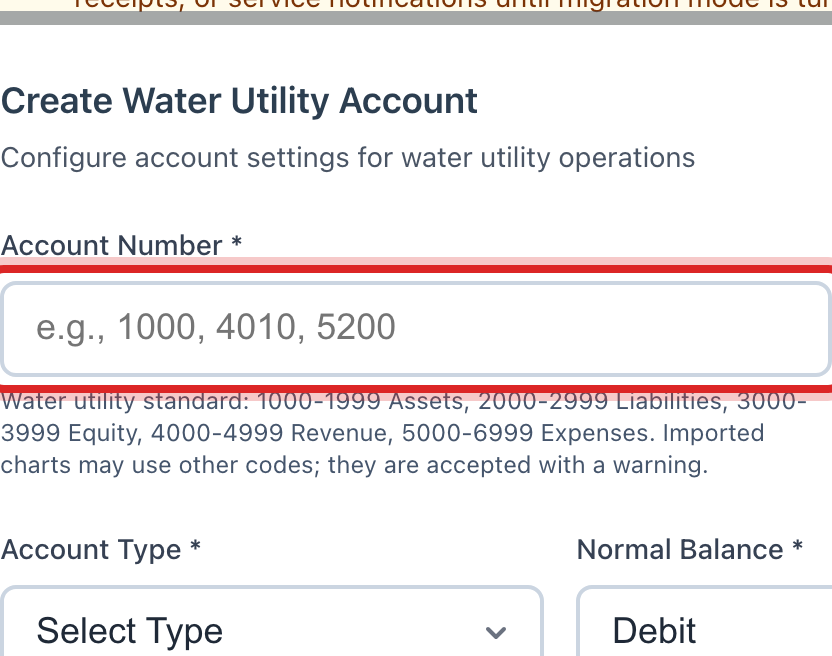
Type the Account Number. Follow the pattern you already use: 1000s for cash and assets, 4000s for revenue, 5000s for expenses.
Type the Account Name, like Tank Repair Grant.
Pick the Fund the account belongs to. Most small utilities have one.
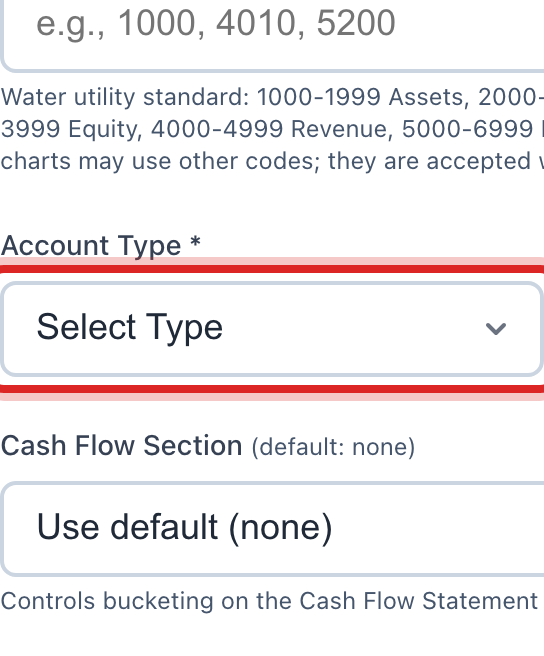
Pick the Account Type: Asset, Liability, Equity, Revenue or Expense.
Pick the Normal Balance. Assets and expenses are Debit. Revenue, liabilities and equity are Credit.
Click Create Account.
Made a mistake? Click Undo on the green message that appears, or open Show me how at the top and pick Undo a mistake.
You are done when
The account shows in the chart with a zero balance and a green Active mark. It is ready to use on journal entries, vendor bills and the budget.
If something looks different
The chart is empty. Click Initialize on the empty page. It loads the standard water utility chart, and you add to it from there.
You are adding a bank account. Pick Asset and the Cash & Cash Equivalents subcategory. Extra boxes appear for the bank name, the account number and check printing.
An account should not be used any more. Click the pencil on its row and untick Active Account. Do not delete an account that has ever had a line on it.
You cannot change the number on an account. It is marked System Account (Protected). Those are the ones Utilops posts to on its own, like accounts receivable.