
Appearance
10. Close the month
When you need this: once the bank is reconciled and the bills are in, you close the month. Closing locks it. Nobody can post into it by accident, and the numbers the board saw stay the numbers the board saw. This page walks the close as a checklist.
Steps
On the left side of the screen, click Accounting, then click Month Close.
Under Close Period Selection, pick the Fiscal Year and the Fiscal Period.
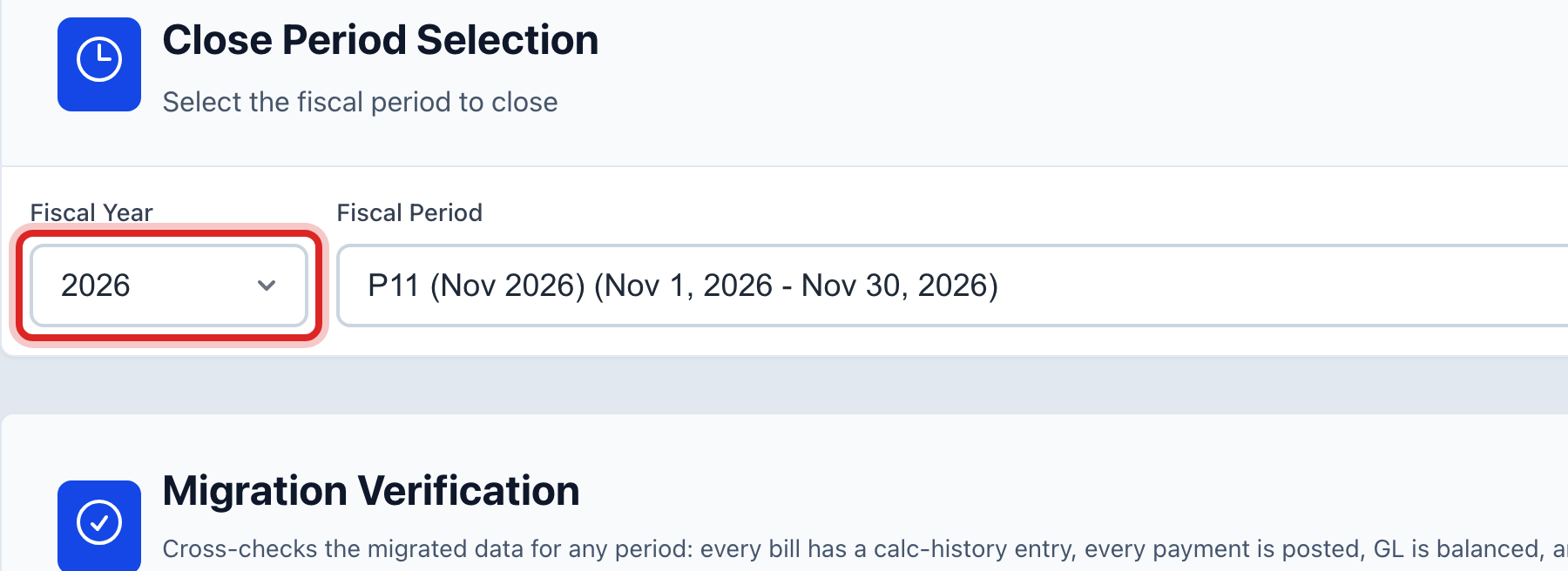
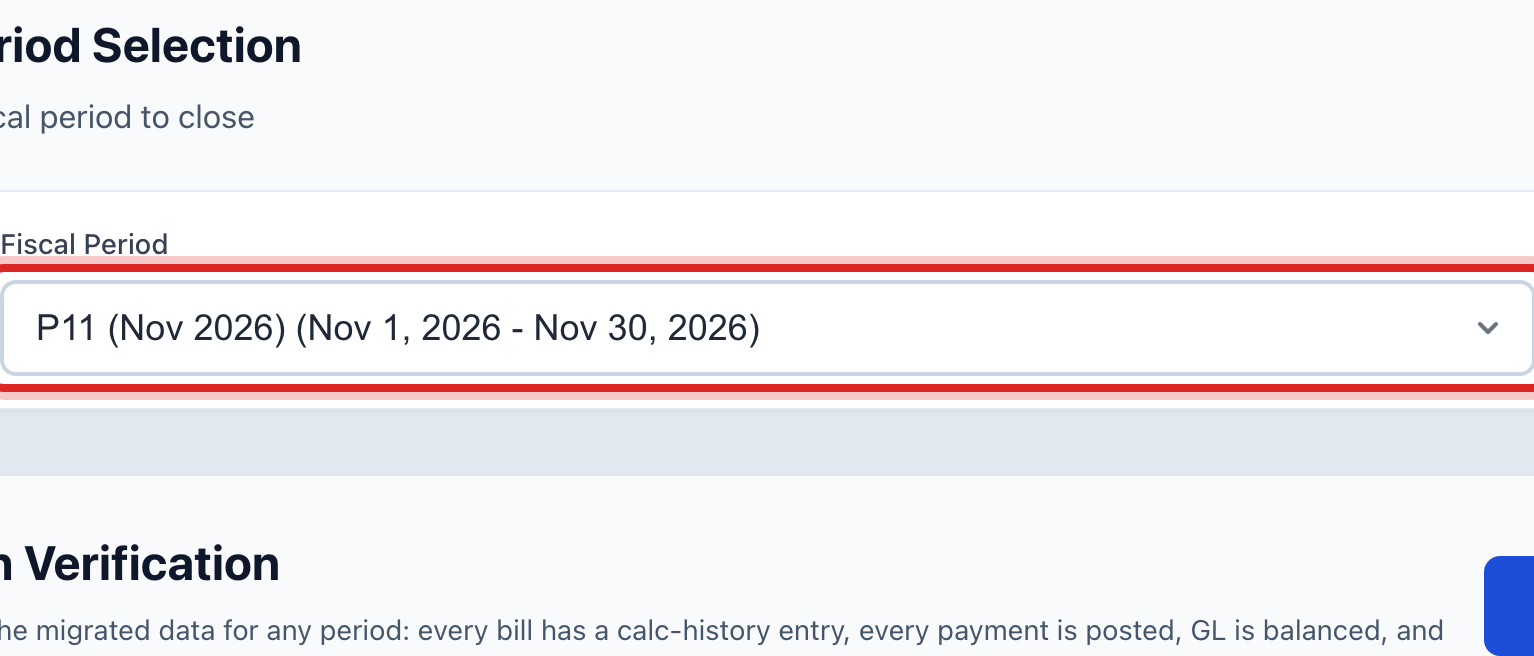
Click Load Period. If this is the first time for this month, click Start Close Process at the top right.
Under Close Process Workflow, work down the steps. Each one is a check: bank reconciled, bills posted, depreciation entered. Click Mark Complete on each step as you finish it.
The Close Checklist card lists anything still open. Each issue has a fix button beside it. Click it, read what will happen, and click the blue confirm button at the bottom of the window.
When the checklist is clear, click Lock Period.

Click Generate Reports to print the trial balance, balance sheet and income statement for the month in one package.
Made a mistake? Click Undo on the green message that appears, or open Show me how at the top and pick Undo a mistake.
You are done when
The period shows as locked. Any try to post into it is refused with a message that says so.
If something looks different
Lock Period is faded. There are still outstanding issues on the checklist. The text beside the button says so. Clear them first.
You locked the wrong month, or found a mistake after. Click Unlock Period, type the reason, and type the closing PIN. Fix the entry, then lock it again. Every reopen is kept under Closed Period Exceptions.
There is no closing PIN yet. Set one under Closing PIN on this page. With a PIN set, reopening a month and posting into a closed month both ask for it.
Your utility moved its books from another program this year. The Migration Verification card compares what came over with what is here. Run it once for the first closed month.