
Appearance
8. Move money between bank accounts
When you need this: you moved money from checking to savings at the bank. Or from the operating account to the reserve account. Record it here so both account balances in Utilops match the bank, and the bank statement will reconcile.
Steps
On the left side of the screen, click Accounting, then click Bank Transfers.
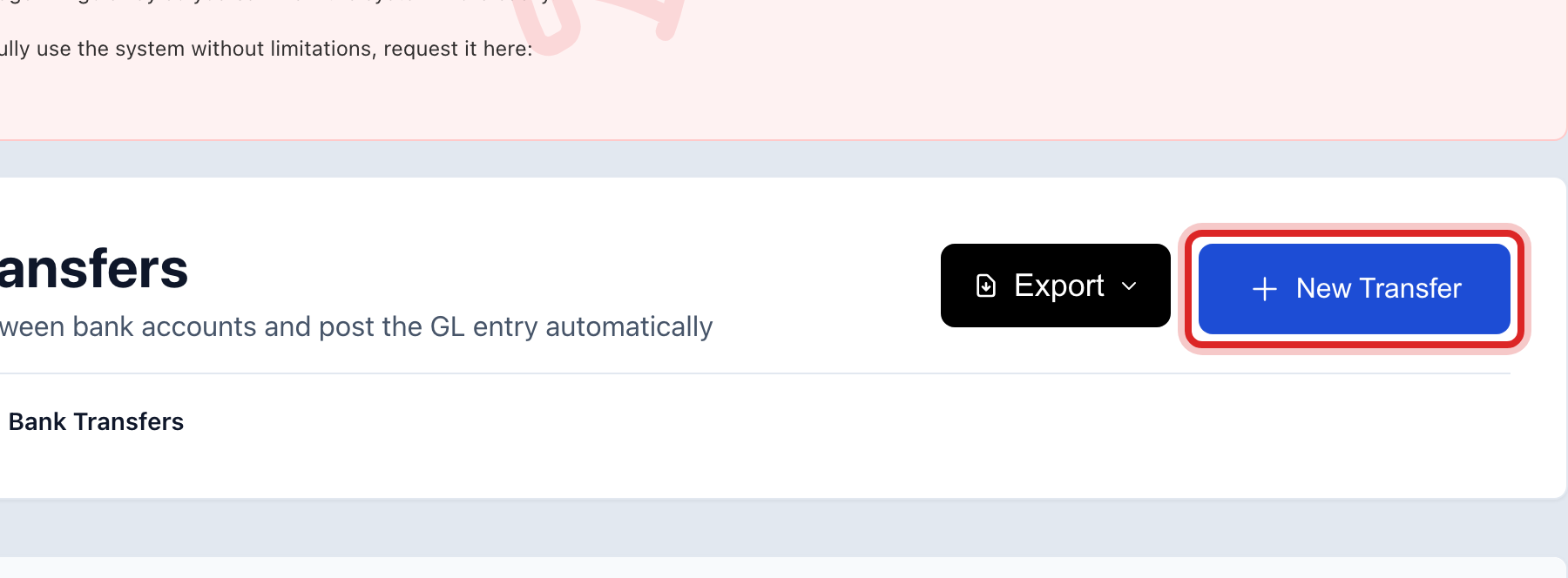
Click New Transfer at the top right.
Pick the From Account, the one the money left.
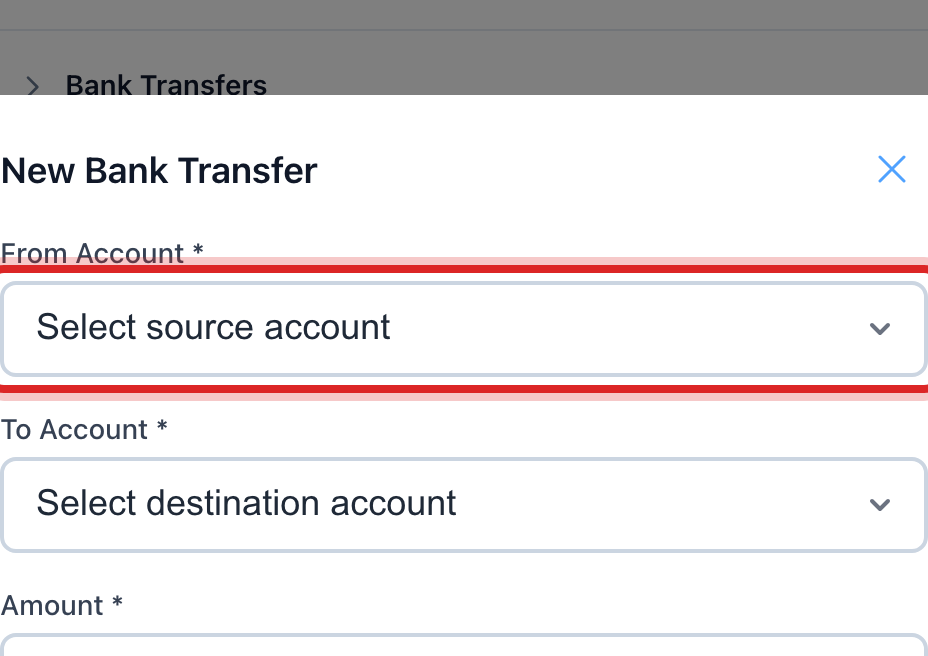
Pick the To Account, the one it went into.
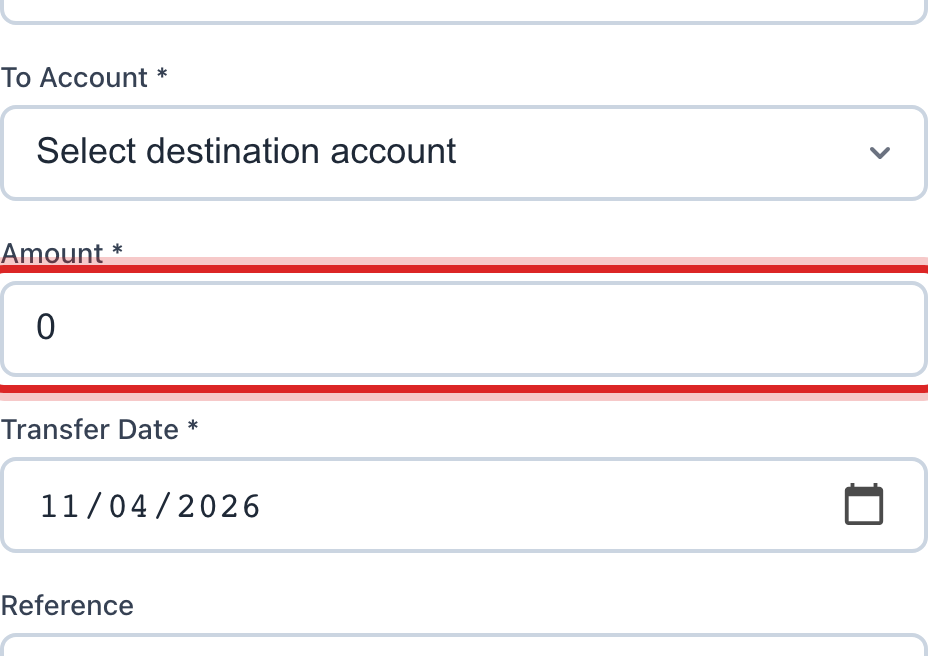
Type the Amount and set the Transfer Date to the day the bank did it.
Type the bank's confirmation number under Reference if you have it. Click Submit Transfer.
Made a mistake? Click Undo on the green message that appears, or open Show me how at the top and pick Undo a mistake.
You are done when
The transfer shows in the list, and both bank account balances have moved by the amount.
If something looks different
The amount is wrong. Click the reverse button on the transfer's row, type why, and submit. Utilops writes the entry that cancels it. Then enter the right one.
Your utility keeps more than one fund. Two buttons show at the top of the window. Between bank accounts is a plain transfer. Between funds moves money from one fund's account to another's and keeps both funds balanced.
The Submit button is faded. The amount is more than the From account holds, or a box is empty.
This only records the move. Utilops does not move money at the bank. Do that with your bank first, then record it here.