
Appearance
9. Enter the budget
When you need this: the board adopted next year's budget. You put the numbers in once, account by account. From then on every report can show budget next to actual, and the board sees where you stand each month.
Steps
On the left side of the screen, click Accounting, then click Budget.
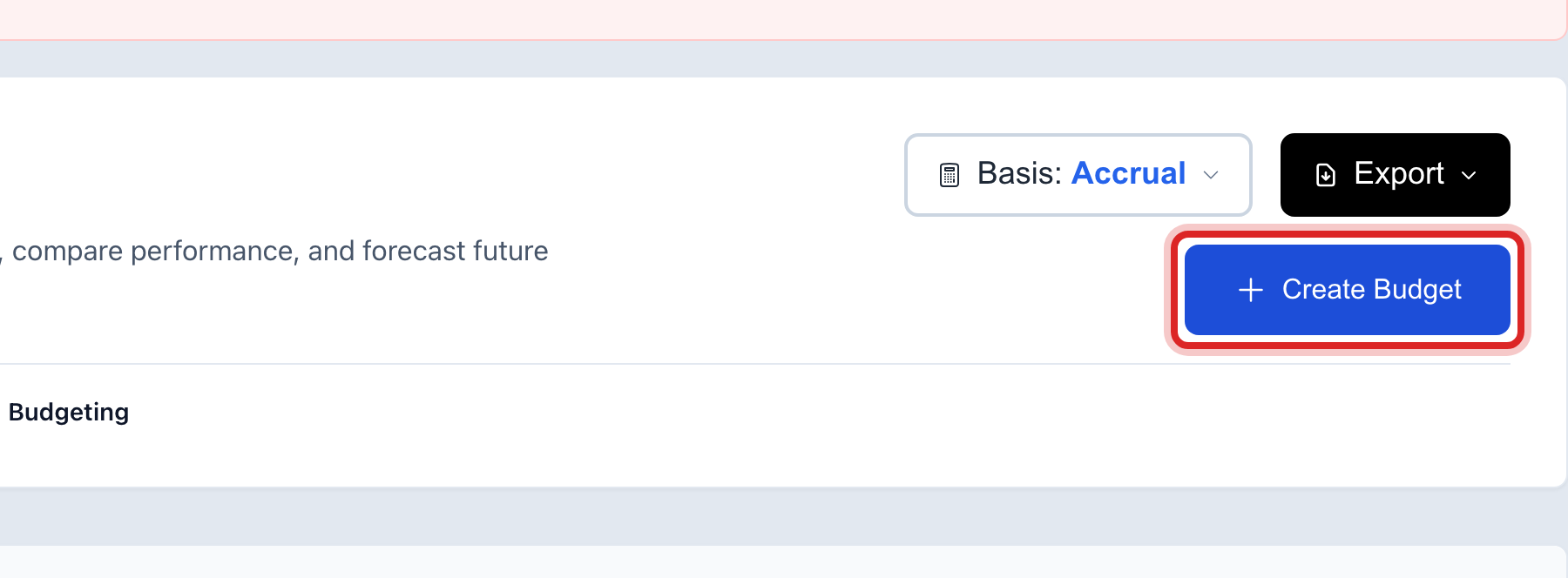
Click Create Budget at the top right.
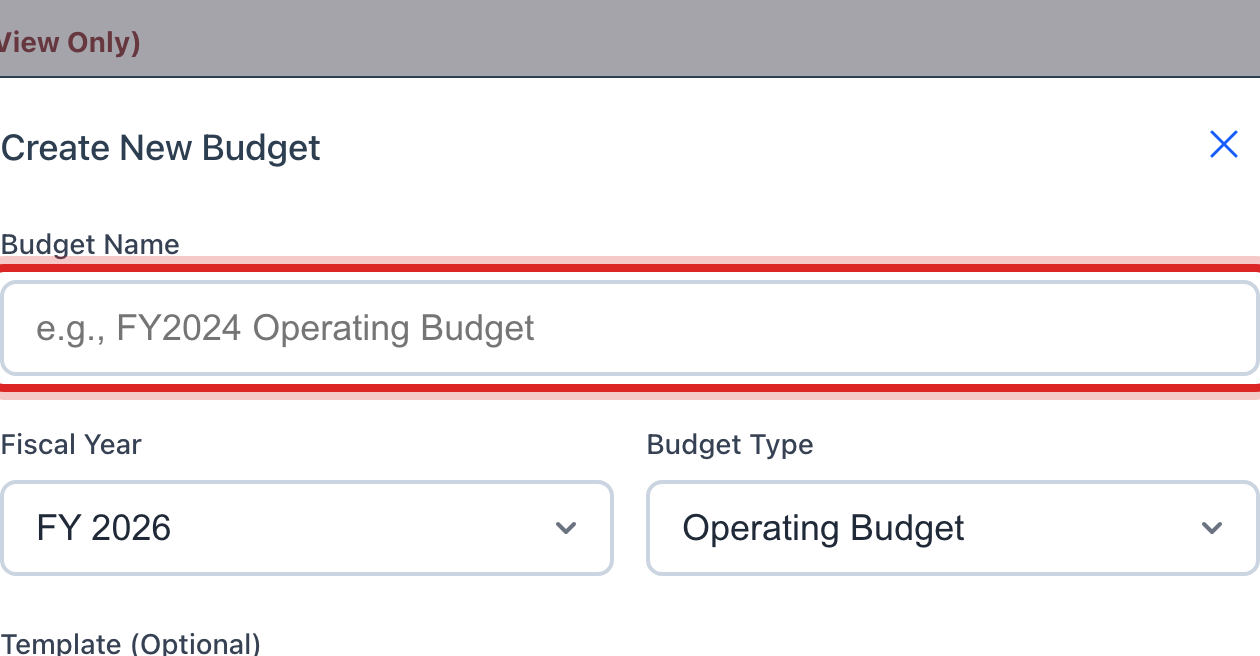
Type the Budget Name, like FY2027 Operating Budget.
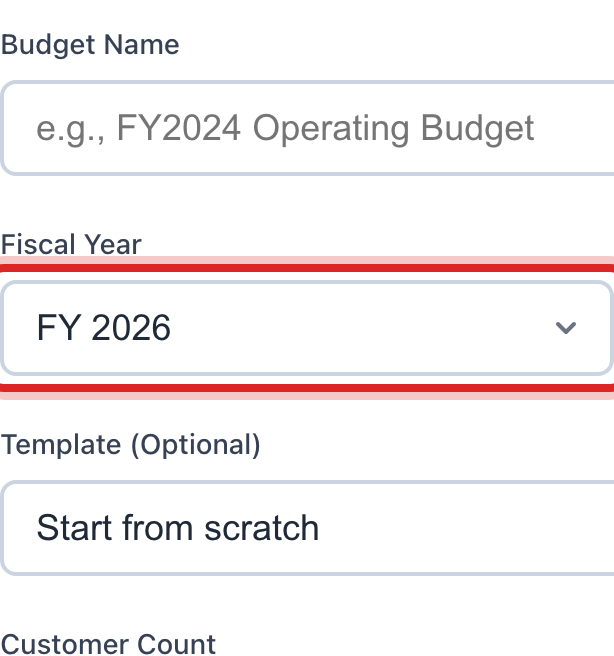
Pick the Fiscal Year and the Budget Type. Operating Budget is the usual one.
Click Create Budget. The budget shows in the list as a draft.
On the budget's row, click Budget Amounts. A window lists every account.
Type the year's amount beside each account. Or click the copy button at the top to start from last year's actual numbers, plus or minus a percent.
Click Save Amounts.
When the board has adopted it, open the budget and click the buttons to submit, approve and activate it. An active budget is the one reports compare against.
Made a mistake? Click Undo on the green message that appears, or open Show me how at the top and pick Undo a mistake.
You are done when
The budget shows in the list with its year and status, and the amounts window shows a number beside each account.
If something looks different
The board changed one line after it was adopted. Open Budget Amounts and click Amend. Pick the account, type the new amount and the reason. The change is kept with the reason.
An account is missing from the amounts window. Only accounts with Enable Budget Tracking ticked show. Edit the account under Chart of Accounts.
You want to see budget against actual. Open the budget from the list. The details window shows each account with the budget, the actual, and the difference for the period you pick.
Templates and forecasts. The other tabs on this page save a budget layout for next year and project revenue from past months. Most small utilities only need the Budgets tab.