
Appearance
3. Post a journal entry, and cancel one
When you need this: most entries are made for you, by payments, bills and deposits. A journal entry is the one you make by hand. Monthly depreciation. Interest the bank paid you. Moving a cost from one account to another. Every entry has at least two lines, and the debits must equal the credits.
Steps
On the left side of the screen, click Accounting, then click Journal Entries.
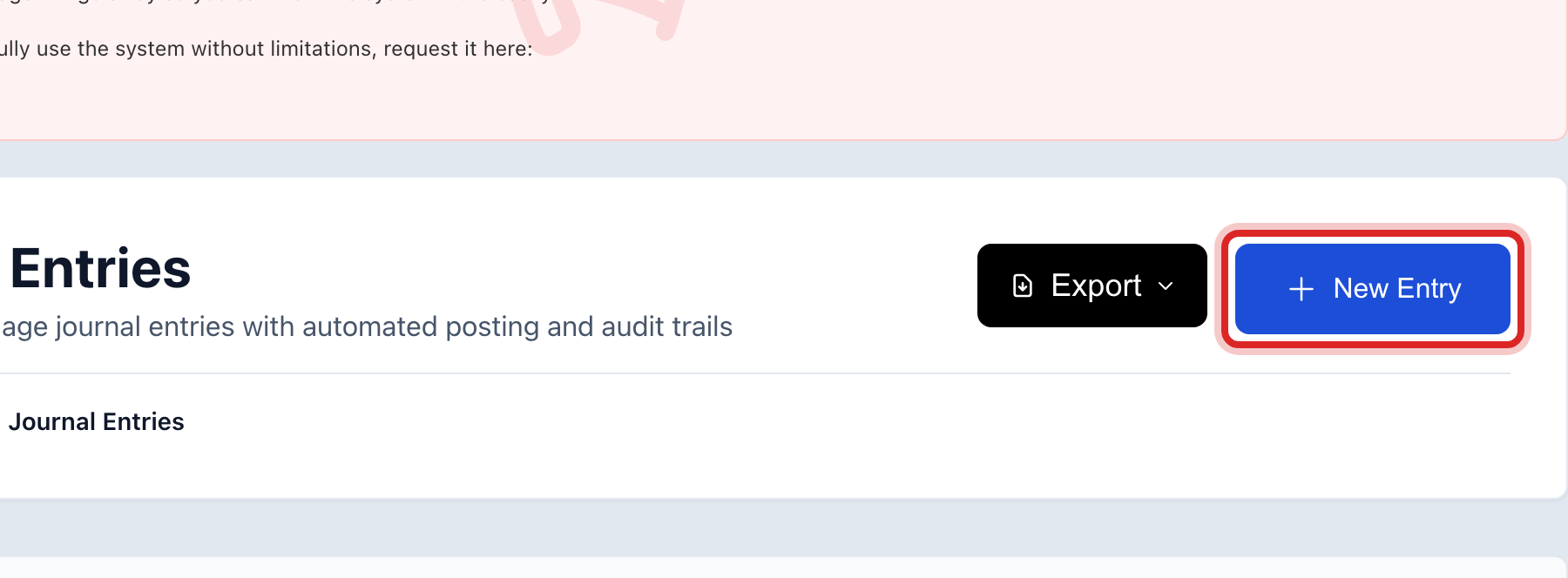
Click New Entry at the top right.
Set the Entry Date. Type a Description that says what this is, like Bank interest for June.
Under Journal Entry Lines, pick the Account on the first line and type the amount under Debit.
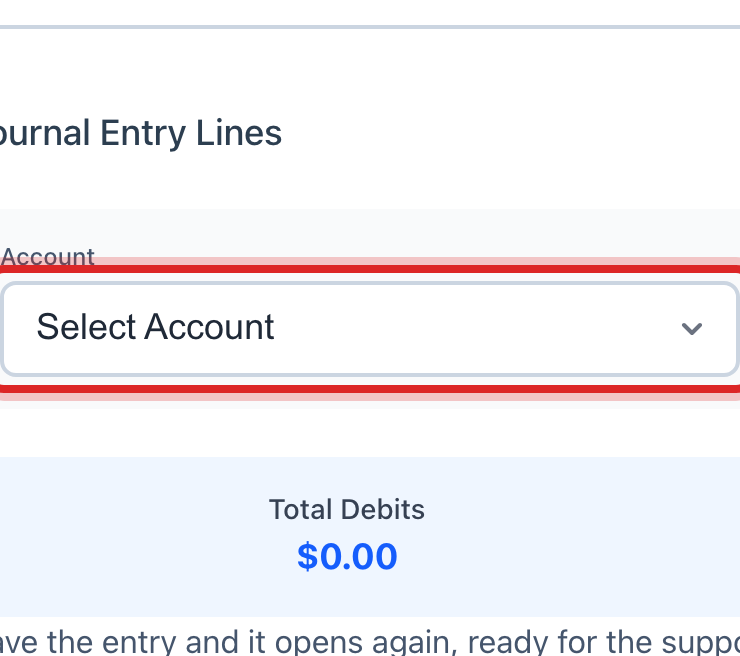
On the second line, pick the other account and type the same amount under Credit. Click Add Line if you need more.
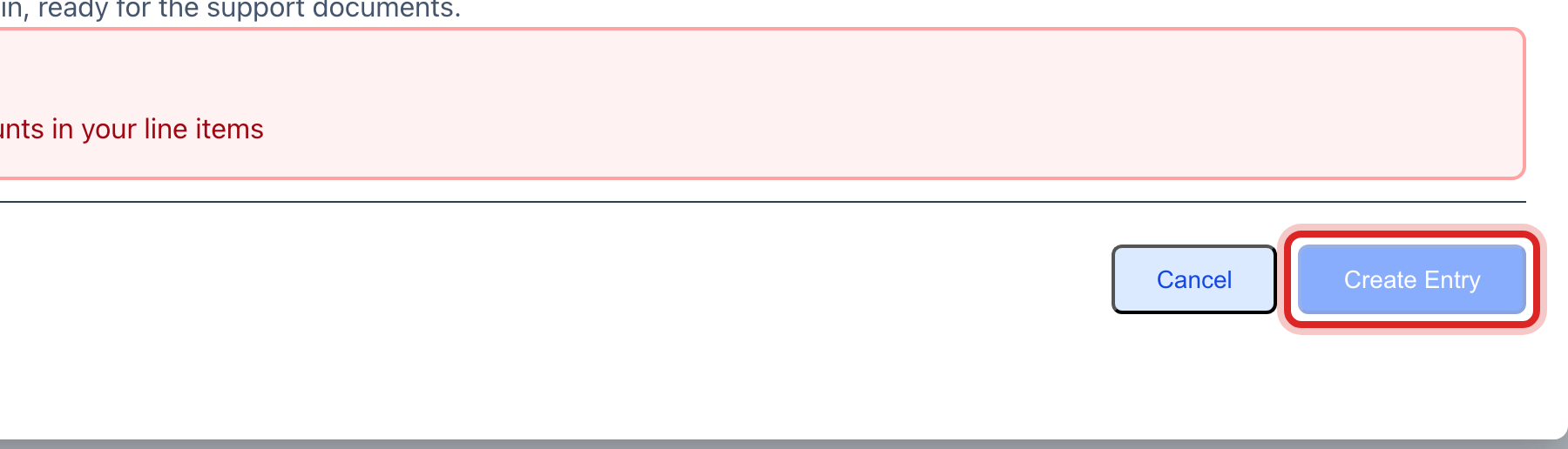
The totals under the lines must match. The save button stays faded until they do.
Set Status to Posted to put it in the books now, or leave it as Draft to finish later. Click Create Entry.
To cancel an entry that is already posted, find it in the list and click the reverse button on its row. Type the reason and click Confirm. Utilops writes a new entry dated today that cancels the first one. Both stay in the books.
Made a mistake? Click Undo on the green message that appears, or open Show me how at the top and pick Undo a mistake.
You are done when
The entry shows in the list with a number and the status you picked. Open it and both lines are there.
If something looks different
The save button is faded. The debits and credits are not equal, or a line has no account. Check the totals under the lines.
Utilops says the period is locked. The month is closed. Post it in the open month, or ask an administrator to reopen the period.
You cannot set Posted. Posting needs its own right. Save it as Pending Approval and the person who can post will see it.
You make this same entry every month. Open it and click the repeat button at the top of the window, or see lesson 4.