
Appearance
7. Check what a bill would be
When you need this: a customer asks "what would I pay for 8,000 gallons?" The board asks what the new rate does to an average home. You type a usage number and Utilops works out the bill with your real rates. Nothing is saved to any account.
Steps
On the left side of the screen, click Rates and Tariffs, then click Rate Calculator.
Under Bill Calculator, pick the Rate Structure, like Residential Water.
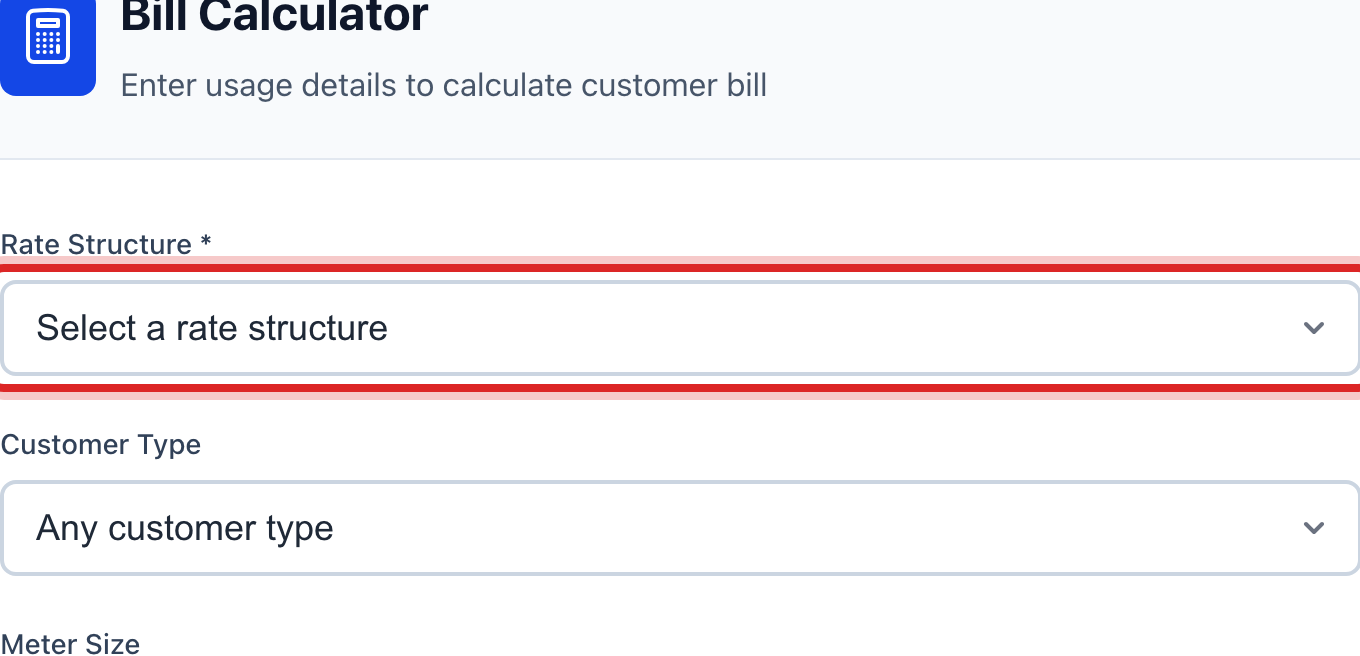
Pick the Customer Type and the Meter Size if they matter for this rate.
Type the gallons in the usage box. Or click one of the Quick Usage Presets under it.
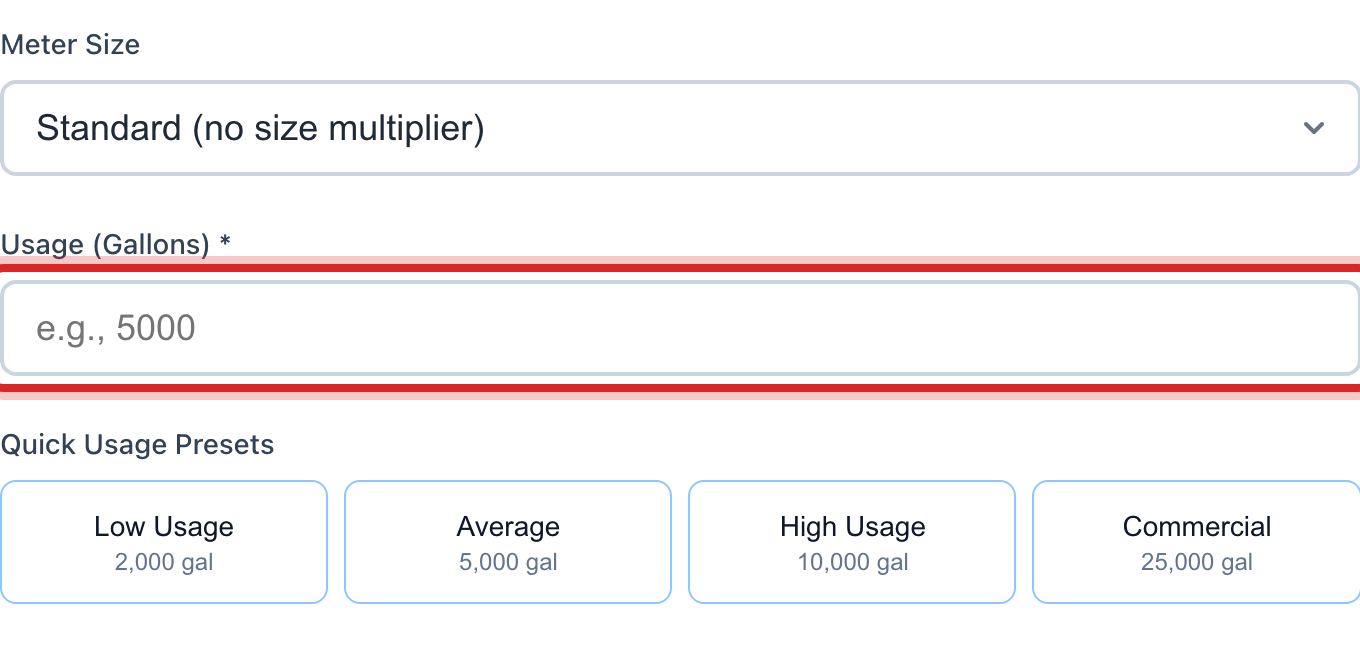
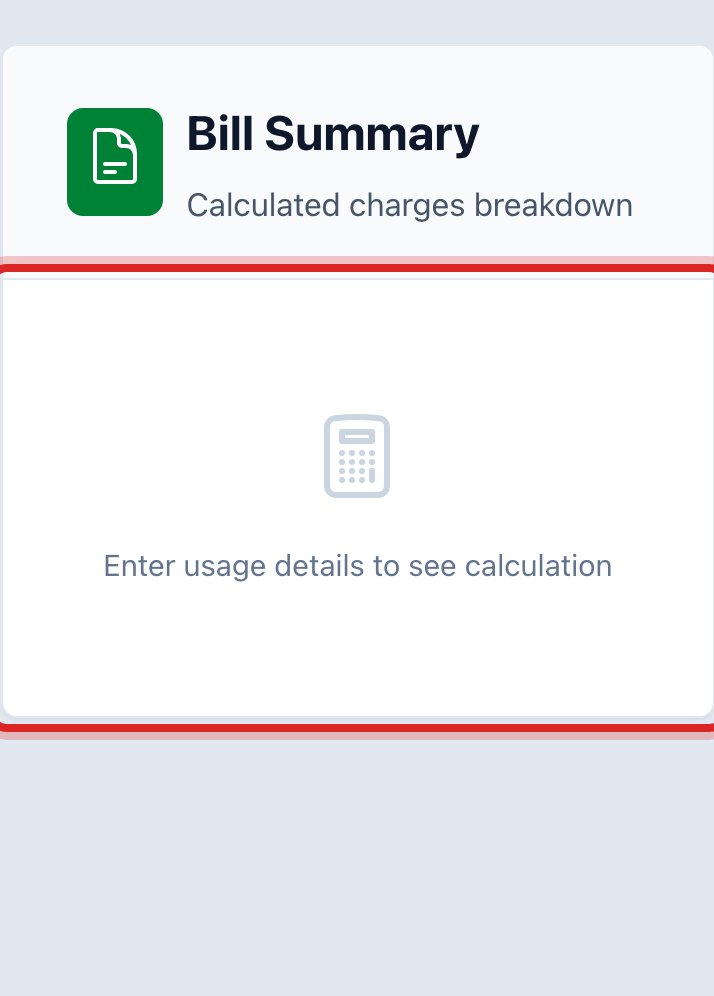
The Bill Summary on the right fills in as you type. It shows the base fee, each price step, any fees and taxes, and the total.
You are done when
The Bill Summary shows a total, with each piece of the bill listed above it.
If something looks different
The Rate Structure list is empty. No rate is active yet. Lesson 1 shows how to make one.
You want to keep a scenario for the board. Click Save Calculation at the top, give it a name, and it waits under Saved Calculations.
You want to add a late fee or a connection fee to the example. Type them under Additional Charges.
The number does not match a real bill. The real bill may have a discount, a different meter size, or a rate that started on a different date. Open the bill under Billing & Payments and compare line by line.