
Appearance
5. Set up a discount program and enroll a customer
When you need this: your board gives seniors 10 percent off. Or a low income home gets a flat amount off each bill. You set up the program once. Then you add each customer who qualifies, and the discount shows on their bills until you take them off.
Steps
On the left side of the screen, click Rates and Tariffs, then click Discount Programs.
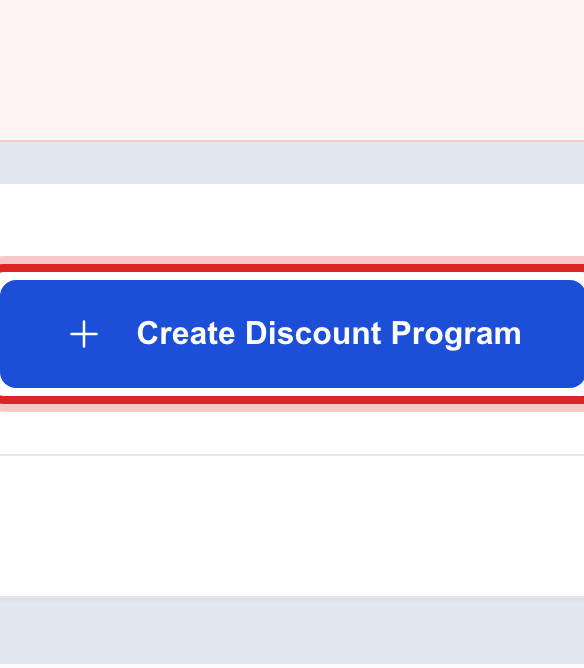
Click Create Discount Program at the top right.
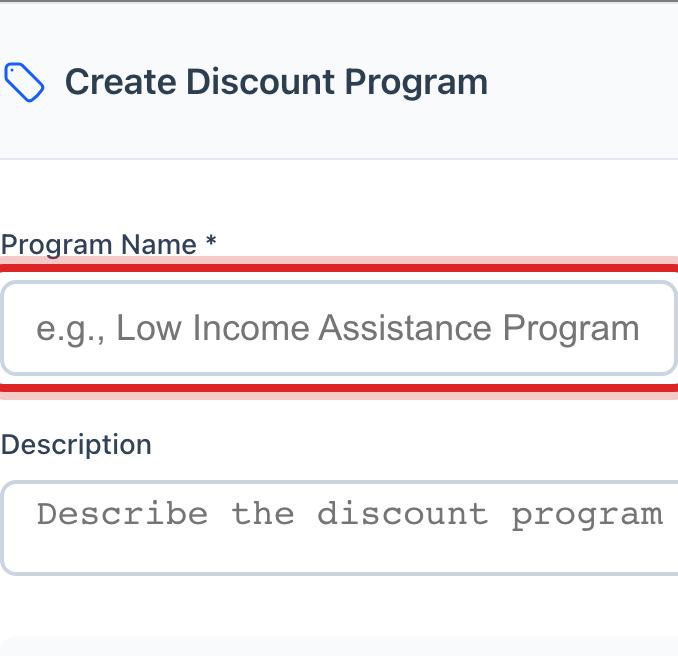
Type the Program Name, like Senior Discount. Pick the Category.
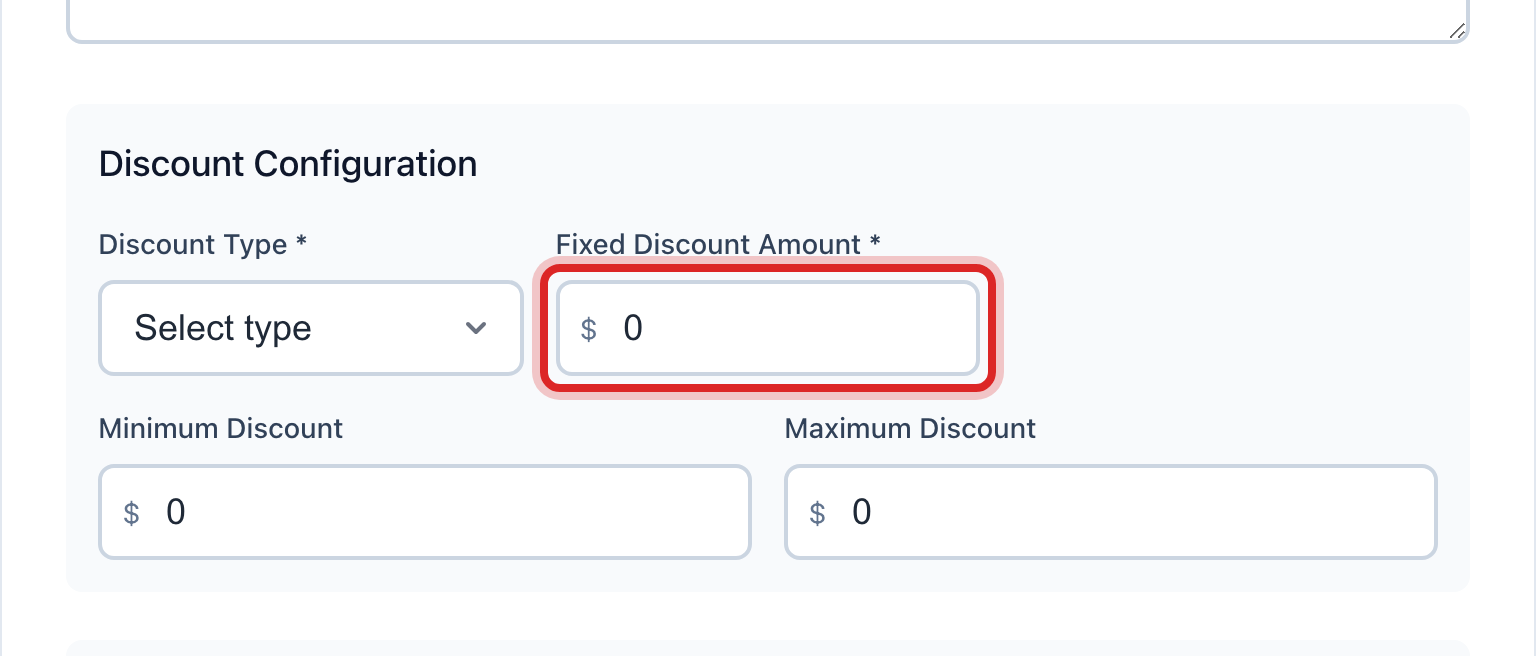
Pick the Discount Type: a percentage or a fixed amount. Type the amount.
Pick what it Applies To. The whole bill, water charges only, or just the base charge.
Click Create Program.
Now add a customer. Find the program in the list and click the people button on its row. Click Add Customer.
Type the customer's name or account number under Customer Search and click them. Set Approval Status to Approved. Tick the box that says the customer accepts the program terms. Click Add to Program.
Made a mistake? Click Undo on the green message that appears, or open Show me how at the top and pick Undo a mistake.
You are done when
The program shows under All Discount Programs with the number of customers enrolled. The customer's next bill shows the discount as its own line.
If something looks different
A customer moves away or no longer qualifies. Open the program's enrollments and click Remove on their row. Bills already made keep the discount.
The discount is different for one person. Type it under Custom Discount Amount when you add them. Leave it blank to use the program's amount.
Your office wants a second person to approve each enrollment. Tick Requires staff approval for enrollment on the program. New enrollments wait as Pending Approval.
The program ends on a date. Set Program End Date. After that day the discount stops on its own.