
Appearance
4. Add a tax or assessment
When you need this: the state or the county charges a tax on water bills, or a flat assessment on every account. You set it up once here. Utilops adds it to every bill from then on and shows it as its own line.
Steps
On the left side of the screen, click Rates and Tariffs, then click Taxes & Assessments.
Click Add Tax/Assessment at the top right.
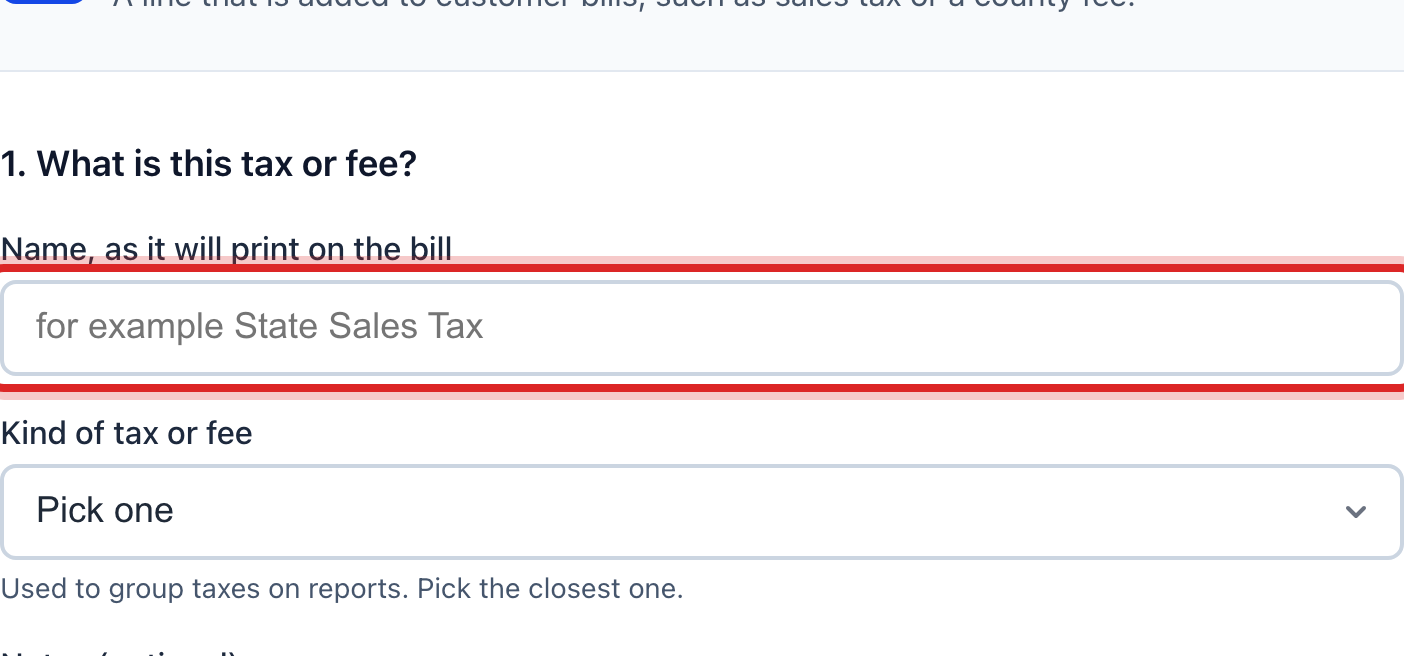
Under 1. What is this tax or fee?, type the Name, as it will print on the bill, like State Sales Tax. Pick the Kind of tax or fee.
Under 2. How much is it?, pick Charged as. A percentage of the bill for a sales tax. A fixed dollar amount for a flat assessment.
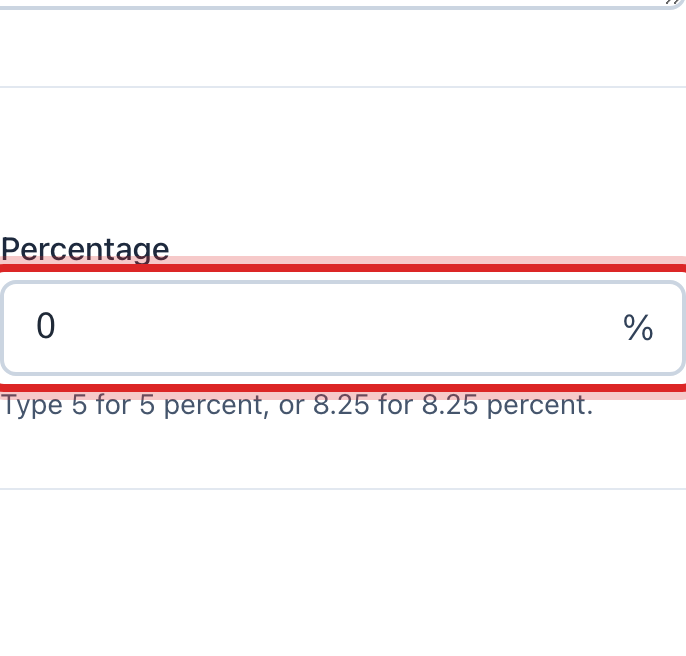
Type the Percentage or the Amount per bill. Type 5 for 5 percent.
For a percentage, pick Percentage of what?. Water charges only, everything on the bill, or only the charges you pick.
Click Add this tax.
Made a mistake? Click Undo on the green message that appears, or open Show me how at the top and pick Undo a mistake.
You are done when
The tax shows under All Taxes & Assessments, and the next billing run adds it as a line on every bill it applies to.
If something looks different
The tax starts next year. Under 3. More options, set Starts on. Bills made before that day do not get it.
Some customers do not pay it. Type them under Exemptions, one per line, like Churches or Schools.
The money goes to the county, not to you. Pick the GL account under Money collected posts to GL account so your books show it as owed to them.
You need to turn a tax off. Click the on and off button on its row. Bills already made keep the tax line.