
Appearance
3. Add or change a fee
When you need this: a fee is a one time charge with a set price. A returned check fee. A reconnect fee. A trip charge when the crew is sent out. A late fee. Once a fee is here, it shows up ready to use on New Invoice, in a billing run, and in the automatic rules.
Steps
On the left side of the screen, click Rates and Tariffs, then click Fee Schedules.
Click New Fee Schedule at the top right.
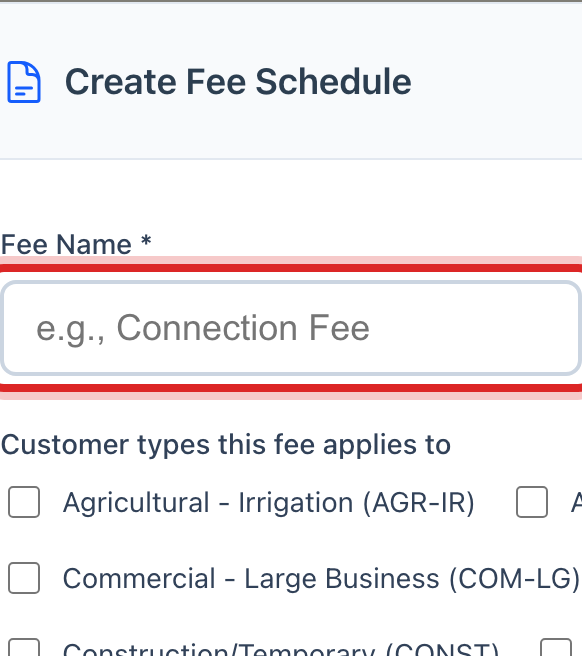
Type the Fee Name the way it should print on the bill, like Returned Check Fee.
Pick the Category. The category tells Utilops when the fee may be used. A Late Fee can be added by the automatic rules. A Trip Charge is added when the shut off crew was sent.
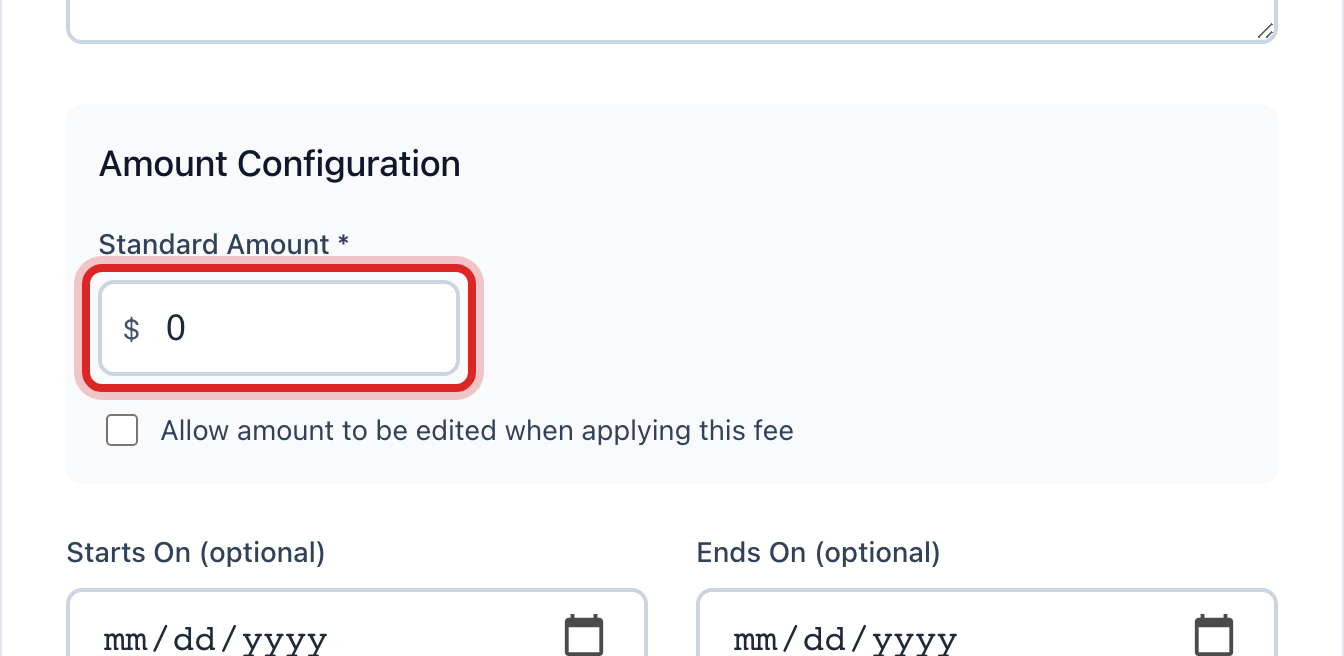
Type the Standard Amount.
For a late fee, pick How is it calculated?, either a flat dollar amount or a percent of the unpaid balance. Then set Grace Days, how many days after the due date it waits.
Make sure Active is ticked, then click Create Fee.
Made a mistake? Click Undo on the green message that appears, or open Show me how at the top and pick Undo a mistake.
You are done when
The fee shows under All Fee Schedules with its category, amount and a green Active mark.
If something looks different
You need to change the price of a fee. Click the pencil button on its row, change the amount, and click Update Fee. Bills already made keep the old amount.
You want to stop using a fee without losing it. Click the on and off button on its row. An inactive fee stays in the list but cannot be added to a bill.
The fee is only for some customers. Tick the services and customer types it applies to. Leave every box empty and it applies to everyone.
The fee should be allowed to change when it is used. Tick Allow amount to be edited when applying this fee. Otherwise the amount is fixed.