
Appearance
2. Change a rate and the day it starts
When you need this: the board voted a rate increase. It starts January 1. You put the new prices in now, with the right start date, and the January bills pick them up on their own. Nothing changes on bills already made.
Steps
On the left side of the screen, click Rates and Tariffs, then click Rate Structures.
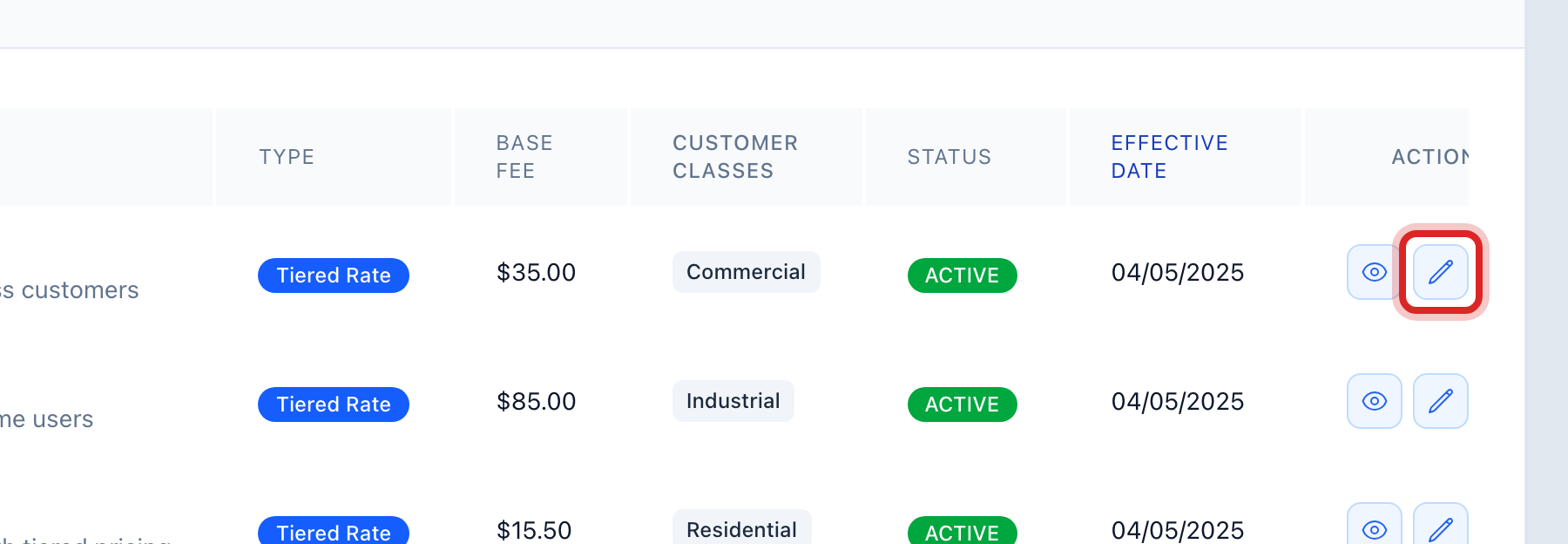
Find the rate in the list and click the pencil button on its row.
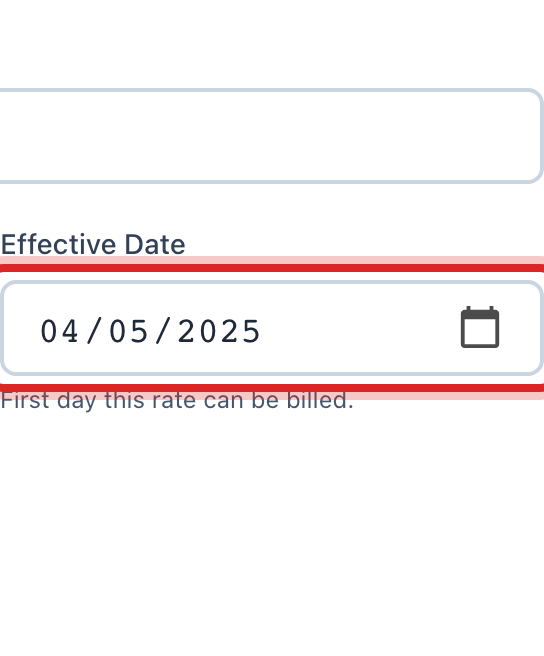
Set the Effective Date to the day the new price starts.
Under 2. Prices, change the numbers on each line. Change the Base Fee too if it moved.
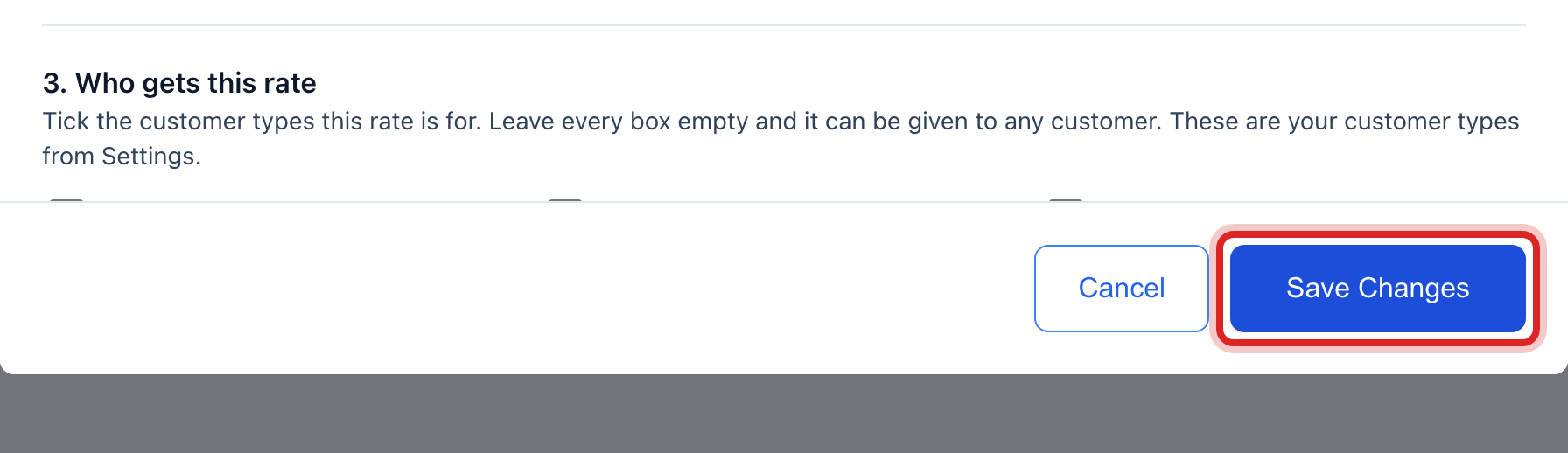
Click Save Changes.
If your office needs a sign off, the row shows an approve button while the rate is Pending Approval. The person who approves clicks it.
To retire a rate you no longer use, click the archive button on its row. It stays in your history but cannot be put on a bill.
Made a mistake? Click Undo on the green message that appears, or open Show me how at the top and pick Undo a mistake.
You are done when
The row shows the new base fee and the new start date. The next billing run on or after that date uses the new prices.
If something looks different
Bills already sent stay the same. A rate change never re bills. If last month's bills used the wrong rate, fix those bills under Billing & Payments, or issue a credit. Quick start page 11 shows how.
You want to keep the old prices on record. Make a new rate structure with the new prices and the new start date, and archive the old one. Both stay in Rate History.
You cannot see the pencil button. Changing a rate needs the billing edit right. Ask your administrator.
You want to see the whole list before you change anything. Click the eye button on a row. It shows every tier and the customer types without letting you change them.