
Appearance
7. Put a route read on the calendar
When you need this: reading day should not depend on someone remembering. You set it once. Utilops puts it on the calendar every month and the reader sees it coming.
Steps
On the left side of the screen, click Metering, then click Reading Schedules.
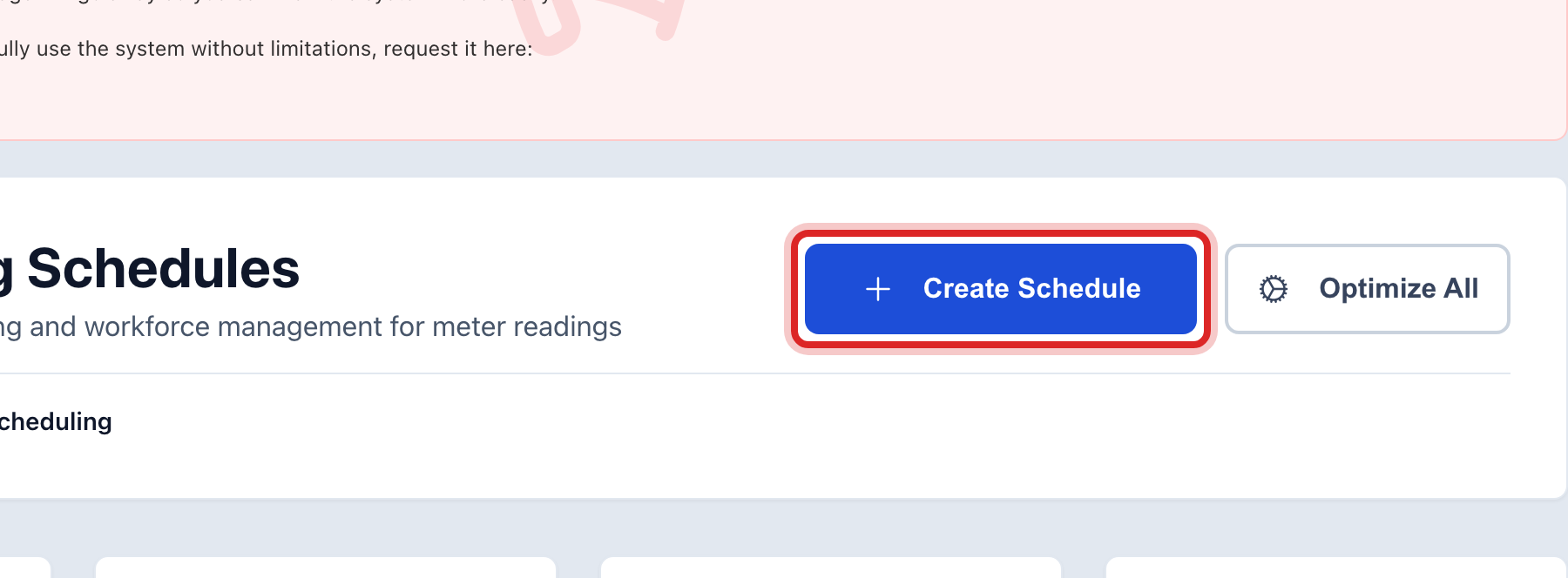
Click Create Schedule at the top right.
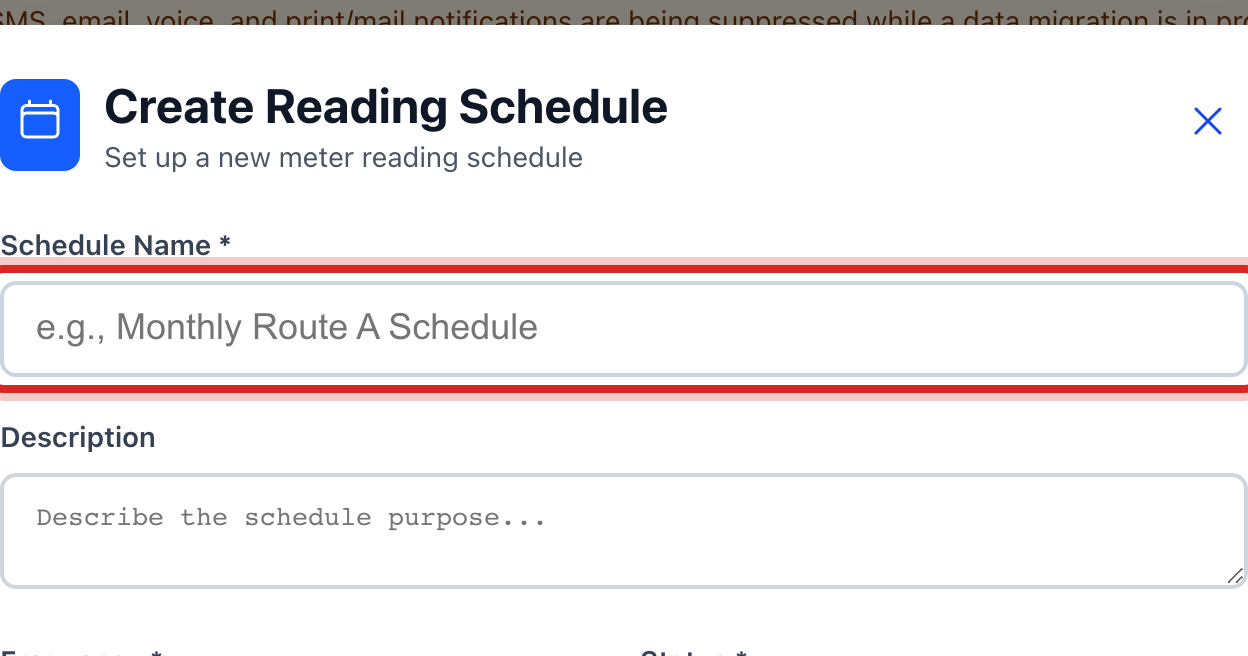
Type the Schedule Name, like North Side monthly read.
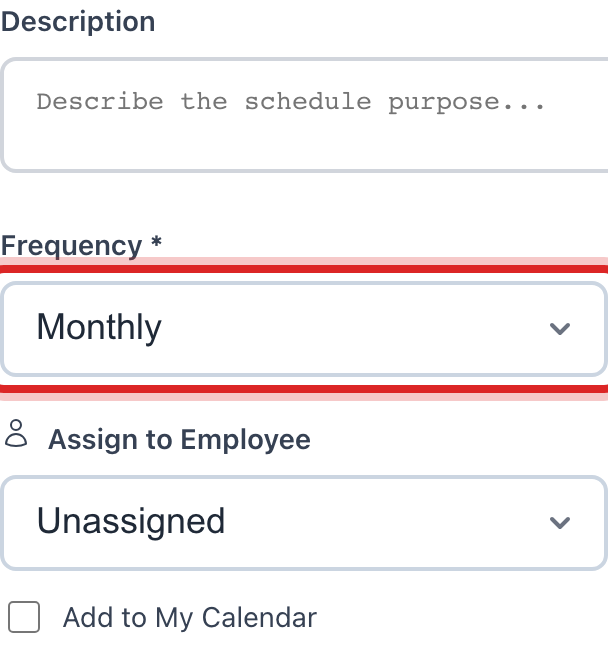
Pick the Frequency. Monthly for most routes.
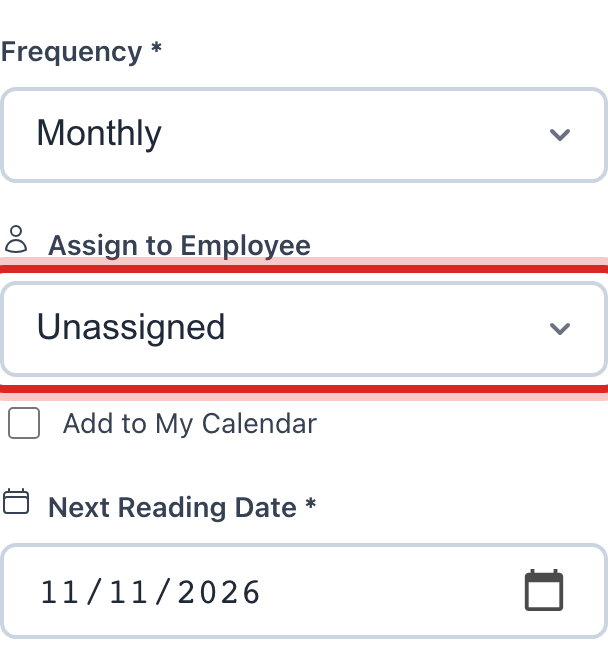
Under Assign to Employee, pick the reader.
Pick the Next Reading Date. That is the first day it should be read.
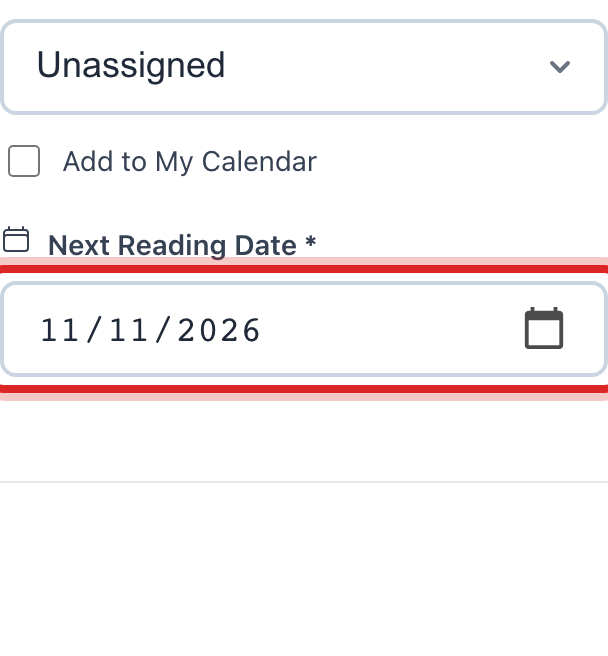
Tick Add to My Calendar if you want it on your own calendar too.
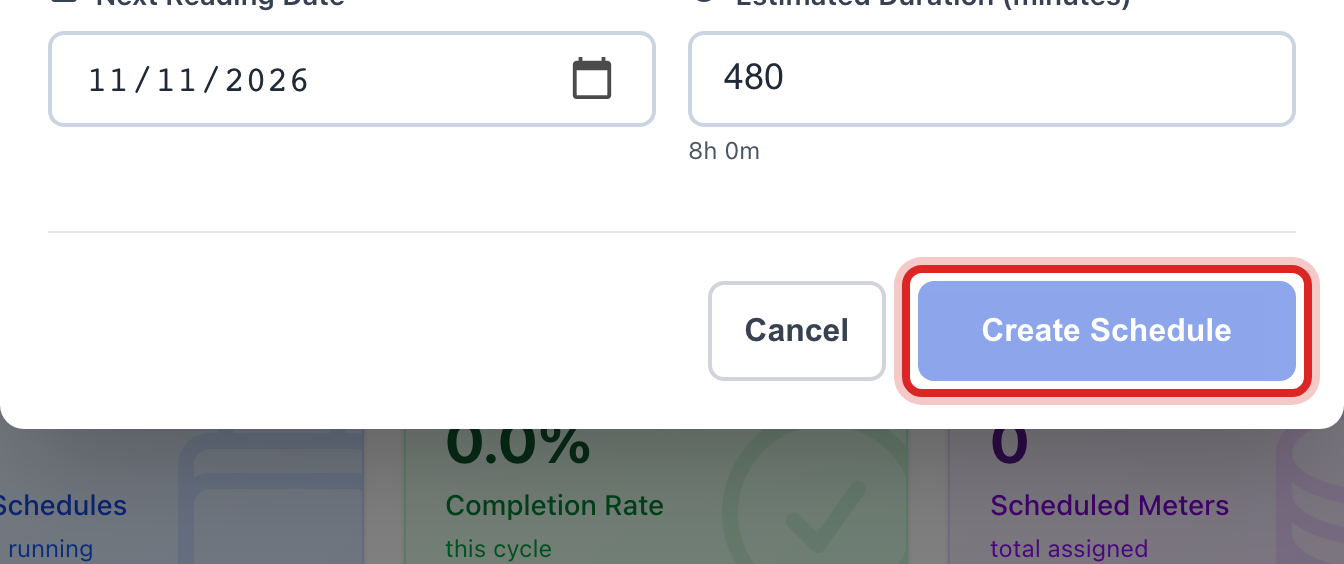
Click Create Schedule.
Made a mistake? Click Undo on the green message that appears, or open Show me how at the top and pick Undo a mistake.
You are done when
The schedule shows on the calendar at the top of the page and in the list under Reading Schedules. After each read, the next date moves ahead by itself.
If something looks different
You are on a route's page. Click Schedule Reading under Quick Actions there. It opens this same window with the route already named.
Reading is paused for the winter. Find the schedule in the list and click the pause button at the right end of its row. Click it again in spring.
The reader changed. Click the pencil at the right end of the row, pick the new name under Assign to Employee, and click Update Schedule.