
Appearance
3. Read a route with your phone
When you need this: it is reading day. Instead of a clipboard, you open Utilops on your phone. It shows you one meter at a time, in route order, and you type the number off the dial. Nothing to type in later at the office.
Steps
On the left side of the screen, click Metering, then click Mobile Reading.
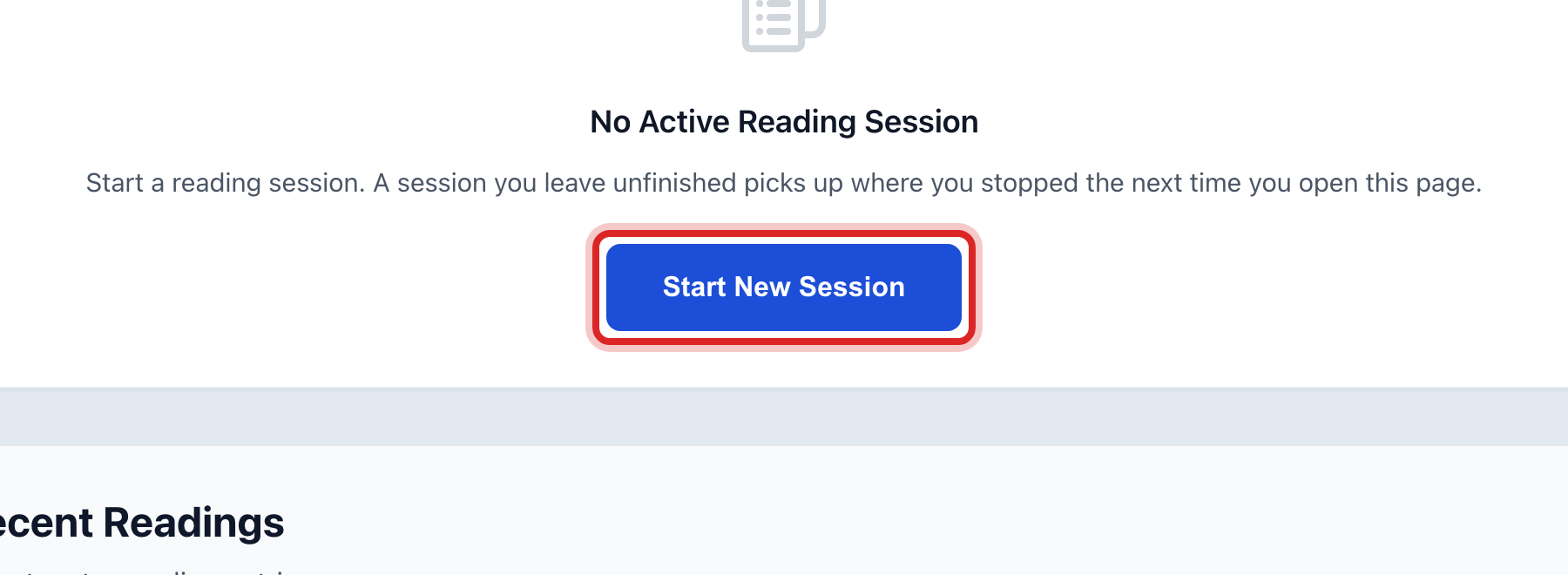
Click Start New Session.
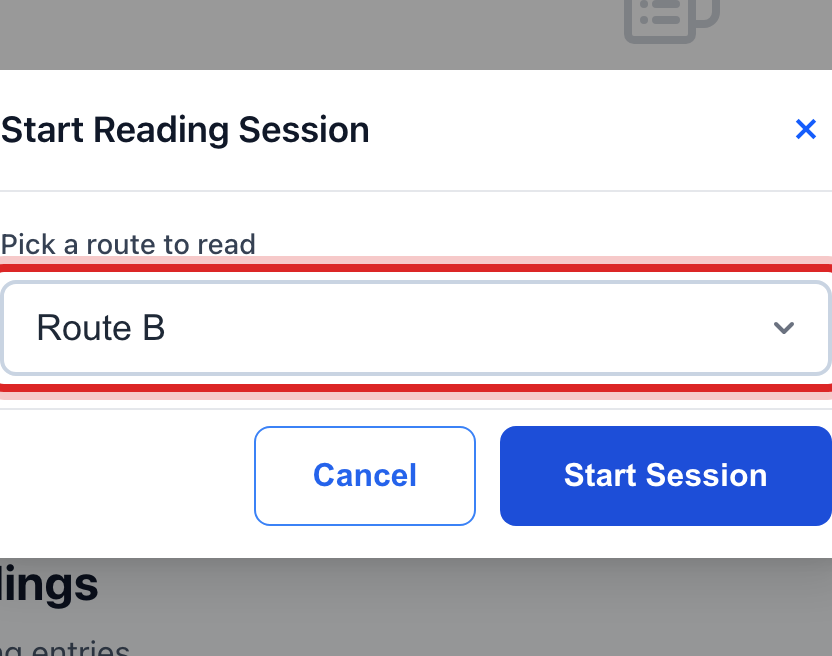
Under Pick a route to read, pick your route. The number of meters on it shows beside the name.
Click Start Session.
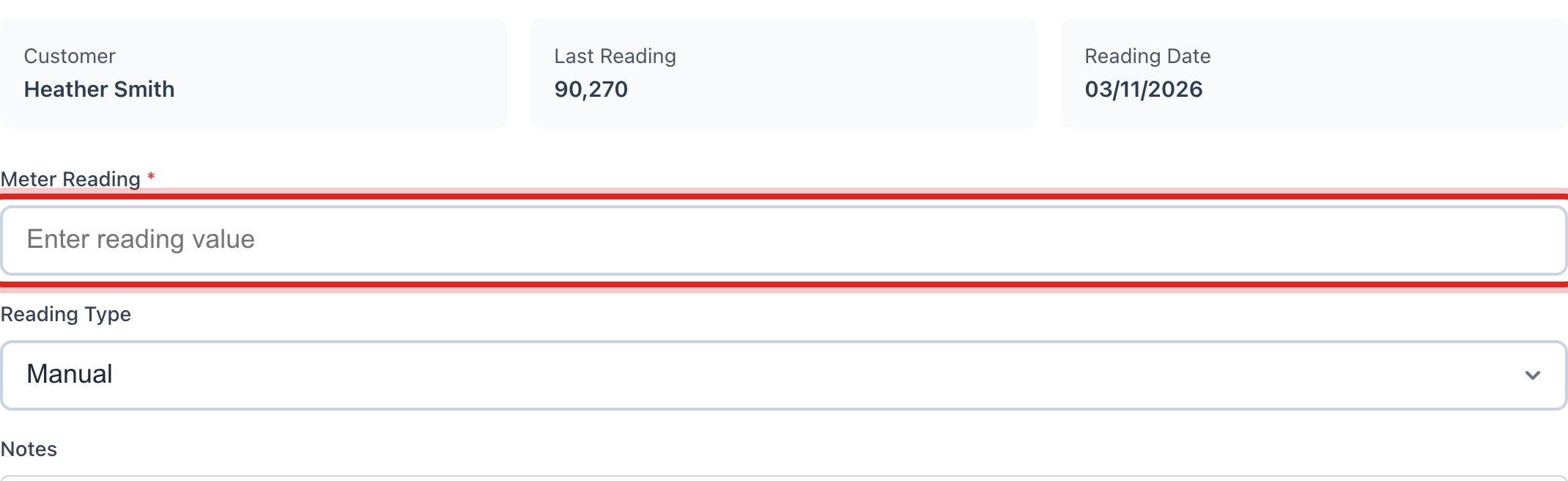
Current Meter shows the first meter, its number and its address. Walk to it. Type the number off the dial in Meter Reading.
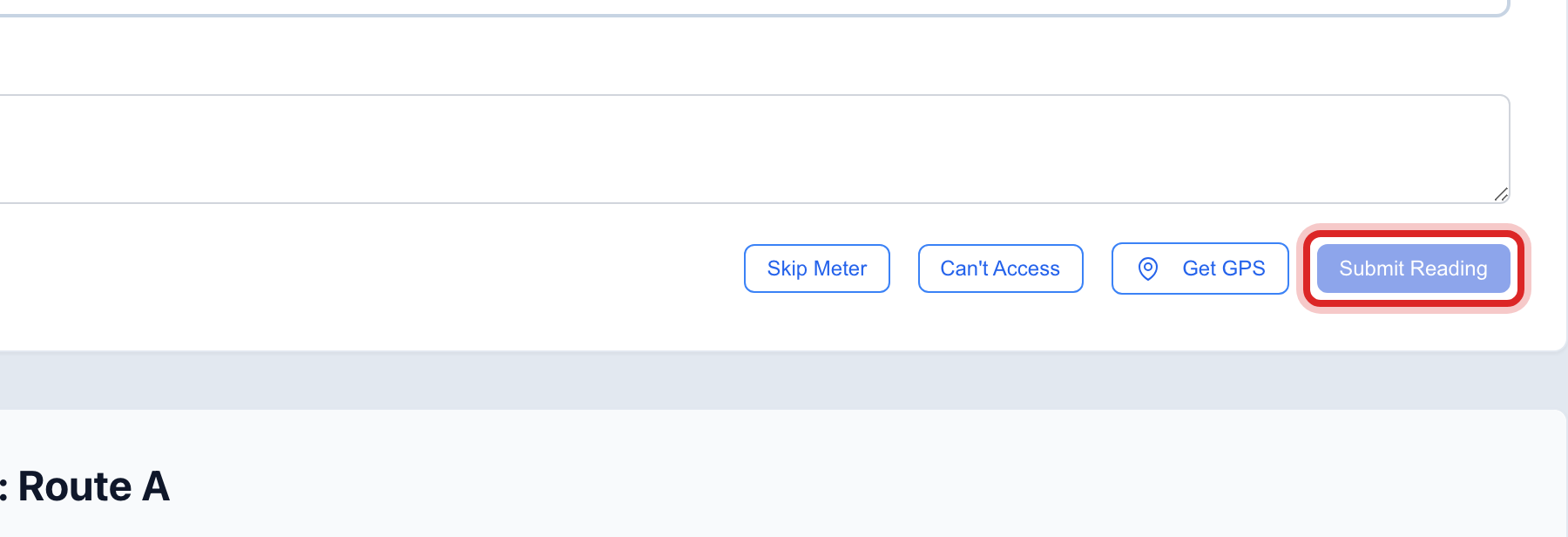
Click Submit Reading. The next meter on the route comes up. Keep going.
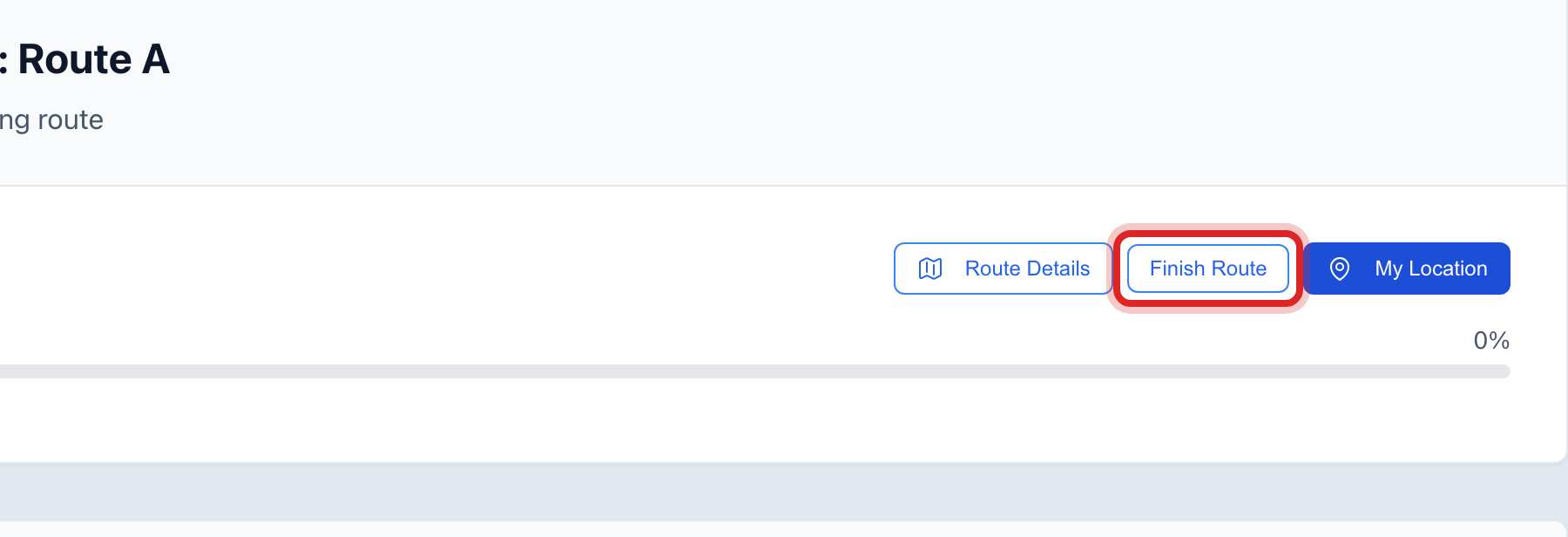
After the last meter, click Finish Route.
Made a mistake? Click Undo on the green message that appears, or open Show me how at the top and pick Undo a mistake.
You are done when
The page says the route is done and shows how many meters you read. The readings are already in Utilops. The office can run billing from them.
If something looks different
You cannot get to a meter. Click Can't Access. Utilops notes it and moves on. A dog, a locked gate or a car on the lid are all good reasons.
You want to come back to one later. Click Skip Meter. It goes to the end of the route.
You lost signal. Keep reading. Your readings stay on the phone. When the signal is back, the button at the top right with a number on it sends them all.
The route list is empty. Pick All active meters (no route) to read every meter in order, or ask the office to make a route, lesson 4.
You cannot click Start New Session. Your account may not have permission to read meters. Ask your administrator.