
Appearance
1. Find a meter and see its readings
When you need this: a customer says the bill is too high. The reader says a meter is hard to find. You want to see every reading a meter ever had. Each meter has its own page, and this is how you get to it.
Steps
On the left side of the screen, click Metering, then click Meters.
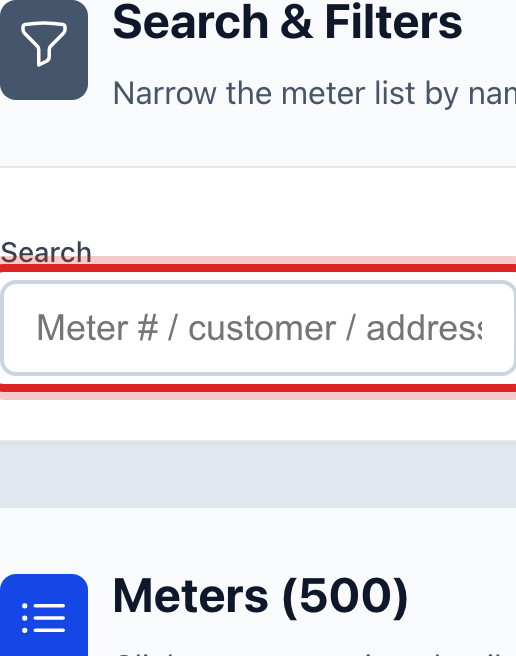
Click in the Search box. Type the meter number, the customer's name or the street.
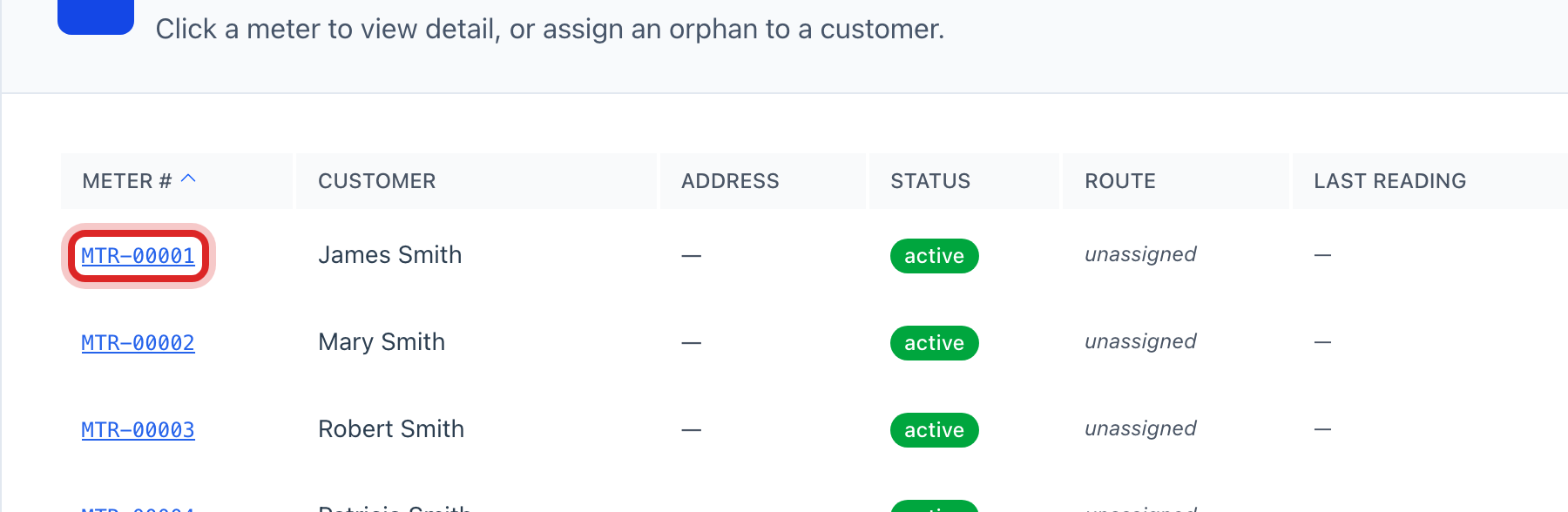
In the list below, click the blue meter number.
The meter's page opens. Meter Information says where it is and who it belongs to. Quick Actions at the top has the buttons for a change out or a leak work order.
Scroll down to Reading History. Every reading is listed, newest first, with the date and how much was used since the one before.
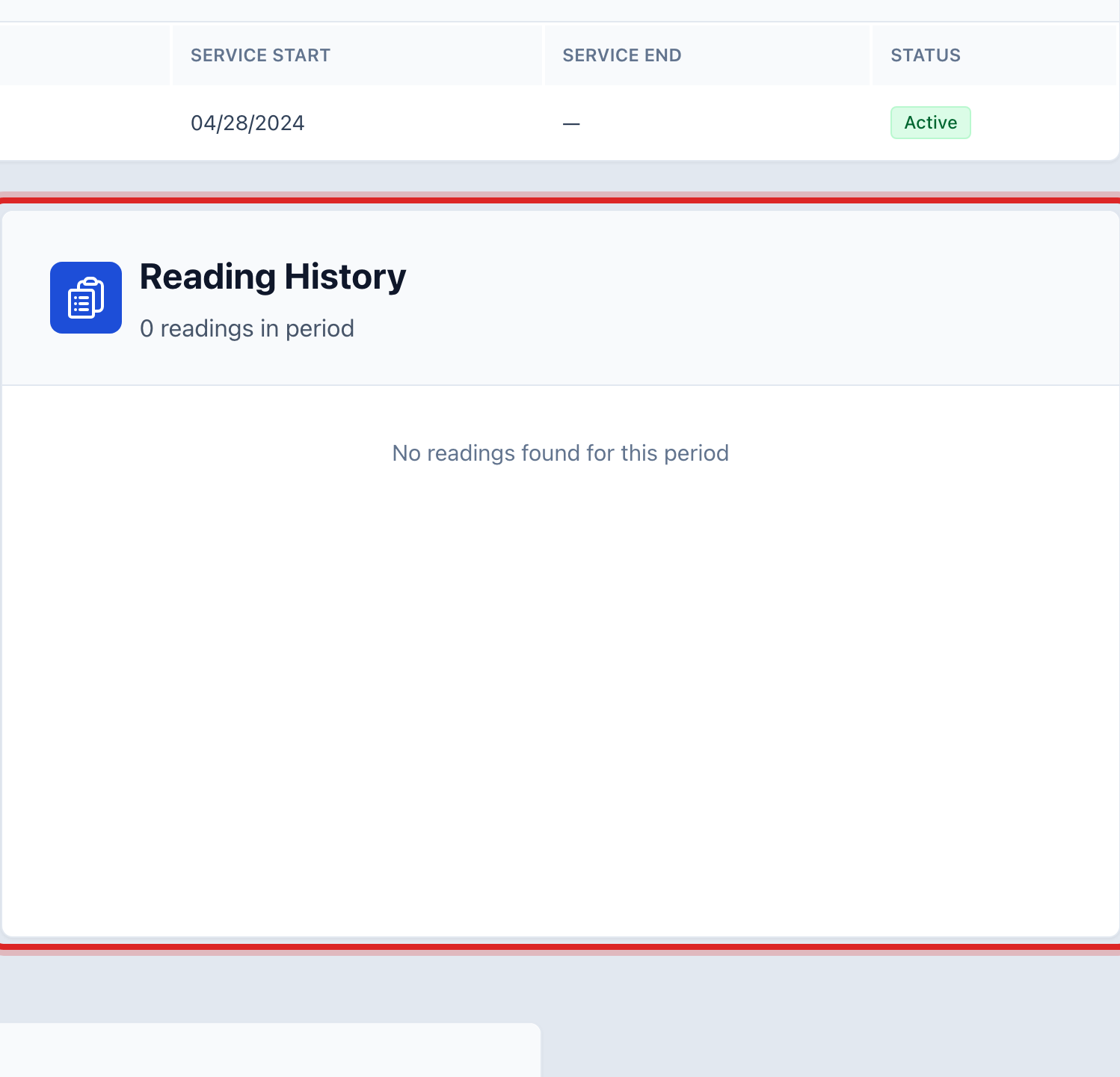
Keep scrolling for Customer History. It shows everyone who has been billed on this meter.
You are done when
You can answer the customer's question from this one page, without opening anything else.
If something looks different
Nothing shows up. Try fewer letters. The search looks at the meter number, the name and the address at the same time.
A reading is wrong. On the wrong row under Reading History, click the trash button at the right end. Then type the right reading through Import Readings, quick start page 9.
The meter has no customer. On the Meters page, the row shows no name. Click the person button at the right end of the row, named Assign customer, search for the customer and click Assign.
You want the list in a spreadsheet. Click Export CSV at the top of the Meters page.