
Appearance
4. Make a reading route
When you need this: a route is the list of meters one person reads in one trip, in the order they drive it. You make the route once, name who reads it, and put meters on it. The phone then shows the meters in that order.
Steps
On the left side of the screen, click Metering, then click Route Management.
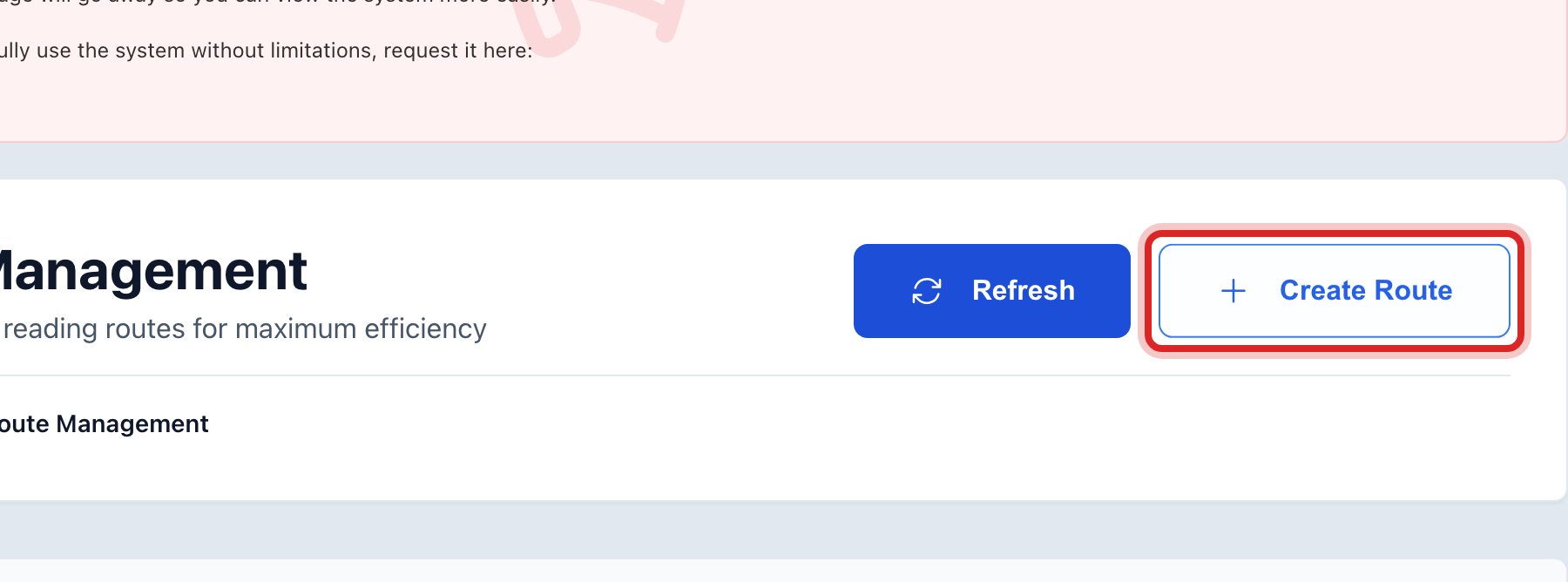
Click Create Route at the top right.
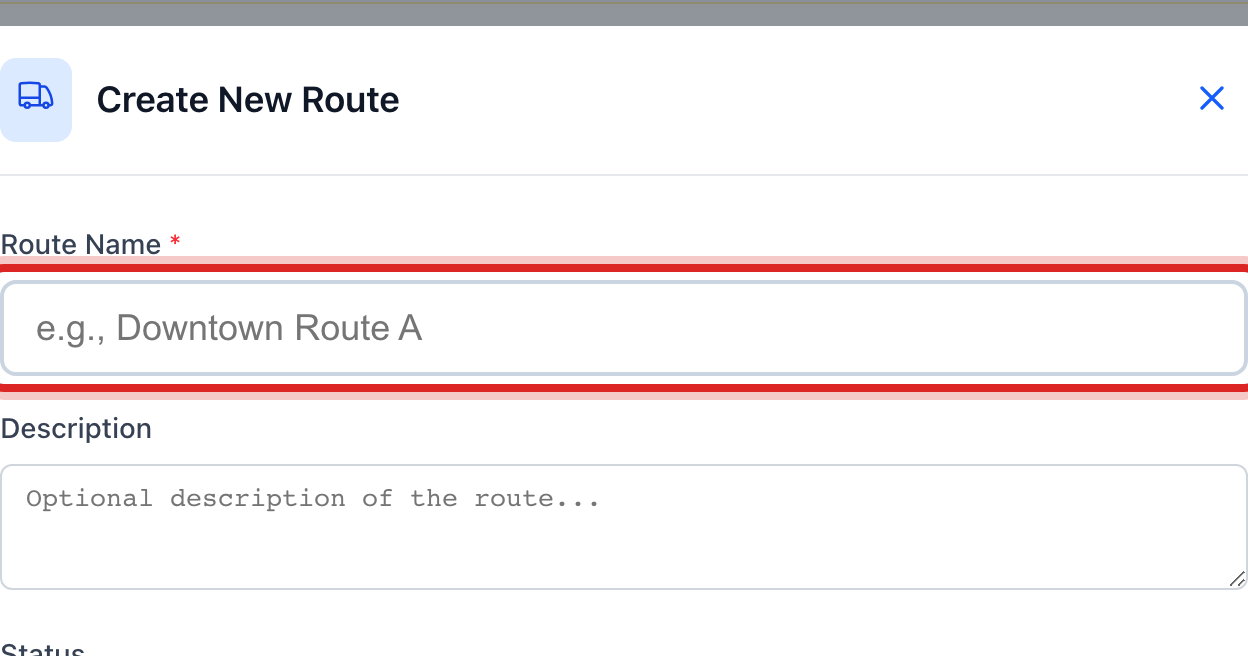
Type the Route Name. Use the name your reader already uses, like North Side or Route 3.
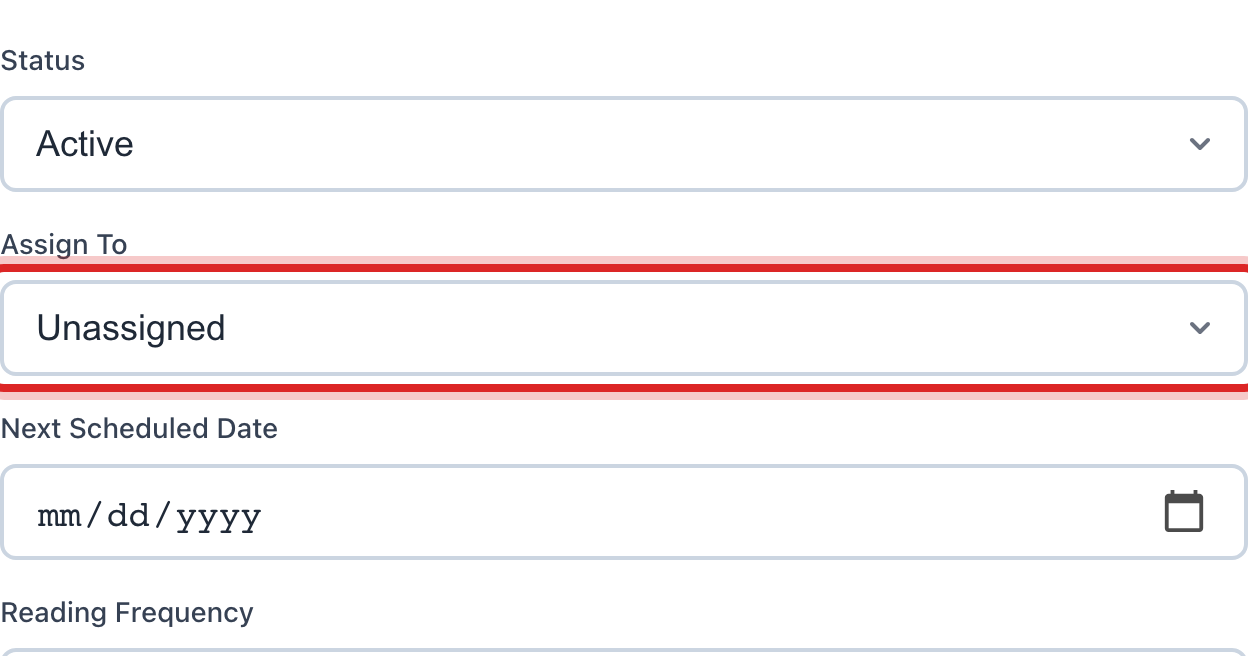
Under Assign To, pick the person who reads it.
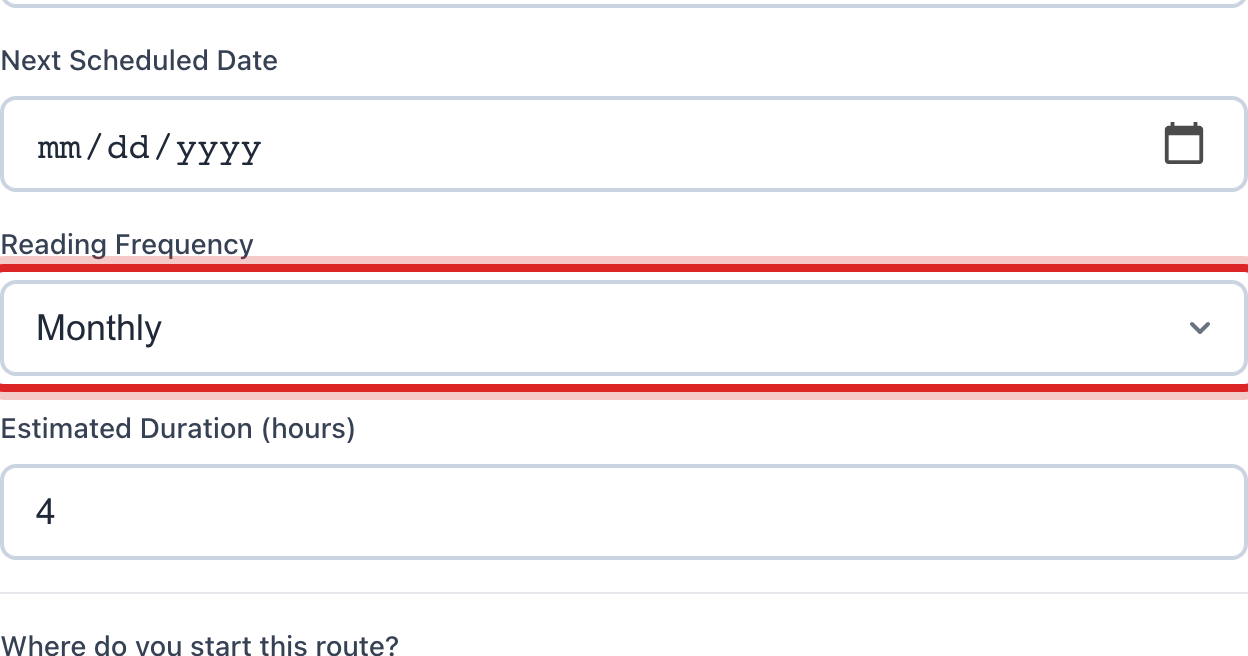
Under Reading Frequency, pick how often it is read. Most routes are monthly.
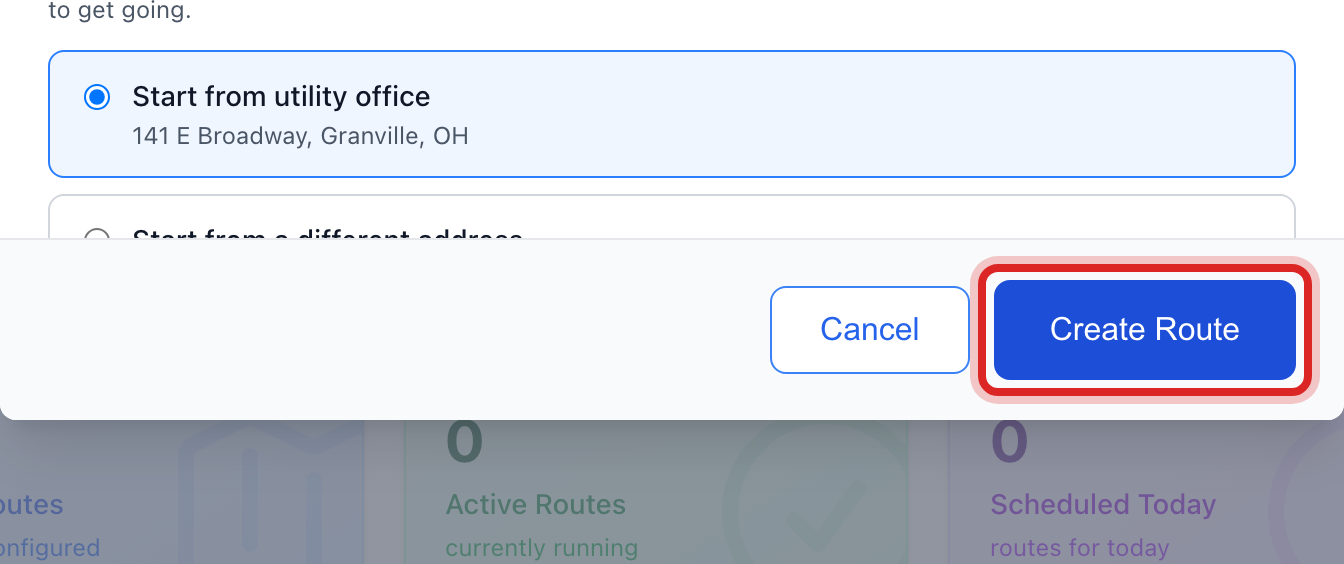
Under Where do you start this route?, leave Start from utility office picked unless the reader starts from home.
Click Create Route.
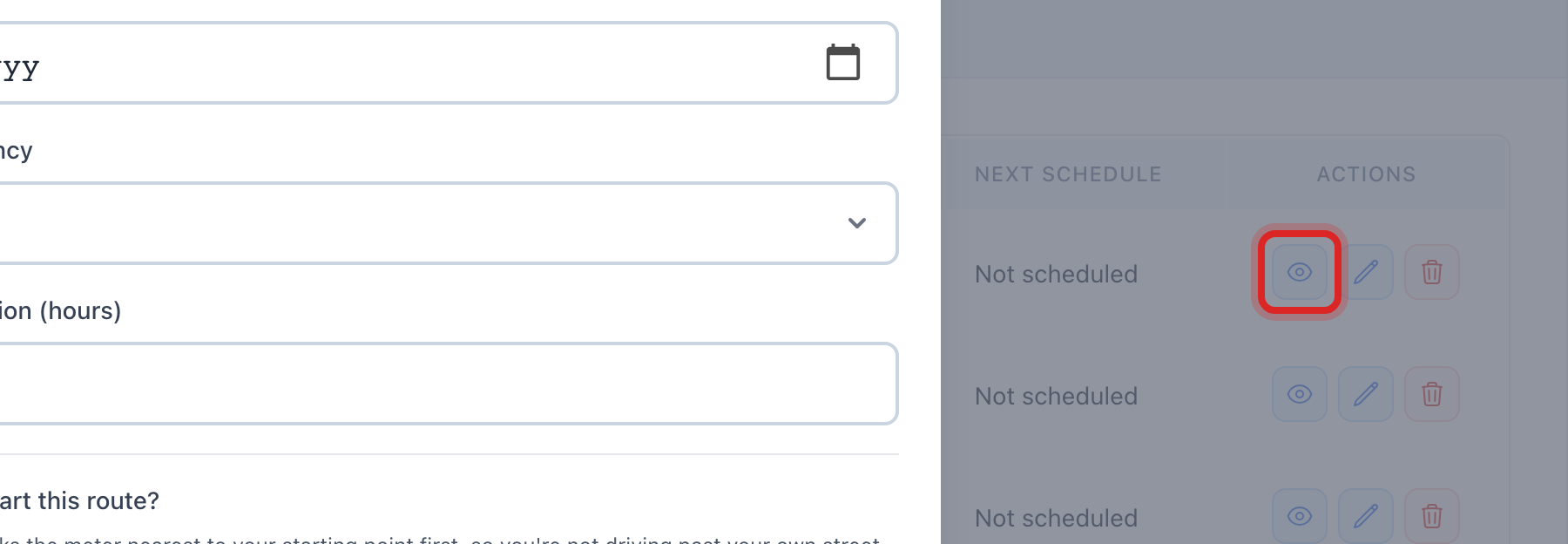
The route is now in the list with no meters on it. Click the eye button at the right end of its row, named View Route.
On the route's page, under Meters on Route, click Add Meters.
Pick how to add them. Pick from list lets you tick meters one by one. By street adds every meter on one street. By account number range adds every meter between two account numbers. Then click the blue Add button at the bottom. It tells you how many it will add.
Made a mistake? Click Undo on the green message that appears, or open Show me how at the top and pick Undo a mistake.
You are done when
The route's page lists the meters under Meters on Route, and the Route Map shows them as dots.
If something looks different
The meters are in the wrong order. On the route's page, click Optimize Route. Utilops puts them in the shortest driving order.
The reader wants directions. On the route's page, click Open in Google Maps.
A meter should not be on this route. On the route's page, click the trash button at the right end of its row, then Remove from Route.
You have several routes to hand out. Click Bulk Assign at the top of the Route Management page, pick the person, tick the routes.