
Appearance
8. Use your own web address for the portal
When you need this: you want customers to pay at pay.yourtown.gov instead of a long Utilops address. You will need the person who looks after your town's web address, because one setting on their side has to change.
Steps
On the left side of the screen, click Payment Portal, then click Domains.
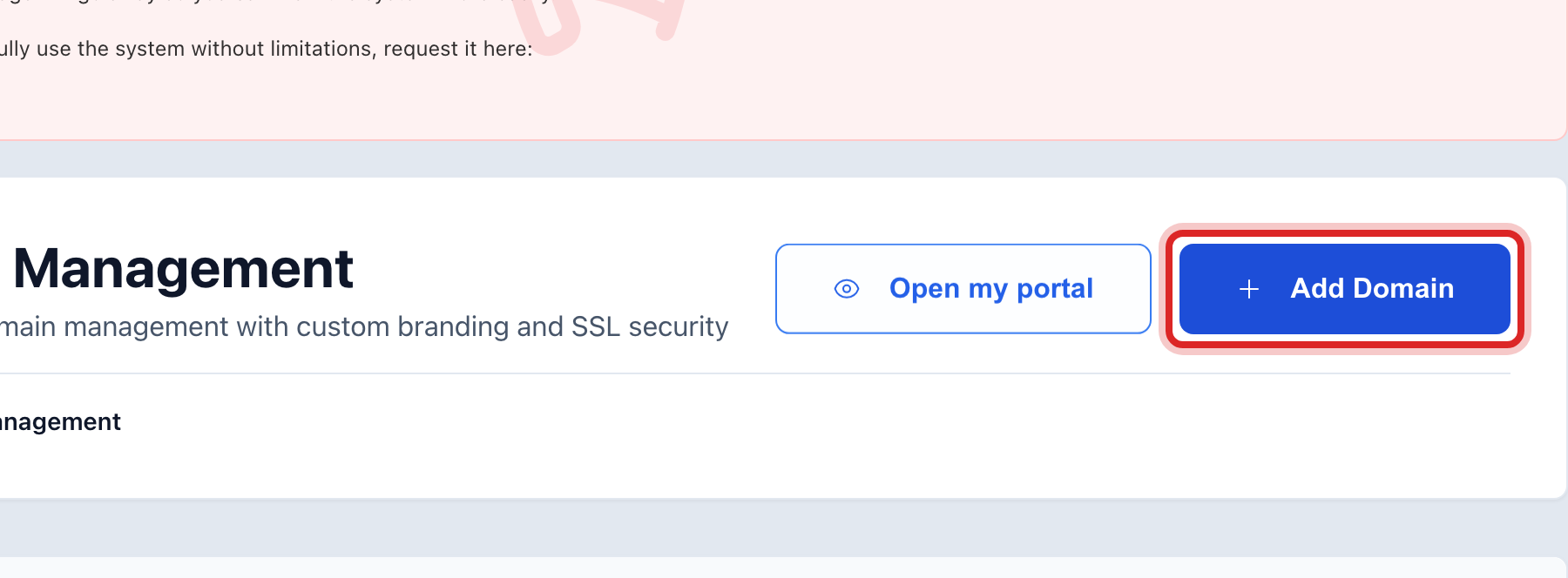
Click the blue Add Domain button.
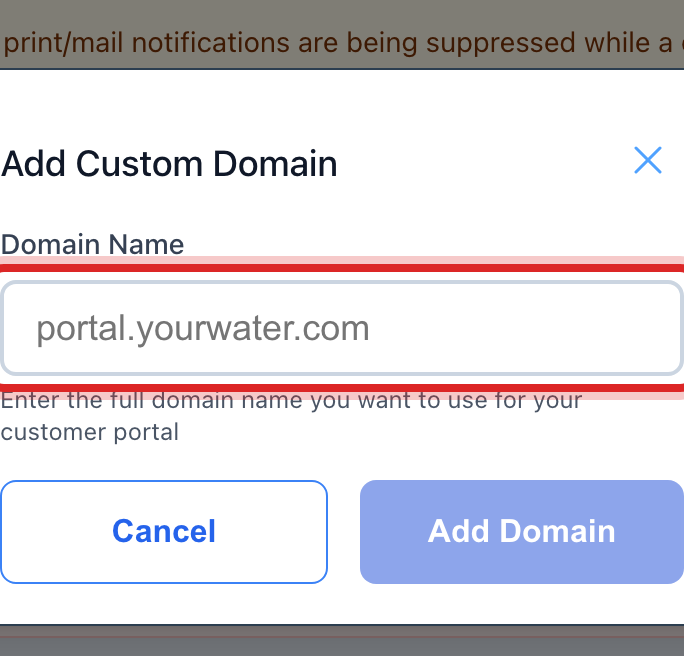
Type the Domain Name you want, like pay.yourtown.gov. It must be an address your utility already owns.
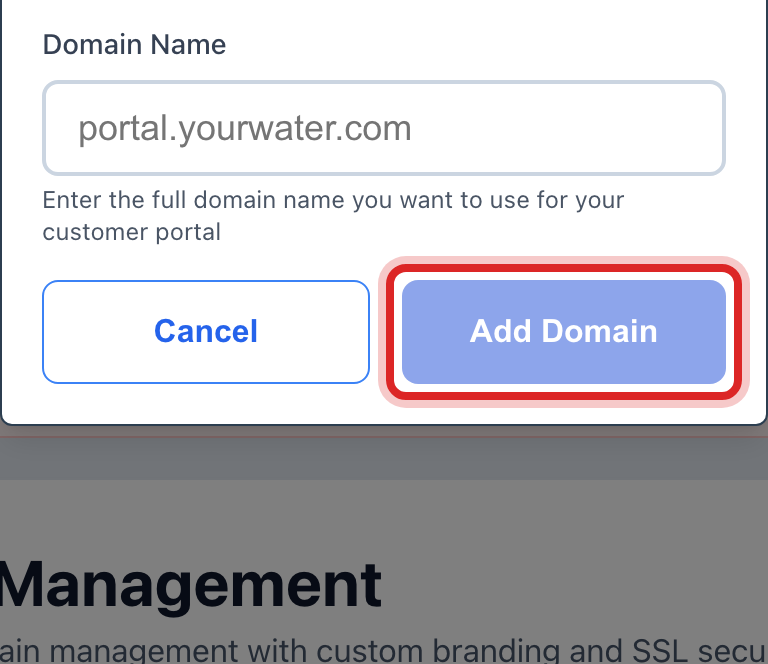
Click Add Domain in the window.
The new row says DNS Setup Required and shows one or two records. Click Copy next to each and send them to your web address person. They add them on their side. This can take a day.
When they say it is done, click Recheck Domain on the row.

Made a mistake? Click Undo on the green message that appears, or open Show me how at the top and pick Undo a mistake.
You are done when
The row reads Active with a Visit link. Customers can use either address; both open your portal. The secure padlock is set up for you.
If something looks different
You want the new address to be the main one. Once it reads Active, click Set Primary on its row.
It still says DNS Setup Required after a day. Ask your web address person to check the record. One wrong letter stops it.
You do not have a web address person. Keep the Utilops address. It works the same.
The Public Website page named Domain Management. It opens this same page. One address covers both the portal and the website.