
Appearance
2. Put your logo and colors on the portal
When you need this: the portal should look like your utility, so customers trust it. Your logo at the top. Your colors. Your utility's name. Do this once; it takes ten minutes.
Steps
On the left side of the screen, click Payment Portal, then click Branding & Design.
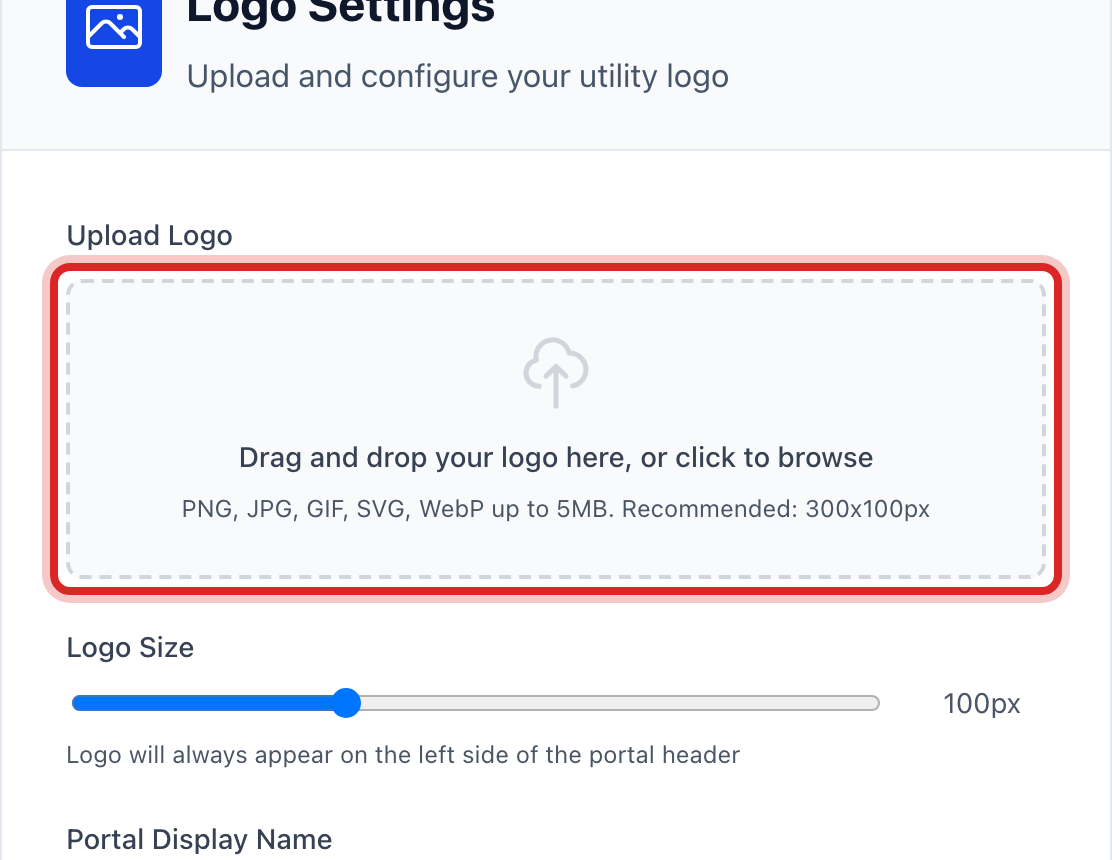
Under Logo Settings, click the dotted box that says to drag and drop your logo. Pick your logo file on your computer. A window may ask you to crop it; click Apply Crop.
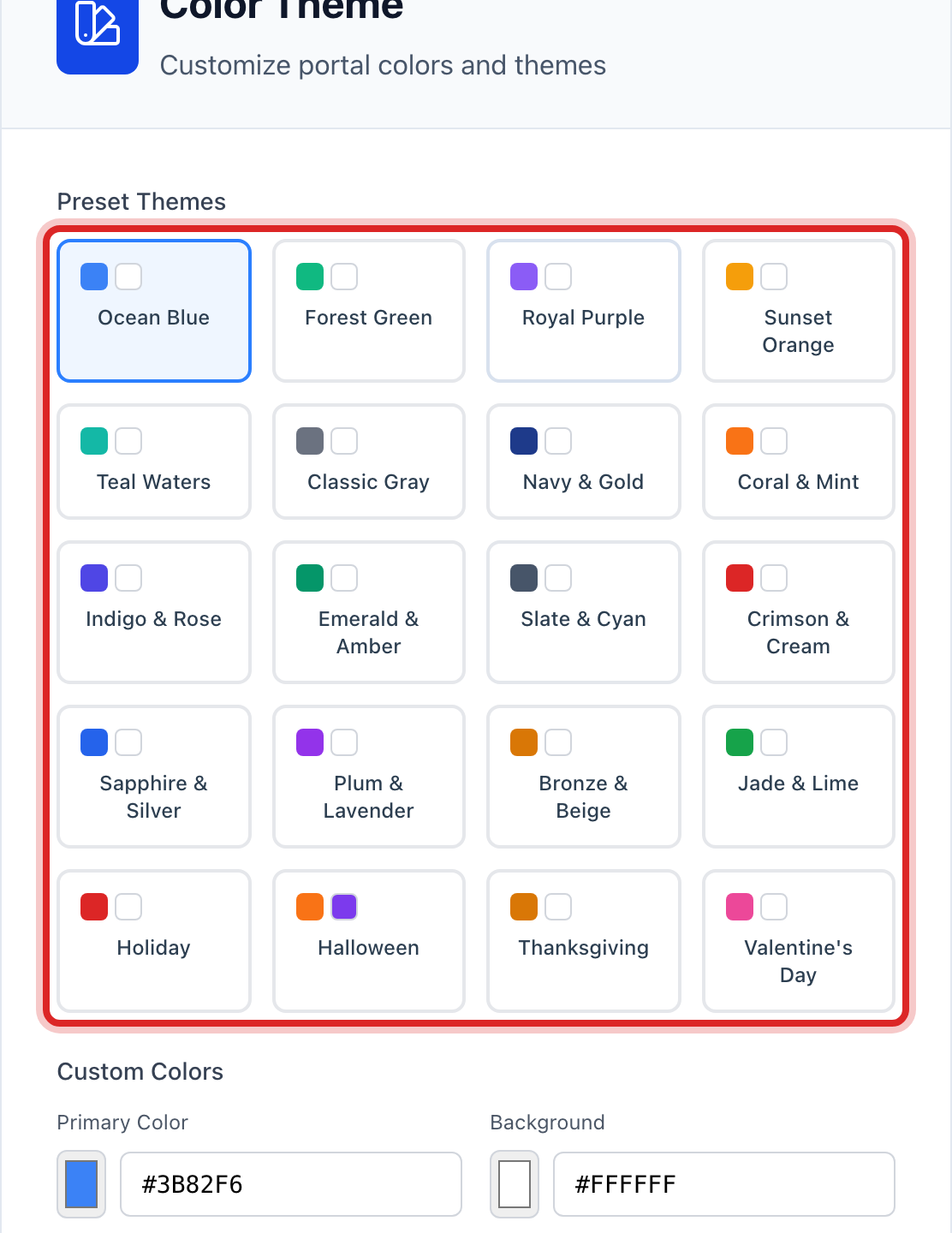
Under Color Theme, click one of the Preset Themes. Each small card shows two colors. Pick the one closest to your utility's colors.
Look at Portal Preview on the page. It changes as you pick, so you can see what customers will see.
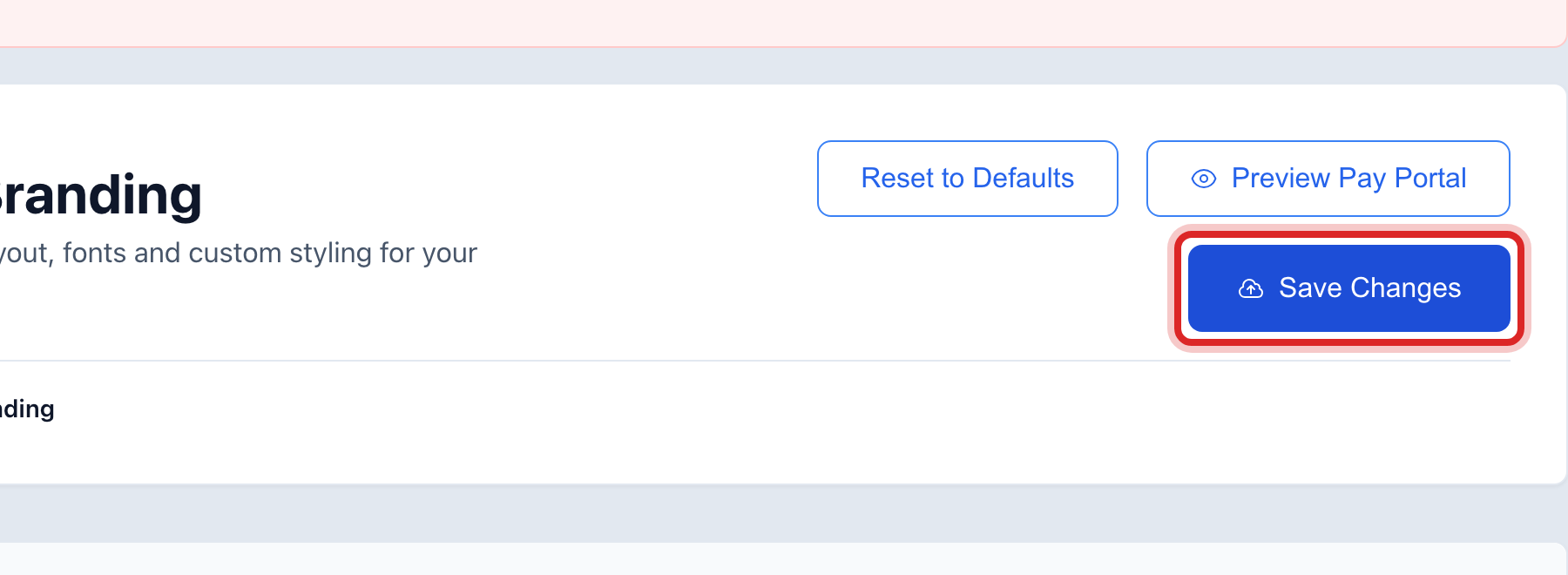
Click the blue Save Changes button at the top of the page.
Made a mistake? Click Undo on the green message that appears, or open Show me how at the top and pick Undo a mistake.
You are done when
A green message says the branding is saved. Click Preview Pay Portal to see it live. Customers see the change the next time they open the portal.
If something looks different
Your colors are not in the presets. Under Custom Colors, click the Primary Color box and pick your exact color, or type its code if your printer gave you one.
The logo is too big or too small. Move the Logo Size slider and watch the preview.
You want to start over. Click Reset to Defaults. Nothing changes for customers until you click Save Changes.