
Appearance
3. Switch a portal feature on or off
When you need this: you want customers to be able to pay by text. Or set up AutoPay. Or go paperless. Each one is a switch. Everything here is included; nothing costs extra to turn on.
Steps
On the left side of the screen, click Payment Portal, then click Portal Features.
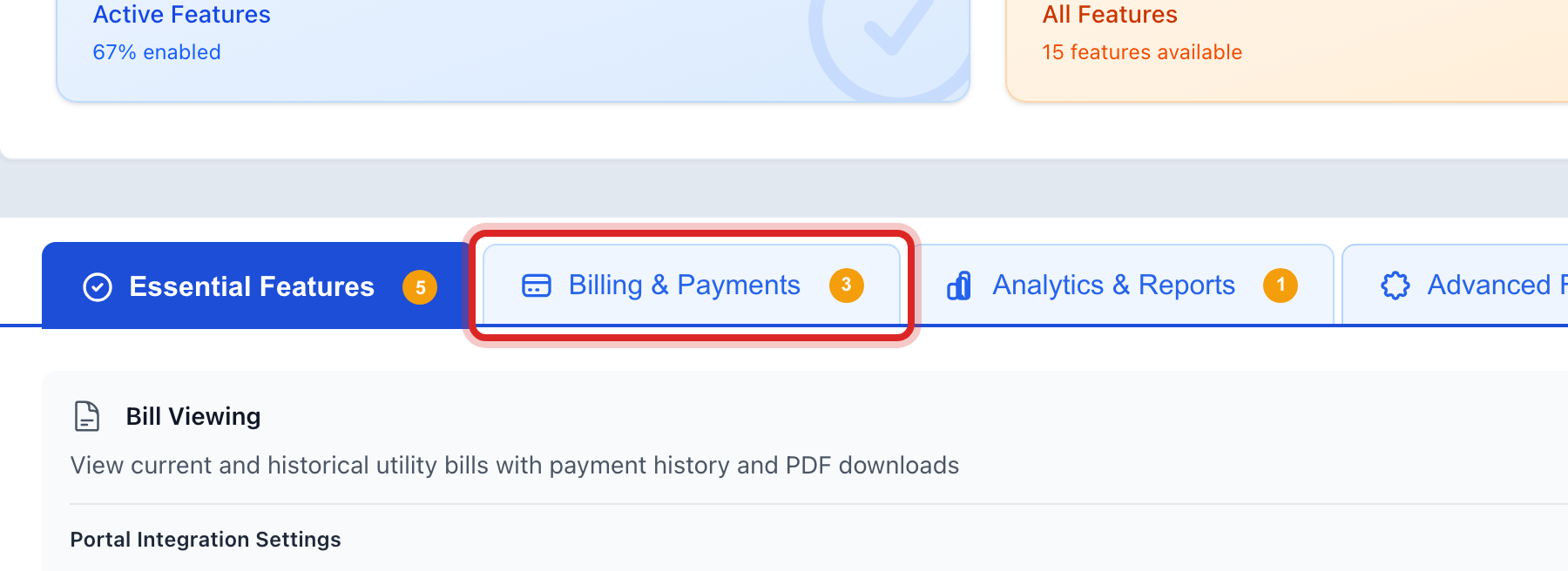
Click the Billing & Payments tab. The money features are here: online payments, payment plans, paperless billing, AutoPay, Text to Pay and Call to Pay.
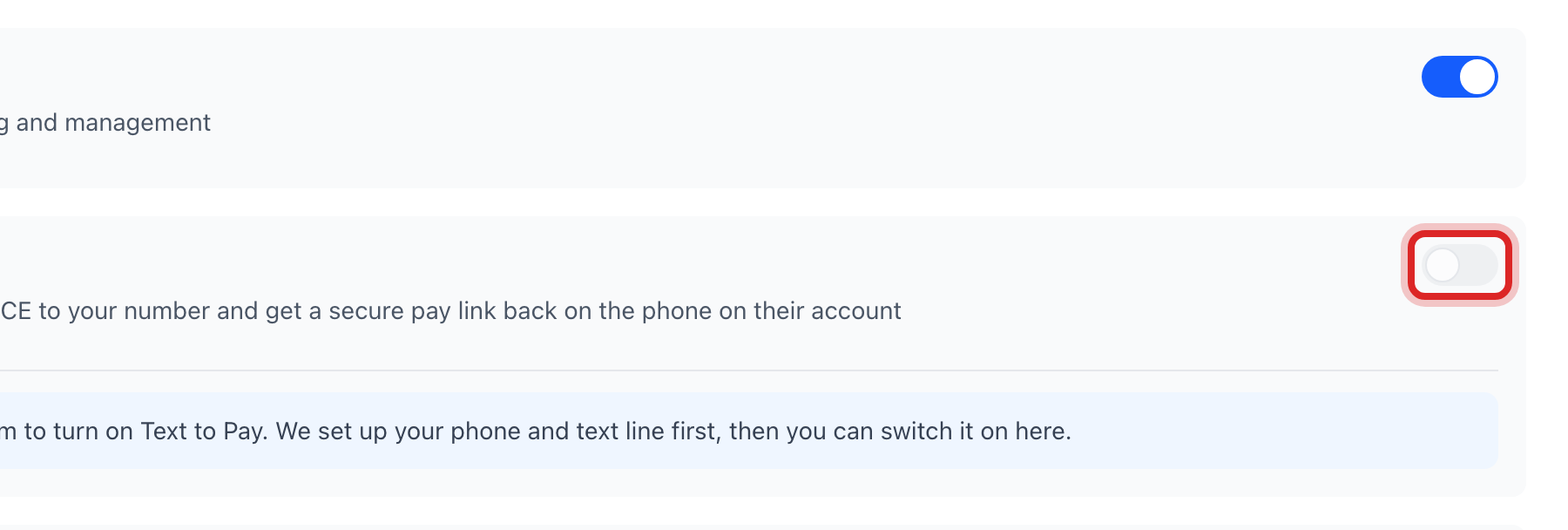
Find Text to Pay. Read the line under it. Click the switch at the right end of its row. Blue means on.
Do the same for Call to Pay if you want customers to pay by phone.
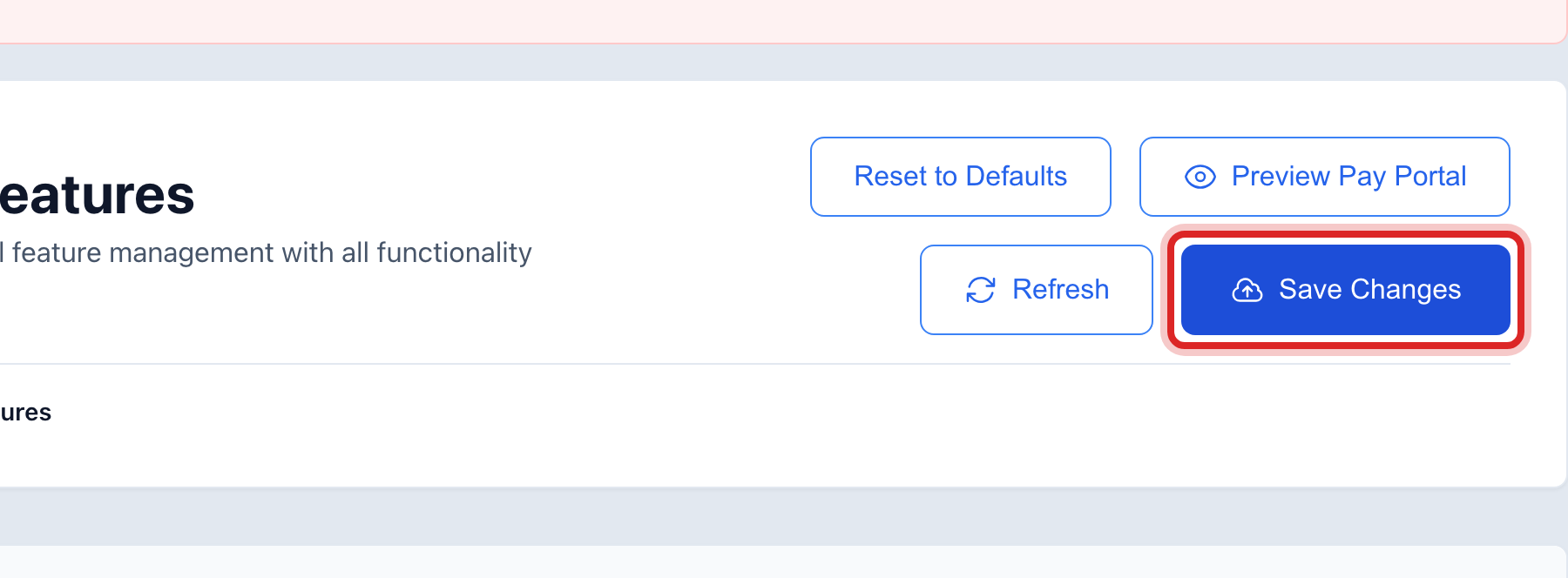
Click the blue Save Changes button at the top of the page.
Made a mistake? Click Undo on the green message that appears, or open Show me how at the top and pick Undo a mistake.
You are done when
A green message says the features are saved. With Text to Pay on, a customer texts the word PAY to your number and gets a link back to pay. With Call to Pay on, they call your number, press 2, and the link is texted to them.
If something looks different
The switch will not move and a note says to contact the Utilops team. Utilops sets up your phone and text line first. Once that is done, come back and switch it on.
A row says Always On. That feature is part of every portal, like seeing the bill. It cannot be turned off.
A row says Coming Soon. It is not ready yet. The switch stays off.
Pay by text and pay by phone did not show up for customers. Click Save Changes. The portal shows your saved settings, not the switches on the screen.