
Appearance
4. Post a notice on the portal
When you need this: the office is closed Friday. Hydrant flushing is next week. A boil water notice is in effect. A banner across the top of the portal tells every customer who signs in, without sending a single message.
Steps
On the left side of the screen, click Payment Portal, then click Announcements.
Click the blue New Announcement button.
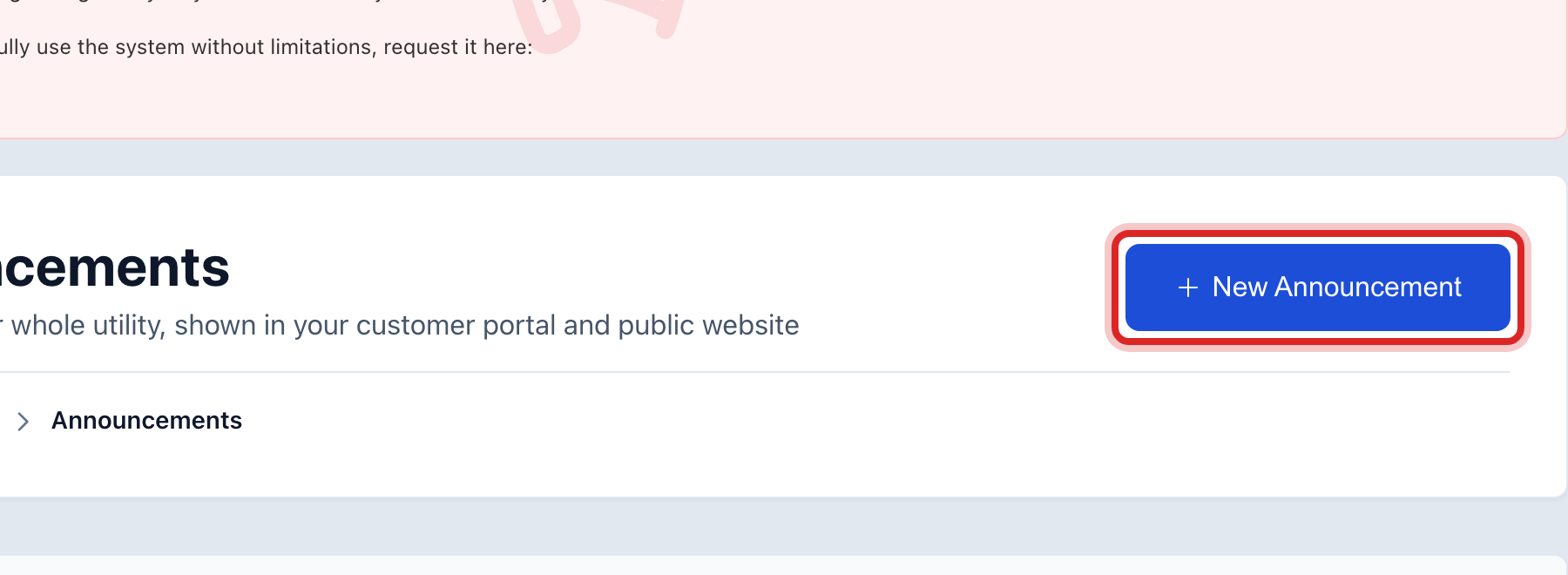
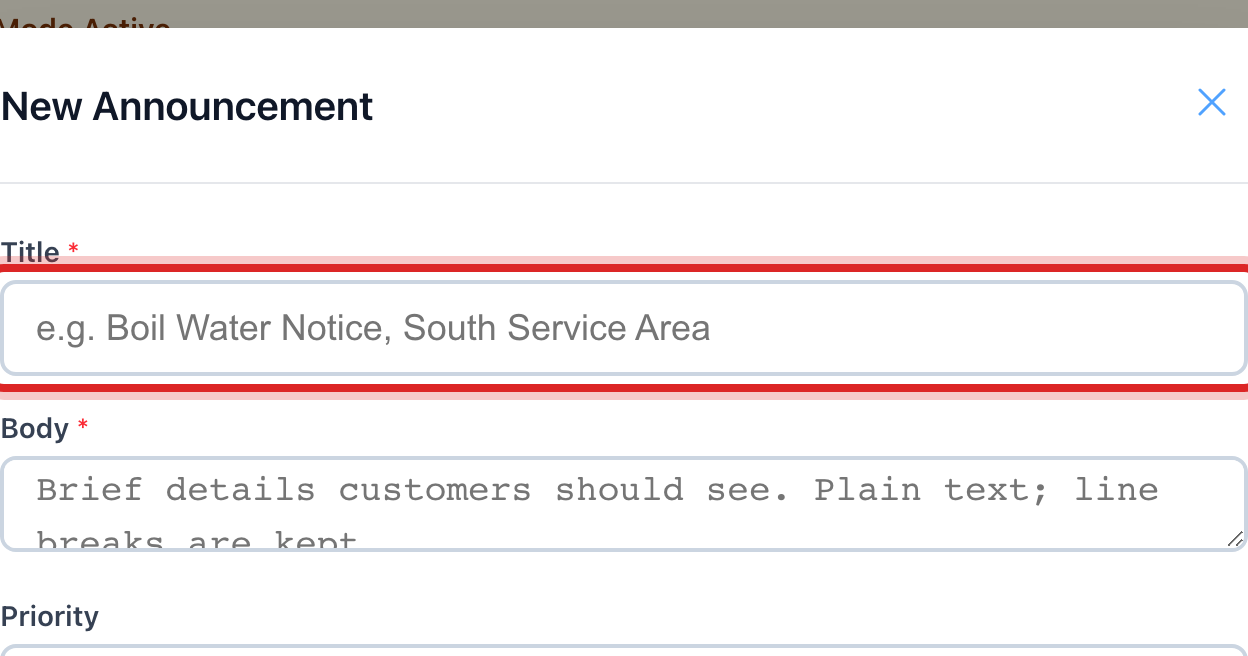
Type a short Title, like Office closed Friday. Then type the Body: what, when, and what customers should do.
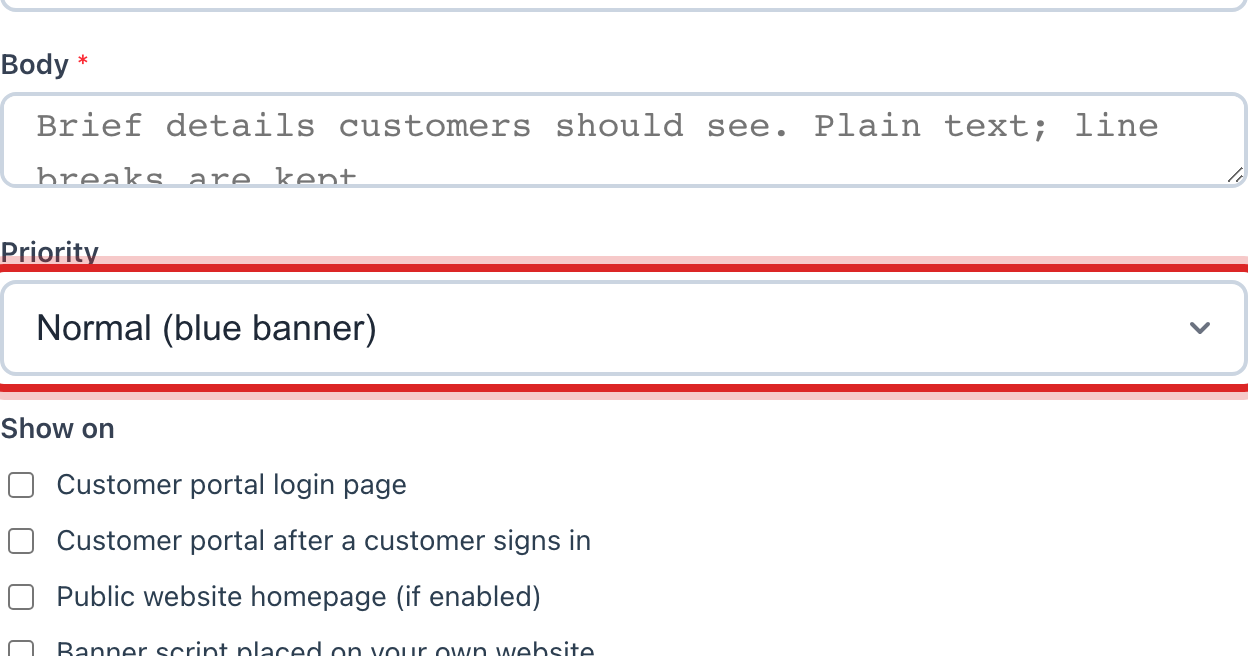
Click the Priority list. Urgent makes a red banner, Normal a blue one. Save red for things like a boil water notice.
Under Show on, tick where it should appear. The login page reaches everyone, even before they sign in.
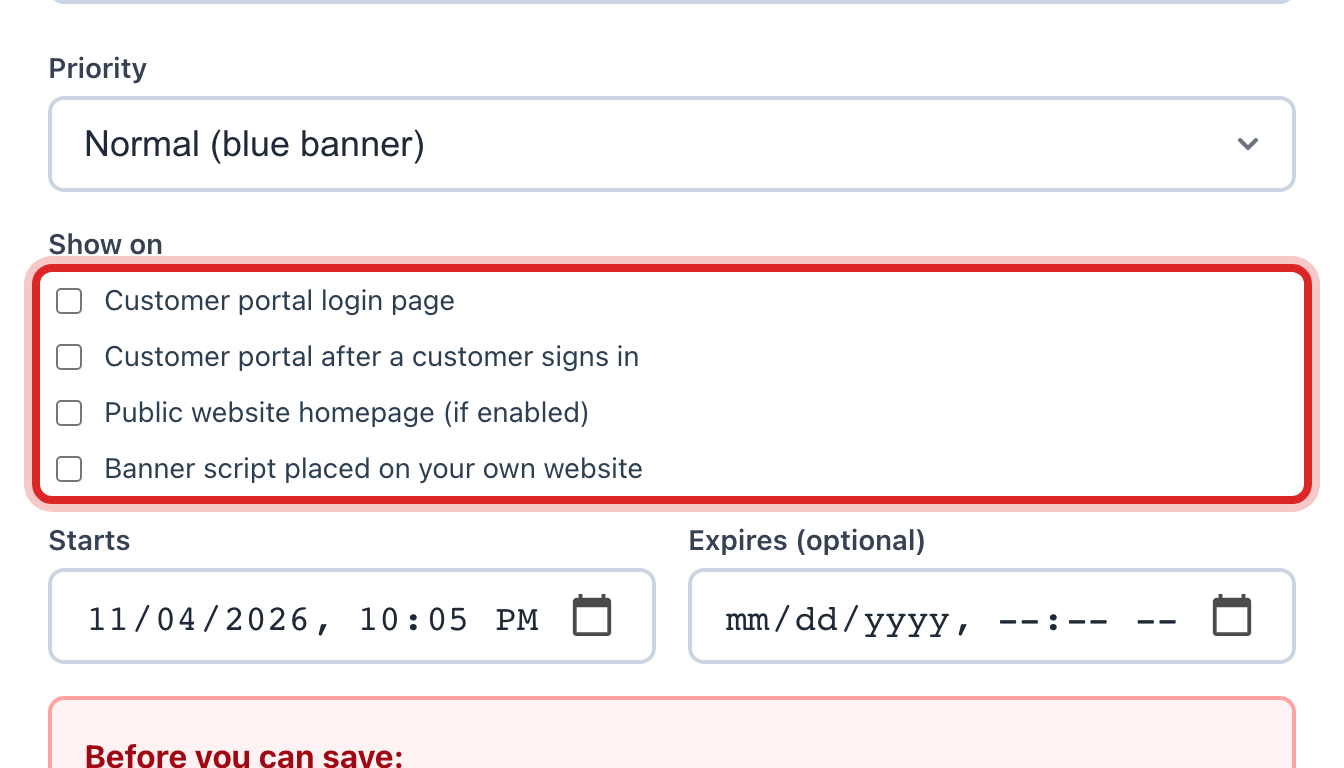
Set Starts to today. Set Expires to the day it should come down, so you do not have to remember.
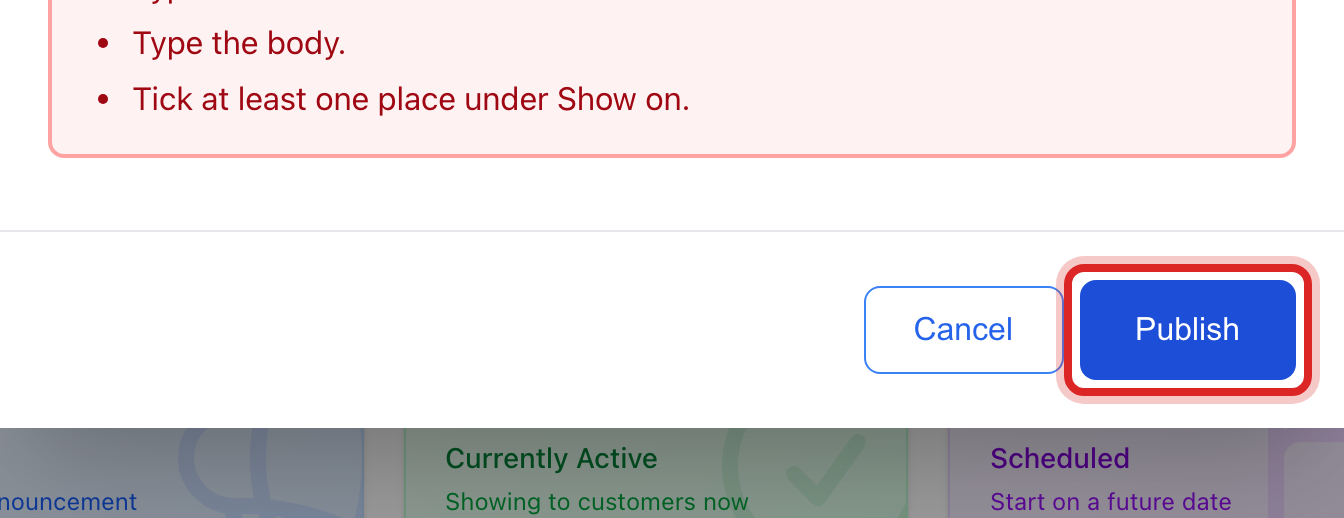
Click the blue Publish button.
Made a mistake? Click Undo on the green message that appears, or open Show me how at the top and pick Undo a mistake.
You are done when
The notice shows in the list with the word Active. Open the portal and the banner is across the top.
If something looks different
You need to change the words. Click Edit on its row, fix them, and click Save changes.
It should come down now. Click Delete on its row. Or click Edit and set Expires to today.
You also have a public website. Tick Public website homepage under Show on and the same banner shows there.
You want to text or email it too. A banner only reaches customers who open the portal. For everyone, use Customer Messaging, then Send Message.