
Appearance
6. Change the emails and texts the portal sends
When you need this: when a customer pays, the portal sends a thank you. When a payment fails, it tells them. When AutoPay is set up, it says so. The words are already written. You can change them to sound like your office, or turn one off.
Steps
On the left side of the screen, click Payment Portal, then click Notifications & Alerts.
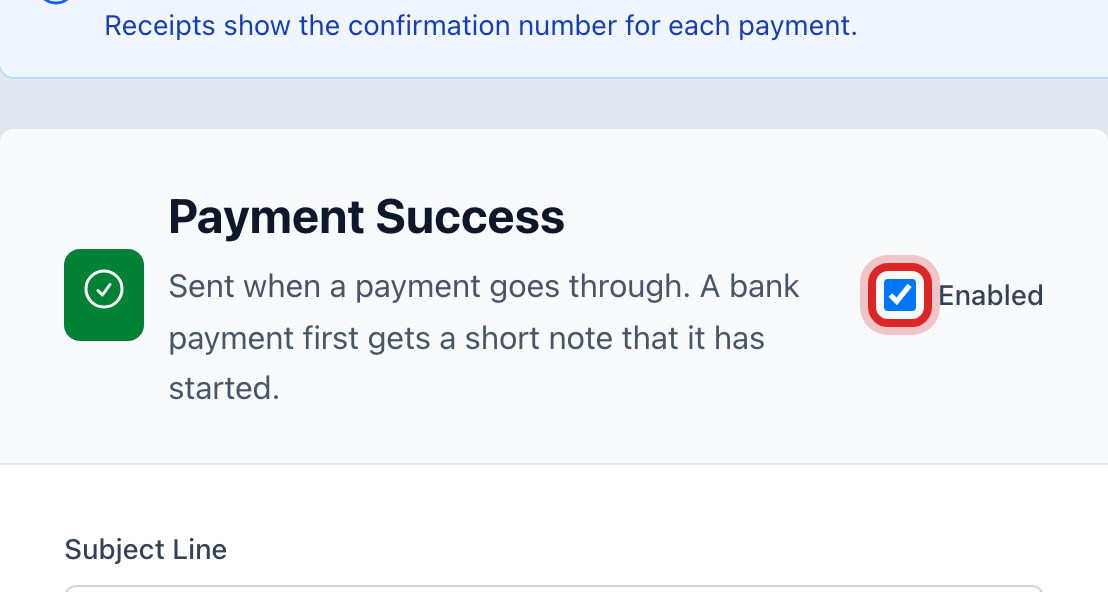
Each box is one message. Start with Payment Success. The Enabled tick at the top right says whether it goes out. Leave it ticked.
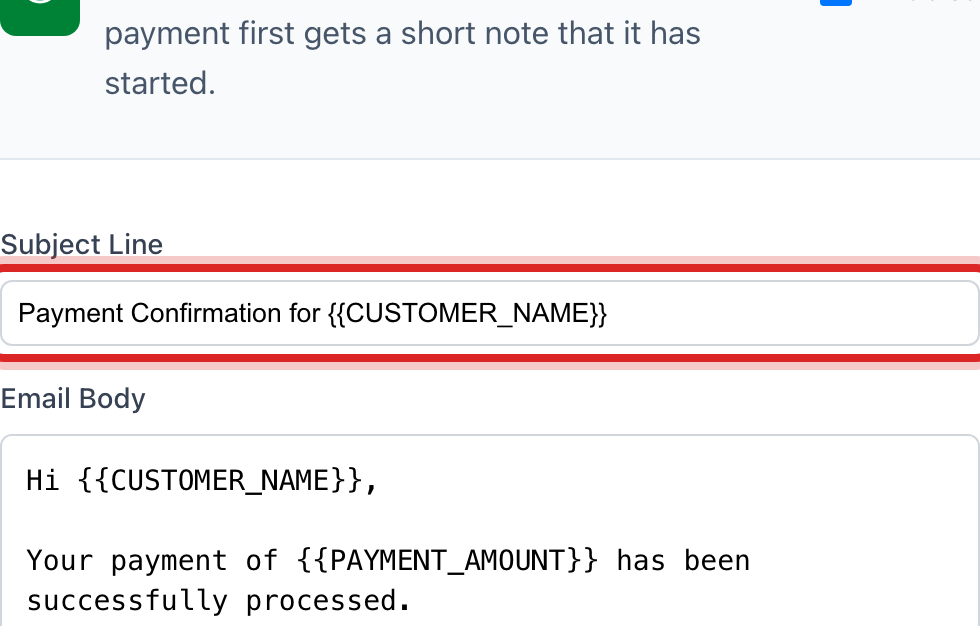
Change the Subject Line if you like, such as adding your utility's name.
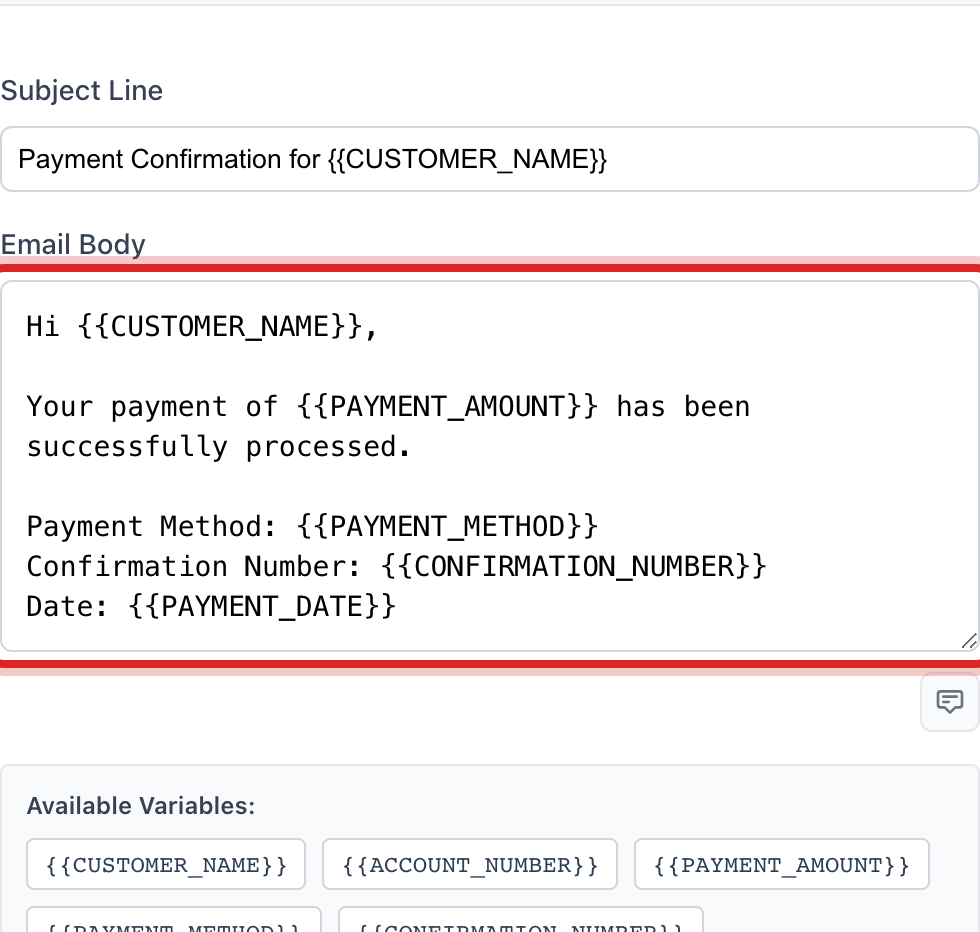
Change the Email Body. The words inside curly brackets, like the amount and the account number, are filled in for each customer. Leave those as they are.
Scroll down to SMS Notifications. These are the text message versions. Keep them short; a text is small.
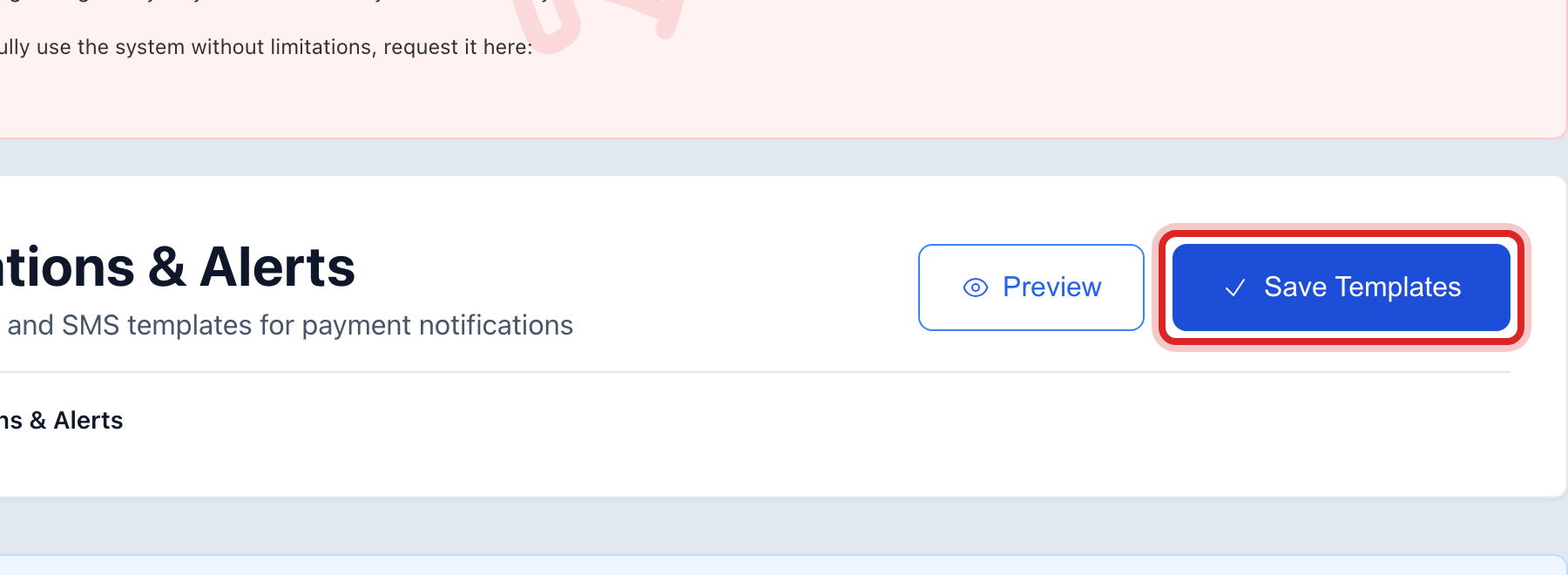
Click the blue Save Templates button at the top of the page.
Made a mistake? Click Undo on the green message that appears, or open Show me how at the top and pick Undo a mistake.
You are done when
A green message says the templates are saved. Click Preview at the top to see any message the way a customer gets it.
If something looks different
The Save Templates button is faded. You have not changed anything yet.
You want to stop one message. Untick Enabled on its box and save. The others keep going.
Bill reminders are not here. The reminder before a due date is set up under Billing & Payments, then Billing Automation. The link in the Payment Reminder box takes you there.
Messages are unlimited. Texts and emails are part of your subscription. Turn on every one your customers would want.