
Appearance
7. Publish your refund policy
When you need this: the payment company and the law want three pages on your portal: a privacy policy, a refund policy, and terms. Utilops has them written. You fill in your utility's name and a few details, read them, and publish. The refund policy is the one customers read most, so it is the one shown here. The other two work the same way.
Steps
On the left side of the screen, click Payment Portal, then click Legal & Policies.
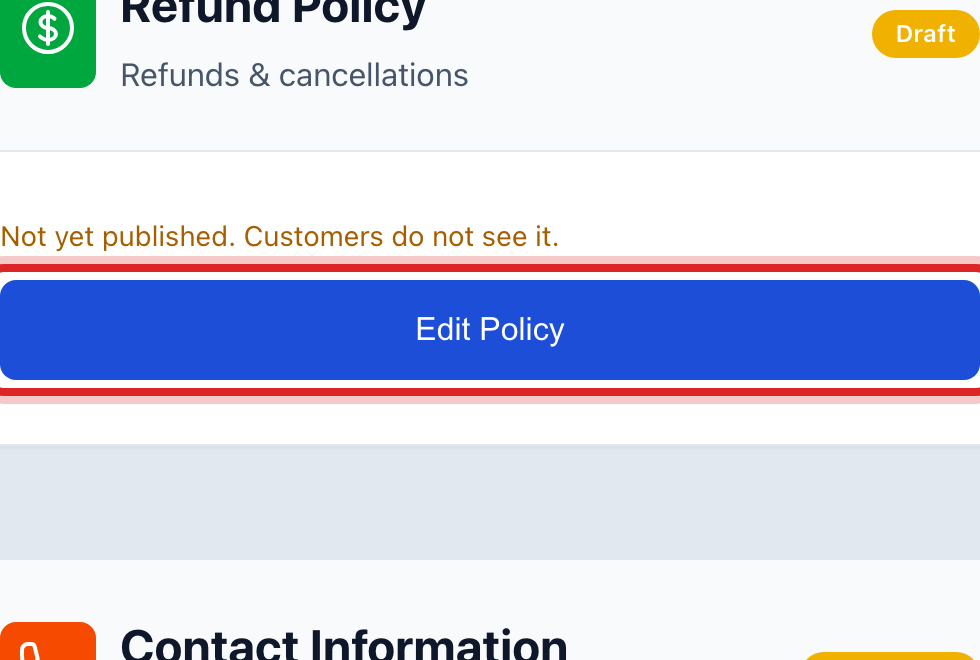
Each card is one page, with Published or not under its name. On the Refund Policy card, click Edit Policy.
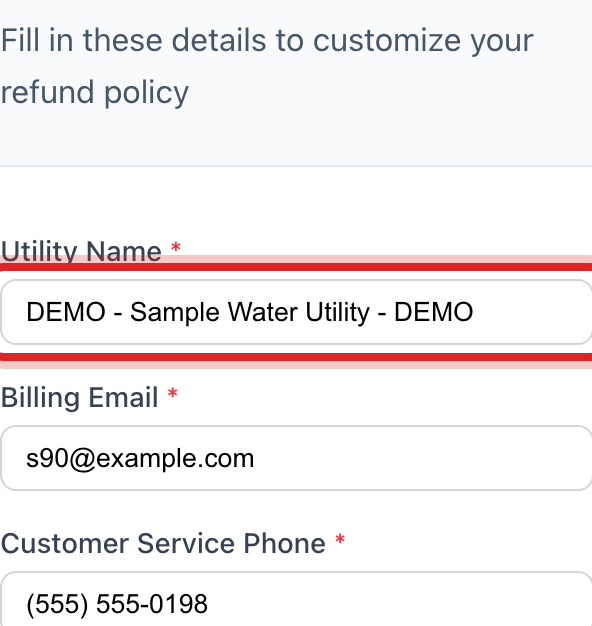
Under Utility Information, type your Utility Name, the Billing Email and the Customer Service Phone.
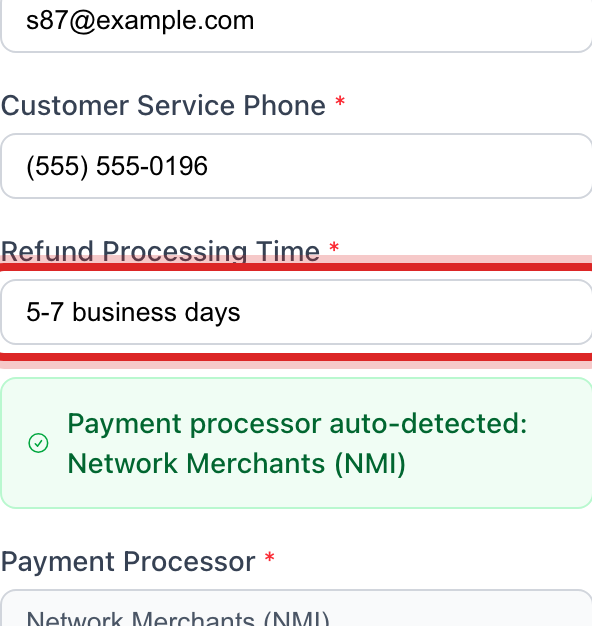
Type the Refund Processing Time, like 5 to 7 business days. The payment company's own details are filled in for you.
Click Preview and read the whole page the way a customer will. Have your attorney read it too if your board asks.
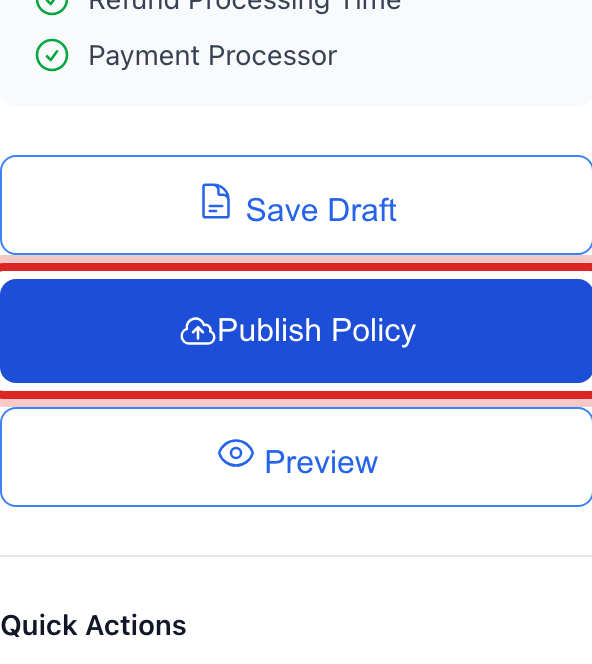
Click the blue Publish Policy button.
Made a mistake? Click Undo on the green message that appears, or open Show me how at the top and pick Undo a mistake.
You are done when
The top of the page reads Published. Back on Legal & Policies, the card shows the date, and the Legal Compliance Checklist has a green check for the refund policy.
If something looks different
You are not ready to publish. Click Save Draft. Customers do not see a draft.
You need to take it down. Click Unpublish. Click to say yes. The portal stops showing it until you publish again.
You changed the words too much. Click Reset to Master Template to get the Utilops version back.
The Publish Policy button is faded. A required box is still blank. Look for the red marks.