
Appearance
1. Find your portal address and see it as a customer
When you need this: a customer asks where to pay online. You want to print the address on the bill. Or you want to see the portal the way a customer sees it before you tell anyone about it.
Steps
On the left side of the screen, click Payment Portal, then click Setup & Deployment.
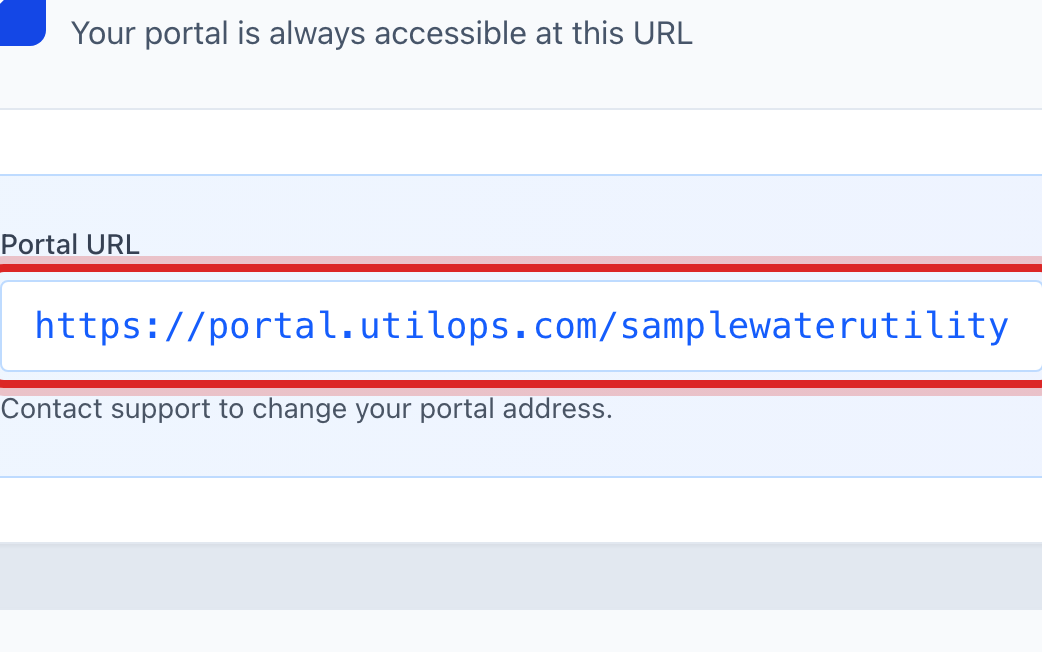
Under Default Portal URL, the box named Portal URL shows your address. It is always yours, even before anything else is set up.
Click Copy URL. Paste it into an email, a bill message or your website.
Click Open Portal. The portal opens in a new tab, the way a customer sees it. Look it over, then close the tab.
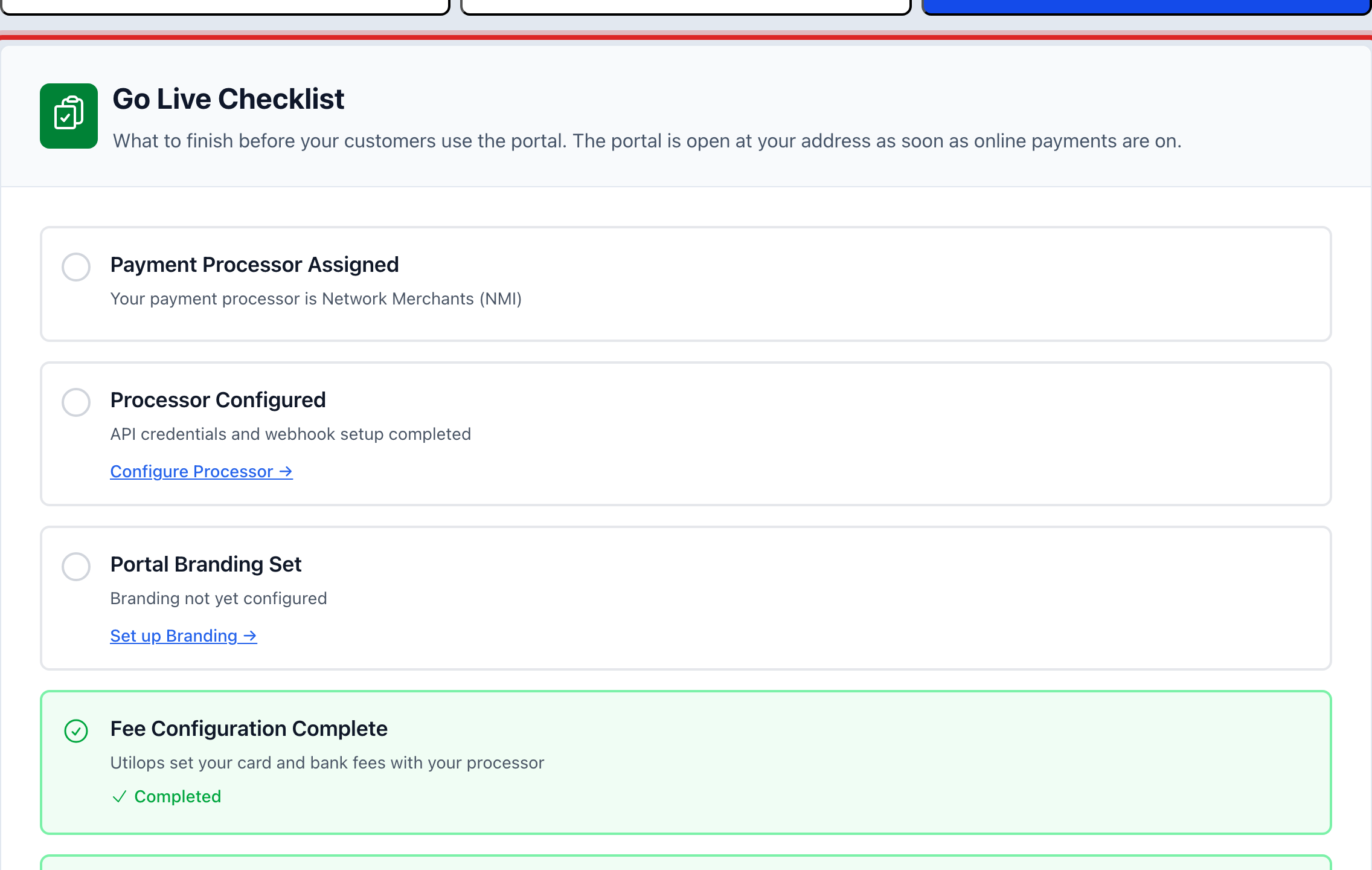
Click the Go Live Checklist tab at the top of the page.
Each line is one thing to finish before you tell customers. A green check means it is done. A line that is not done has a link to the page that finishes it.
You are done when
You have the address copied, and you know which lines on the checklist still need work.
If something looks different
You have your own website. Click the Embed Code tab. Under Embed Options, pick one of the four buttons or links, change the words and colors, and click Copy Code. Your website person pastes it in.
The checklist says the payment company is not set yet. Card and bank payments are turned on by Utilops. See the Integrations lesson on applying for them.
You want a shorter address. Lesson 8 shows how to use your own web address, like pay.yourtown.gov.