
Appearance
6. Group customers by where they live
When you need this: a main break on one street, flushing in one neighborhood, a pressure problem on one side of the hill. You draw around the area on a map and every customer inside it becomes a group you can message.
Steps
On the left side of the screen, click Customer Messaging, then click Geographic Targeting.
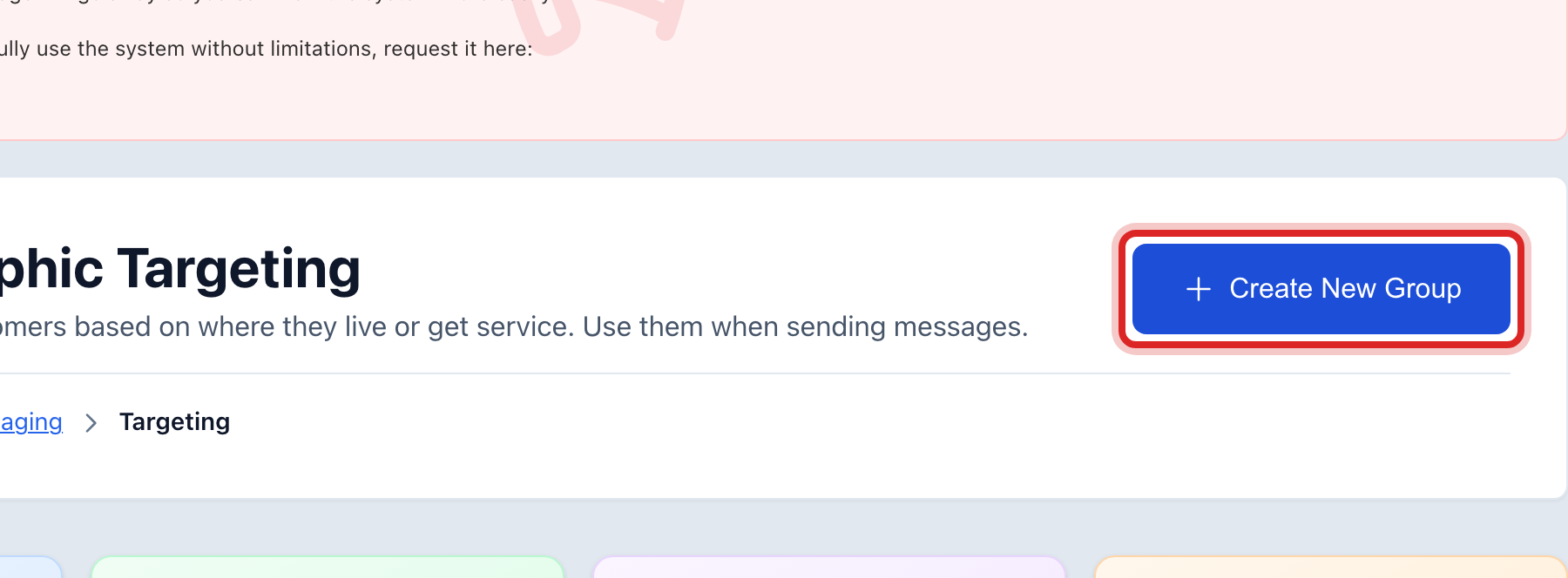
Click the blue Create New Group button at the top right.
A map of your service area opens. Click the drawing tool, then click points on the map around the area. Close the shape by clicking the first point again.
The customers inside the shape are counted for you. Give the group a name, like West Main break, and click Save.
You are done when
The group shows in the list with a member count. On the send page, pick Geographic Zone or Contact Group and choose it by name.
If something looks different
No customers show inside your shape. Their service addresses may not be placed on the map yet. Under GIS Mapping there is a tool to place them from their addresses.
You want everyone on one route instead. Make a contact group, lesson 4, and pick the route.