
Appearance
3. Save a message you send often
When you need this: hydrant flushing every spring, a holiday office closing, a payment reminder. If you send it more than once, save it. Then it is one click on the send page, already written.
Steps
On the left side of the screen, click Customer Messaging, then click Saved Messages.
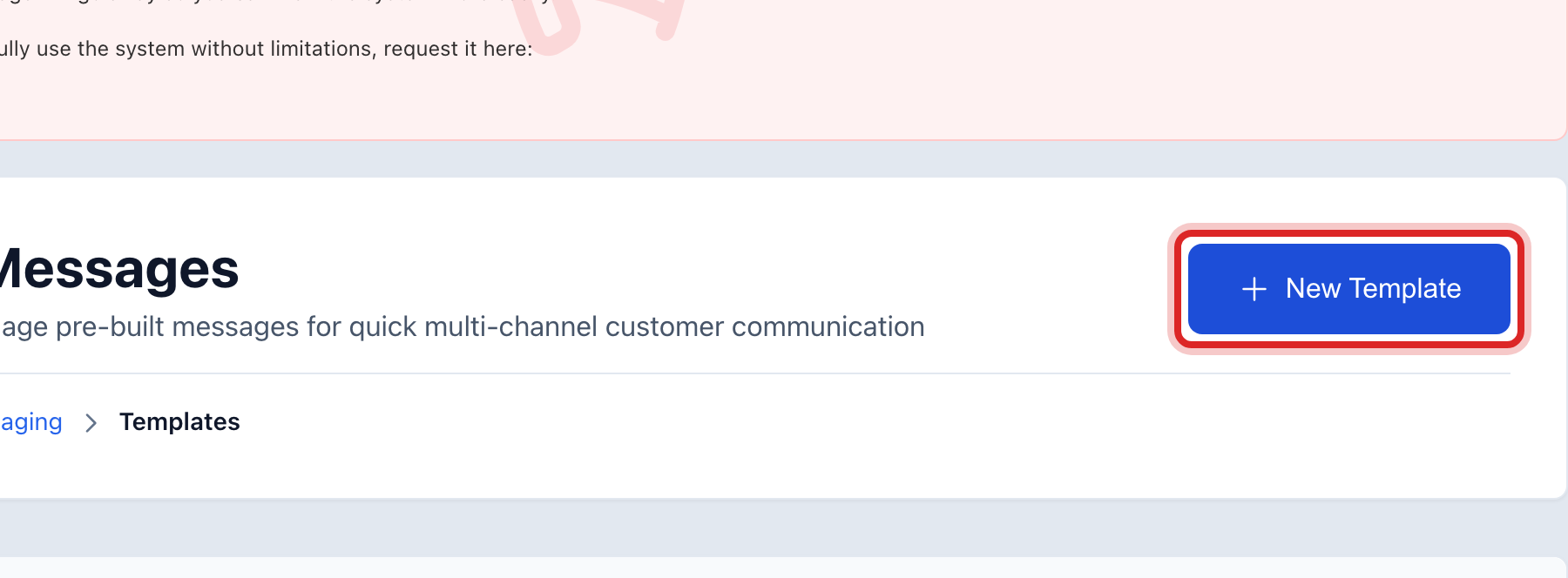
Click the blue New Template button at the top right.
A four step form opens. Step one: give the message a name you will recognize later, like Hydrant Flushing. Click Next.
Step two: pick how it goes out, text, email, or both. Click Next.
Step three: write the message. You can put the customer's name in it with the Insert button, and Utilops fills in the right name for each person. Click Next.
Step four: read it over. Click Save.
You are done when
The saved message shows in the list. On the send page it appears under Quick Templates at the top. Click it there and everything is filled in.
If something looks different
You want it on the send page every time. When you save it, tick Show as a quick template. Only ticked ones show at the top of the send page.
You want to change one. In the list, click the pencil on its card, change it, and save. Messages you already sent do not change.