
Appearance
5. Turn an automatic message on or off
When you need this: some messages should go out without anyone remembering to send them. A reminder three days before a bill is due. A thank you when a payment comes in. A warning before a shutoff. Each one is a rule you switch on once.
Steps
On the left side of the screen, click Customer Messaging, then click Automation & Triggers.
Each row is one rule. The name says when it sends and to whom. The status says whether it is running.
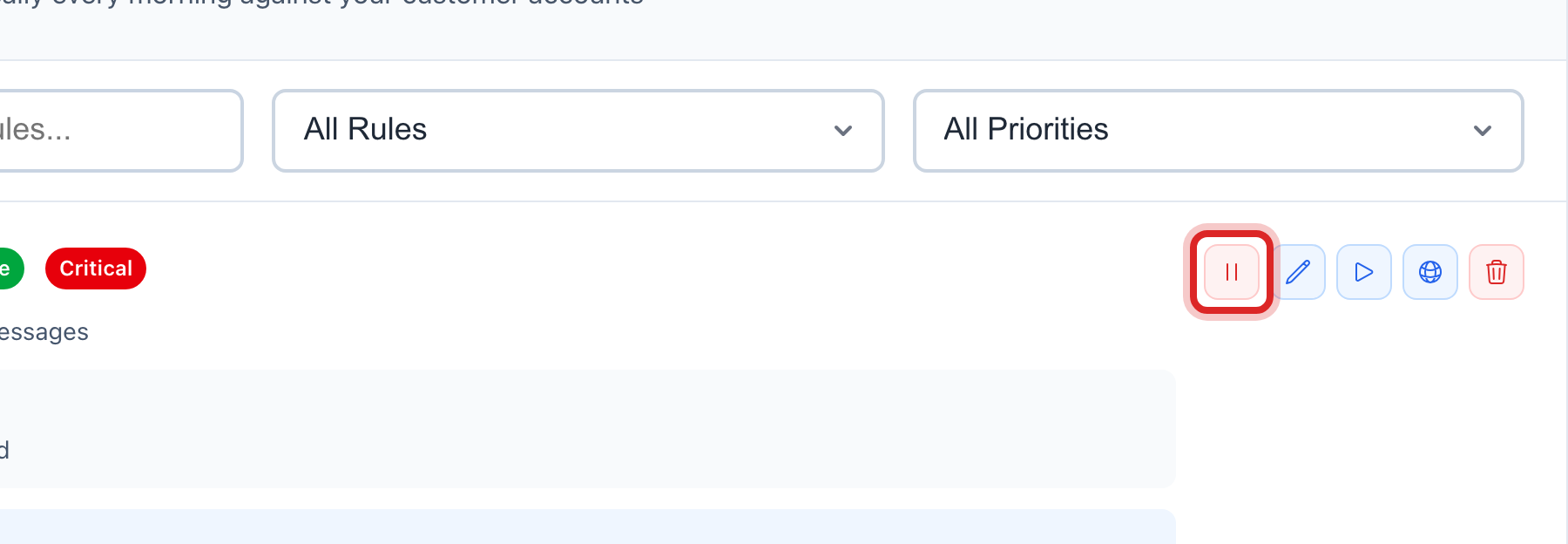
To turn a rule on or off, click the switch button at the right end of its row. Green means it is running.
To see or change what a rule says, click its name. You can change the words and how many days before or after.
You are done when
The status on the row changes. Utilops checks every rule once a day and sends what is due.
If something looks different
You cannot click the switch. Only administrators can turn rules on and off. Ask yours.
A rule sent something you did not expect. Open Message History, find it, and click the eye button. The report names the rule that sent it. Turn that rule off here if it should not run.