
Appearance
2. See if a message got through
When you need this: a customer says they never got the notice. Or you sent something to everyone and want to know how many actually received it. Every message, sent or received, is listed here with what happened to it.
Steps
On the left side of the screen, click Customer Messaging, then click Message History.
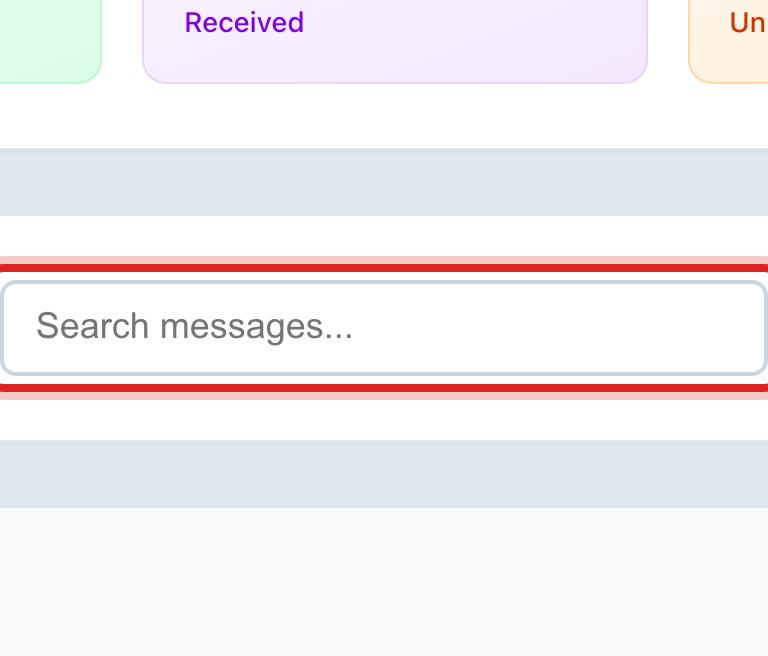
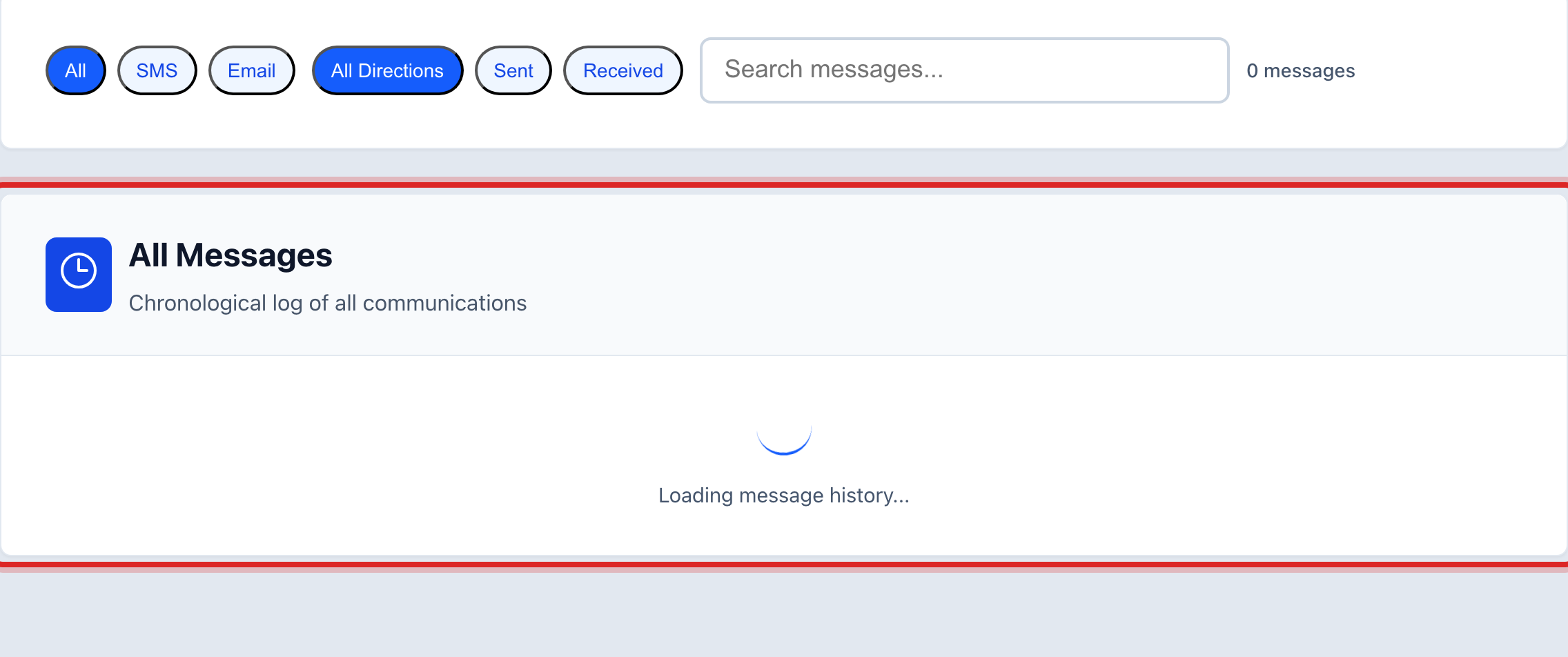
To find one message, type the customer's name or a word from the message in the search box. The list narrows as you type.
Each row is one message: who, what, how it went out, and when.
To see what happened to a message you sent to many people, click the eye button at the right end of its row. That opens the Delivery Report.
The Delivery Report shows the count delivered, the count that failed, and each person by name with the reason if it did not get through. A wrong number or a full mailbox shows right there.
You are done when
You can tell the customer whether the message was delivered, and if not, why.
If something looks different
A message says Suppressed. Your utility was in migration mode when it was sent, so it was held and never went out. Ask your administrator if it needs to be sent again.
A text failed with "not a mobile number." The phone on the account is a landline. Fix the number on the customer's account or use a phone call next time.