
Appearance
8. Send a message to the field crew
When you need this: the weather turned, a road is closed, or everyone needs to be back by three. One message goes to every person in the field at once, as a text on their phone.
Steps
On the left side of the screen, click Work Orders, then click Mobile Field Operations.
Under Field Technicians, click Send Broadcast.

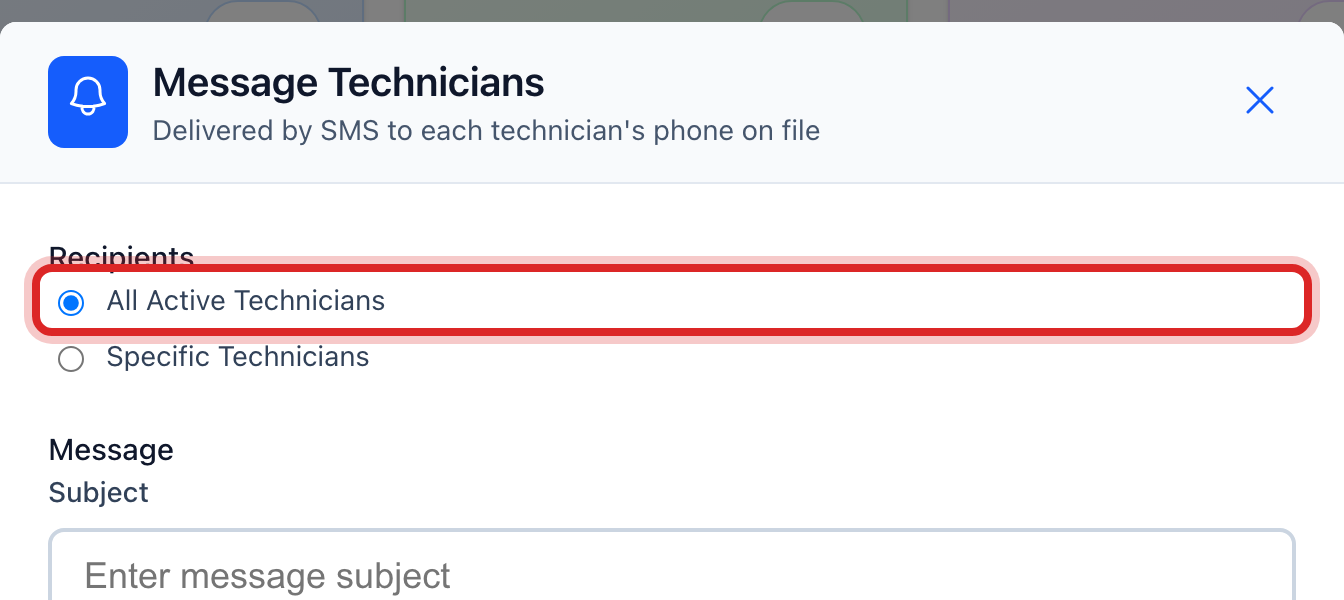
Under Recipients, leave All Active Technicians picked.
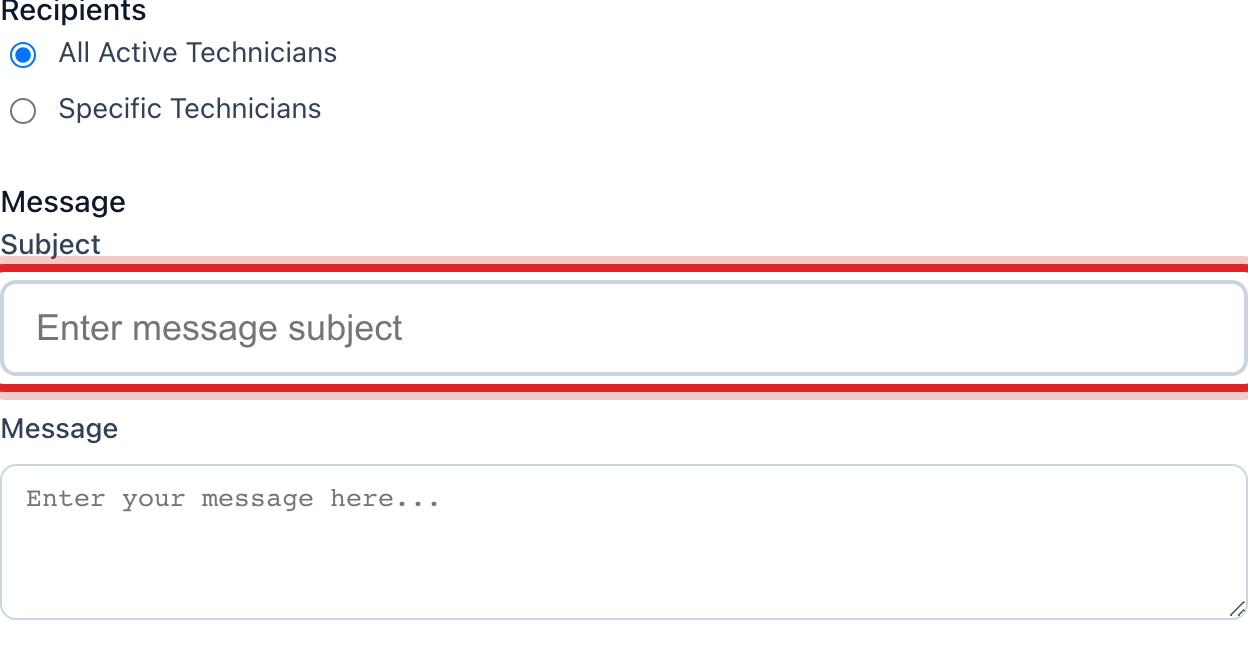
Type a short Subject.
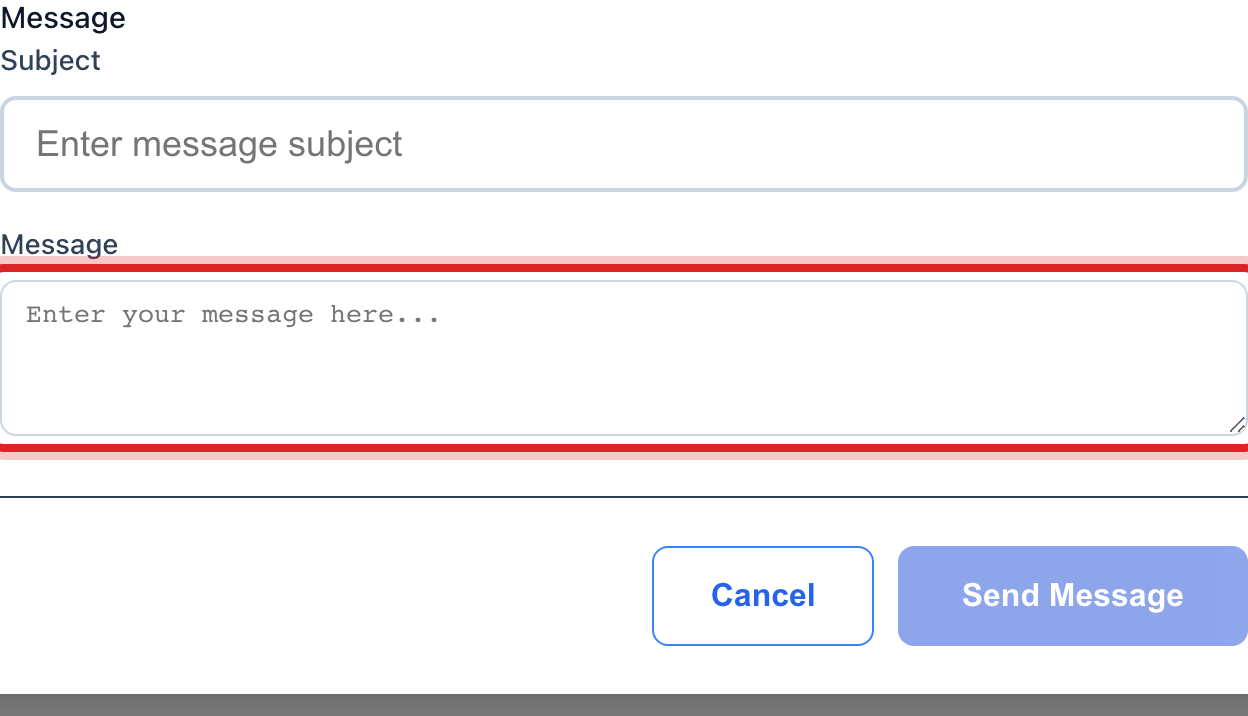
Type the Message. Keep it to a sentence or two, the way you would text.
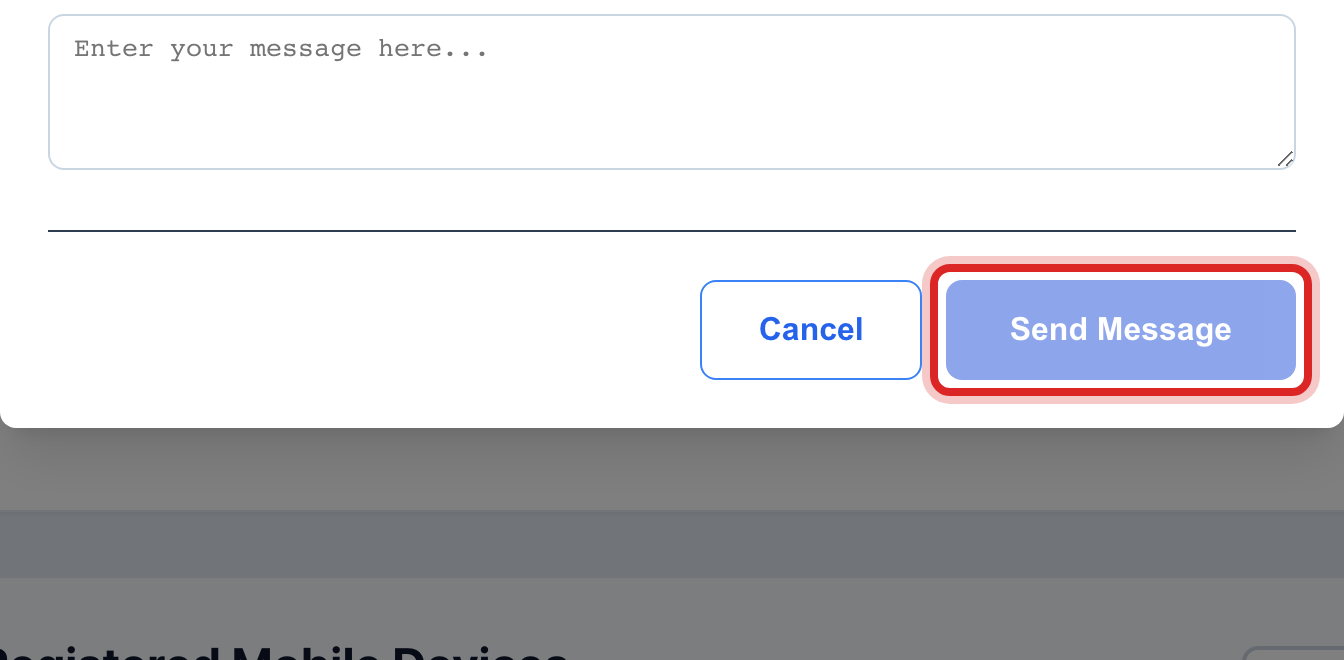
Click Send Message.
You are done when
A green message says it was sent. Each person gets it as a text on the phone number on their staff record.
If something looks different
Only one or two people need it. Pick Specific Technicians, then tick the names.
A name says no phone on file. That person cannot get texts until a cell number is on their staff record. Add it under Settings at the very bottom of the left side, then User Management.
The list of people is empty. Nobody is marked as a field technician. Ask your administrator to set the role on their staff record.
The page says Advanced Feature. Mobile Field Operations is turned off for your utility. Ask your administrator to turn it on. There is no extra charge.
Texts are included. There is no charge for a message and no limit.