
Appearance
5. Keep track of time on a job
When you need this: the board wants to know what a job cost. You start a clock when the work starts and stop it when it ends. Utilops adds up the hours for you.
Steps
On the left side of the screen, click Work Orders, then click Time & Material Tracking.
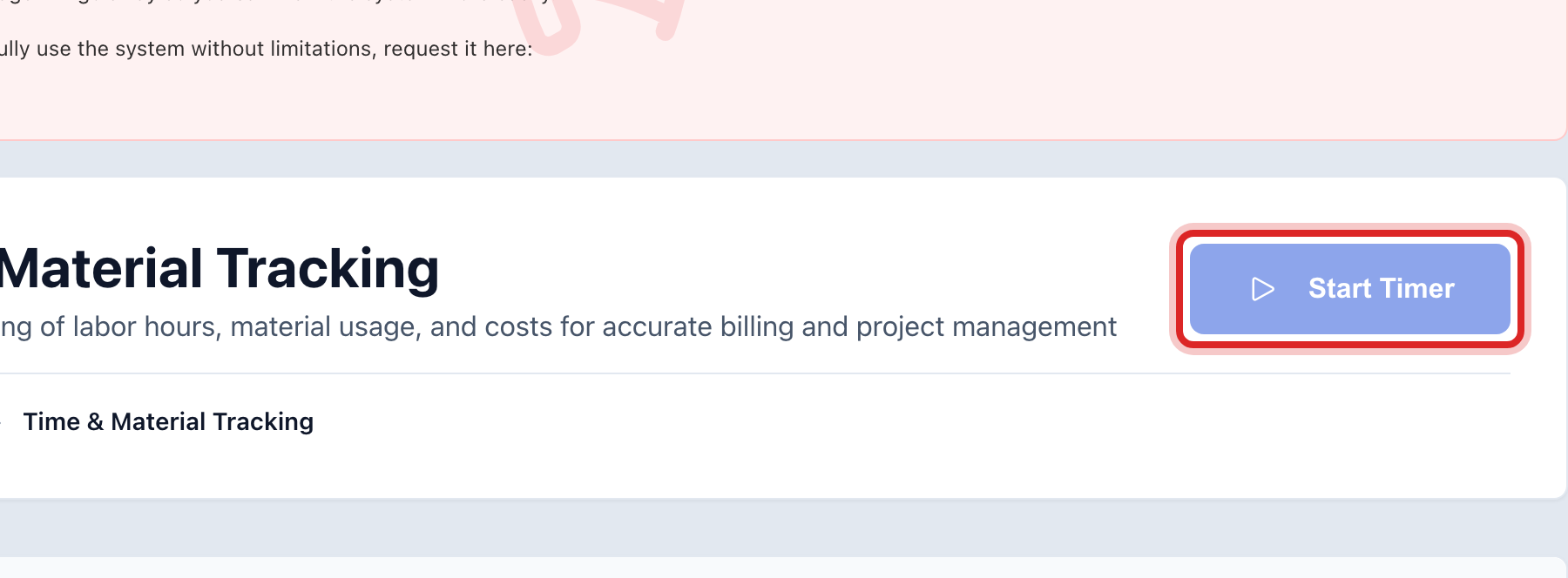
Click Start Timer at the top right.
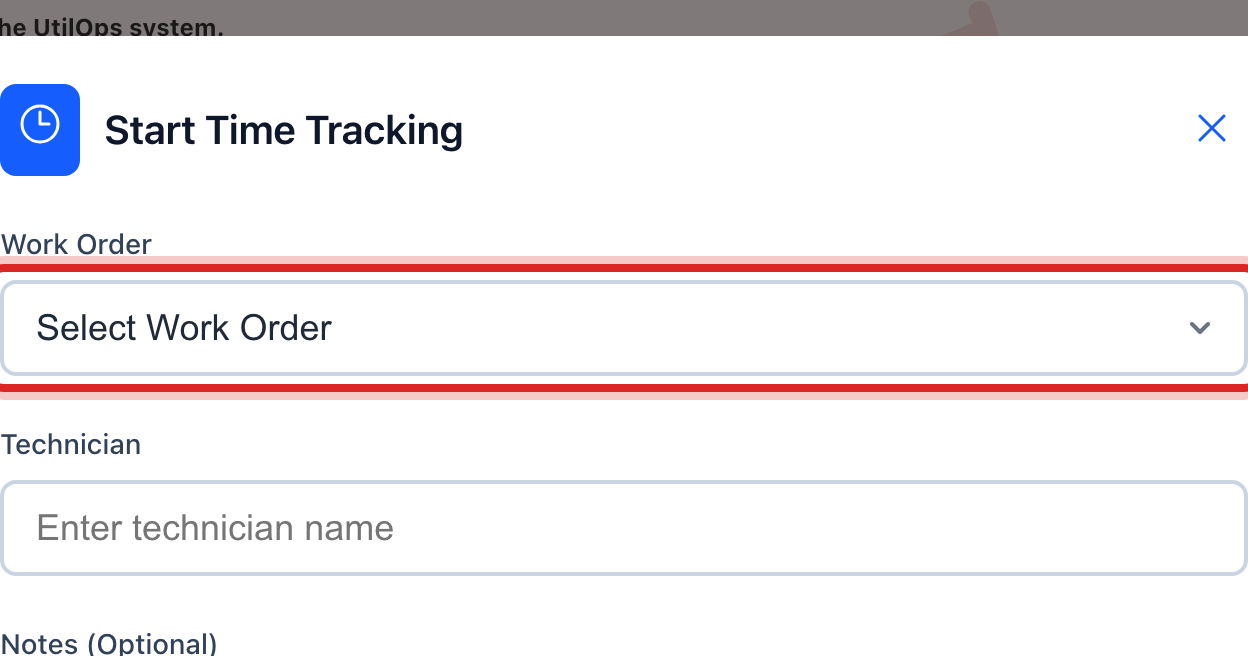
Pick the Work Order the time is for.
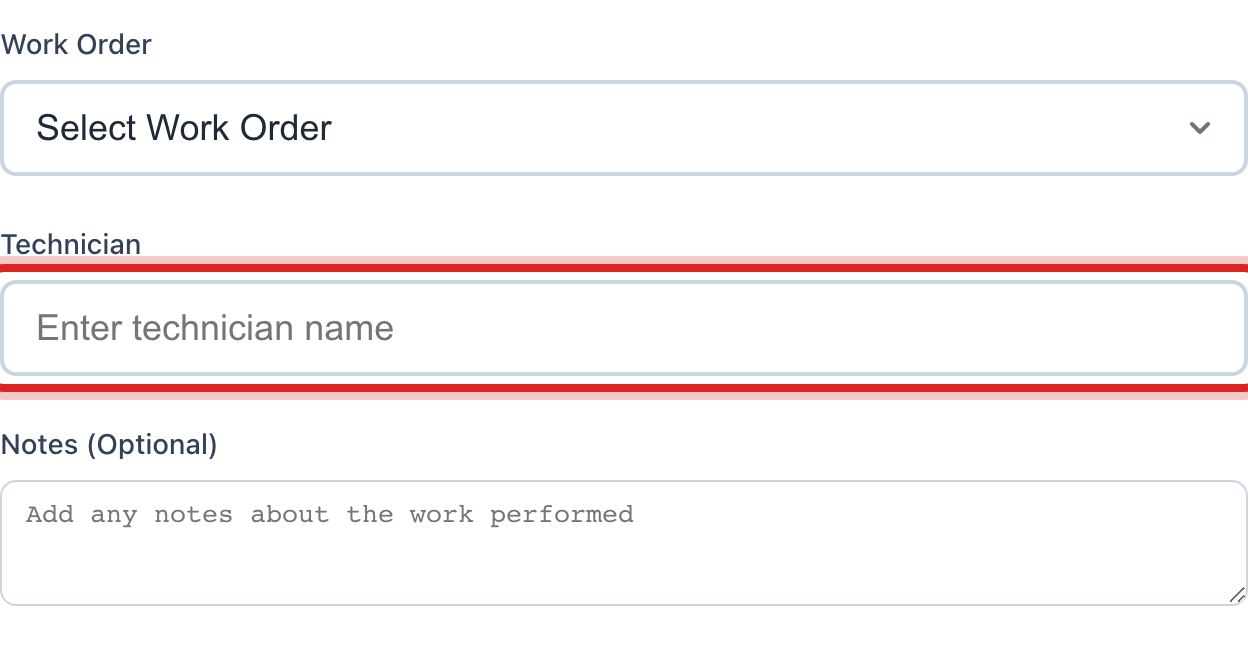
Type the Technician name. That is the person doing the work.
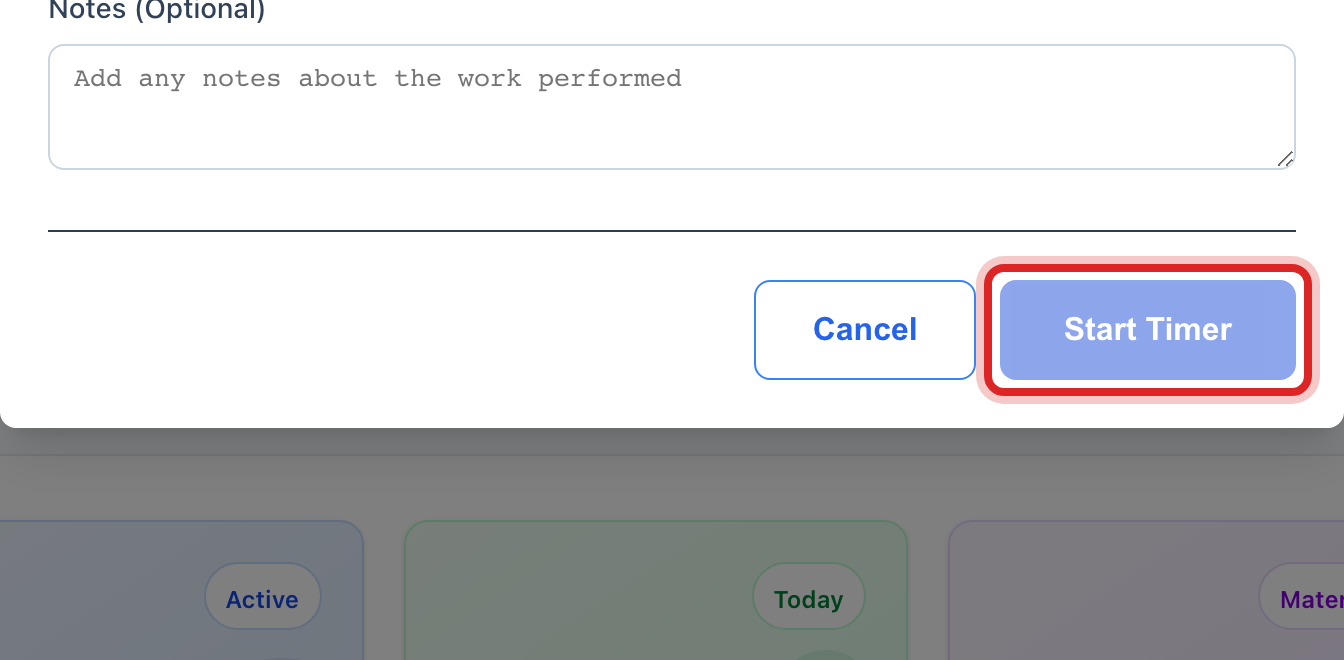
Click Start Timer at the bottom of the window.
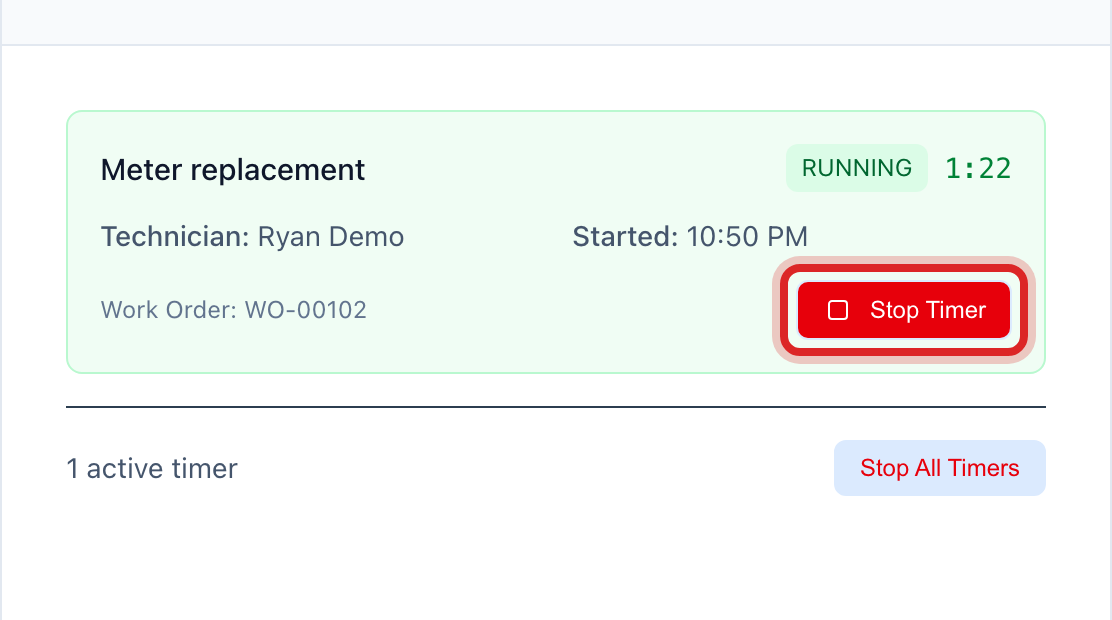
The job now shows under Active Time Tracking with a running clock. When the work is done, click Stop Timer on it.
Made a mistake? Click Undo on the green message that appears, or open Show me how at the top and pick Undo a mistake.
You are done when
The job moves down to Time Entry History with the hours worked and the status Completed.
If something looks different
You used parts. Under Recent Material Usage, click Add Material. Pick the Work Order, type the Item Name, the Quantity and the Unit Cost ($), then click Add Material. The cost lands on the job.
You forgot to stop the clock. Find the entry under Time Entry History and click the pencil at the right end of its row. Fix the End Time and click Update Entry.
Everyone is done for the day. Click Stop All Timers at the top of the active list.
The page says Advanced Feature. Time tracking is turned off for your utility. Ask your administrator to turn it on. There is no extra charge.