
Appearance
6. Save a job you do often
When you need this: hydrant flushing, a meter change, a yearly tank inspection. You type the same work order every time. Save it once as a template. Next time it is one click and an address.
Steps
On the left side of the screen, click Work Orders, then click Work Order Templates.
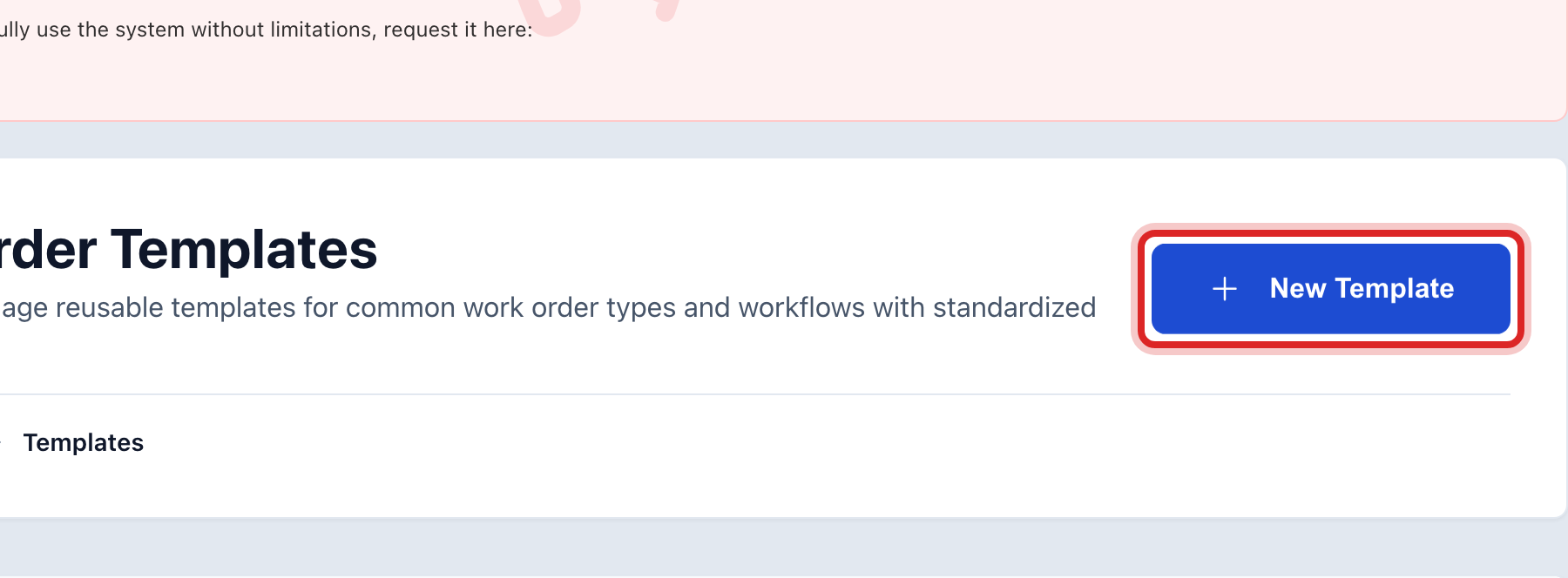
Click New Template at the top right.
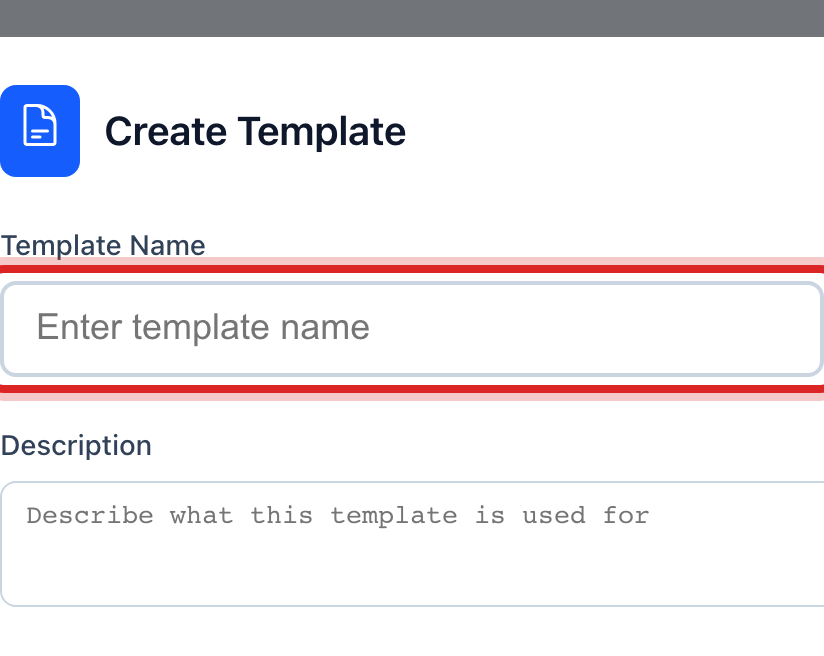
Type the Template Name. Say what the job is, like Hydrant flushing.
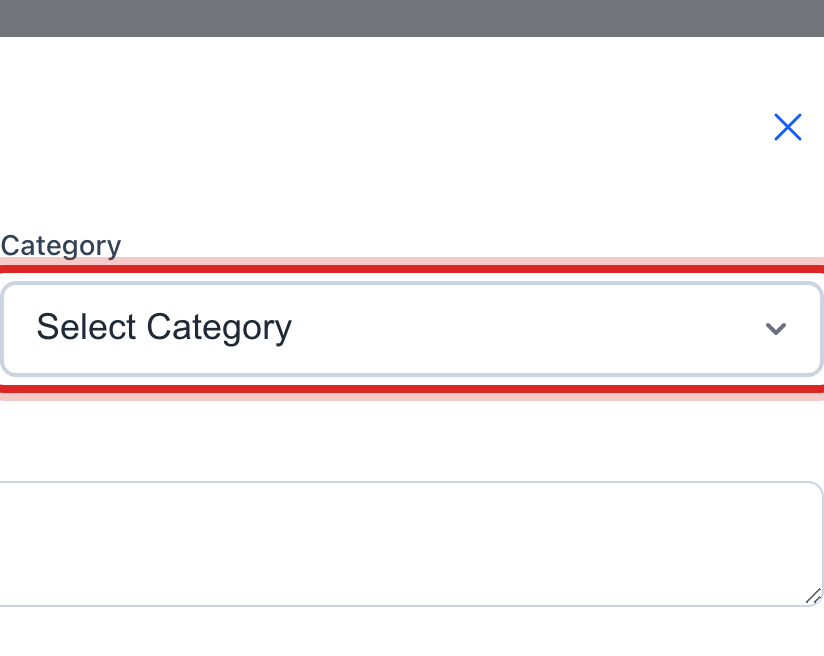
Pick a Category, like Maintenance or Inspection.
Pick the usual Priority. Set Status to Active so the template can be used right away.
Under Work Instructions, type the steps the crew should follow. Write it so a new person could do the job.
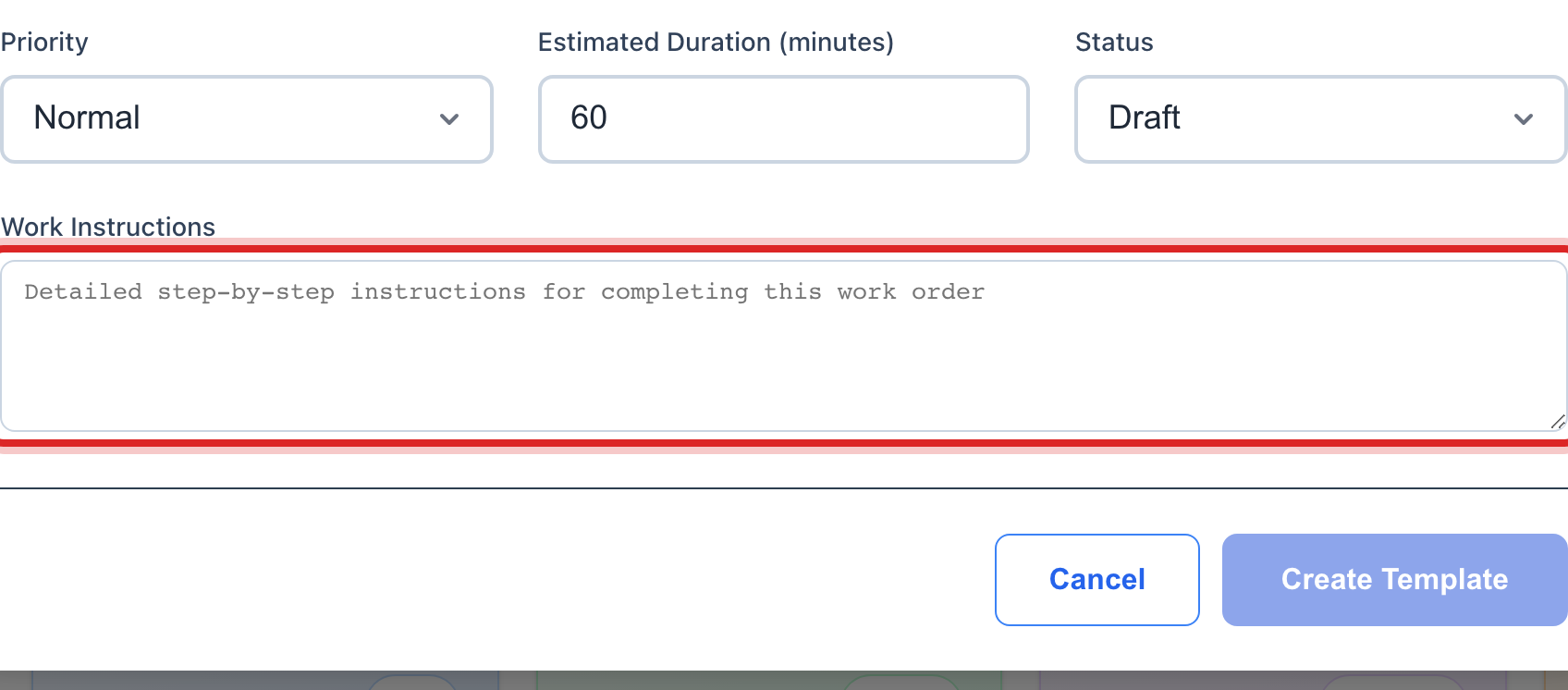
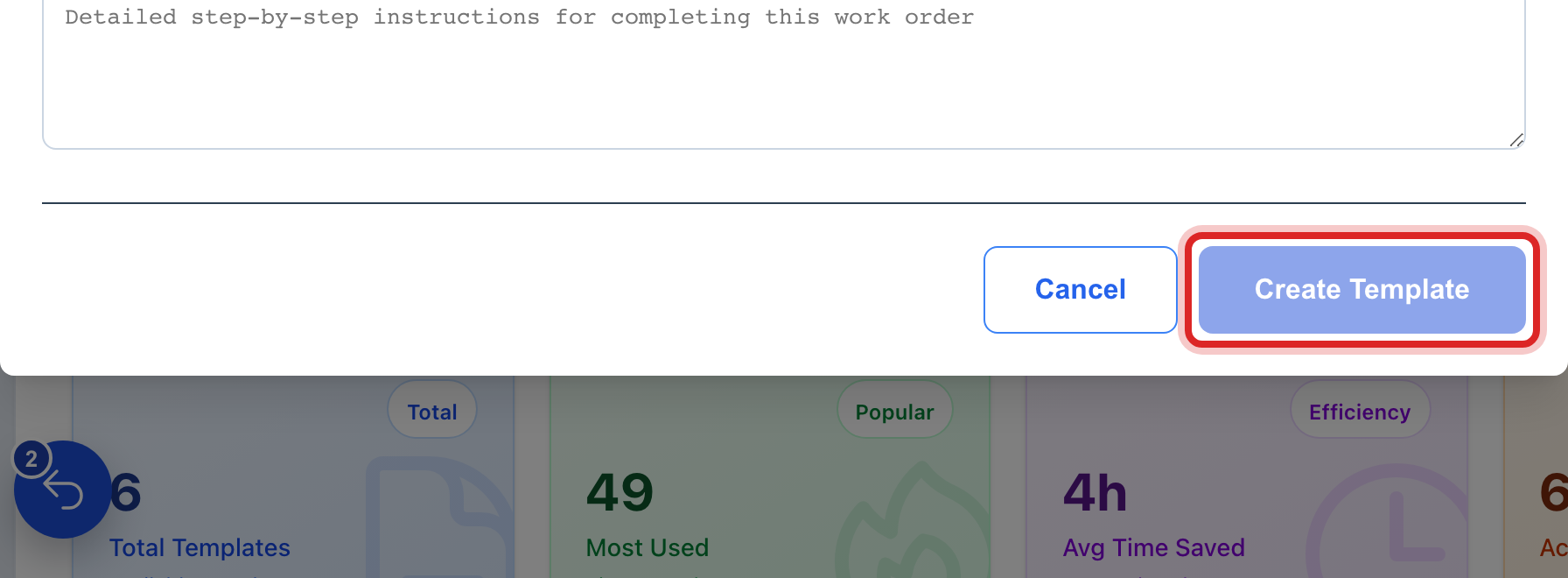
Click Create Template.
Next time the job comes up, find the card under Template Library and click Use Template. The new work order window opens already filled in. Add the address and click Create Work Order.
Made a mistake? Click Undo on the green message that appears, or open Show me how at the top and pick Undo a mistake.
You are done when
The template shows as a card under Template Library with the word Active on it.
If something looks different
The card says Draft. It was saved with the status Draft. Tick the box on the card and click Activate Selected, or click Edit and set Status to Active.
You want to change the steps later. Click Edit on the card, change the words, and click Update Template.
You are on the Work Orders home page. The Use Template button there opens the same list.
The page says Advanced Feature. Templates are turned off for your utility. Ask your administrator to turn them on. There is no extra charge.