
Appearance
4. Handle a main break
When you need this: water is in the street. You need a work order fast, a person on the way, and a record of when it was fixed. This page does all three with the fewest clicks.
Steps
On the left side of the screen, click Work Orders, then click Emergency Orders.
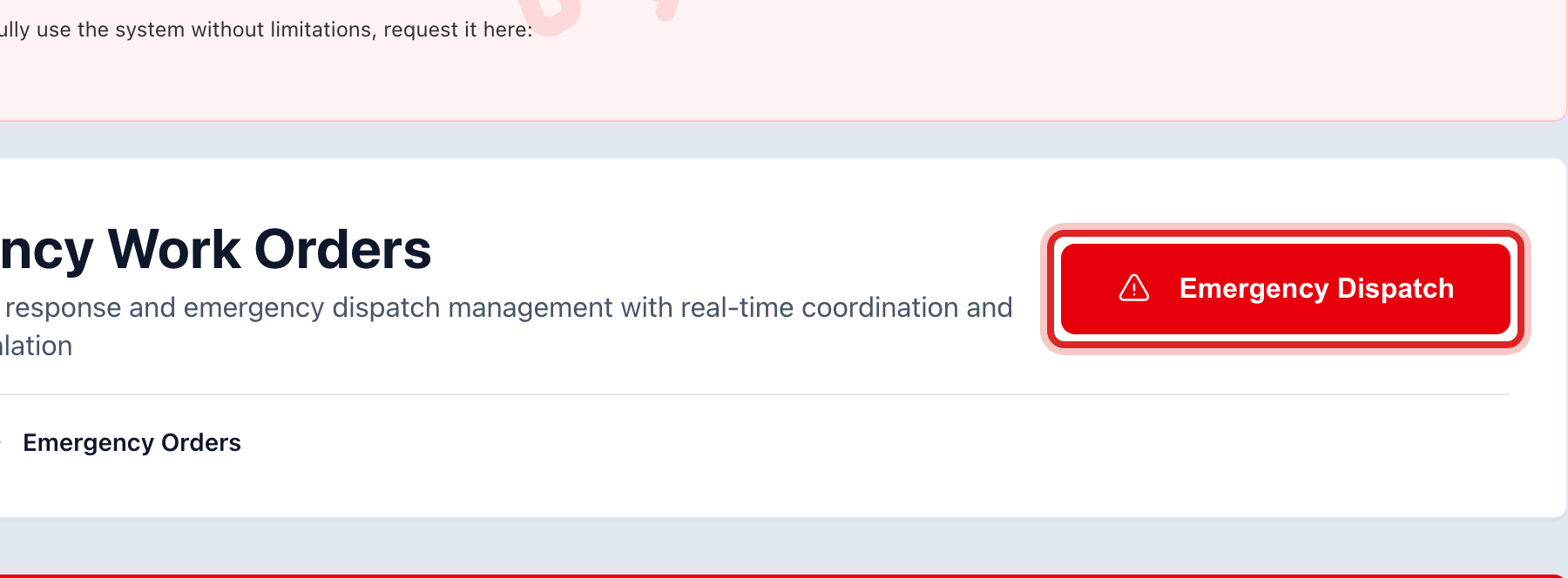
Click the red Emergency Dispatch button at the top right.
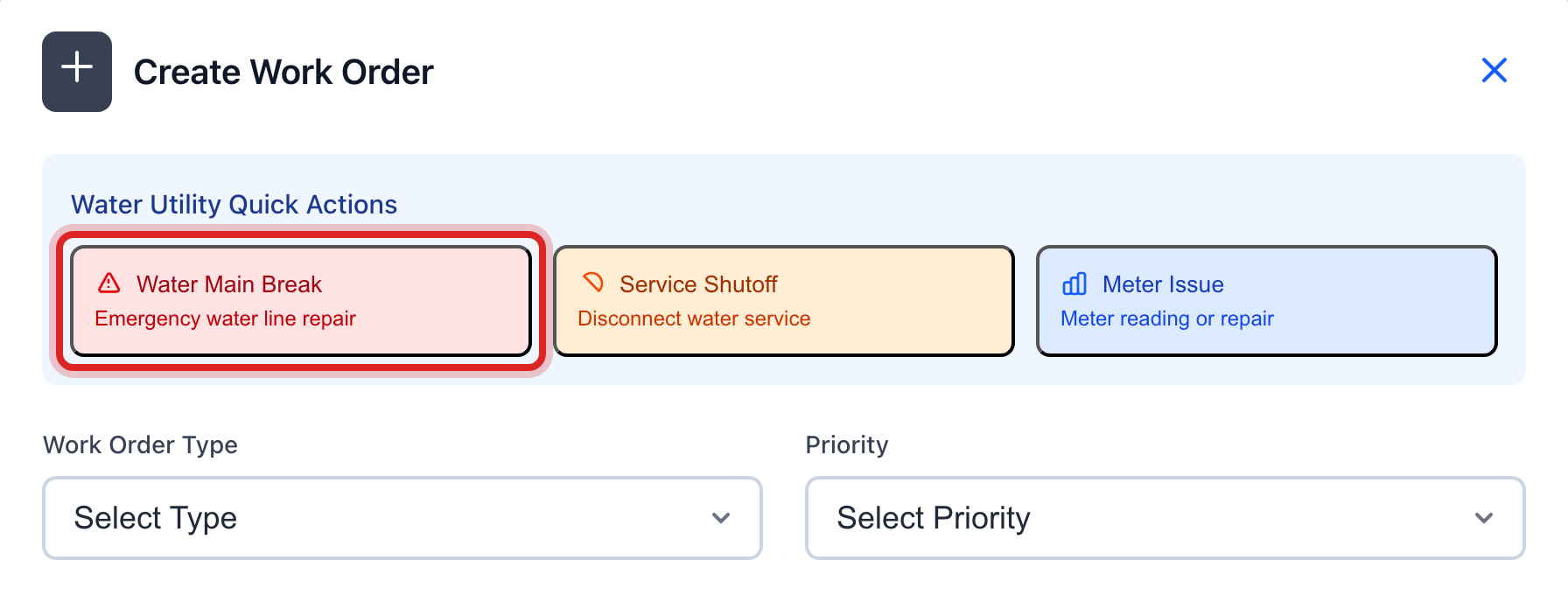
Under Water Utility Quick Actions, click Water Main Break. The type, how urgent it is and the title fill in for you.
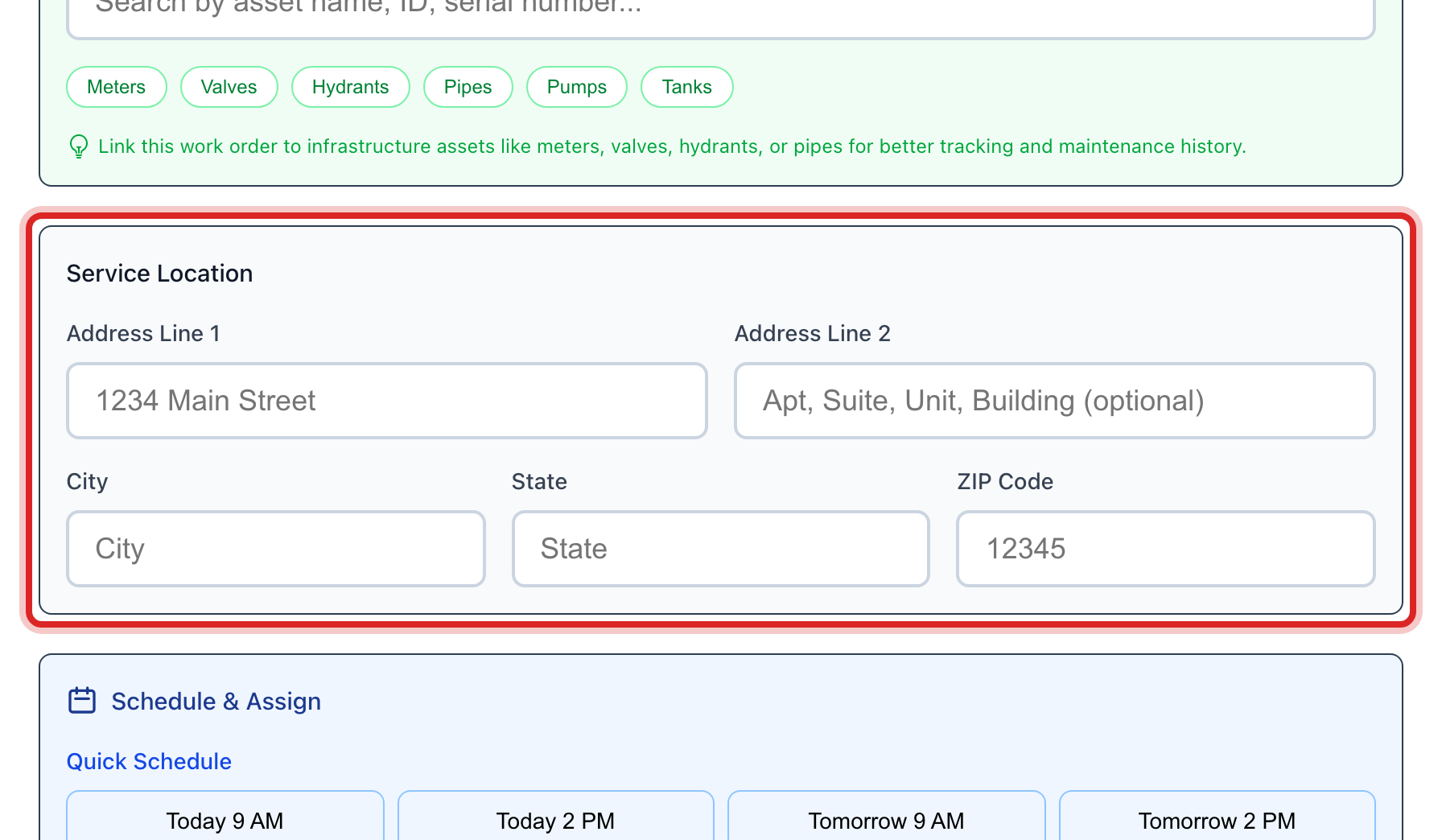
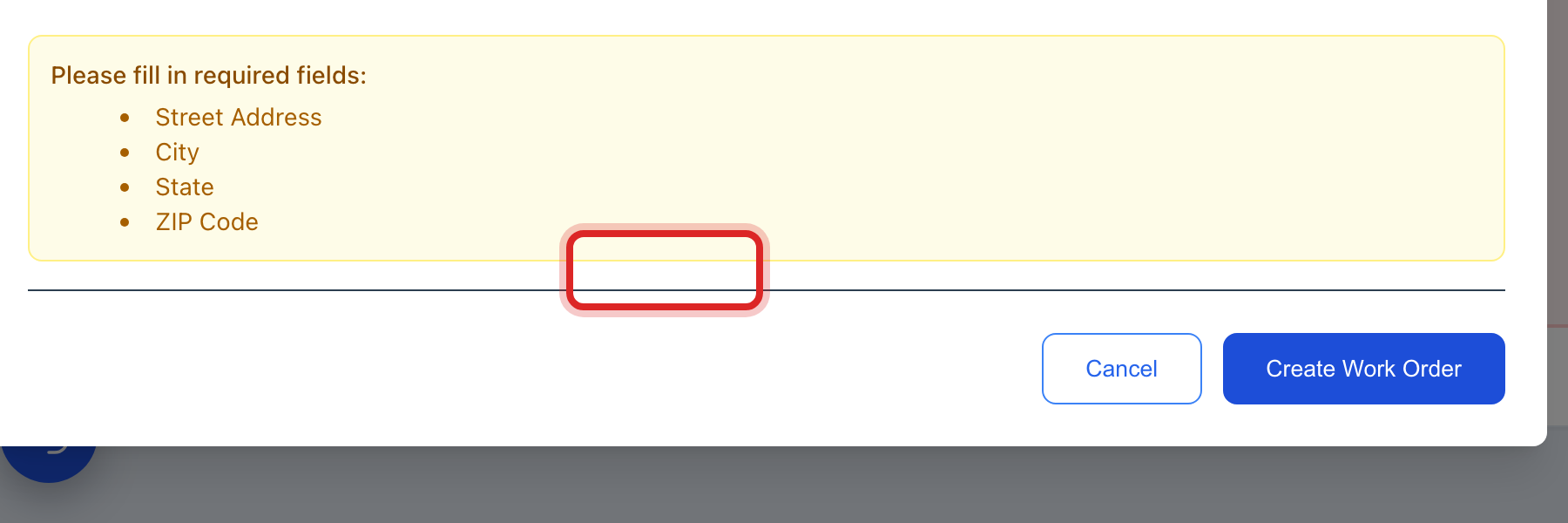
Under Service Location, type the address: Address Line 1, City, State and ZIP Code.
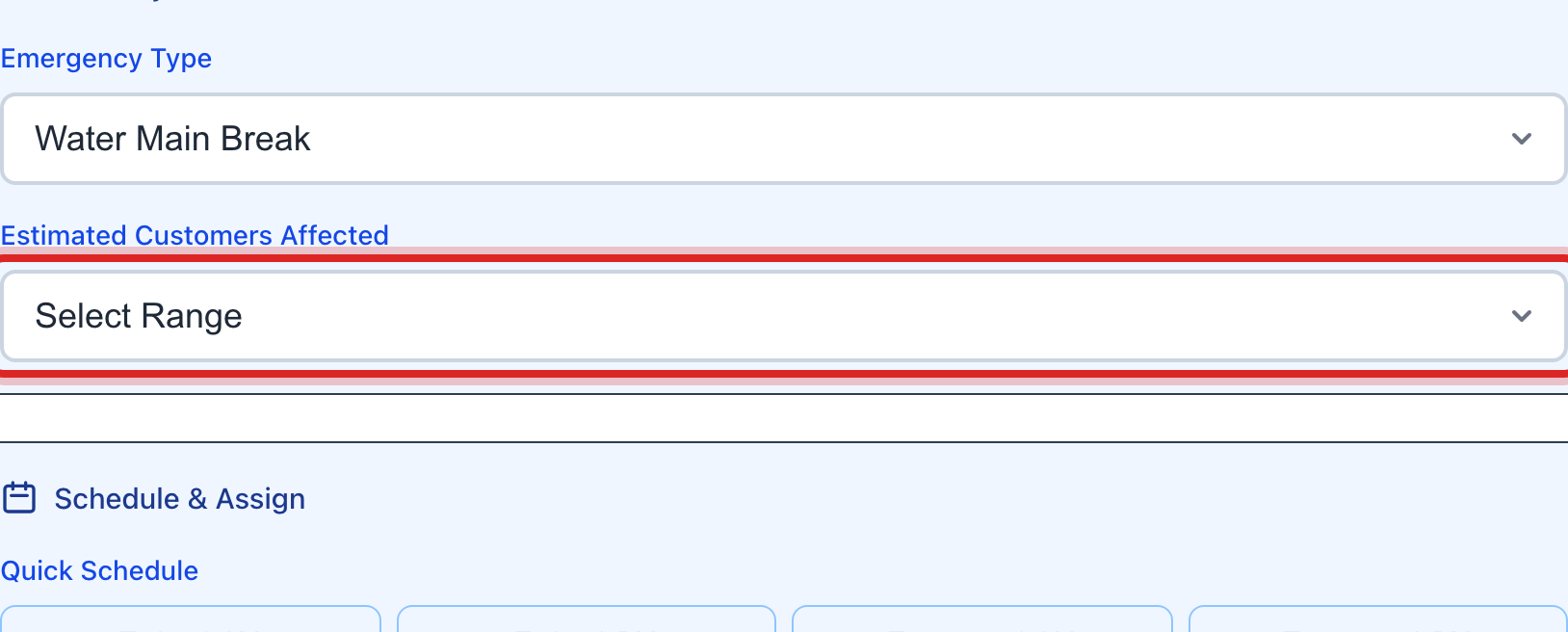
Under Water Utility Details, pick Estimated Customers Affected. A guess is fine.
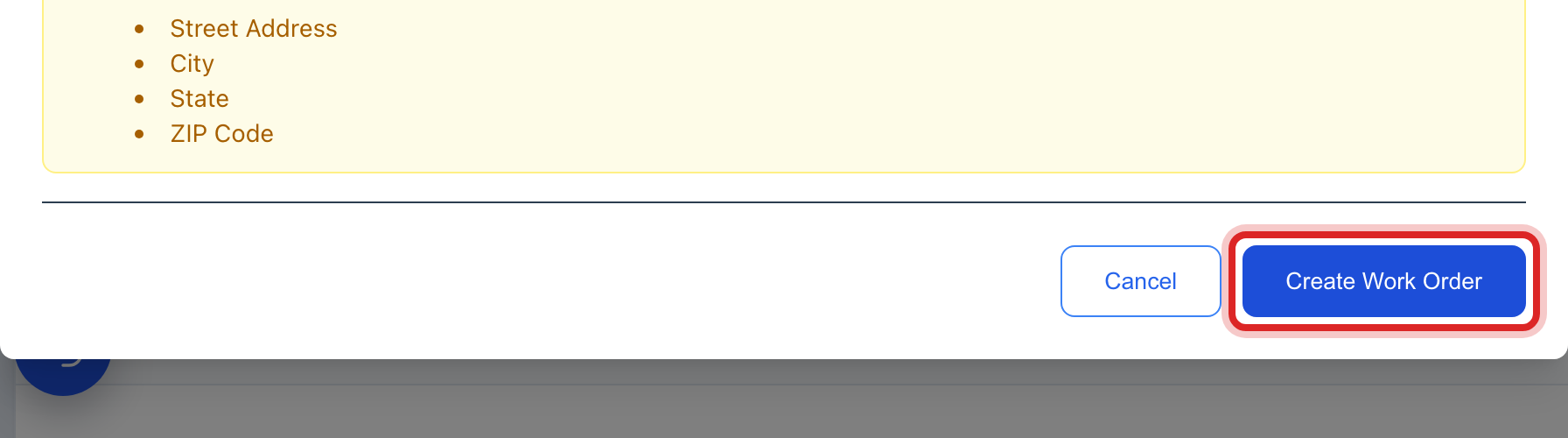
Click Create Work Order.
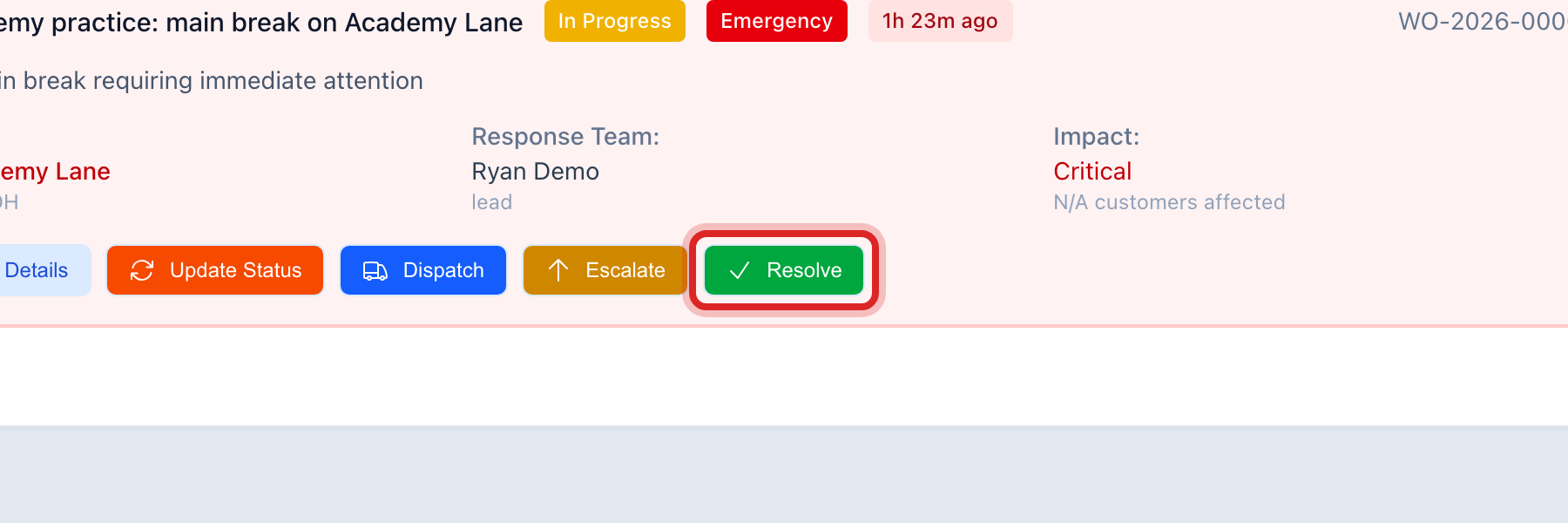
The break is now at the top of the list. Click Dispatch on its row.
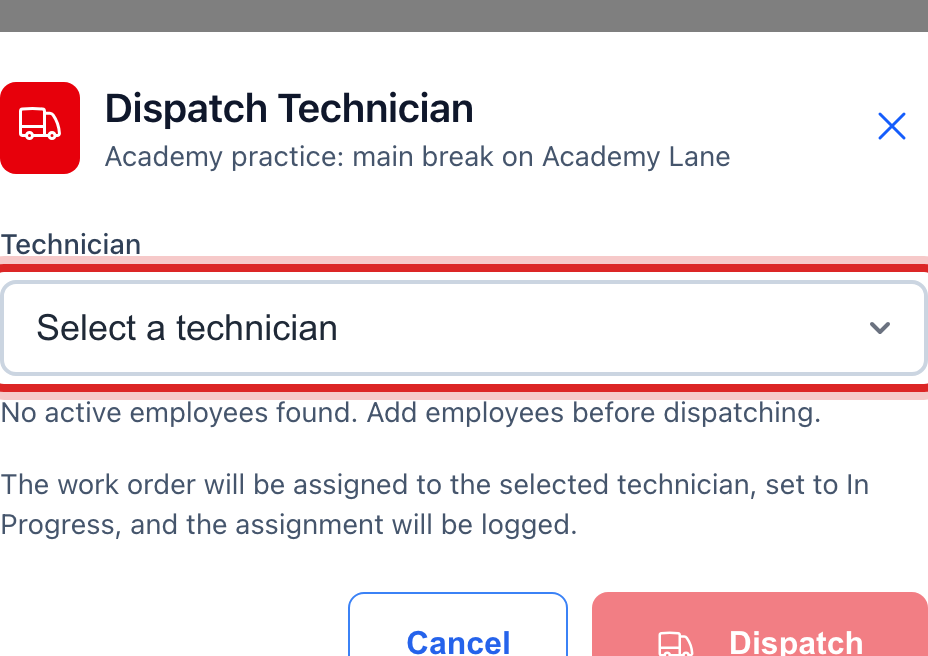
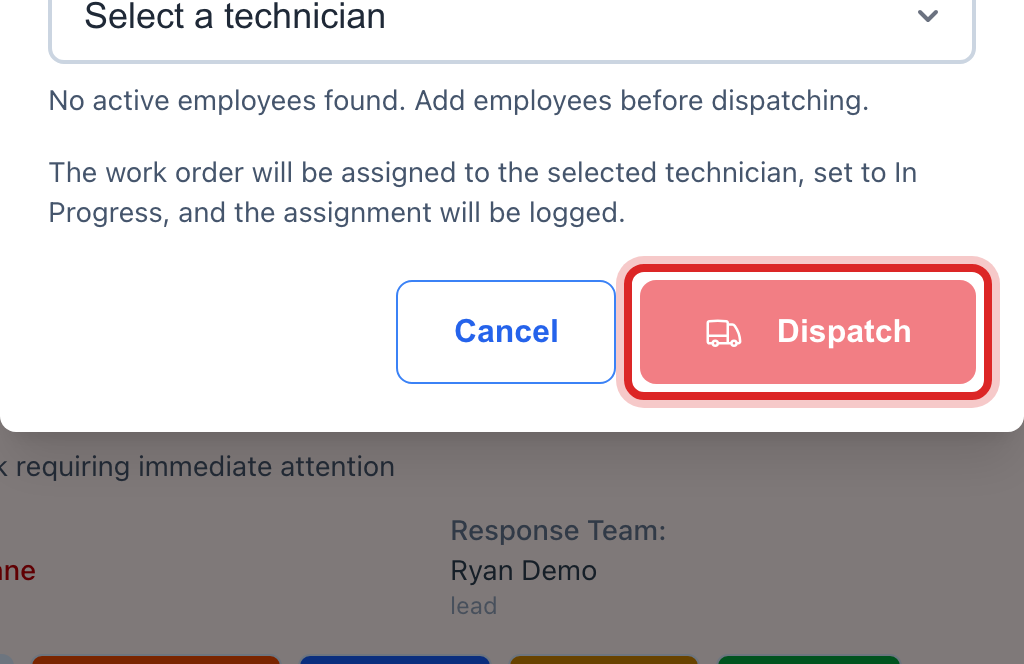
Pick the Technician who is going, then click Dispatch.
When the water is back on, click Resolve on the row, then click Resolve again to say yes.
Made a mistake? Click Undo on the green message that appears, or open Show me how at the top and pick Undo a mistake.
You are done when
The row reads Completed and drops off the list. The red EMERGENCY RESPONSE ACTIVE band at the top goes away when no break is open.
If something looks different
Customers need to know. Go to Customer Messaging and send a notice. Quick start page 25 shows the boil water notice.
It got worse. Click Escalate on the row. The job moves up to the top and the change is logged.
You want to move it along one step at a time. Click Update Status on the row. Each click moves the job to the next step, Pending to Scheduled to In Progress to Completed.
You want the step by step plan. Click Protocols above the list. It lists what to do for a main break, an outage and a water quality problem, and who to call.