
Appearance
1. Find a work order and update it
When you need this: a customer calls to ask about a job. The crew says a job is on hold until a part comes in. Someone else will do it now. You find the work order and change what needs changing.
Steps
On the left side of the screen, click Work Orders, then click Active Orders. Every open job is in the list.
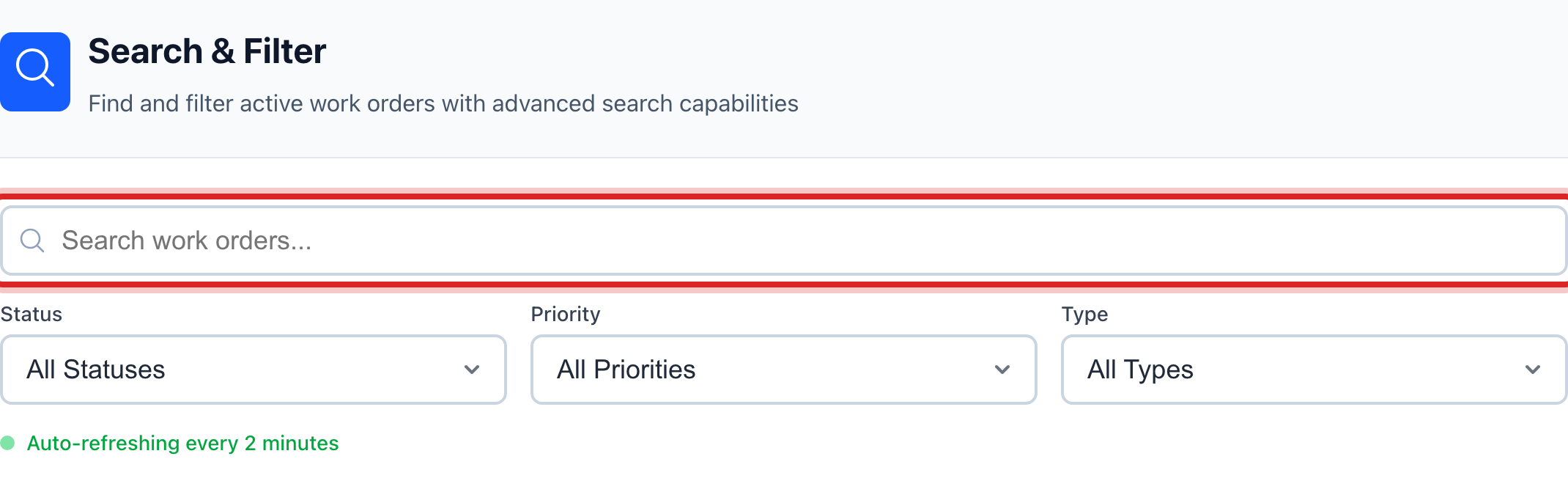
Click in the search box at the top of the list. Type part of the job name, the street or the customer's name. The list shrinks as you type.
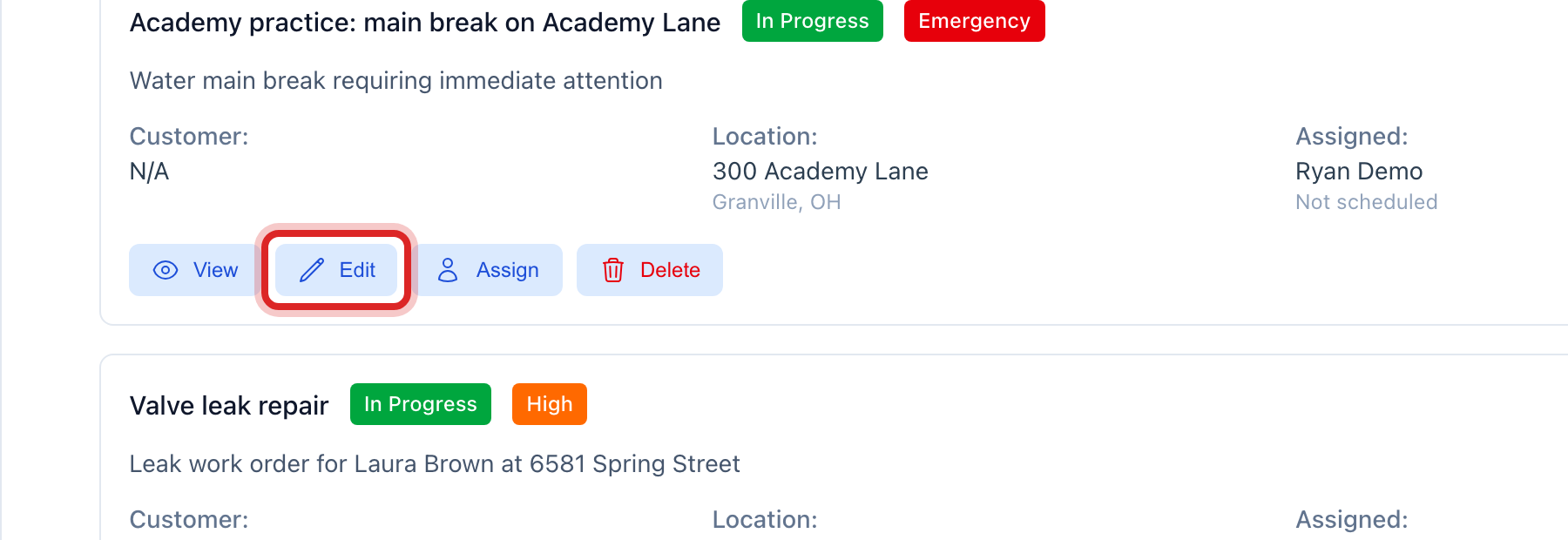
Find the row and click Edit.
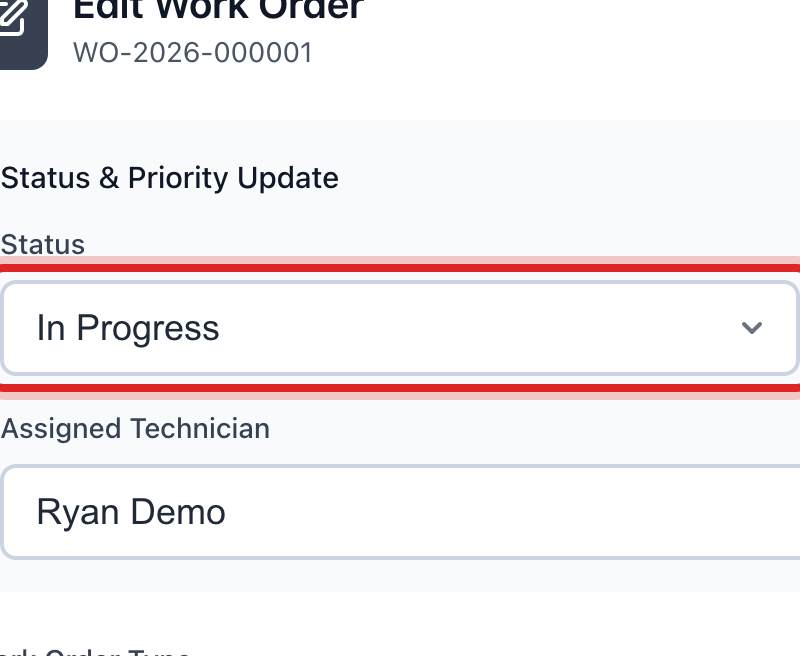
Under Status & Priority Update, pick the new Status. Pending, Scheduled, In Progress, On Hold, Completed or Cancelled.
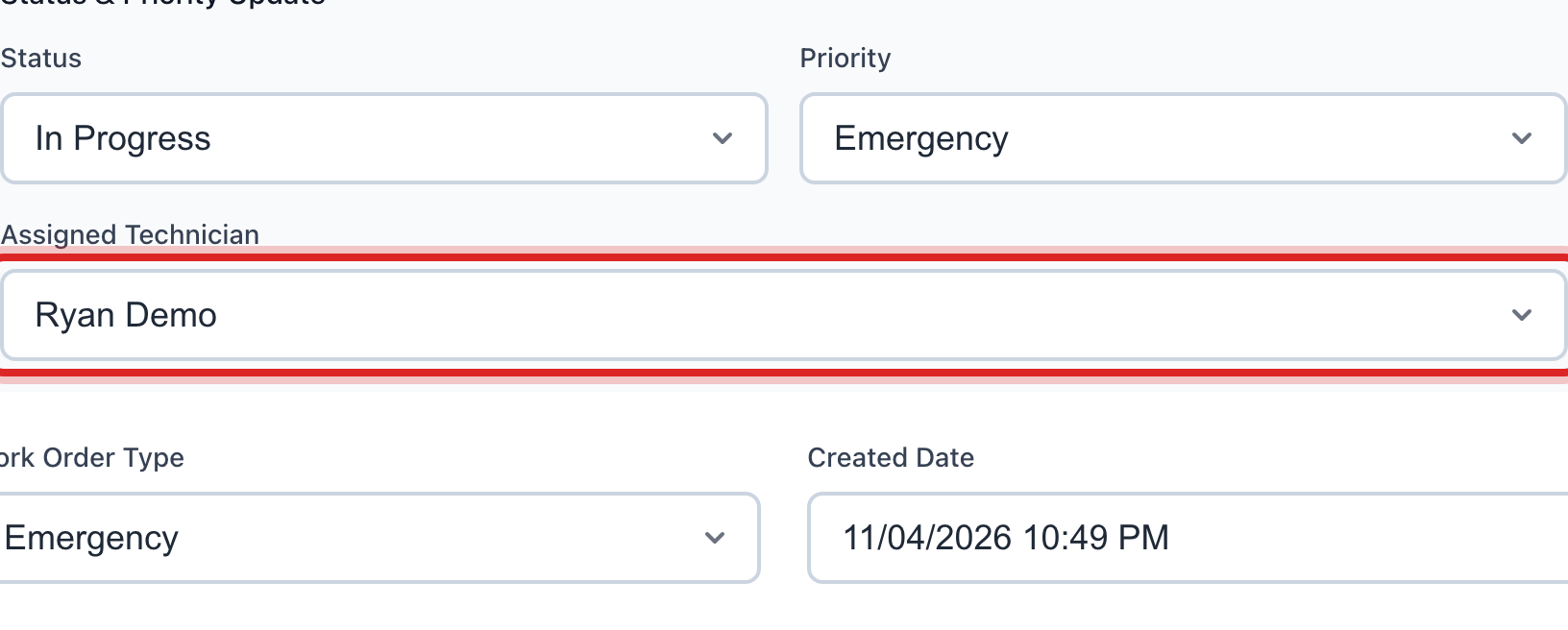
To hand the job to someone, pick their name under Assigned Technician.
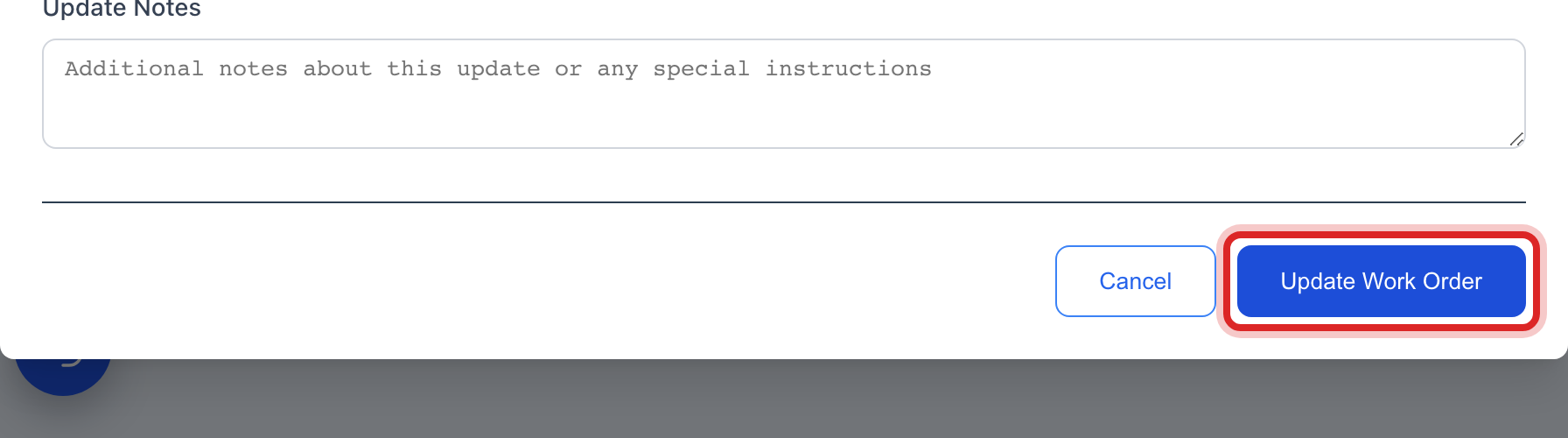
Click Update Work Order at the bottom.
Made a mistake? Click Undo on the green message that appears, or open Show me how at the top and pick Undo a mistake.
You are done when
The row shows the new status and the new name. A job set to Completed or Cancelled drops off this list, because the list only holds open work.
If something looks different
You only want to look. Click View instead of Edit. It shows the whole job, who did what and when, and has a Print button.
A yellow box asks for a reason. When you change the status, Utilops asks you to say why under Reason for Status Change. One line is enough.
There is no Edit button. Your account may not have permission to change work orders. Ask your administrator.
The job is gone from the list. Someone closed it. Find it under Work Orders on the left, the home page, where every job is listed with a filter.