
Appearance
7. Require two step sign in
When you need this: two step sign in means a password plus a code from a phone. A stolen password alone will not get in. Your auditor or your insurance may ask for it. You pick who must use it.
Steps
On the left side of the screen, click Settings at the very bottom, then click Security Settings.
The top card shows how many of your staff already use two step sign in.
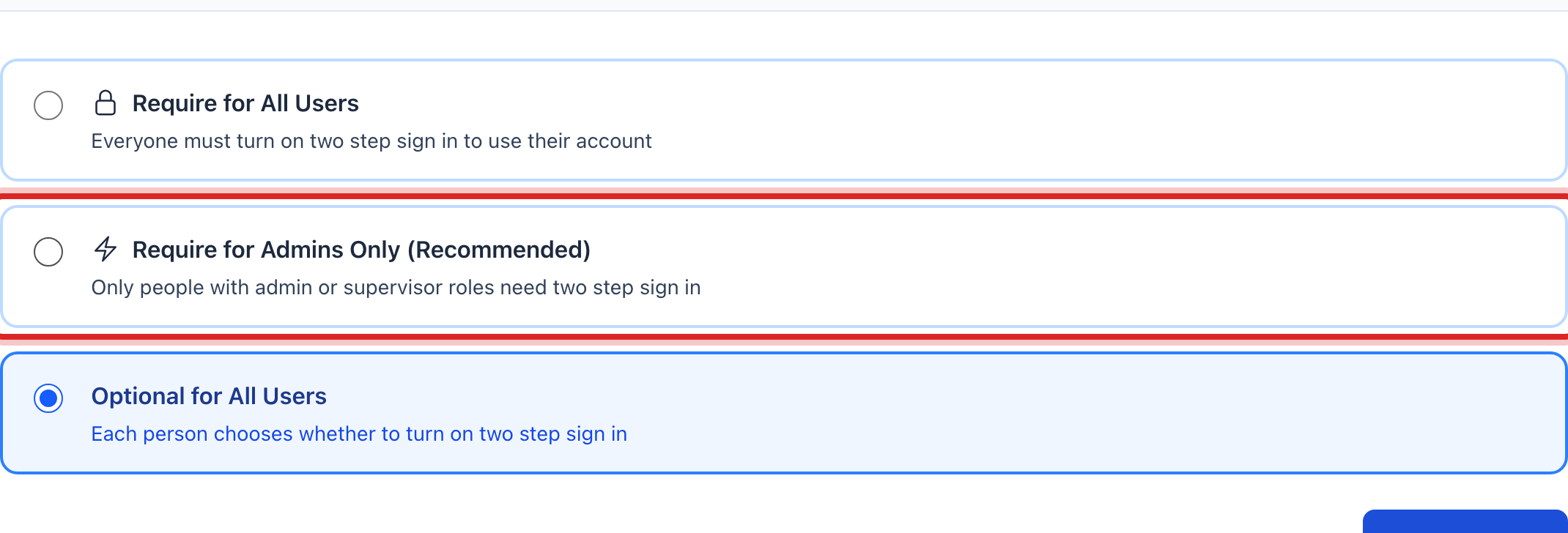
Scroll to the Two Step Sign In Policy card. Pick one of the three choices. Most offices start with Require for Admins Only (Recommended).
Under Start Date, pick the day the rule begins. Give people a week or two to set up their phone.
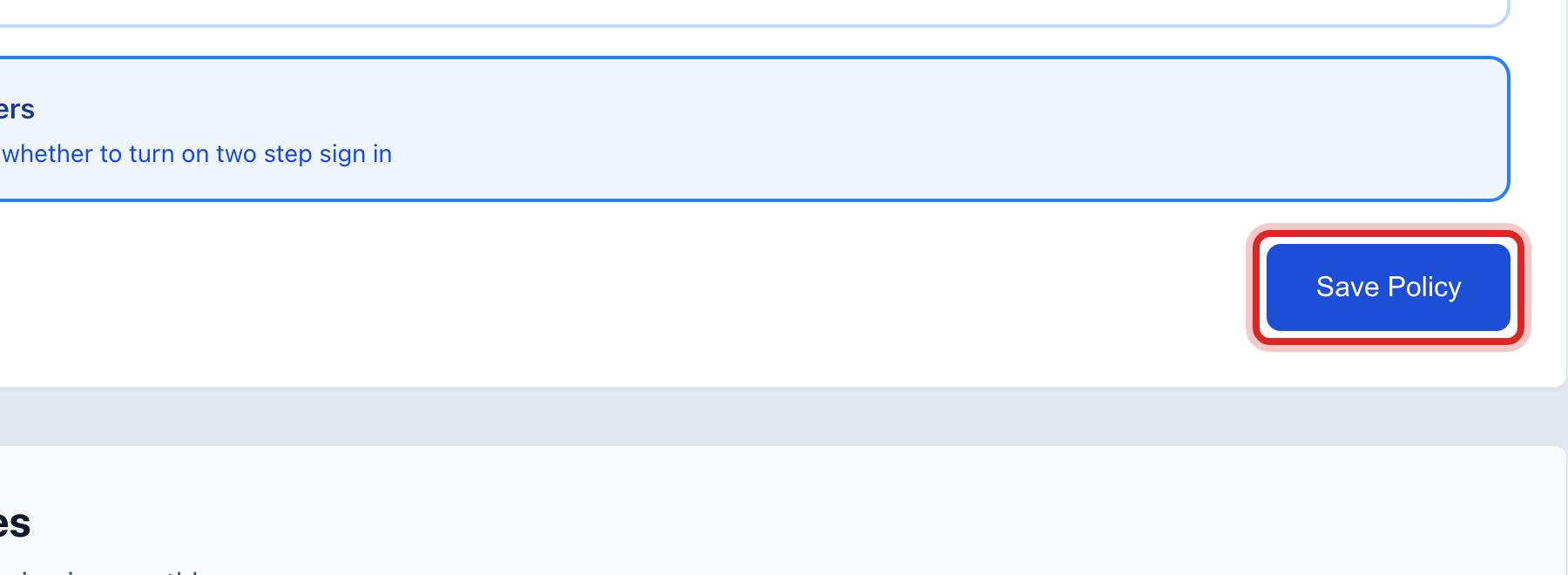
Click the blue Save Policy button.
Made a mistake? Click Undo on the green message that appears, or open Show me how at the top and pick Undo a mistake.
You are done when
A green message says the policy was saved. The card People Who Need to Turn On Two Step Sign In lists who still has to set it up.
If something looks different
Someone is locked out because their phone is lost. Under User Management, open their row and click Reset two step sign in. Lesson 4 shows where.
You want everyone on it. Pick Require for All Users. Make sure every person has a phone at their desk first.
You cannot change the choices. Only an administrator can set this. Ask yours.