
Appearance
5. Turn a feature off or on
When you need this: every part of Utilops is yours to use. Nothing costs extra. But a part your utility does not use is clutter on the left side. An administrator can switch it off, and switch it back on any time. Nothing is lost while it is off.
Steps
On the left side of the screen, click Settings at the very bottom, then click Feature Management.
Each card is one part of Utilops, in the same order as the left side. The badge next to the name says On, Off or Always On.
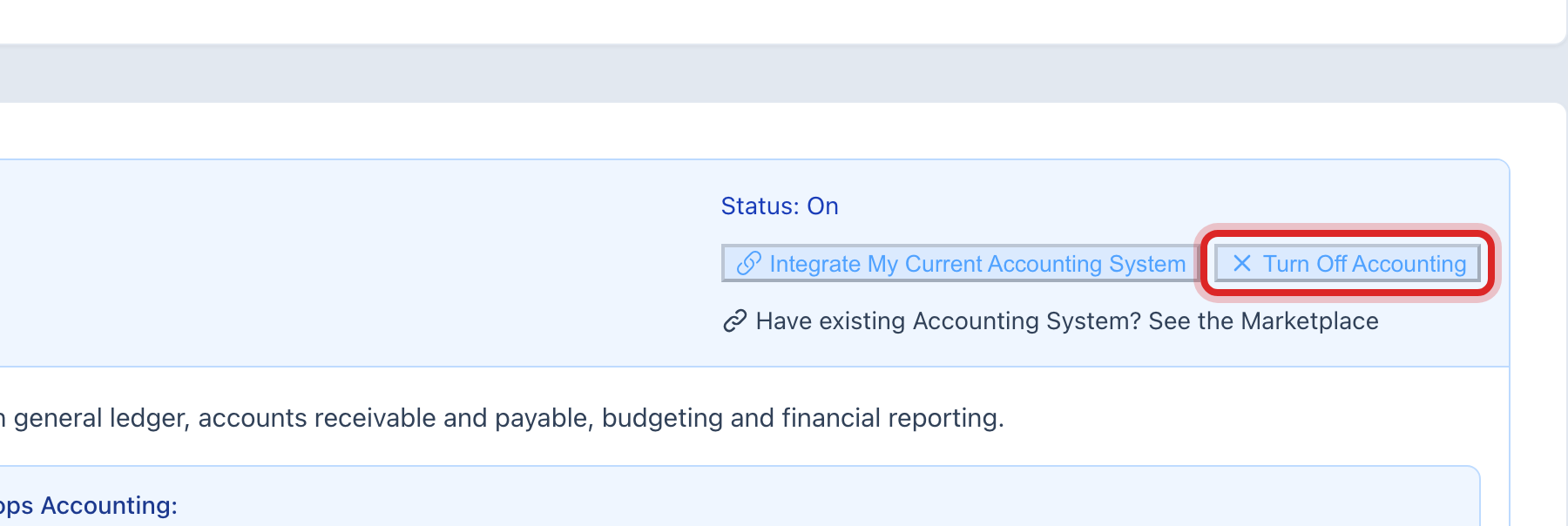
Find the one you want to switch off. Click its Turn Off button. The button carries the name, like Turn Off Work Orders.
A window called Review Your Changes opens. It names the part you picked. Read it.
Click the blue Turn Off Module button at the bottom of the window.

Made a mistake? Click Undo on the green message that appears, or open Show me how at the top and pick Undo a mistake.
You are done when
The page reloads. The part is gone from the left side, and its badge now reads Off.
If something looks different
You want it back. Come back to this page and click Turn On on the same card. Everything you had in it is still there.
A card says Always On. Dashboard, customers, billing and a few others cannot be switched off. Every utility needs them.
A red box says Utilops manages your modules. Utilops is handling this for your utility for now. Click Contact Support and tell us what to change.
The buttons are faded. Only a utility administrator can save here. Ask yours.
A card says Ask Utilops to Turn It On. That part is set up by Utilops, not by you. Click the button and we will be in touch.