
Appearance
6. Choose the alert emails your staff get
When you need this: Utilops can email your staff when a state report is coming due, and send a daily report of unusual water use. Some offices want both. Some want neither. Two switches decide.
Steps
On the left side of the screen, click Settings at the very bottom, then click Notification Settings.
Find the Staff Email Alerts card.
The first line is Compliance deadline reminders. Click the switch at the right end of the line to turn it on or off. Blue means on.
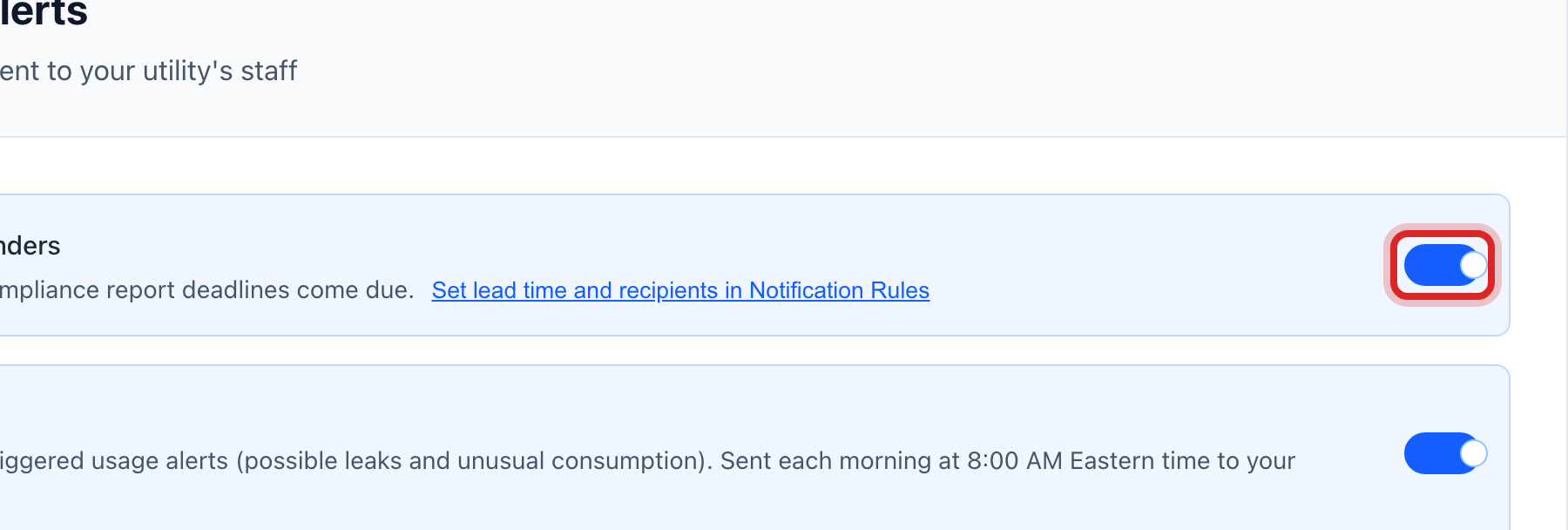
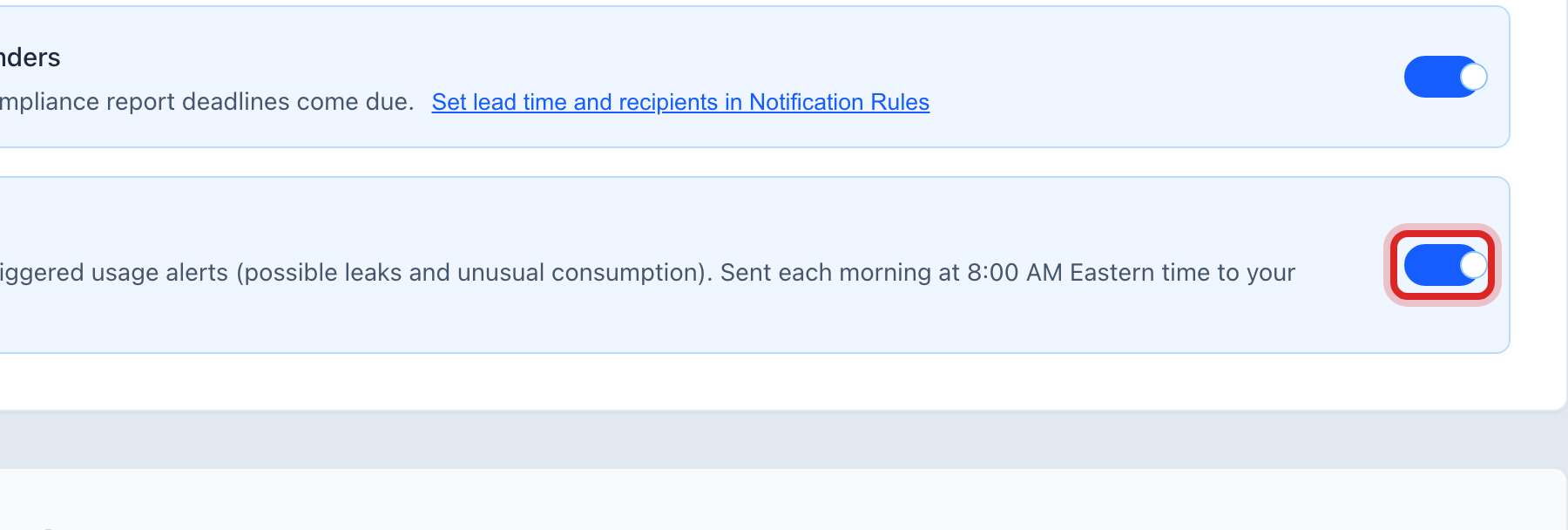
The second line is Daily usage alert report. Click its switch the same way.
Made a mistake? Click Undo on the green message that appears, or open Show me how at the top and pick Undo a mistake.
You are done when
The switch changes color and the word Saving… shows for a moment. There is no save button. Each switch saves on its own.
If something looks different
You want to pick who gets the emails and how many days ahead. Click Set lead time and recipients in Notification Rules. That page lets an administrator write a rule: when this happens, email these people.
You want to change the words customers get. Those are not here. Click Open Message Templates on the same page, or go to Customer Messaging on the left.
The switch will not move. Only an administrator can change it. Ask yours.