
Appearance
2. Change your password
When you need this: you think someone saw your password. You were given a first password and want your own. Or it has just been a long time. A good password is a short sentence you can remember, eight letters or more.
Steps
On the left side of the screen, click Settings at the very bottom, then click User Preferences.
Scroll down to the Change Password card.
Click in the Current Password box. Type the password you use today.
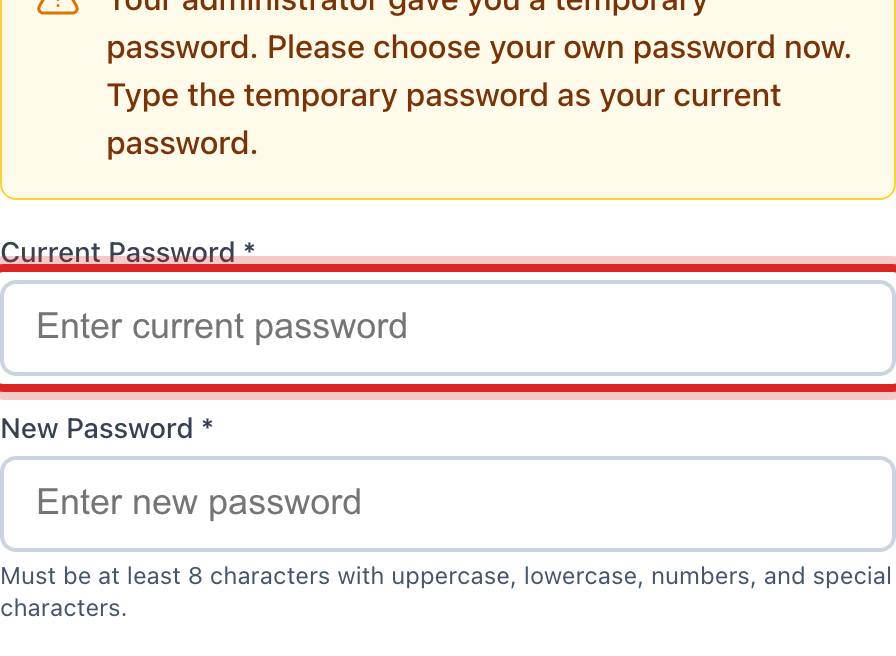
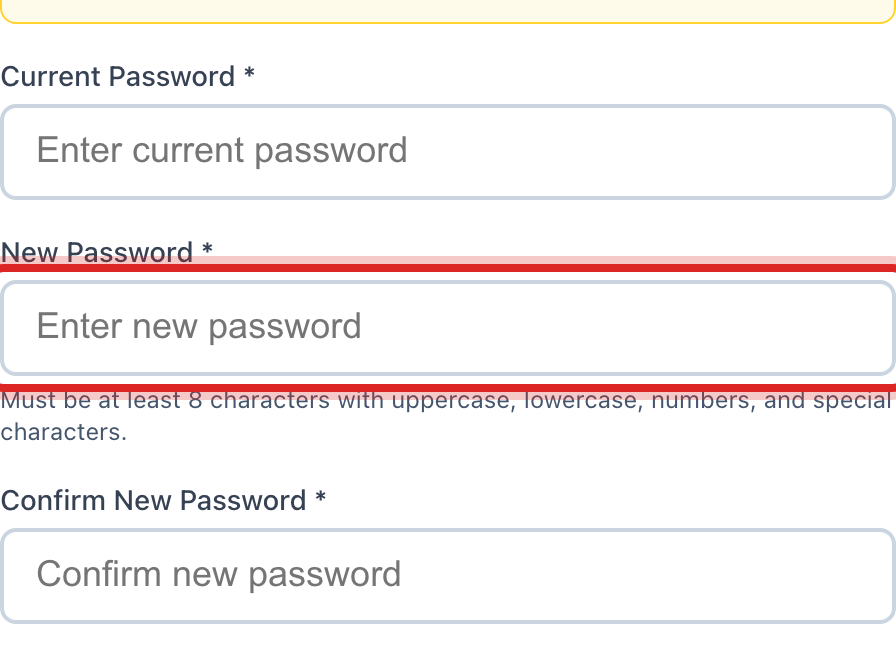
Click in the New Password box. Type your new password. Type it again in the Confirm New Password box.
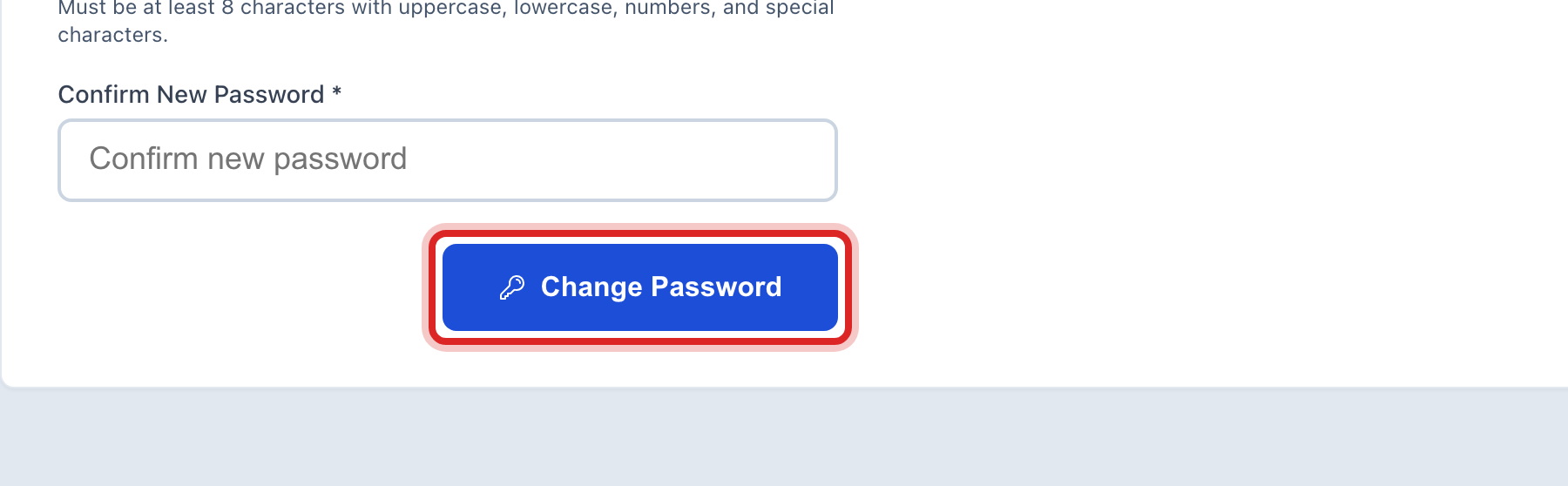
Click the blue Change Password button.
You are done when
A green message says your password was changed. Use the new one the next time you sign in.
If something looks different
It says the current password is wrong. Type it again, slowly. If you cannot remember it, sign out and click Forgot password? on the sign in page.
The two new passwords do not match. Clear both boxes and type them again.
You cannot take this back with Undo. A password is never stored where Utilops can put it back. Just change it again.
A coworker forgot theirs. Lesson 4 shows how an administrator sends them a reset email.