
Appearance
3. Turn off a login when someone leaves
When you need this: someone retires or quits. Do it the day they leave. Do not delete them. Their name needs to stay on the payments they took and the work orders they closed. Turning the login off keeps the history and shuts the door.
Steps
On the left side of the screen, click Settings at the very bottom, then click User Management.
Scroll to the Team Members table. Click in the search box and type part of their name.
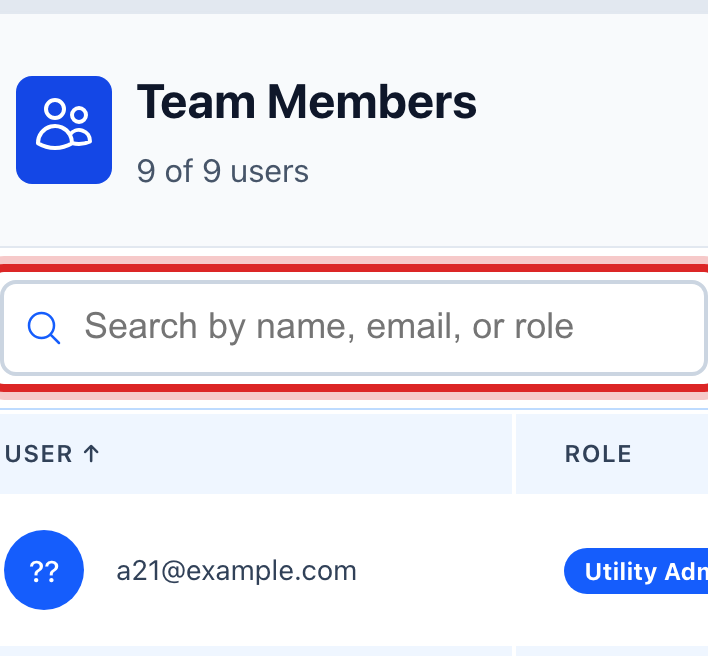
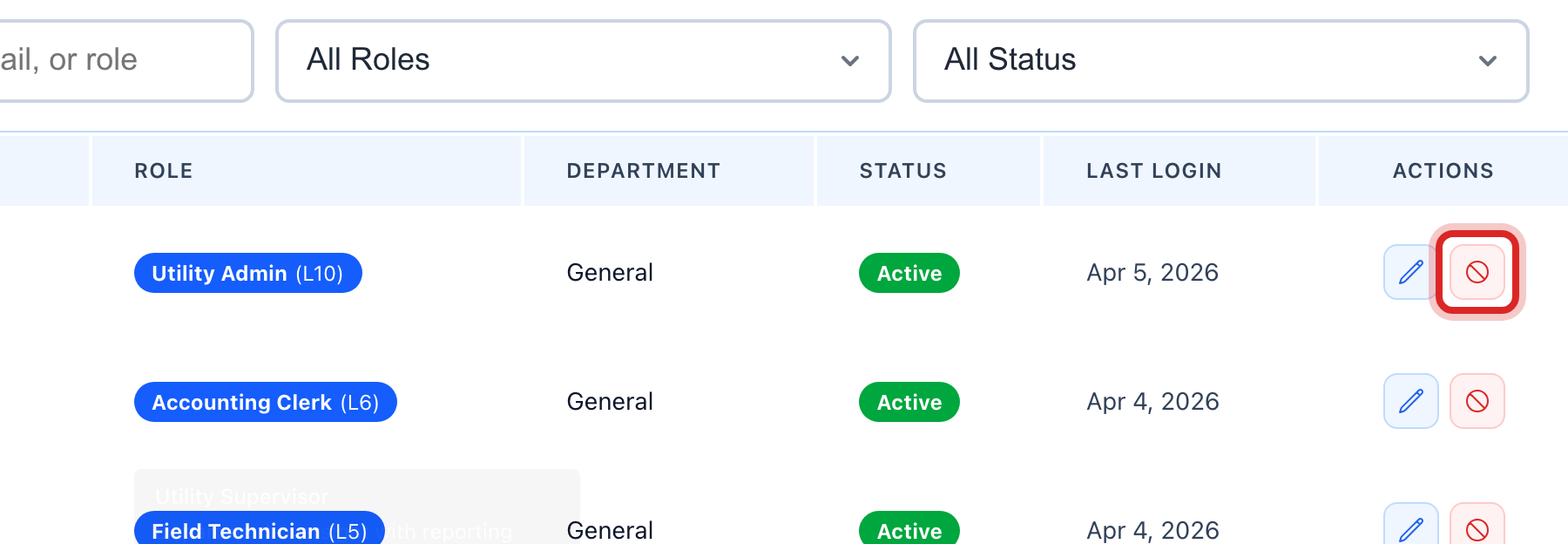
Find their row. At the right end of the row, click the Deactivate button.
Made a mistake? Click Undo on the green message that appears, or open Show me how at the top and pick Undo a mistake.
You are done when
The row now reads Inactive. The person cannot sign in. The counts at the top of the page change by one.
If something looks different
They are coming back. Click Activate on the same row. Everything they had is still there.
You do not see the Deactivate button. Only a utility administrator can change who is active. Ask yours.
The person is you. You cannot turn off your own login. Another administrator does it.
You want to delete them instead. Do not. The work they did keeps their name only while the account exists.